When I tried connecting to a Windows 7 Professional system running Copssh 5.0.1 from PuTTY 0.58 on a Windows Small Business Server (SBS) 2003 system, a "PuTTY Fatal Error" window appeared with the message "Couldn't agree a client-to-server cipher (available: aes128ctr,aes192-ctr,aes256-ctr,aes128-gcm@openssh.com,aes256-gcm@openssh.com,chacha20-poly1305@openssh.com)". I tried connecting from the same system with an OpenSSH_3.8.1p1 SSH client that is part of OpenSSH for Windows and received the message "no kex alg", which may mean "no key-exchange algorithm". When I tried specifying the encryption cipher using the OpenSSH client, I received an error message similar to the one I saw with PuTTY.
C:\Program Files\SSH\OpenSSH\bin>ssh -c 3des jdoe@192.168.0.15
no matching cipher found: client 3des-cbc server aes128-ctr,aes192-ctr,aes256-ctr,aes128-gcm@openssh.com,aes256-gcm@openssh.com,chacha20-poly1305@openssh.com
C:\Program Files\SSH\OpenSSH\bin>ssh -c blowfish jdoe@192.168.0.15
no matching cipher found: client blowfish-cbc server aes128-ctr,aes192-ctr,aes256-ctr,aes128-gcm@openssh.com,aes256-gcm@openssh.com,chacha20-poly1305@openssh.com
When I tried connecting from the SBS 2003 system to another system, to
which I could successfully connect with the OpenSSH SSH client, when I
specified the -v option for debugging output with ssh -v
jdoe@example.com, I saw the following:
debug1: Remote protocol version 2.0, remote software version OpenSSH_6.4
debug1: match: OpenSSH_6.4 pat OpenSSH*
debug1: Enabling compatibility mode for protocol 2.0
debug1: Local version string SSH-2.0-OpenSSH_3.8.1p1
debug1: SSH2_MSG_KEXINIT sent
debug1: SSH2_MSG_KEXINIT received
debug1: kex: server->client aes128-cbc hmac-md5 none
debug1: kex: client->server aes128-cbc hmac-md5 none
I upgraded PuTTY on the client system from version 0.58 to 0.63. I then no
longer received the message about no matching cipher being found, but, instead
saw another "PuTTY Fatal Error" window open, this time with the message
"Network error: Software caused connection abort". I saw the same error
message when I used PuTTY's plink utility from the command line.
C:\Program Files\Network\SSH\PuTTY>plink -ssh jdoe@192.168.0.15
Using username "jdoe".
jdoe@192.168.0.15's password:
FATAL ERROR: Network error: Software caused connection abort
I installed Bitvise SSH Client (Tunnelier) 6.08 and tried connecting with that client. Like with PuTTY, after I authenticated with the SSH server, I was immediately disconnected. I saw the following from Tunnelier:
First key exchange completed using ecdh-sha2/nistp521. Session encryption:

aes256-ctr, MAC: hmac-sha2-256, compression: none.
Attempting password authentication.

Authentication completed.

The SSH2 session has terminated with error. Reason: FlowSocketReader: Error

receiving bytes. Windows error 10054: An existing connection was forcibly closed

by the remote host.
When I was able later to connect to the system running Copssh via RDP for troubleshooting after the user had left for the day, I checked its status log, which you can do on a Windows 7 system by the following steps:
- Click on Start.
- Select All Programs.
- Select Copssh.
- Select Copssh Control Panel.
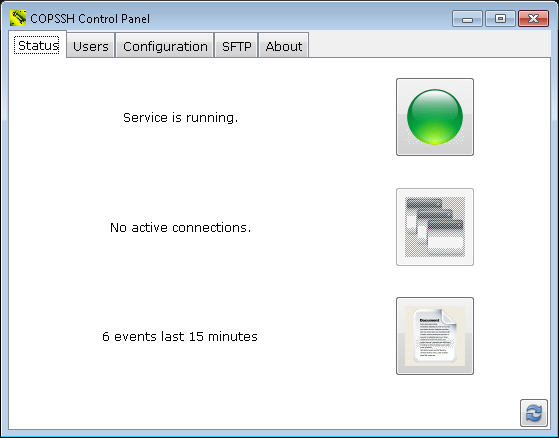
- Under the Status tab, you will see
an icon that looks like a piece of paper with one edge folded down. You
may also see something like "6 events last 15 minutes" next to it.
Double-click on that icon.
When I checked the log, I saw many "fatal: mm_request_receive: read: Connection reset by peer" messages. There was a "Received SIGHUP; restarting" entry hours later.
2014.12.12 23:26:23 -  Received SIGHUP; restarting.

2014.12.12 18:30:02 -  fatal: mm_request_receive: read: Connection reset by peer
Seeing that, I tried establishing a connection with PuTTY again and was then able to log in by SSH successfully.
But then when I tried logging in remotely by SSH two days later the problem was back. I restarted the service within the Copssh Control Panel by clicking on the green button next to "Service is running" to stop the service. When the button turned red, I clicked on it again to restart the service, but that didn't resolve the problem; I still got the "Network error: Software caused connection abort" message when I tried connecting via PuTTY 0.63 and I saw the "fatal: mm_request_receive: read: Connection reset by peer" message in the Copssh log for evey connection attempt. Though I didn't expect it to resolve the problem, I tried the "net stop" and "net start" commands from a command prompt.
C:\Users\Administrator>net stop "OpenSSH SSHD"
The Openssh SSHD service is stopping.
The Openssh SSHD service was stopped successfully.


C:\Users\Administrator>net start "OpenSSH SSHD"
The Openssh SSHD service is starting.
The Openssh SSHD service was started successfully.
But that did work. I was then able to successfully log into the system via SSH.