Ghost 7.5 - Intel Pro/100 VE
If you have a Dell or Gateway PC with an Intel Pro/100 VE network adapter,
then you may need to take some additional steps to get Symantec Ghost 7.5
to work sucessfully with this adapter. The steps needed are listed below.
- Download
PRO Adapter Legacy Client Support [PRODOS2.EXE] from Intel's website.
Get "PRODOS2.EXE" rather than "PRODOS.EXE".
- Execute the file you have downloaded to extract the files within it.
Note: You will need to have the PRODOS2.EXE file in a path that doesn't have
any spaces in it in order for all of the files to extract successfully.
Otherwise you will see a "write error" message, if you run the program from
a command line, although many of the files will be extracted. You won't
see the error message if you execute the file by double-clicking on it in
Windows, but it still occurs. It simply flashes by too quickly for you to
read before the command line window that is opened closes. E.g., if you
put PRODOS2.EXE into My Documents, the error would occur, because
the directory has a space in it.
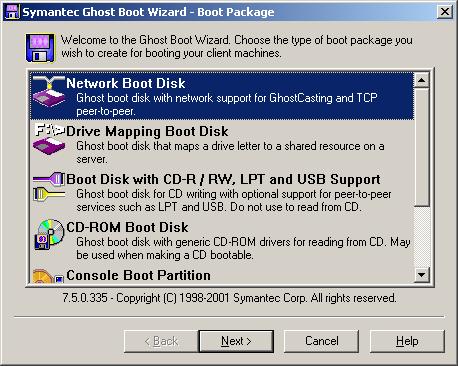
- Open the Symantec Ghost Wizard.
- The Network Boot Disk option should already be selected,
so you can just click on Next, which will open the Network
Interface Card window.
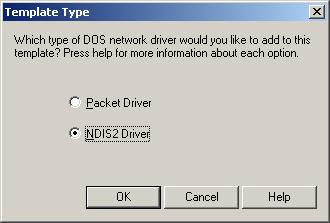
- Click on the Add button, which will prompt you to select a
Template Type
- You will be asked "Which type of DOS network driver would you like to
add to this template?" Select NDIS2 Driver and click on OK, which
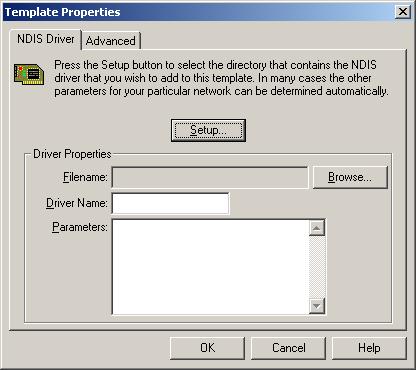
will open the Template Properties window.
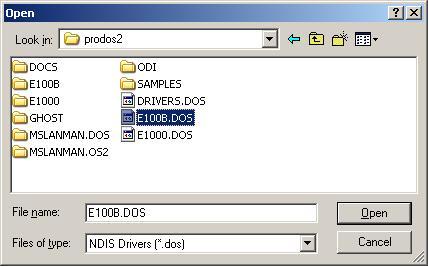
- Click on the Browse button and browse to the folder where you
extracted the contents of the PRODOS2.EXE file. Select it and click on
Open. Note: Don't select the Ghost folder within that folder,
since that is not where the E100B.DOS file, which is needed for the
new network card template you are creating, resides.
- You will now see the location for the E100B.DOS file listed in the
filename field of the Template Properties window. Click on
OK.
- You will see the new template labelled as New Driver Template.
Click on Name and change the name to something like Intel Pro 100 VE
.
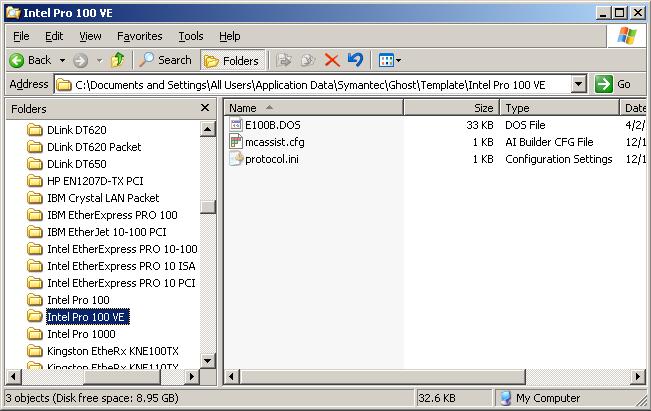
- Unless you want to create a bootable floppy disk that you can use to boot
the target system into the Ghost program you can click on Cancel at
this point. At this point the Symantec Ghost Boot Wizard has created
a folder under
C:\Documents and Settings\All Users\Application Data\Symantec\Ghost\Template
with the name you picked for the template, e.g. Intel Pro 100 VE.
For instance the target system may not even have a floppy disk. Or like me, you
may want to back up the system over the network to the Ghost server by starting
the backup process from the server and thus not need a floppy disk.
So you can just click on Cancel at this point, if you want.
If you do want to create a floppy disk, you can continue with the steps
to create a bootable floppy disk in the Ghost Boot Wizard
after finishing this process.
- Close the Ghost Boot Wizard.
- With the Windows Explorer, go to the template folder that was created for
the Intel Pro/100 VE network interface card, e.g.
C:\Documents and Settings\All Users\Application Data\Symantec\Ghost\Template\
Intel Pro 100 VE.
- Double-click on protocol.ini to open it.
- In the "nic" section, replace "drivername =" with "drivername = E100B$".
Or you can can replace it with this protocol.ini
file where I've already made the change. Drivername is the
only required parameter for the driver. All others are optional. If
you don't specify the drivername, when you try to backup the system
from the Ghost server, it will appear to start the boot process for the
Ghost client, but then immediately boot into the Windows operating
system on the PC again.
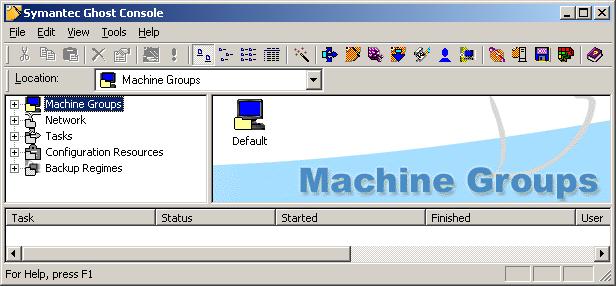
- Next, open the Symantec Ghost Console program.
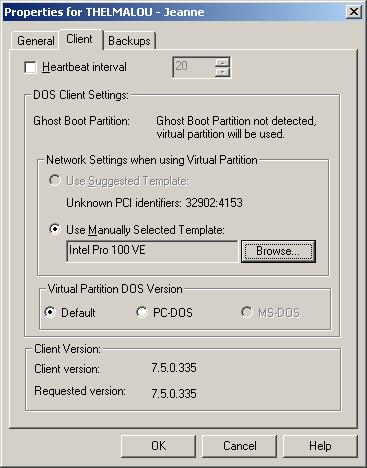
- Under Machine Groups, find the system that has the Intel Pro/100
VE network adapter, right-click on it and choose Properties.
- Click on the Client tab.
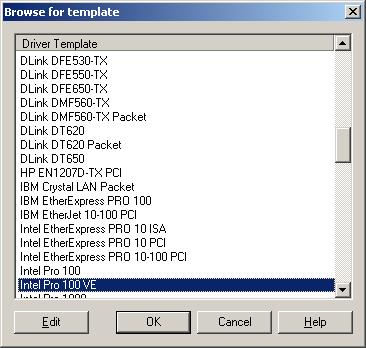
- Click on the Browse button next to "Use Manually Selected Template"
and locate the template for the Intel Pro 100 VE network card and click
on OK.
-
You should see that template listed now in the "Use Manually Selected Template"
field. Click on OK.
- You should now be able to start a backup using a workable template.