
F-Secure offers a free antivirus program for DOS. This can be run from a command line within windows or you can boot the system from a DOS floppy or CD when you can't get Windows to start properly or want to run an antivirus program from outside of Windows. The program is available from F-Secure at Free Virus Removal Tools, which provides a link for downloading the software from F-Secure's FTP site at ftp://ftp.f-secure.com/anti-virus/free/. Download fp-xxx.zip, where "xxx" is the latest version shown on the FTP site, e.g. fp-312d as of October 9, 2006. Then download the latest virus definitions from ftp://ftp.f-secure.com/anti-virus/updates/f-prot/dos/. You will need macro.def, sign.def, and sign2.def. The macrodef2.zip file is simply a zipped version of macro.def with a PGP signature in macro.asc; you don't need it if you download macro.def. Place macro.def, sign.def, and sign2.def in the same directory where you place the f-prot program that is in the fp-xxx.zip file you downloaded, overwriting the older versions that are in that zip file.
macro.def - macro viruses definition database for F-Prot for DOS
sign.def - binary viruses definition database for F-Prot for DOS
sign2.def - additional binary viruses definition database for F-Prot for DOS
To run the program, obtain a command prompt and change your working directory
to the directory where you unzipped F-Prot, e.g. cd \f-prot.
Then start the program with the command f-prot for an interface
that will allow you to select options from a menu. If you don't have a floppy
drive in the system you are using, then you need to use f-prot
/nofloppy instead.
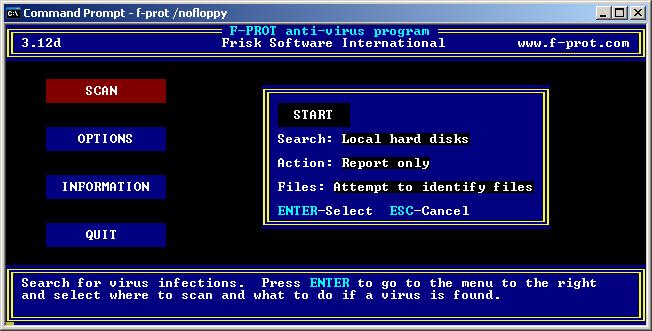
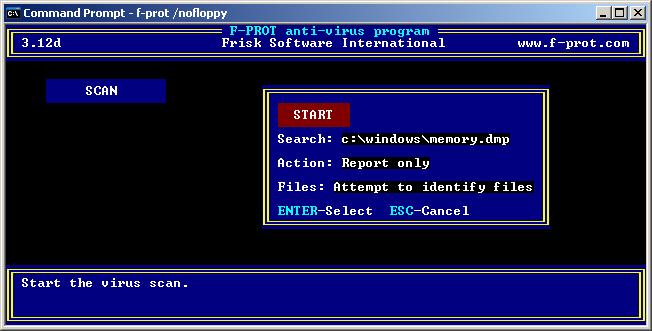
You can select menu entries using the cursor keys to move about. If you only want to scan a particular file or directory, take the following steps.
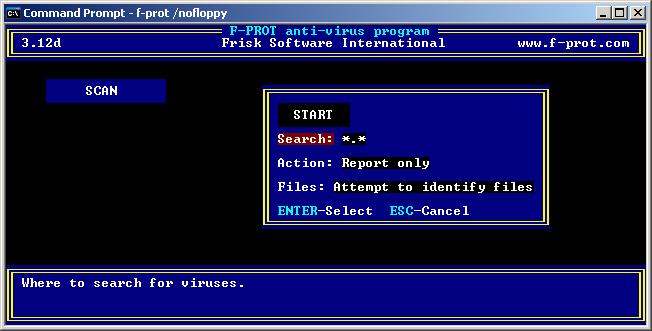
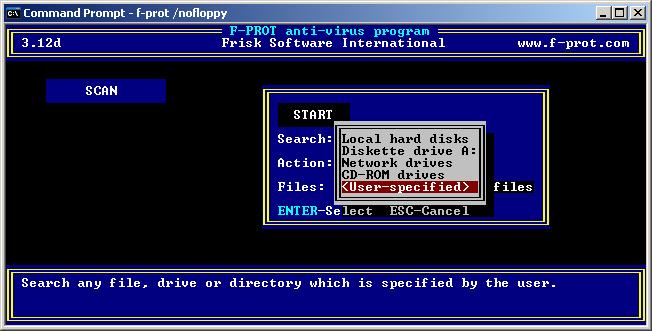
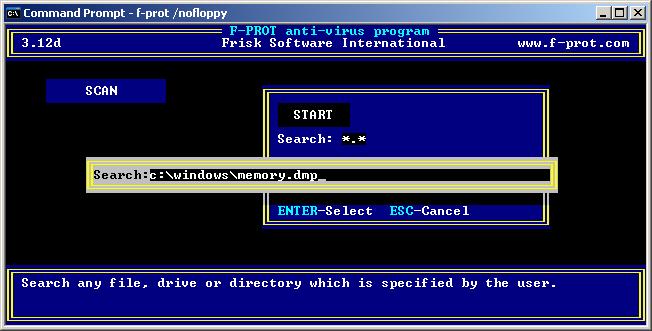
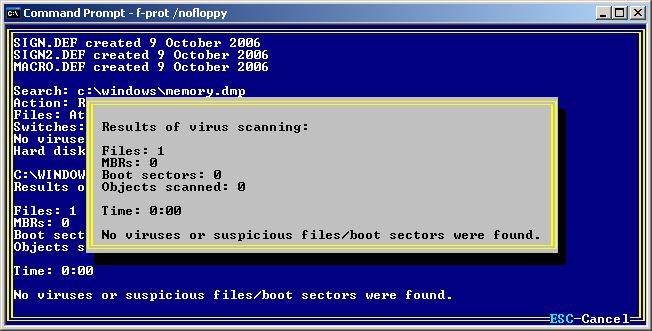
A window will be displayed that shows the results of the scan.
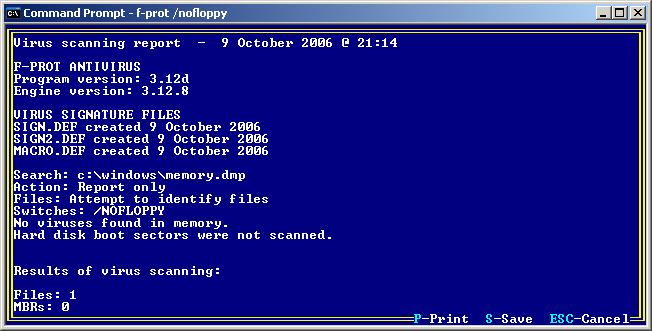
If you hit enter at this point, you can choose to save or print the results of the scan.

Created: October 9, 2006