
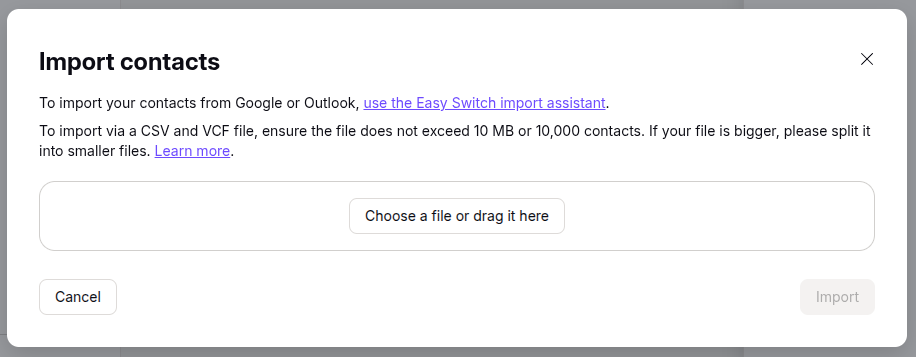
Proton Mail provides end-to-end encrypted email. If you are transitioning to Proton Mail from another email application and need the contacts you had stored in the other application, Proton Mail provides the capability to import contacts stored in a Virtual Contact File (VCF) or a comma-separated values (CSV) file. VCF, aka vCard, files usually have a .vcf filename extension while .csv is the filename extension for CSV files. To import such files, in the Proton Mail application, click on the Contacts icon on the upper, right side of the Proton Mail window, then click on Import Contacts, then select "Import from .csv or Vcard", then click on the "Choose a file or drag it here" button.
If you want to extract contacts from a
Microsoft Outlook
Personal
Storage Table .pst file, you can use the
readpst utility to extract the contacts from the .pst file. A command
such as readpst -cv -tc -o contacts_out your-outlook.pst
can be used where contacts out is the output directory where you wish
the utility to place the contacts (the output directory must exist prior to
running the command) and your-outlook.pst is the location and name
for the existing .pst file. E.g.:
alice@Wonderload:~/Documents$ readpst -cv -tc -o ~/Documents/contacts ~/Downloads/alice\@example.com.pst
Opening PST file and indexes...
Processing Folder "Deleted Items"
Processing Folder "Inbox"
Processing Folder "Outbox"
Processing Folder "Sent Items"
Processing Folder "Suggested Contacts"
Processing Folder "Junk E-mail"
Processing Folder "Conversation Action Settings"
Processing Folder "Quick Step Settings"
Processing Folder "Drafts"
Processing Folder "Calendar"
Processing Folder "Contacts"
Processing Folder "Journal"
Processing Folder "Notes"
Processing Folder "Tasks"
	"Suggested Contacts" - 22 items done, 0 items skipped.
Processing Folder "RSS Feeds"
Processing Folder "~ Holly"
Processing Folder "HVIA Members"
	"alice@example.com" - 16 items done, 0 items skipped.
Processing Folder "Tutorials"
Processing Folder "HVIA Renters"
	"Tasks" - 0 items done, 5 items skipped.
	"HVIA Renters" - 1 items done, 0 items skipped.
	"HVIA Members" - 102 items done, 1 items skipped.
	"Tutorials" - 31 items done, 0 items skipped.
	"Contacts" - 127 items done, 4 items skipped.
	"Calendar" - 0 items done, 229 items skipped.
	"Inbox" - 0 items done, 297 items skipped.
	"Sent Items" - 0 items done, 341 items skipped.
	"~ Holly" - 0 items done, 399 items skipped.
alice@Wonderload:~/Documents$
In the above example, within the output directory, I found a
Contacts.contact text file with entries such as the following
within it.
BEGIN:VCARD
FN:Earth Origins Market
N:;;;;
ADR;TYPE=work:;;108 Marlboro Ave\, Ste 1;Easton;MD;21601;
LABEL;TYPE=work:108 Marlboro Ave\, Ste 1\nEaston\, MD  21601
TEL;TYPE=work,voice:(410) 822-4852
ORG:Earth Origins Market
NOTE:\n
VERSION:3.0
END:VCARD

BEGIN:VCARD
FN:Kapraun\, Barney
N:Kapraun;Barney;;;
TEL;TYPE=cell,voice:(443) 555-5555
VERSION:3.0
END:VCARD
I also saw HVIA Members.contacts and HVIA Renters
Contacts.contacts files corresponding to separate contacts lists the
user had in the Outlook PST file, as well as Tutorials.contacts
and Suggested Contacts.contacts files. I tried using Proton
Mail's "import contacts" option to import the data from the
Contacts.contacts file — I had to rename it to
Contacts.vcf first so that it would appear in Proton
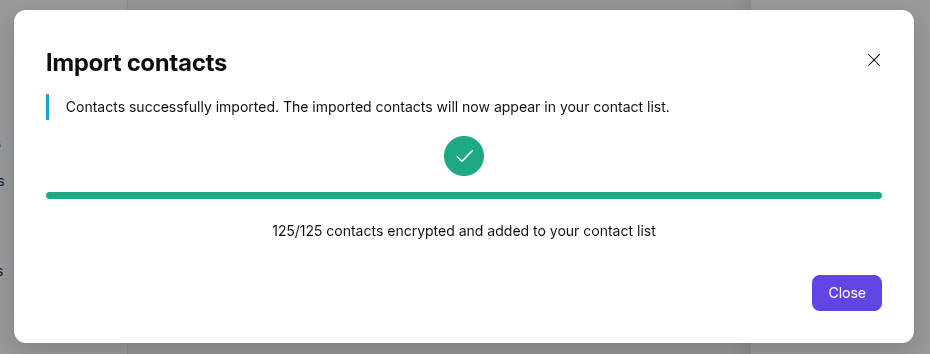
Mail as a file that could be imported. When I imported the data, I
saw "Contacts successfully imported. The imported contacts will now
appear in your contact list. 125/125 contacts encrypted and added to
your contact list".
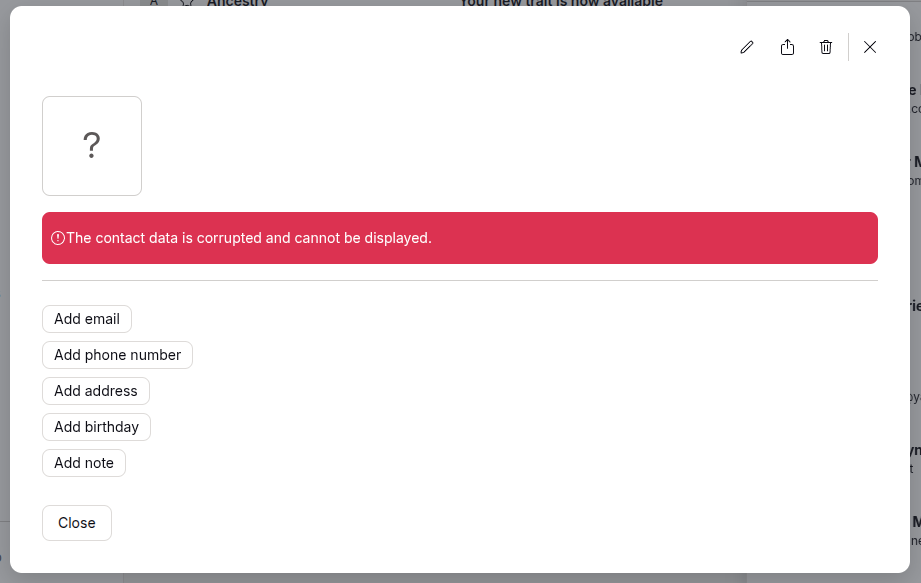
I wasn't able to see the contacts until I closed and reopened Proton Mail. Then I could view the contacts, but I saw "The contact data is corrupted and cannot be displayed" when I tried to view most of the entries.
For a few, I could view the information. When I compared the entries in
the .vcf file I imported, the issue appeared to be related to the
ADR lines in entries, i.e., the address part of entries. I didn't
find entries without those lines that had problems. Some entries with an
address did display correctly, though. I didn't spend time trying to figure
out how to address that problem, but instead decided to use a
vcards-to-proton.py script provided by
ChatGPT to import the contacts into Proton Mail. You can see information
on how to use the Python script using the python3 ./vcards-to-proton.py
--help command.
alice@Wonderland:~/Documents$ python3 ./vcards-to-proton.py --help
usage: vcards-to-proton.py [-h] -i INPUT [-o OUTPUT] [--include INCLUDE]
                           [--exclude EXCLUDE] [--no-dedupe] [--dry-run]
                           [--show SHOW]

Convert readpst .contacts/vCard 3.0 files to a Proton-compatible CSV.

options:
  -h, --help           show this help message and exit
  -i, --input INPUT    A .contacts file or directory containing .contacts
                       files.
  -o, --output OUTPUT  Output CSV filename.
  --include INCLUDE    Process only this filename. Can be specified more than
                       once.
  --exclude EXCLUDE    Exclude this filename. Can be specified more than once.
  --no-dedupe          Do not merge duplicate contacts.
  --dry-run            Analyze contacts without creating the CSV.
  --show SHOW          Number of contacts to display during dry-run.
alice@Wonderland:~/Documents$
You can run a dry
run of the script using a command like
python3 ./vcards-to-proton.py --input ~/Documents/contacts --include "Contacts.contacts" --dry-run (specicfy the location of
the actual contacts directory or file with the --import
parameter; if there are more than one contacts file in a directory you
specify, you can use the --include option to specify the one
you want processed. If you want more than 20 contacts shown, add the
--show option followed by a specific number).
alice@Wonderland:~/Documents$ python3 ./vcards-to-proton.py --input ~/Documents/contacts --include "Contacts.contacts" --dry-run
Files selected:
  /home/alice/Documents/contacts/Contacts.contacts

Read  125 contacts from Contacts.contacts

Total vCards read:    125
Duplicates merged:    0
Contacts to export:   125

DRY RUN: no CSV file was created.

Contacts that would be exported:
    1. Earth Origins Market | (no email address)
    2. Kapraun, Barney | (no email address)
    3. Art Things, Inc. | (no email address)
    4. Adams, Barbara | adams@example.com
    5. Second Hand Finds | (no email address)
    6. Twice is Nice | (no email address)
    7. Today's News | (no email address)
    8. Vet (Moblie) - Horn, Janice | (no email address)
    9. Jan's Grooming | (no email address)
   10. Langlois, Michael | (no email address)
   11. Gomez, Alberto | alberto@example.com
   12. Diederichs, Martha | martha@example.com
   13. McIntyre, Kimberly | kimmberly@example.com
   14. Tucker, Barbara | Barbara.Tucker@example.com
   15. Laly | service@example.com
   16. Country Goods | (no email address)
   17. Avalon Dermatology | (no email address)
   18. Lemaitre, Eric | eric@example.com
   19. Lowman, Craig | craig@example.com
   20. Hayden, Bill | bill@example.com

  ... and 105 more.
alice@Wonderland:~/Documents$
Since the dry run output looked ok, I used the command
python3 vcards-to-proton.py -i ~/Documents/contacts --include
"Contacts.contacts" -o contacts.csv
to generate a CSV file I could
import into Proton Mail.
alice@Wonderland:~/Documents$ python3 vcards-to-proton.py -i ~/Documents/contacts --include "Contacts.contacts" -o contacts.csv
Files selected:
  /home/alice/Documents/contacts/Contacts.contacts

Read  125 contacts from Contacts.contacts

Total vCards read:    125
Duplicates merged:    0
Contacts to export:   125

CSV created: contacts.csv
alice@Wonderland:~/Documents$
After it generated the output CSV file, in the desktop Proton Mail application, I clicked on the contacts icon at the right side of the window.
I then clicked on Import contacts.
You then have the following options:
I picked "Import from .csv or vCard". I was then able to browse to
the location of the Contacts.csv file and then click on
Import to import the entries in that file.
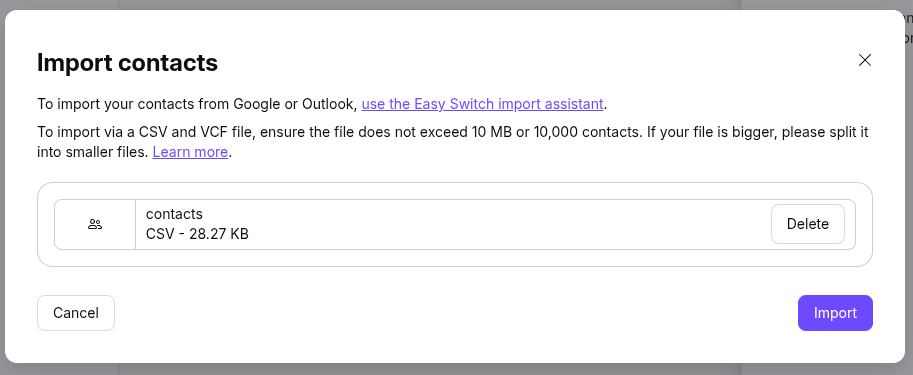
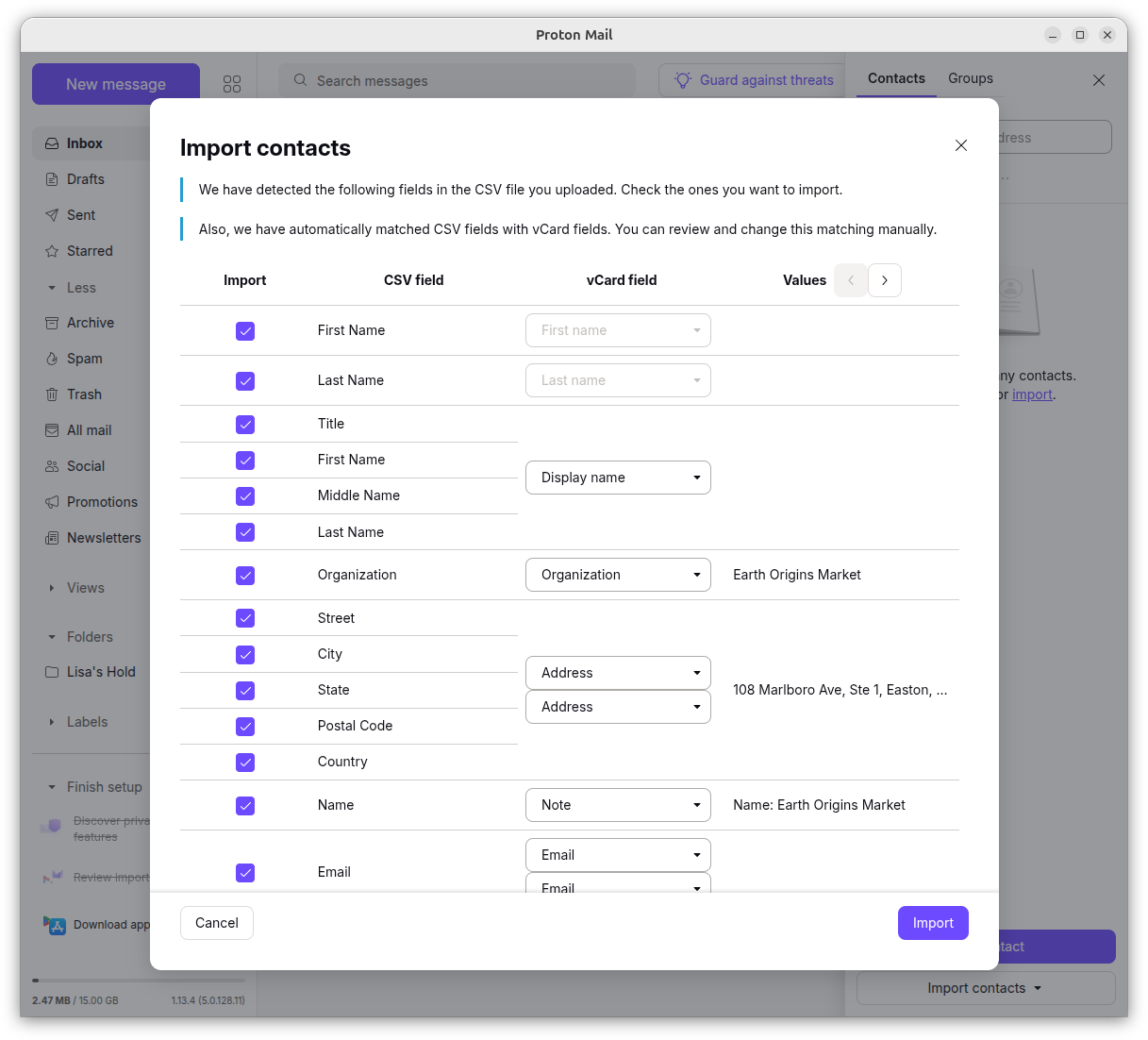
I was then presented with an "Import contacts" window that showed details for a contact entry.
When I clicked on Import, I saw a "Contacts successfully imported" message.
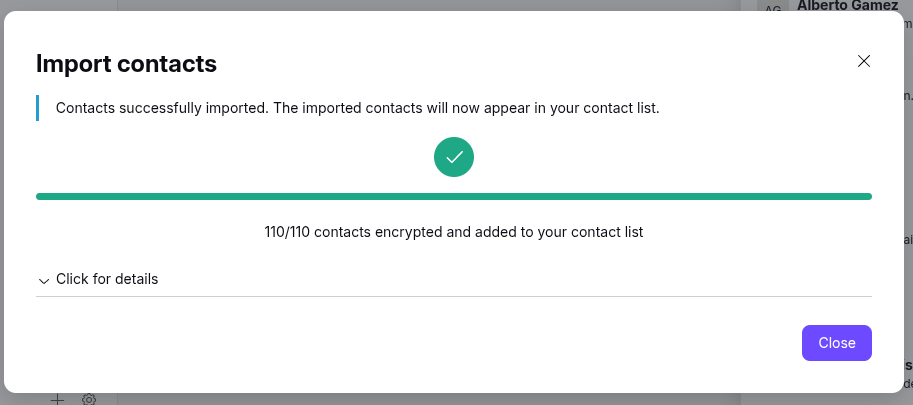
I then saw that the user's contacts were now in the Proton Mail contact list. Though there were 125 entries in the CSV file and the last "Import contacts" window I saw reported "110/110 contacts encrypted and added to your contact list. When I looked in the CSV file, it appeared that there were some companies missing from the imported data. Two I noticed didn't have anything in the first name, middle name, last name, or name fields in the CSV file.
References: