Bottles allows one to run applications developed for the Microsoft Windows operating system (OS) on Linux systems. I had created bottle for the desktop version of Comic Collector from CLZ. But as I had installed the Movie Collector and Book Collector desktop programs for managing our movie and book collections in a .wine-collectorz Wine prefix on an Ubuntu Linux system, I decided to remove the Comic Collector bottle and reinstall the software in the .wine-collectorz prefix instead. To remove a Wine bottle, you can take the following steps.
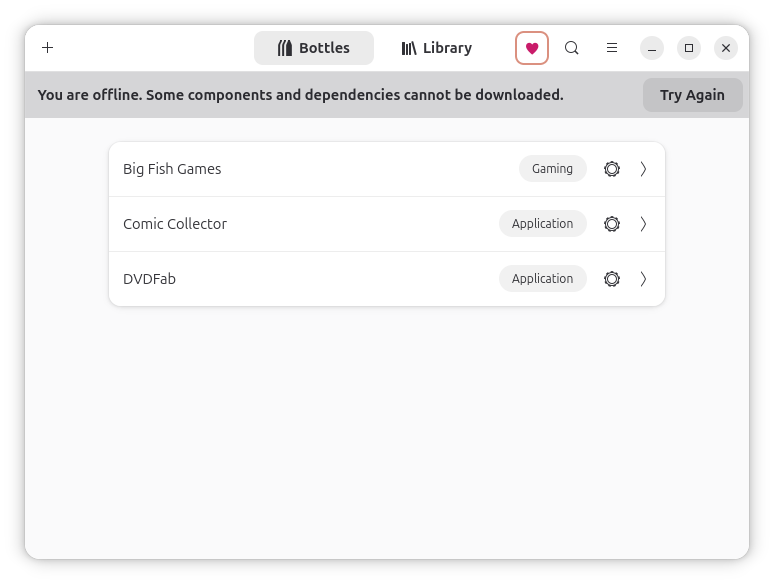
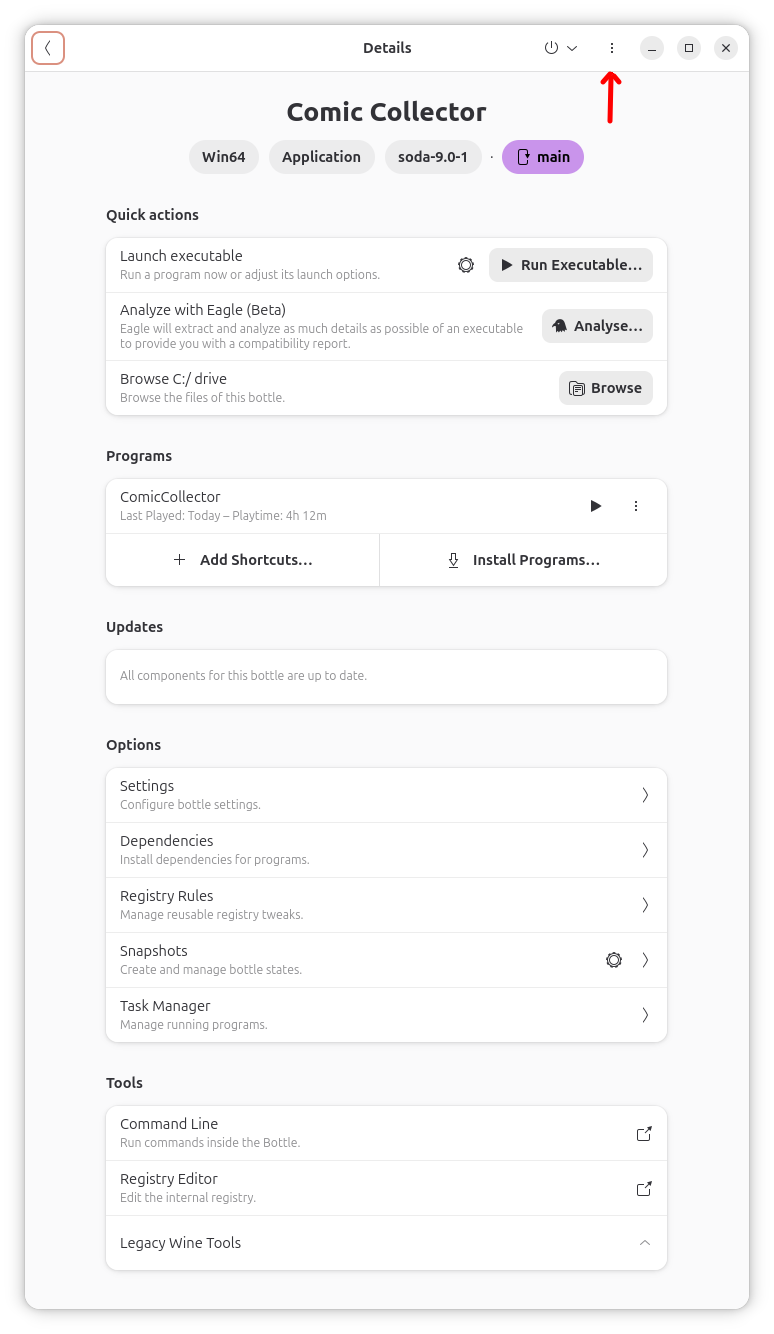
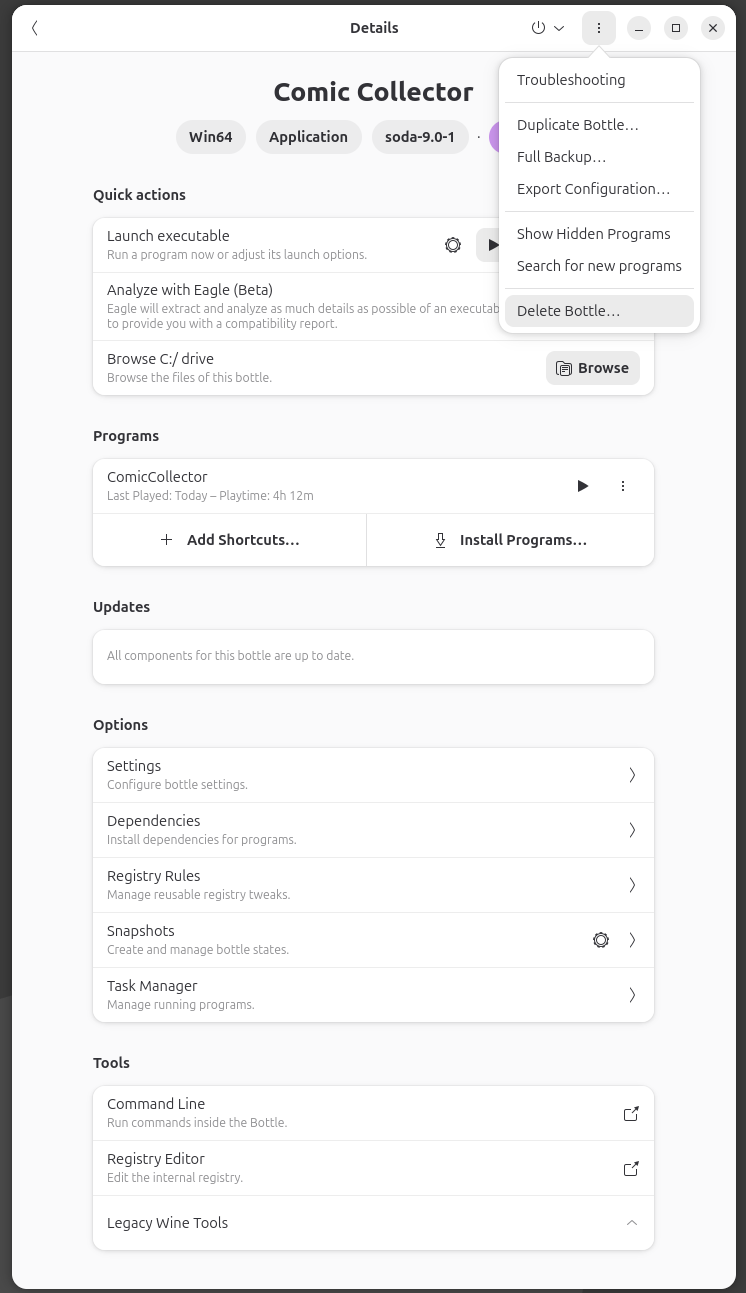
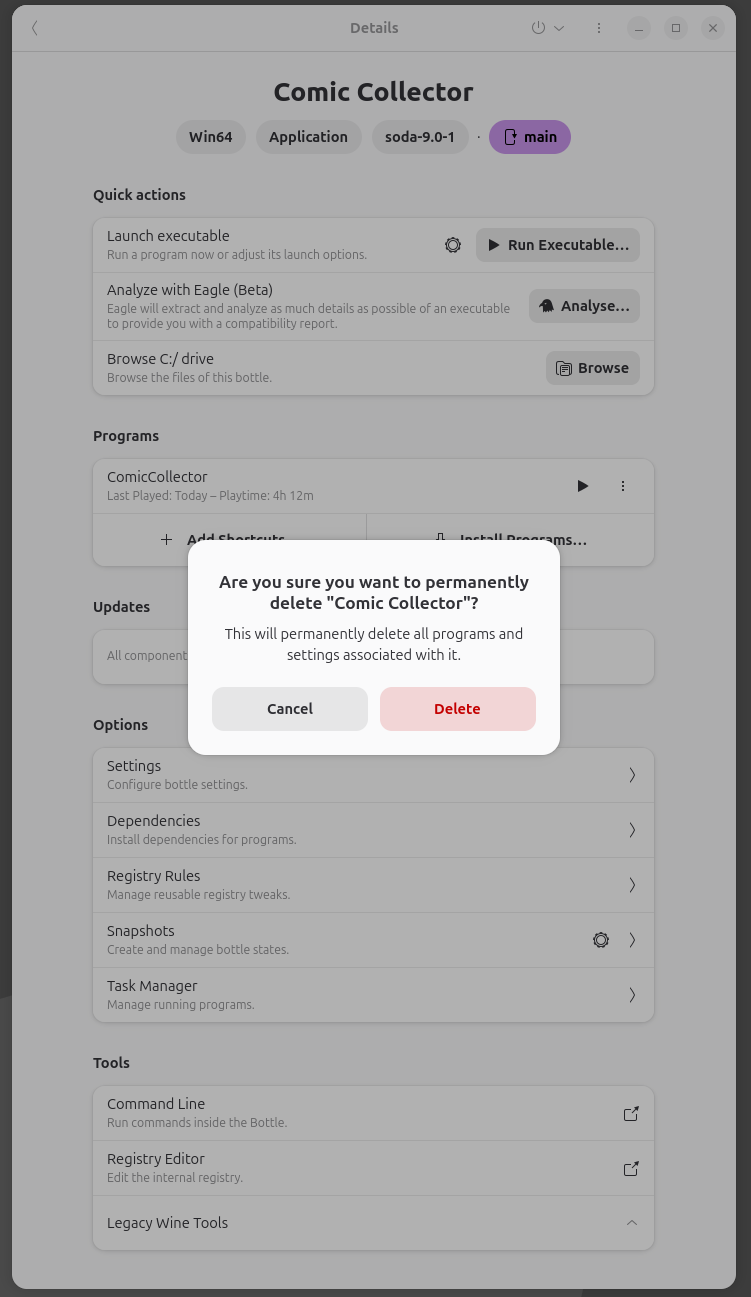
The bottle will then be removed from the list of bottles.
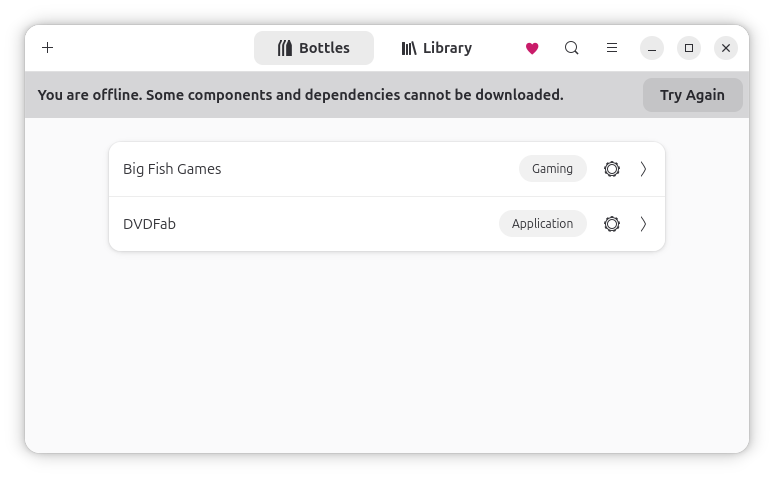
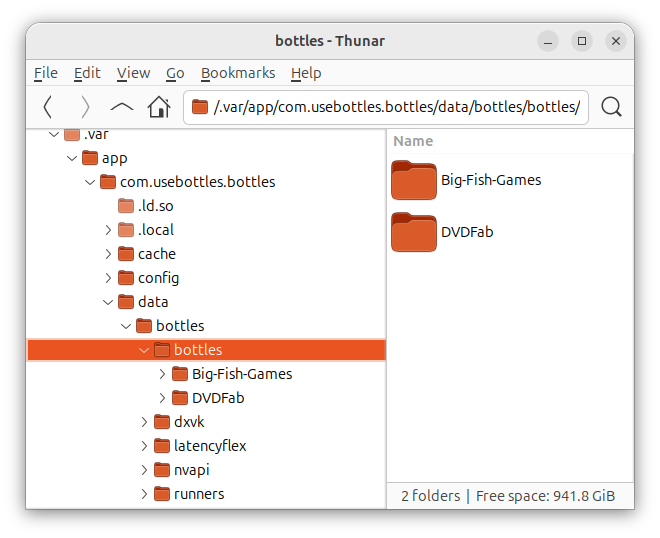
You can confirm that the directory associated with the bottle is gone
by checking the ~/.var/app/com.usebottles.bottles/data/bottles/bottles/
directory.