
You can check the health of a NVM Express (NVMe) drive on an Ubuntu Linux system using the nvme-cli command-line interface (CLI) application. The description for the package is as follows:
NVMe management command line interface
nvme-cli is a NVMe management command line interface. NVM Express™ (NVMe™) is a specification defining how host software communicates with non-volatile memory across a PCI Express® (PCIe®) bus. It is the industry standard for PCIe solid state drives (SSDs) in all form factors (U.2, M.2, AIC, EDSFF).
You can install nvme-cli throught the App Center on a Ubuntu Linux system.
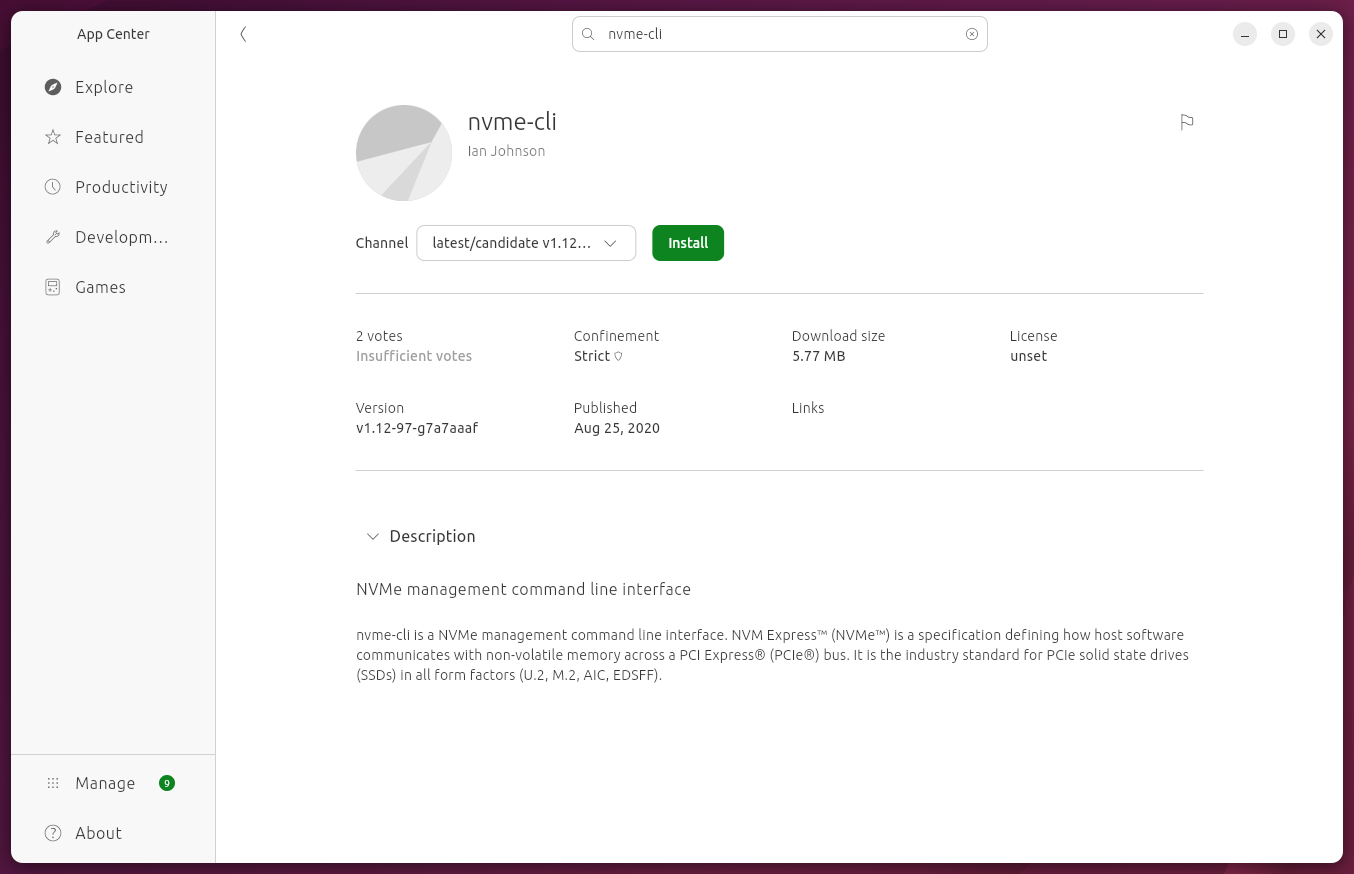
It is available as a Snap package
from Ian Johnson and as a
Debian package.
If you install it as a
Snap package, you
can view the version number of the
package from the
command line with the command snap list nvme-cli. (you can use
dpkg -s nvme-cli if you installed it as a Debian package).
ubuntu@ubuntu:~$ snap list nvme-cli
Name      Version            Rev  Tracking          Publisher     Notes
nvme-cli  v1.12-97-g7a7aaaf  18   latest/candidate  anonymouse67  -
ubuntu@ubuntu:~$
You can see more details on the package with the snap info
command.
ubuntu@ubuntu:~$ snap info nvme-cli
name:      nvme-cli
summary:   NVMe management command line interface
publisher: Ian Johnson (anonymouse67)
store-url: https://snapcraft.io/nvme-cli
license:   unset
description: |
  nvme-cli is a NVMe management command line interface. NVM Express™ (NVMe™)
  is a specification defining how host software communicates with
  non-volatile memory across a PCI Express® (PCIe®) bus. It is the industry
  standard for PCIe solid state drives (SSDs) in all form factors (U.2, M.2,
  AIC, EDSFF).
commands:
  - nvme-cli
snap-id:      8fkXY2u5owOy2NOAdd4ZA9uaW77tmZil
tracking:     latest/candidate
refresh-date: 2 days ago, at 01:31 UTC
channels:
  latest/stable:    –
  latest/candidate: v1.12-97-g7a7aaaf 2020-08-25 (18) 5MB -
  latest/beta:      ↑
  latest/edge:      v1.13-21-g55adfce 2020-12-07 (33) 5MB -
installed:          v1.12-97-g7a7aaaf            (18) 5MB -
ubuntu@ubuntu:~$
You can also install the application from a Terminal window as a Snap or Debian package — Snaps are universal Linux packages that bundle all their dependencies and are designed to work across different distributions. Snaps can be useful if you need a specific, potentially more up-to-date version not available in your distribution's standard repositories while Debian packages are the traditional and sometimes preferred option for CLI tools on Debian-based systems, such as Ubuntu, because of better native integration and performance.
To install nvme-cli from a Terminal window as a Debian package:
sudo apt update
sudo apt install nvme-cli
To install nvme-cli from a Terminal window as a Snap package:
sudo snap install nvme-cli
You can run the application by opening a
Terminal window from
the App Center and then issuing the command sudo nvme-cli from the
shell prompt. You will need to run the command with
sudo to avoid
a "Permission denied" messages (though you may still see it with the
list command. And you will need to issue the command
snap connect nvme-cli:block-devices before you can start
querying a drive.
ubuntu@ubuntu:~$ nvme-cli
update.go:85: cannot change mount namespace according to change mount (/var/lib/snapd/hostfs/boot /boot none bind,ro 0 0): permission denied
please connect block-devices interface to continue
run `snap connect nvme-cli:block-devices`
ubuntu@ubuntu:~$ sudo nvme-cli
please connect block-devices interface to continue
run `snap connect nvme-cli:block-devices`
ubuntu@ubuntu:~$ snap connect nvme-cli:block-devices
ubuntu@ubuntu:~$
To see the list of drives, use the command
sudo nvme-cli list. You can then view the status of a drive
using sudo nvme smart-log with the drive designator, e.g.
/dev/nvme0n1. You will see information such as the drive's
temperature, whether there are any critical warnings, which should be 0, the
number of power on hours, media errors, etc.
ubuntu@ubuntu:~$ sudo nvme-cli list
Failed to open /sys/class/nvme-subsystem/nvme-subsys0/subsysnqn: Permission denied
Node             SN                   Model                                    Namespace Usage                      Format           FW Rev
---------------- -------------------- ---------------------------------------- --------- -------------------------- ---------------- --------
/dev/nvme0n1     S6WRNS0W116155B      Samsung SSD 980 PRO with Heatsink 2TB    1          77.84  GB /   2.00  TB    512   B +  0 B   5B2QGXA7
ubuntu@ubuntu:~$ sudo nvme-cli smart-log /dev/nvme0n1
Smart Log for NVME device:nvme0n1 namespace-id:ffffffff
critical_warning			: 0
temperature				: 34 C
available_spare				: 100%
available_spare_threshold		: 10%
percentage_used				: 0%
endurance group critical warning summary: 0
data_units_read				: 380649
data_units_written			: 772475
host_read_commands			: 3883285
host_write_commands			: 4590114
controller_busy_time			: 14
power_cycles				: 29
power_on_hours				: 11
unsafe_shutdowns			: 20
media_errors				: 0
num_err_log_entries			: 0
Warning Temperature Time		: 0
Critical Composite Temperature Time	: 0
Temperature Sensor 1           : 34 C
Temperature Sensor 2           : 38 C
Thermal Management T1 Trans Count	: 0
Thermal Management T2 Trans Count	: 0
Thermal Management T1 Total Time	: 0
Thermal Management T2 Total Time	: 0
ubuntu@ubuntu:~$
You can view the error log with the command
sudo nvme-cli error-log. Or, if
smartctl
is installed, you can use the command sudo smartctl -l error
with the device id appended to the command. E.g.:
ubuntu@ubuntu:~$ sudo smartctl -l error /dev/nvme0n1
smartctl 7.4 2023-08-01 r5530 [x86_64-linux-6.17.0-5-generic] (local build)
Copyright (C) 2002-23, Bruce Allen, Christian Franke, www.smartmontools.org

=== START OF SMART DATA SECTION ===
Error Information (NVMe Log 0x01, 16 of 64 entries)
No Errors Logged

ubuntu@ubuntu:~$
You can run a self-test on a drive with the
sudo nvme-cli device-self-test /dev/nvmeX -s Y
command, where X is the device identifier and Y is a test
code, such as 1 for a short self-test and 2 for an extended self-test.. E.g.,
sudo nvme-cli device-self-test /dev/nvme0n1 -s 1.
ubuntu@ubuntu:~$ sudo nvme-cli device-self-test /dev/nvme0n1 -s 1
Device self-test started
ubuntu@ubuntu:~
To see the options for running the command, you can
isse the command sudo nvme-cli device-self-test.
ubuntu@ubuntu:~$ sudo nvme-cli device-self-test
device-self-test: Invalid argument
Usage: nvme device-self-test <device> [OPTIONS]

Implementing the device self-test feature which provides the necessary log to
determine the state of the device

Options:
  [  --namespace-id=<NUM>, -n <NUM> ]   --- Indicate the namespace in which
                                            the device self-test has to be
                                            carried out
  [  --self-test-code=<NUM>, -s <NUM> ] --- This field specifies the action
                                            taken by the device self-test
                                            command :
                                            1h Start a short device
                                            self-test operation
                                            2h Start a extended device
                                            self-test operation
                                            eh Start a vendor specific
                                            device self-test operation
                                            fh abort the device self-test
                                            operation

ubuntu@ubuntu:~$
You can view the self-test log using the command
sudo nvme-cli self-test-log X where X is the
device on which the self-test was run.
ubuntu@ubuntu:~$ sudo nvme-cli self-test-log /dev/nvme0n1
Device Self Test Log for NVME device:nvme0n1
Current operation  : 0
Current Completion : 0%
Self Test Result[0]:
  Operation Result             : 0
  Self Test Code               : 1
  Valid Diagnostic Information : 0
  Power on hours (POH)         : 0x4f
  Vendor Specific              : 0 0
Self Test Result[1]:
  Operation Result             : 0
  Self Test Code               : 1
  Valid Diagnostic Information : 0
  Power on hours (POH)         : 0x4
  Vendor Specific              : 0 0
Self Test Result[2]:
  Operation Result             : 0xf
Self Test Result[3]:
  Operation Result             : 0xf
Self Test Result[4]:
  Operation Result             : 0xf
Self Test Result[5]:
  Operation Result             : 0xf
Self Test Result[6]:
  Operation Result             : 0xf
Self Test Result[7]:
  Operation Result             : 0xf
Self Test Result[8]:
  Operation Result             : 0xf
Self Test Result[9]:
  Operation Result             : 0xf
Self Test Result[10]:
  Operation Result             : 0xf
Self Test Result[11]:
  Operation Result             : 0xf
Self Test Result[12]:
  Operation Result             : 0xf
Self Test Result[13]:
  Operation Result             : 0xf
Self Test Result[14]:
  Operation Result             : 0xf
Self Test Result[15]:
  Operation Result             : 0xf
Self Test Result[16]:
  Operation Result             : 0xf
Self Test Result[17]:
  Operation Result             : 0xf
Self Test Result[18]:
  Operation Result             : 0xf
Self Test Result[19]:
  Operation Result             : 0xf
ubuntu@ubuntu:~$
The following command-line options are also available for the program:
ubuntu@ubuntu:~$ nvme-cli help
nvme-1.12.97.g7a7a
usage: nvme <command> [<device>] [<args>]

The '<device>' may be either an NVMe character device (ex: /dev/nvme0) or an
nvme block device (ex: /dev/nvme0n1).

The following are all implemented sub-commands:
  list                  List all NVMe devices and namespaces on machine
  list-subsys           List nvme subsystems
  id-ctrl               Send NVMe Identify Controller
  id-ns                 Send NVMe Identify Namespace, display structure
  id-ns-granularity     Send NVMe Identify Namespace Granularity List, display structure
  list-ns               Send NVMe Identify List, display structure
  list-ctrl             Send NVMe Identify Controller List, display structure
  list-secondary        List Secondary Controllers associated with a Primary Controller
  ns-descs              Send NVMe Namespace Descriptor List, display structure
  id-nvmset             Send NVMe Identify NVM Set List, display structure
  id-uuid               Send NVMe Identify UUID List, display structure
  id-iocs               Send NVMe Identify I/O Command Set, display structure
  create-ns             Creates a namespace with the provided parameters
  delete-ns             Deletes a namespace from the controller
  attach-ns             Attaches a namespace to requested controller(s)
  detach-ns             Detaches a namespace from requested controller(s)
  get-ns-id             Retrieve the namespace ID of opened block device
  get-log               Generic NVMe get log, returns log in raw format
  telemetry-log         Retrieve FW Telemetry log write to file
  fw-log                Retrieve FW Log, show it
  changed-ns-list-log   Retrieve Changed Namespace List, show it
  smart-log             Retrieve SMART Log, show it
  ana-log               Retrieve ANA Log, show it
  error-log             Retrieve Error Log, show it
  effects-log           Retrieve Command Effects Log, show it
  endurance-log         Retrieve Endurance Group Log, show it
  get-feature           Get feature and show the resulting value
  device-self-test      Perform the necessary tests to observe the performance
  self-test-log         Retrieve the SELF-TEST Log, show it
  set-feature           Set a feature and show the resulting value
  set-property          Set a property and show the resulting value
  get-property          Get a property and show the resulting value
  format                Format namespace with new block format
  fw-commit             Verify and commit firmware to a specific slot (fw-activate in old version < 1.2)
  fw-download           Download new firmware
  admin-passthru        Submit an arbitrary admin command, return results
  io-passthru           Submit an arbitrary IO command, return results
  security-send         Submit a Security Send command, return results
  security-recv         Submit a Security Receive command, return results
  get-lba-status        Submit a Get LBA Status command, return results
  resv-acquire          Submit a Reservation Acquire, return results
  resv-register         Submit a Reservation Register, return results
  resv-release          Submit a Reservation Release, return results
  resv-report           Submit a Reservation Report, return results
  dsm                   Submit a Data Set Management command, return results
  copy                  Submit a Simple Copy command, return results
  flush                 Submit a Flush command, return results
  compare               Submit a Compare command, return results
  read                  Submit a read command, return results
  write                 Submit a write command, return results
  write-zeroes          Submit a write zeroes command, return results
  write-uncor           Submit a write uncorrectable command, return results
  verify                Submit a verify command, return results
  sanitize              Submit a sanitize command
  sanitize-log          Retrieve sanitize log, show it
  reset                 Resets the controller
  subsystem-reset       Resets the subsystem
  ns-rescan             Rescans the NVME namespaces
  show-regs             Shows the controller registers or properties. Requires character device
  discover              Discover NVMeoF subsystems
  connect-all           Discover and Connect to NVMeoF subsystems
  connect               Connect to NVMeoF subsystem
  disconnect            Disconnect from NVMeoF subsystem
  disconnect-all        Disconnect from all connected NVMeoF subsystems
  gen-hostnqn           Generate NVMeoF host NQN
  show-hostnqn          Show NVMeoF host NQN
  dir-receive           Submit a Directive Receive command, return results
  dir-send              Submit a Directive Send command, return results
  virt-mgmt             Manage Flexible Resources between Primary and Secondary Controller
  version               Shows the program version
  help                  Display this help

See 'nvme help <command>' for more information on a specific command

The following are all installed plugin extensions:
  intel           Intel vendor specific extensions
  lnvm            LightNVM specific extensions
  memblaze        Memblaze vendor specific extensions
  wdc             Western Digital vendor specific extensions
  huawei          Huawei vendor specific extensions
  netapp          NetApp vendor specific extensions
  toshiba         Toshiba NVME plugin
  micron          Micron vendor specific extensions
  seagate         Seagate vendor specific extensions
  virtium         Virtium vendor specific extensions
  shannon         Shannon vendor specific extensions
  dera            Dera vendor specific extensions
  sfx             ScaleFlux vendor specific extensions
  transcend       Transcend vendor specific extensions
  zns             Zoned Namespace Command Set

See 'nvme <plugin> help' for more information on a plugin
ubuntu@ubuntu:~$