
My wife was dissatisfied with the default
file manager,
GNOME Files, aka
Nautilus, on her Ubuntu
Linux desktop system. You can determine the default file manager from a
terminal window
by issuing the command xdg-mime query default inode/directory,
which will show you what application opens directories.
$ xdg-mime query default inode/directory
org.gnome.Nautilus.desktop
$
You can also check on whether one of several common file managers, such
as Nautilus, Thunar,
Dolphin, or
Nemo, which is a
fork of
Nautilus, is currently running with ps aux | grep -E
'nautilus|thunar|dolphin|nemo'. I saw that I had previously
installed the Krusader file manager when I checked for file manager
desktop entries with grep -l "inode/directory"
/usr/share/applications/*.desktop.
$ grep -l "inode/directory" /usr/share/applications/*.desktop
/usr/share/applications/org.gnome.baobab.desktop
/usr/share/applications/org.gnome.Nautilus.desktop
/usr/share/applications/org.kde.krusader.desktop
$
But I didn't think the
Krusader interface would appeal to her as she wanted a file manager
that provided an interface more similar to the one for the Windows Fle Explorer
that she had on her Windows 11 system, so I issued the command
sudo apt update and then sudo apt install thunar,
which installed thunar 4.20.7 — after installation, you can check the
version of Thunar with thunar --version.
I then made Thunar the default file manager with
xdg-mime default thunar.desktop inode/directory. If you run
the command xdg-mime query default inode/directory, you should
see thunar listed when it has been made the default handler for directories.
$ xdg-mime default thunar.desktop inode/directory
$ xdg-mime query default inode/directory
thunar.desktop
$
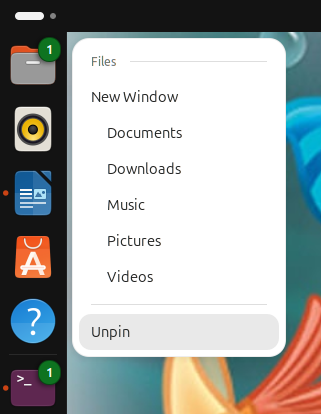
I then unpinned the GNOME Files (Nautilus) app by right-clicking on the icon for it and selecting Unpin.
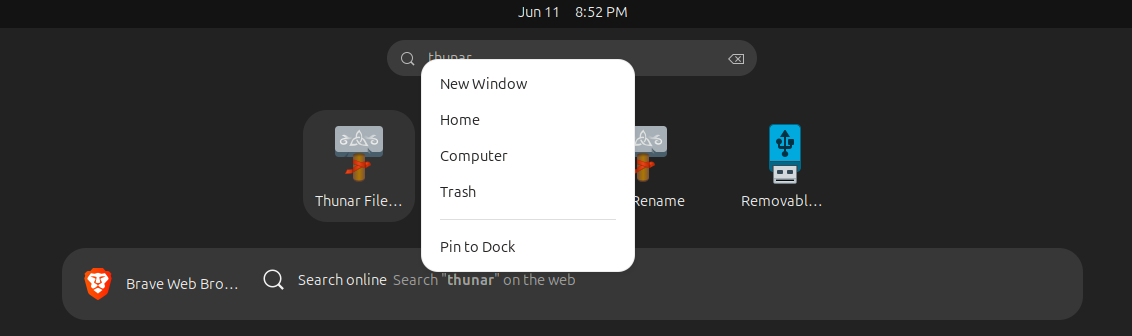
I then pressed the
Super
key along with the "A" key, and typed thunar in the "Type to
search" filed and then right-clicked on thunar when I saw it returned
and selected "Pin to Dock" so she could open it the way she was opening
GNOME Files.
To make the left pane of the Thunar window act like Explorer on Microsoft Windows operating systems, I configured it to expand a directory to show subdirectories if she clicked on it. To do so, I changed Thunar's sidebar style from the default "Shortcuts" to "Tree, which can be done by selecting View, then Side Pane and then selecting Tree, which changes the left pane to provide an expandable directory tree.
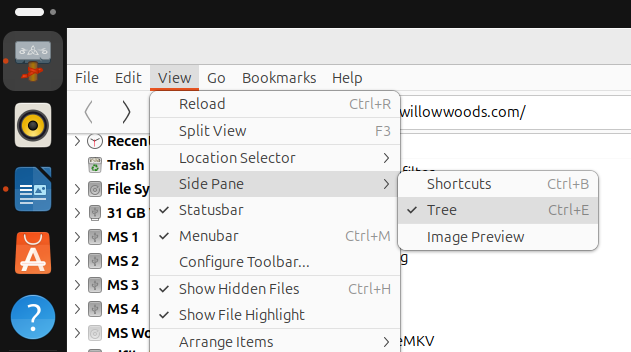
As with the Windows File Explorer, you can toggle the display of hidden files. I turned that option on by pressing the Ctrl and H keys simultaneously — the option can be toggled off again by using the same key combination.