
My wife had been playing Disney Dreamlight Valley under Windows 11. When I installed Ubuntu 25.10, I installed Wine, then Steam as a Snap package, and then installed Disney Dreamlight Valley under Steam. She was able to use the Cloud Save option to log into the game with all of the progress she had made under Windows. She needed to switch back to Windows for a while and didn't switch back to Ubuntu for several weeks. When I started Steam and Disney Dreamlight Valley again under Ubuntu and then tried the Cloud Save option, it did not work with the message below displayed when I was prompted to provide login credentials:
Login Error
Cannot connect to online services. Continue playing in offline mode
If I entered the wrong password, I got a response indicating that the system was able to check the credentials, which I presumed were being checked on a remote server. And I was able to successfully use the change password option, which sent a password reset code to my wife's email address.
I tried to determine what server the Disney Dreamlight Valley
program was contacting, or attempting to contact, using
tcpdump from a
Terminal window
with sudo tcpdump port 53, since I presumed that the software
would need to perform a Domain Name System (DNS) lookup in order to find the
IP address of
whatever remote system it needed to contact. After starting Disney
Dreamlight Valley and using the Cloud Save option which prompted me for
the login credentials and then produced the same error when I entered
them, I checked the tcpdump output and found the last DNS lookp was for
blob.sjc21prdstr10a.store.core.windows.net with the IP
address returned for it being 20.60.80.2. So I then used
tcpdump to see what type of connection Disney Dreamlight Valley might
be attempting when I tried to log in. I saw it was an HTTPS connection, i.e.,
the type of connection you would use for a secure connection to a web
server.
$ sudo tcpdump host 20.60.80.2
...
13:58:35.173088 IP Serenity.45224 > 20.60.80.2.https: Flags [.], ack 8499, wi
n 80, options [nop,nop,TS val 2472428900 ecr 1712161139], length 0
13:58:35.173196 IP 20.60.80.2.https > Serenity.45224: Flags [.], seq 8499:994
7, ack 1168, win 16381, options [nop,nop,TS val 1712161139 ecr 2472428815], l
ength 1448
13:58:35.173319 IP 20.60.80.2.https > Serenity.45224: Flags [.], seq 9947:113
95, ack 1168, win 16381, options [nop,nop,TS val 1712161139 ecr 2472428815],
length 1448
Checking online for information on that system, I found that blob.sjc21prdstr10a.store.core.windows.net is a Microsoft Azure Blob Storage endpoint used by many applications, including games like Disney Dreamlight Valley, to store and stream data, such as game updates, user profiles, or cloud saves. Users or client applications can access objects in Blob Storage via HTTP/HTTPS, from anywhere in the world. Checking on the problem, I found that it could be caused by a connection blockage or a synchronization error. Possible causes I found listed were:
I verified that the firewall software was not active on her system
with sudo ufw status.
$ sudo ufw status
[sudo: authenticate] Password:
Status: inactive
$
The game was able to establish a connection to the server, since I saw network traffic to and from the remote server. For the corrupted save files possibility, the suggestion I found to deal with that possibility was to "Check local files at %USERPROFILE%\AppData\LocalLow\Gameloft\Disney Dreamlight Valley". But that directory was not present on the Ubuntu system. I.e., when I checked the AppData/LocalLow directory under the user's home directory, there was no Disney Dreamlight Valley subdirectory or even a Gameloft subdirectory.
$ ls ~/.wine/drive_c/users/alice/AppData/LocalLow
Microsoft
$
There was a Disney Dreamlight Valley directory at
/home/alice/snap/steam/common/.local/share/Steam/steamapps/common/Disney Dreamlight Valley. I saw the Disney Dreamlight Valley executable
ddv.exe there, but I didn't see anything I could identify
as a save file in that directory or beneath it. I looked in the
snap/steam/common/.local/share/Steam/steam/cached directory
beneath the home directory for her account, but didn't see anything
there, either, that looked like a save file or cached file for Disney
Dreamlight Valley. Though the game had been working previously under
Ubuntu, I thought, perhaps due to some recently installed Ubuntu update
or a Steam or Disney Dreamlight Valley update, that Steam might not
have all the permissions it needed. Snap packages are granted "permissions"
through interfaces (plugs). Access is granted by connecting
to interfaces. E.g., if Disney Dreamlight Valley needed to store
save files on removeable media, I could provide that capability to
Steam with sudo snap connect steam:removable-media. I asked
ChatGPT what permissions
Disney Dreamlight Valley might require and it provided the following
minimum list:
It stated that if those are connected, the game should run normally. home access is needed to read/write save data, configs, and screenshots. This is almost always required as snaps are sandboxed by default and can't see your home directory otherwise. If files are stored on external drives then removable-media access is needed. ChatGPT also stated that opengl, and sometimes hardware-observe, is needed for 3D rendering; without this, the game may not launch or crash. For audio, audio-playback is needed while pulseaudio is needed for older setups. For input devices, joystick is needed; keyboard/ mouse access is implicit via desktop interfaces. For desktop integration x11 and/or wayland are needed for display server access. For cloud saves and online features like DreamSnaps, which involve uploading/voting, it is important to have network and network-bind connectivity. Sometimes unity7 is needed for older desktop integration and sometimes gsettings is needed for desktop settings access. ChatGPT reported that the following are not needed and if permissions were granted for them then something is amiss:
I checked the permitted snap connectivity for Steam with
snap connections steam and saw the following:
$ snap connections steam
Interface                        Plug                                Slot                                           Notes
audio-playback                   steam:audio-playback                :audio-playback                                -
audio-record                     steam:audio-record                  -                                              -
bluez                            steam:bluez                         -                                              -
content[gaming-graphics-core24]  steam:gaming-graphics-core24        gaming-graphics-core24:gaming-graphics-core24  -
content[gtk-3-themes]            steam:gtk-3-themes                  gtk-common-themes:gtk-3-themes                 -
content[icon-themes]             steam:icon-themes                   gtk-common-themes:icon-themes                  -
content[sound-themes]            steam:sound-themes                  gtk-common-themes:sound-themes                 -
dbus                             -                                   steam:steam                                    -
desktop                          steam:desktop                       :desktop                                       -
desktop-legacy                   steam:desktop-legacy                :desktop-legacy                                -
fuse-support                     steam:fuse-support                  -                                              -
gsettings                        steam:gsettings                     :gsettings                                     -
hardware-observe                 steam:hardware-observe              -                                              -
home                             steam:home                          :home                                          -
joystick                         steam:joystick                      :joystick                                      -
mount-observe                    steam:mount-observe                 -                                              -
network                          steam:network                       :network                                       -
network-bind                     steam:network-bind                  :network-bind                                  -
network-control                  steam:network-control               -                                              -
opengl                           steam:opengl                        :opengl                                        -
personal-files                   steam:dot-local-share-applications  :personal-files                                -
personal-files                   steam:dot-local-share-icons         :personal-files                                -
personal-files                   steam:dot-local-share-steam         -                                              -
process-control                  steam:process-control               -                                              -
removable-media                  steam:removable-media               :removable-media                               -
screen-inhibit-control           steam:screen-inhibit-control        :screen-inhibit-control                        -
shared-memory                    steam:shmem                         :shared-memory                                 -
steam-support                    steam:steam-support                 :steam-support                                 -
system-observe                   steam:system-observe                -                                              -
uinput                           steam:uinput                        :uinput                                        -
upower-observe                   steam:upower-observe                :upower-observe                                -
wayland                          steam:wayland                       :wayland                                       -
x11                              steam:x11                           :x11                                           -
WARNING: There is 1 new warning. See 'snap warnings'.
$
In the output of the snap connections, if a Plug is
connected to a Slot, then access is granted. If there is a dash, then
no connection exists and there is no access.
I didn't see anything in the output of the command that indicated a problem, so I uninstalled Disney Dreamlight Valley from Steam by right-clicking on the Disney Dreamlight Valley entry under "Playing" and selecting Manage and then Uninstall.
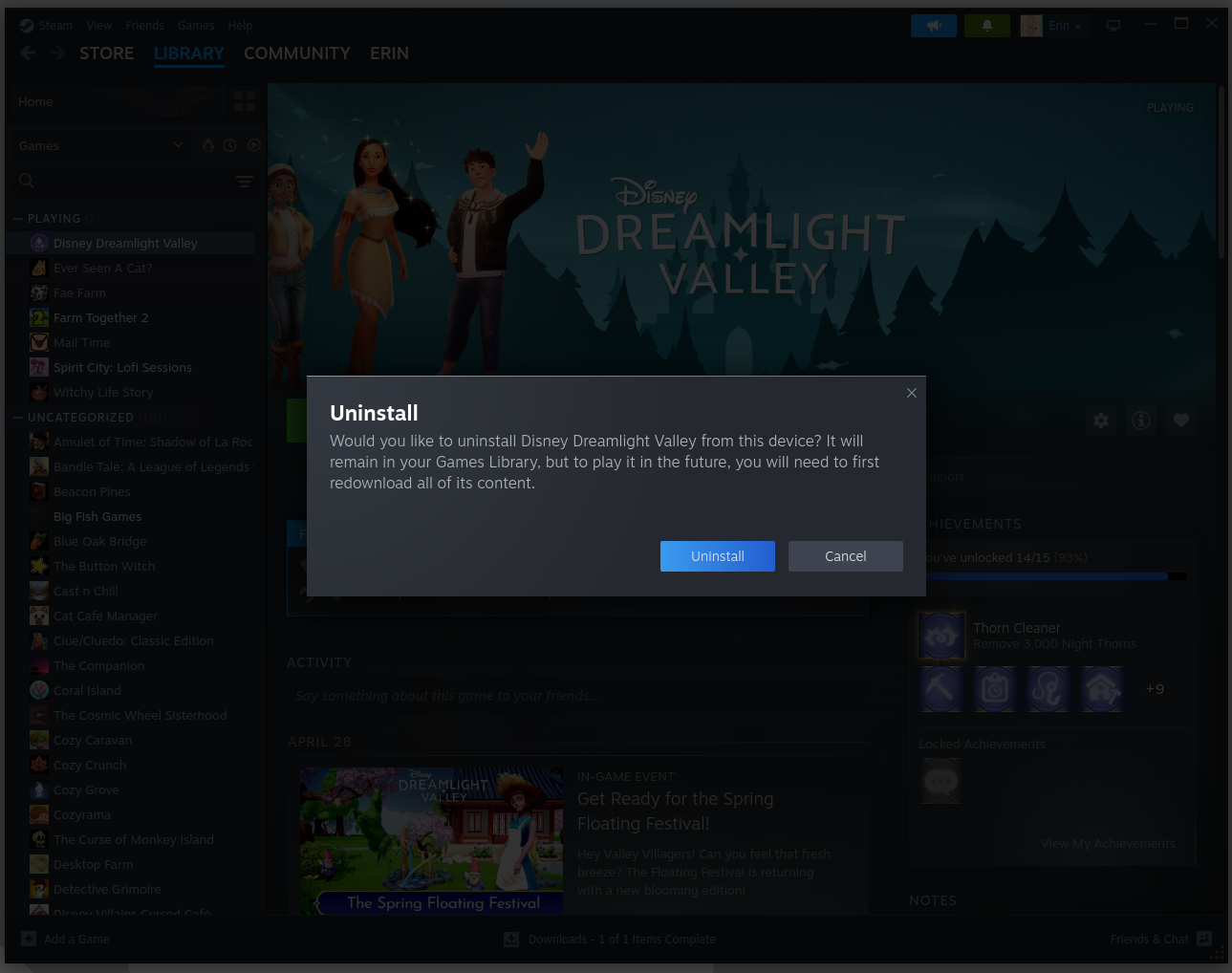
The entry for the game still remained under Playing. I then right-clicked on it and chose Install.
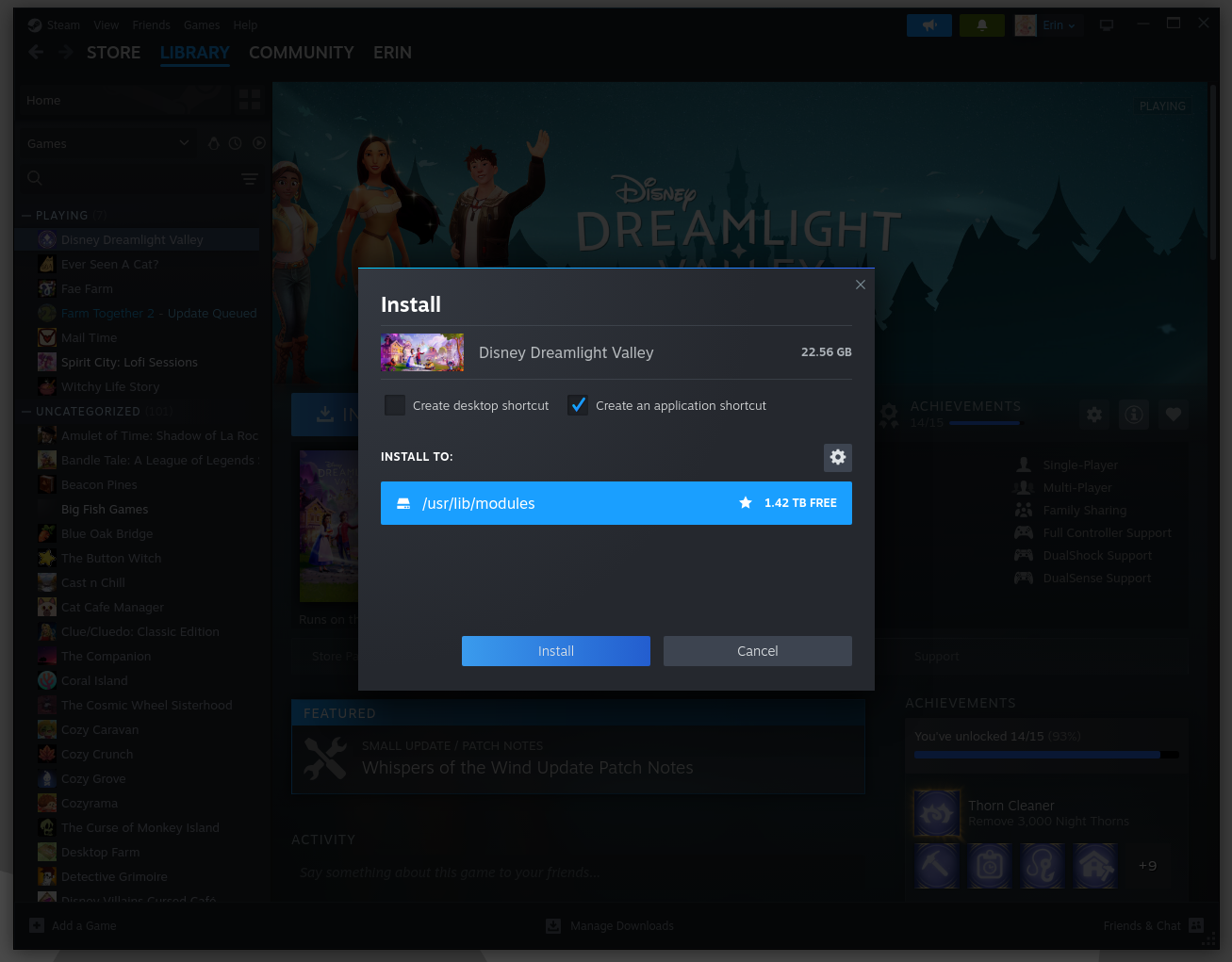
I was then able to successfully start Disney Dreamlight Valley and saw "Cloud Save Recovered" with stats for the game displayed including the number of moonstones she had available. I did not see any further problems when I clicked on Continue, so it appears that simply uninstalling and reinstalling the game under Steam resolved the problem.
Update: later in May, after I updated the system from Ubuntu 25.10 (Questing Quokka) to Ubuntu 26.04 LTS (Resolute Raccoon) and then enabled Ubuntu Pro, the problem reoccurred. I was able to resolve the problem again by uninstalling and reinstalling Disney Dreamlight Valley.