
When I started the installation of the Collectorz
Book Collector desktop program on an
Ubuntu 26.04 Linux system
using Wine by
issuing the command wine bookcollectorsetup2323.exe in a
Terminal window,
the installation seemed to start without a problem, but then I couldn't see
the window that opened that I needed to access to continue the installation.
If I hit Alt-Tab, I could see the window represented by a gear
icon with the label "Setup", but when I kept pressing Alt-Tab to
get to that window, it was not visible when I got to it. I pressed the
Super
key (the key is also known as the Windows
key when it is used on systems running the Microsoft Windows operating
system), which showed me open windows, but that didn't show me a window
for the Book Collector installation program. When I pressed the
Super and Tab keys together, I could also see a list
of open windows, one of which was labelled "bookcolle...", but when I hit
tab to get to the icon labelled "bookcolle..." it didn't open a window
when I stopped on it. I hit Ctrl-C in the terminal window, but
I could still see an inaccessible tab when I pressed Alt-Tab or
Super-Tab. I could see the Book Collector process
running when I used the ps
command ps -aux | grep -i bookcollector. I killed the process with the pkill command
pkill bookcollector.
alice@Wonderland:~/Downloads$ ps -aux | grep -i bookcollector
alice@W+  478174  0.0  0.0 1871276 44780 ?       Ss   15:25   0:00 C:\users\alice@Wonderland\AppData\Local\Temp\is-B2BH1.tmp\bookcollectorsetup2323.tmp /SL5=$1005A,34722499,802304,Z:\home\alice@Wonderland\Downloads\bookcollectorsetup2323.exe
alice@W+  483190  0.0  0.0   9316  2716 pts/20   S+   16:37   0:00 grep --color=auto -i bookcollector
alice@Wonderland:~/Downloads$ pkill bookcollector
alice@Wonderland:~/Downloads$ ps -aux | grep -i bookcollector
alice@W+  483240  0.0  0.0   9316  2724 pts/20   S+   16:38   0:00 grep --color=auto -i bookcollector
alice@Wonderland:~/Downloads$
When I checked the windowing system on the system, I saw it was Wayland.
alice@Wonderland:~$ echo $XDG_SESSION_TYPE
wayland
alice@Wonderland:~$
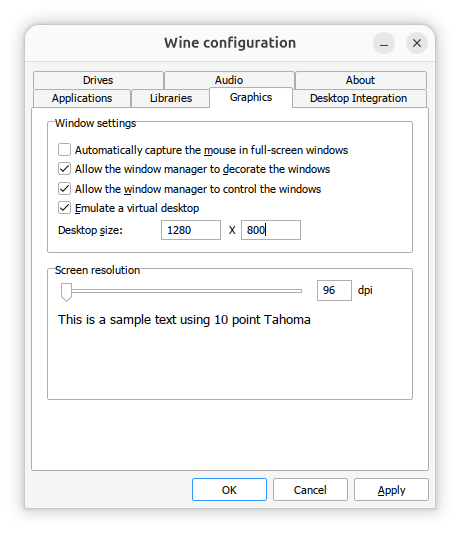
I found that there are known cases where Wine applications create windows that fail to appear correctly under Wayland while working under X11. ChatGPT suggested changing the Wine configuration to run it in a virtual desktop. So I ran winecfg, clicked on the Graphics tab and then checked the "Emulate a virtual desktop" check box. I also changed the desktop size from 800 x 600 to 1280 x 800 and then clicked on Apply.
When I then restarted the Book Collector installation, I was able to see
the "Welcome to the Book Collector Setup Wizard" window. I left the
"Create a desktop shortcut" check box checked. After the installation
process completed, I saw a Book Collector.desktop file
on the desktop.

I right-clicked on it and chose "Allow Launching". I was then able to double-click on the shortcut and start Book Collector.