←January→
| Sun |
Mon |
Tue |
Wed |
Thu |
Fri |
Sat |
| |
|
|
1 |
2 |
3 |
4 |
| 5 |
6 |
7 |
8 |
9 |
10 |
11 |
| 12 |
13 |
14 |
15 |
16 |
17 |
18 |
| 19 |
20 |
21 |
22 |
23 |
24 |
25 |
| 26 |
27 |
28 |
29 |
30 |
31 |
|
| ←2025→| Months |
|---|
| Jan | Feb |
Mar |
| Apr |
May |
Jun |
| Jul |
Aug |
Sep |
| Oct |
Nov |
Dec |
|
Fri, Mar 01, 2024 8:43 pm
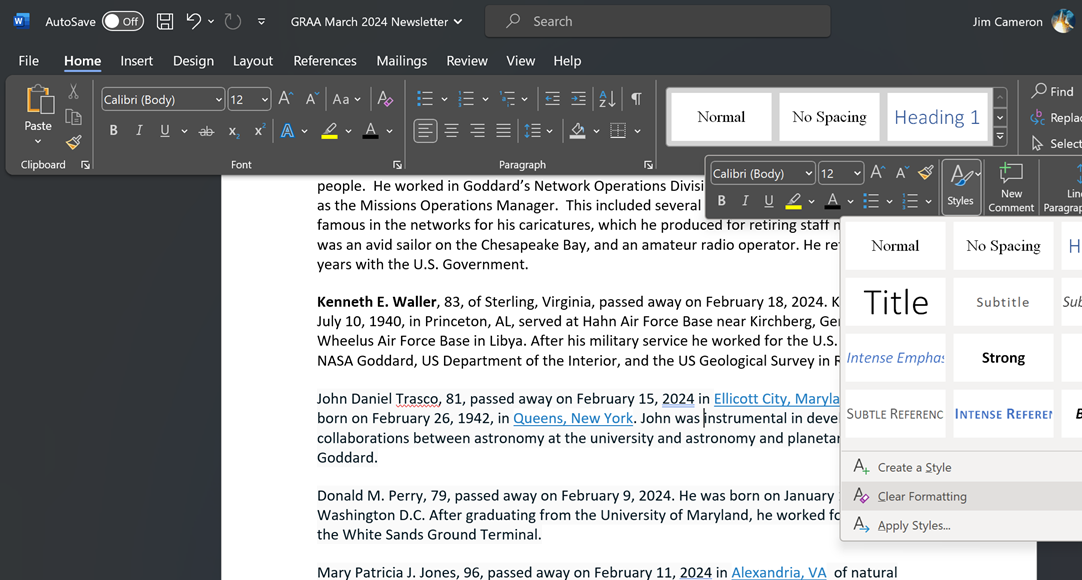
Clearing the formatting for a paragraph in Word in Office 365
If you are using the Word application in
Office 365/Microsoft
365, if a paragraph, or multiple paragraphs, in a document contains
formatting information, such as a gray background, text coloring, etc. that you
wish to remove, you can change the style of the paragraph to eliminate
that styling information by highlighting the paragraph, or paragraphs,
then choosing
Styles from the menu that pops up, then "Clear
Formatting".
[/os/windows/office/word]
permanent link
Tue, Dec 12, 2023 3:43 pm
Turning off Spelling and Grammar Checking for a Document in Microsoft Word 2010
If you wish to turn off the spelling check and/or the grammar check for a
document in Word in the Microsoft Office 2010 suite (version 14.0.7268.5000),
you can do so by taking the following steps:
-
Click on the Review tab at the top of the Word window where the
document is open.
-
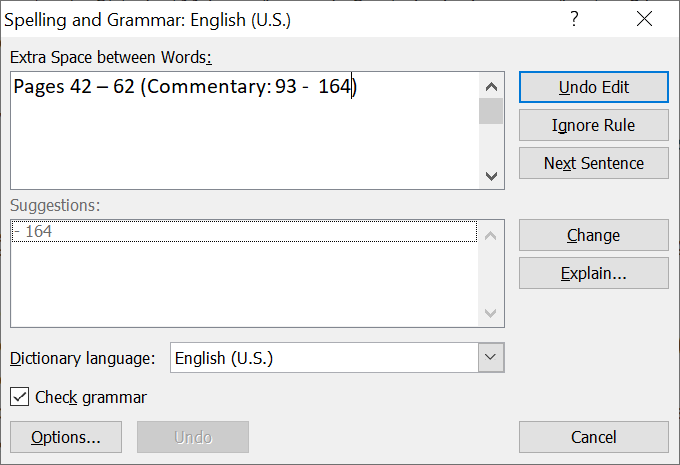
On the Review tab, click on Spelling & Grammar.
-
In the Spelling and Grammar window that then opens, click on the
Options button.
-
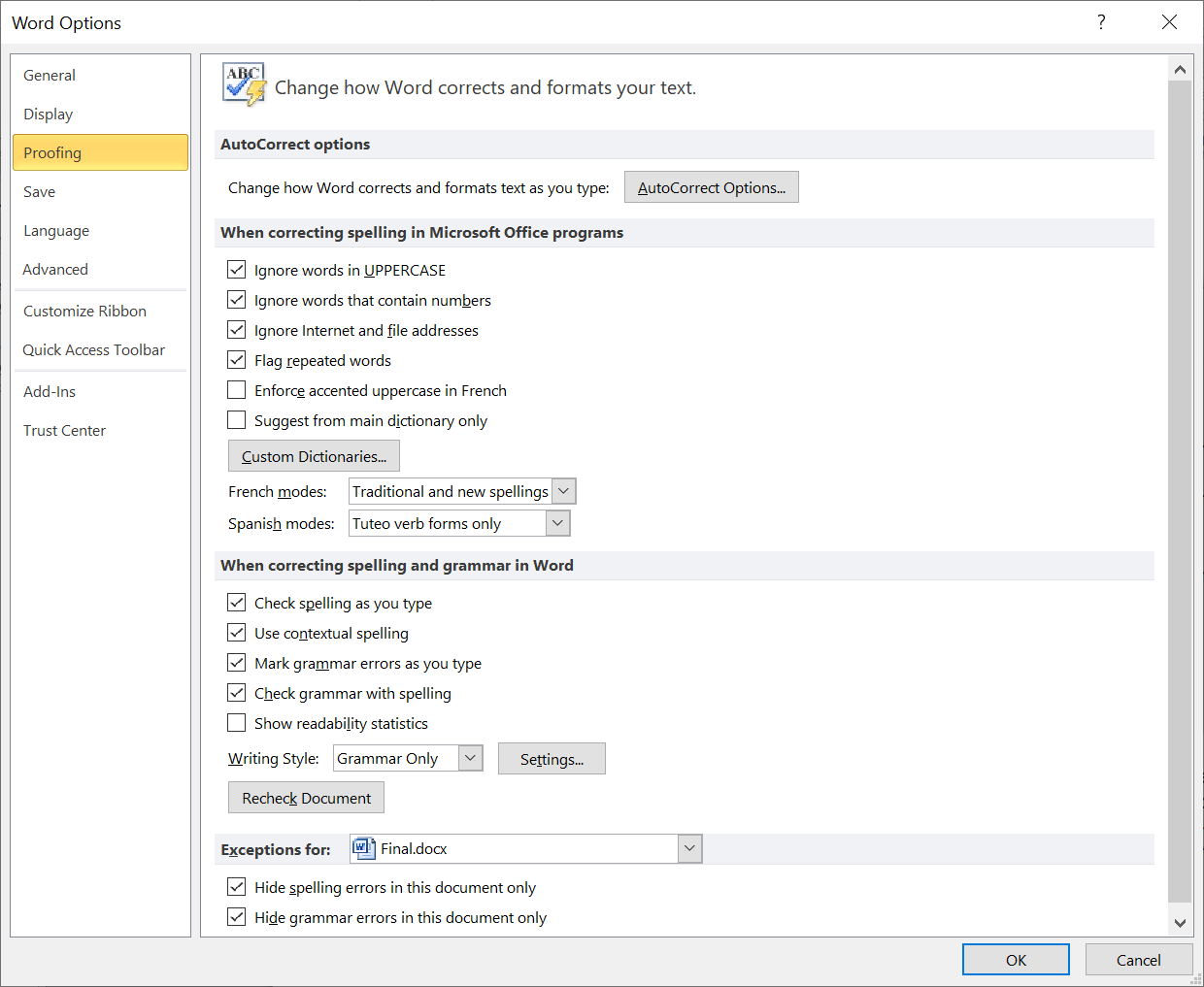
Under the Proofing option, you will see check boxes for "Hide
spelling errors in this document only" and "Hide grammar errors in this
document only". Check both boxes, if you wish to turn off checking for
both, and click on the Ok button.
-
You can then close the Spelling and Grammar window by clicking
on the "X" in the upper, right-hand corner of that window.
[/os/windows/office/word]
permanent link
Wed, Nov 01, 2023 5:06 pm
Clearing the formatting of paragraphs in Microsoft Word
I edit a newsletter for the retiree organization of my former employer.
Often when I receive a draft copy of the newsletter in Microsoft Word
format, I find that some paragraphs have a gray background or other formatting
that I need to remove. I can't remove that grey background by changing the
fill for the paragraph to "none", but I can remove it by highlighting the
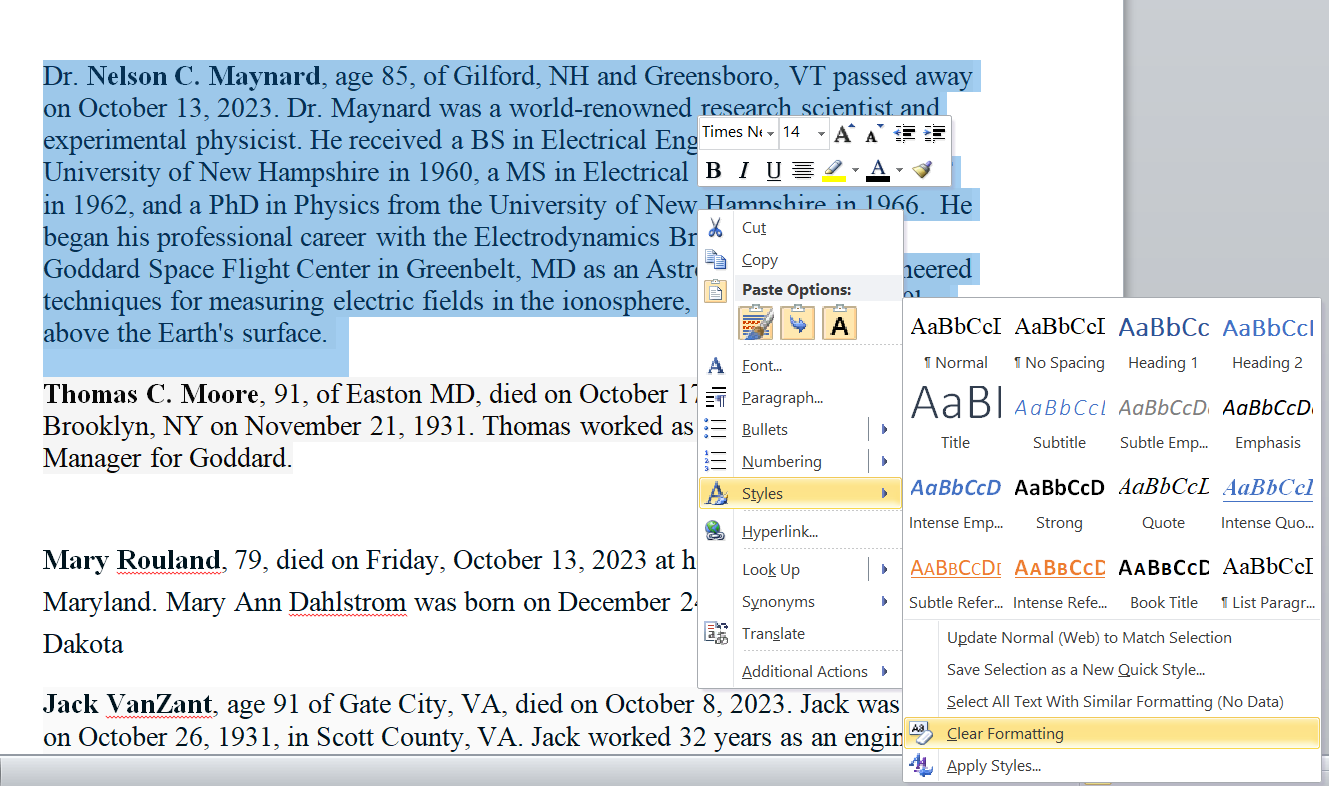
paragraph and then clearing the formatting. The procedure for doing so
with Microsoft Word version 14.0, which is part of Microsoft Office
Professional 2010, and other versions on a Windows system is to right-click on
the paragraph after highlighting it, then select
Styles and then
Clear Formatting. The font selection will also be cleared.
Alternatively, with the text in the paragraph highligthed, hit the
Ctrl key and spacebar simultaneously to clear the formatting
for the paragraph.
[/os/windows/office/word]
permanent link
Mon, Apr 27, 2020 9:44 pm
Formatting endnotes in accordance with the Chicago Manual of Style
If you are using Microsoft Word to write a paper adhering to the
Chicago Manual of Style (CMS) guidelines for citations
that appear in the
endnotes section of the paper, references to endnotes should be made
in the paper using
Arabic numerals at the end of sentences with
the numbers put in superscript.
Example
Ludwig considered it an honor that his books were among those burned by the Nazis in 1933.1
Endnote
1. Emil Ludwig, Three Portraits: Hitler, Mussolini, Stalin (New York:
Alliance Book Corporation: 1940), 49.
You can configure Microsoft Word for CMS style citations by clicking on the
References tab and then selecting a Chicago option for the
Style option. Microsoft Word 2010 lists "Chicago Fifteenth Edition"
as the CMS option.
[
More Info ]
[/os/windows/office/word]
permanent link
Sat, Mar 28, 2020 10:53 pm
Counting the number of rows in a table in Microsoft Word
If you wish to determine the number of rows present in a table in
Microsoft
Word 2010 on a Microsoft Windows system, highlight all of the rows in the
table by putting the mouse pointer in the top or bottom row and
then dragging it downwards or upwards until all of the rows are
highlighted. Then right-click and select
Table Properties.
Under the
Row tab you should see the number of rows listed.
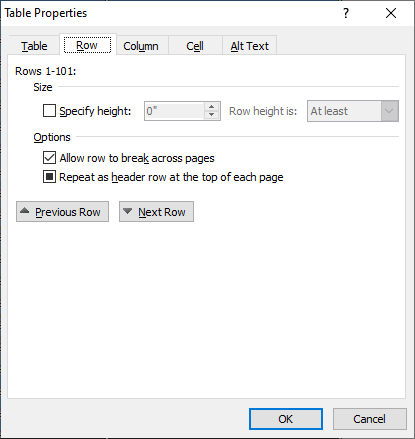
If you don't see the row count, click on the Table or
Column tab and then go back to the Row
information by selecting the Row tab again. You should then
see the row count displayed.
[/os/windows/office/word]
permanent link
Thu, Jan 29, 2015 11:18 pm
Word to Clean HTML
I maintain a website for an association with a little over 2,500 members
that sends a monthly newsletter to members. The newsletter is sent
by the U.S. Postal Service and email and I also convert the Microsoft
Word document the newsletter editor sends me to HTML and post it to the
association's website, which I've been maintaining for years now. The
newsletter editor uses Microsoft Word to produce the newsletter. I tried
Microsoft Word's "Save as Web Page" feature initially, but parts of the
HTML code it produced didn't display properly on non-Microsoft Windows
systems, sometimes because they didn't have the same fonts as those
present on Microsoft Windows systems. And the code looked messy when
I would edit the HTML version of the newsletter produced by Microsoft
Word. Eventually, I decided it was actually quicker to just copy the
text from Word, paste it into the Vi text editor and add the appropriate
HTML formatting tags manually to get the newsletter to look close to
the original Word version, but in a format that would display similarly
across browsers and operating systems.
The copying, pasting, and editing process can take an hour or more, so when
I came across the Word to Clean HTML
site, which provides a free tool to convert documents produced by Microsoft
Word and similar office software to HTML, I pasted the newsletter into
its online form for conversion. The tool "strips out invalid or
proprietary tags leaving clean HTML behind for use in web pages and ebooks",
I hoped it might save me a fair portion of the time I normally spend each
month on the manual conversion process and allow me to get the newsletter
posted more promptly after I receive it. So, I copied the contents of
the newsletter with command-C (I'm normally handling it on a Mac) and
then pasted it into the form on the site's webpage. I checked a couple of
the options that weren't checked by default: replace non-ascii with HTML
entities and replace smart quotes with ascci equivalents. I then clicked
on the convert to clean html button.
The HTML code produced by the tool was much cleaner than that produced
by Word and gave me code that looked the same when viewed from browsers
on different operating systems. I wouldn't have needed to do any editing
to have the newsletter display appropriately, but I noticed that for an
unordered list that at the end of each <li> entry there
were extraneous <strong><u></u></strong>
tags, i.e. there wasn't any text enclosed by the tags, which weren't needed.
But that wouldn't have affected members' view of the newsletter. I removed
it though, and made the source code a little more readable by putting in
some blank lines between some of the items. But that wasn't really needed
and by using the free online tool I should, hopefully, be able to reduce the
process of posting the newsletter to about 15 minutes and get the newsletter
posted shortly after I receive it now, so I'm thankful to
Olly Cope, a freelance python web developer,
for making it freely available to others. The tool was written in Python
using the lxml library.
[/os/windows/office/word]
permanent link
Wed, Dec 31, 2014 4:45 pm
Determining the version of Microsoft Word used to edit a .docx Document
I sent someone a Microsoft Word document that contained a network diagram I had
created in PowerPoint and then copied and pasted into the Word document.
I created the file on an Apple MacBook Pro laptop using
Microsoft® Word 2008 for Mac and saved it in "Word Document (.docx)" format.
The diagram I pasted into the Word document was created with
Microsoft® PowerPoint® 2008 for Mac. The recipient informed me that
some of the text in boxes in the diagram was cropped, so he edited the
diagram and sent me a copy of the document with his edited diagram. When
I viewed his version, I saw text missing that had been present in my version
and some of the double-headed arrows I had on the diagram now looked
odd to me when viewed in Word on the Mac. I presumed the issue was due
to the different versions of Microsoft Word we are using, since I had
encountered issues before where diagrams created in a Microsoft Office
application on a Windows-based PC looked different when viewed in the
same application on a Mac.
I thought he was likely using Office 2013, but I wanted to verify that
was the version he was using. The .docx files we were exchanging became
a standard Word format starting with Office 2007. They are in an
Office Open XML
format, which is a
zipped, XML-based file
format developed by Microsoft; information about the
formats can be found in the Microsoft Office 2007 article
Introducing the Office (2007) Open XML File Formats. Prior to
Office 2007, Microsoft used proprietary file formats based on the OLE
Compound File Binary Format.1
You can check the version of Word that was last used to edit a
document by unzipping the docx file; you can use the unzip
command from a shell prompt on a Mac OS X system. If your unzip program
isn't opening it, you may have to rename it changing the .docx
extension to .zip, but that's not needed for the OS X unzip utility.
When you unzip the docx file, there will be a docProps
directory with an app.xml file within it. In that file
you will see a number between AppVersion tags, e.g., as
shown below:
<AppVersion>15.0000</AppVersion>
To translate that number into the commonly used version number, the
table below can be used:
| Number | Office Version |
|---|
| 12.0000 | 2007 or Office 2008 for Mac |
| 14.0000 | 2010 |
| 15.0000 | 2013 |
If you are interested in the usage for the other documents within the
.docx container file, see the ForensicsWiki article
Word Document (DOCX). The contents of the Word document can be
found in word/document.xml when you examine the files
within the .docx file.
Since I saw 15.0000 as the AppVersion in the file he sent,
I could tell that he was, indeed, using Office 2013. In .docx files
I saved from Word 2008, I saw 12.0000 as the AppVersion
number within app.xml.
To resolve the problem, instead of copying and pasting the
diagram from PowerPoint into the Word document, I saved it as a JPEG image
from within PowerPoint. Then chose "Insert", then "Picture", then "From File"
within Word to insert the diagram as a picture instead. When I viewed the
document with embedded diagram afterwards in Word for Office 2007 and 2010 it
looked the same as it did in Word 2008 on the Mac, though it had also looked
ok in those Microsoft Windows applications when I used the pasted PowerPoint
version. The embedded JPG file also looked the same in Apache OpenOffice
Writer 4; it had not appeared when I viewed the document there
previously and when I had viewed the PowerPoint file in OpenOffice
Impress, the diagram looked quite different with most of the text
missing and small circles beneath the network clouds in the diagram.
References:
-
Microsoft Office: File formats and metadata
Date accessed: December 31, 2014
Wikipedia, the free encyclopedia
-
Which Version of Microsoft Word created a given document?
Date: August 25, 2013
By: Gergely
Herendi
Super User
-
Word Document (DOCX)
ForensicsWiki
[/os/windows/office/word]
permanent link
Mon, Dec 08, 2008 7:36 pm
Saving a Word Document as a Filtered Web Page
When saving a Word document, at least in Word 2003, you have the option
of saving as "Web Page" or "Web Page, Filtered". You should get a smaller
file if you use the filtered web page option. E.g., for one particular
Word document, I found the size was half as much when I used the filtered
option versus the unfiltered option, i.e. 26 KB for the filtered file
versus 54 KB for the unfiltered version.
If you select "Web Page, Filtered" for the output file format, Word doesn't
include tags that only have meaning to itself. Those tags might be useful if you
are reopening the file to be edited again with Word, but don't need to be there
for people viewing the document in their web browser or if it is to be edited
later with an HTML editor. E.g., for one document the following code was in
the head section of the HTML file in the unfiltered version, but not the
filtered version.
<!--[if gte mso 9]><xml>
 <o:DocumentProperties>
  <o:Author>Gail V. Williams</o:Author>
  <o:LastAuthor>John Smith</o:LastAuthor>
  <o:Revision>2</o:Revision>
  <o:TotalTime>2</o:TotalTime>
  <o:LastPrinted>2008-10-22T10:25:00Z</o:LastPrinted>
  <o:Created>2008-12-05T21:57:00Z</o:Created>
  <o:LastSaved>2008-12-05T21:57:00Z</o:LastSaved>
  <o:Pages>1</o:Pages>
  <o:Words>1108</o:Words>
  <o:Characters>6317</o:Characters>
  <o:Company>Home</o:Company>
  <o:Lines>52</o:Lines>
  <o:Paragraphs>14</o:Paragraphs>
  <o:CharactersWithSpaces>7411</o:CharactersWithSpaces>
  <o:Version>11.9999</o:Version>
 </o:DocumentProperties>
</xml><!--[if gte mso 9]><xml>
When you save a document as a filtered webpage, you will get a warning
such as "Saving Test.doc in this format (Web Page, Filtered) will remove
Office-specific tags. Some Office features may not be available when you
reopen this page. Do you want to save the document in this format?". If
you retain the original Word document in .doc format as well as the new
filtered HTML version of the file, you can always re-edit the original
copy, if you have any concerns about needing to retain the Microsoft
Word specific information.
References:
-
About using filtered HTML
Microsoft
Office Online
-
Reduce Web page size by filtering HTML
Microsoft
Office Online
[/os/windows/office/word]
permanent link
Fri, May 02, 2008 6:23 pm
Return Microsoft Word to Single-Spacing
If you are using Microsoft Word and it is double-spacing text when you want
it to single-space text, you can hit the
Shift and
Enter
keys simultaneously at the end of lines to get Word to single-space the lines
or you can take the following steps to have all of the text in the document
single-spaced
*:
- Inside the document, hit the Ctrl and A keys
simultaneously to highlight all of the existing text.
- Click on "Format" at the top of the Word window.
- Select "Paragraph".
- Change the line spacing to "single".
- Change the "before" and "after" values to "0 pt".
- Click on "OK".
*Written for Word 2003
[/os/windows/office/word]
permanent link
Thu, Jan 10, 2008 3:45 pm
Changing the Background Color for a Table in Microsoft Word 2000
To change the background color in a table in Microsoft Word 2000,
take the following steps:
- Right-click somewhere in the table.
- Choose Table Properties.
- Click on the Borders and Shading button.
- Select the color you want for the table's background under
Fill.
- Click on OK.
- Click on OK again.
If you want to change the background color for just one cell in the table,
take the same steps as above, but before you click on OK after
selecting the fill color, change the value in the Apply to field
from "table" to "cell".
If you want to change the background color for an entire row in the table,
the steps are basically the same, but you need to highlight all the cells
in the row before selecting Table Properties.
- Right-click somewhere in the table.
- Choose Table Properties.
- Click on the Table tab.
- Click on the Borders and Shading button.
- Select the color you want for the table's background under
Fill.
- Click on OK.
- Click on OK again.
[/os/windows/office/word]
permanent link

Privacy Policy
Contact


