
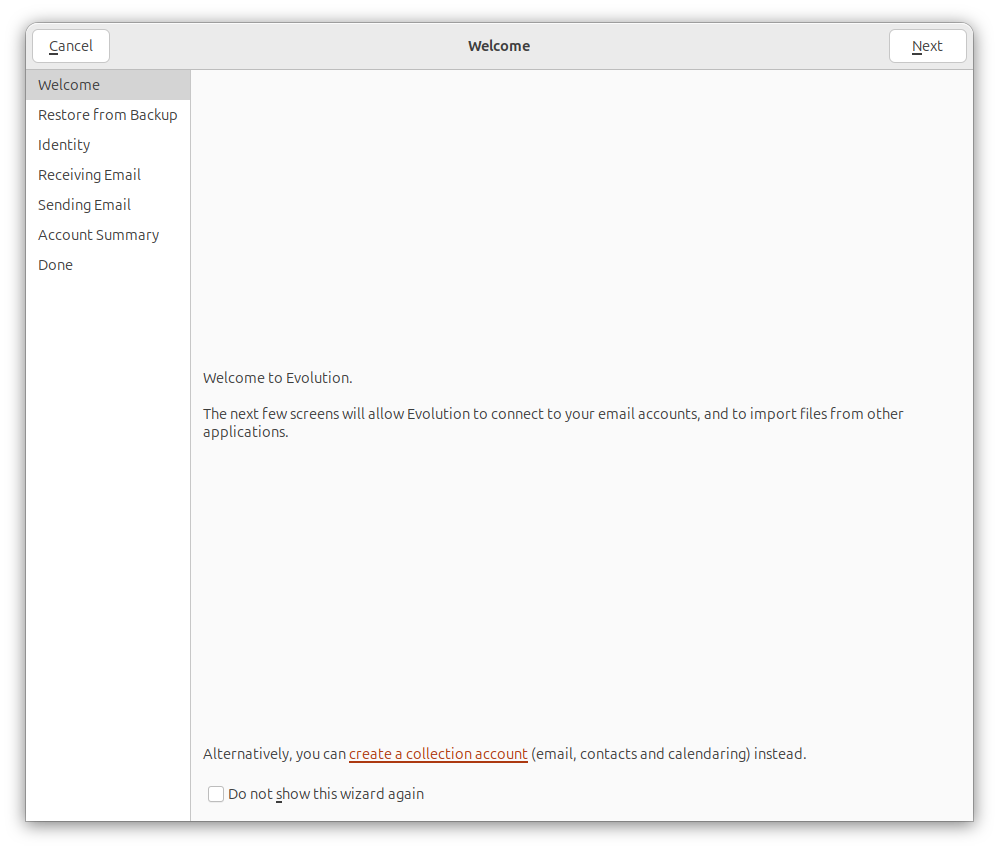
My wife wanted to transition from Microsoft Windows to Linux for privacy and performance reasons, so I installed Ubuntu Linux on her desktop system. She had been using Microsoft Outlook as an email client. I installed Evolution, which is available as a Debian package, as an alternative to Outlook. Evolution has the capability to import an Outlook Personal Storage Table (PST), though that did not work when I tried the process with the PST file Outlook was using under Microsoft Windows. But to try that process, when the Welcome window opens when you start Evolution, click on Cancel to close it.
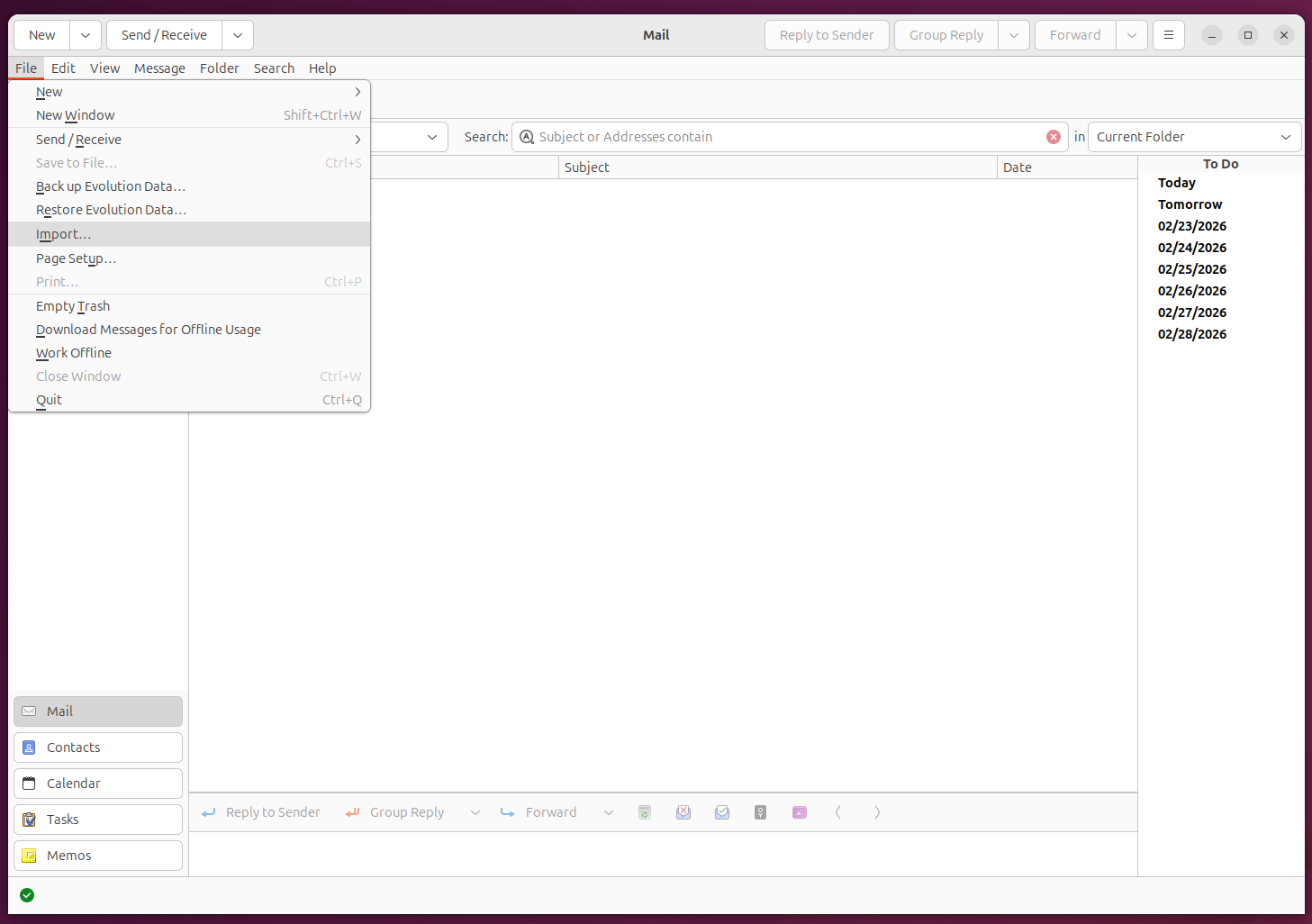
Press the Alt+F keys to view the file menu, then select Import.
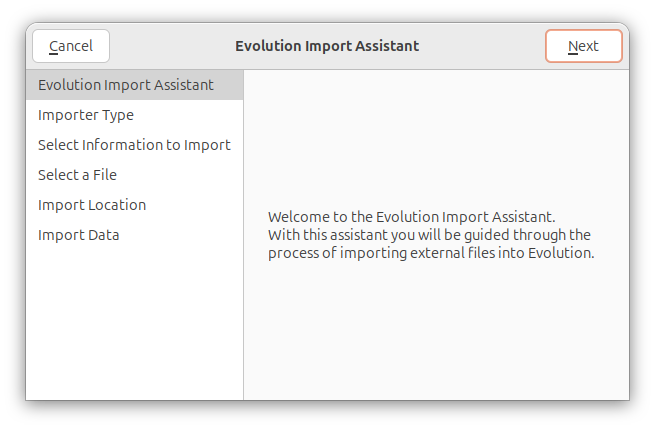
You can click on Next at the Evolution Import Assistant window to proceed with the import of the Outlook Personal Storage Table (PST) file.
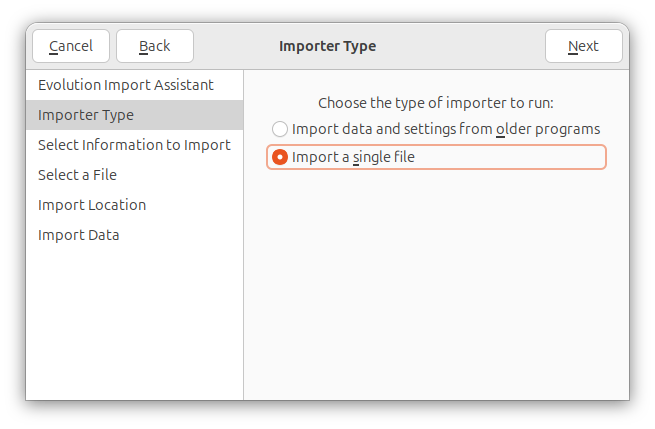
For the Importer Type, choose "Import a single file" then click on Next.
At the Select a File window, navigate to the location of the PST file and select it. The file type in the file type field should automatically change to "Outlook personal folders (.pst)" instead of the default file type of "Berkeley Mailbox (mbox)"
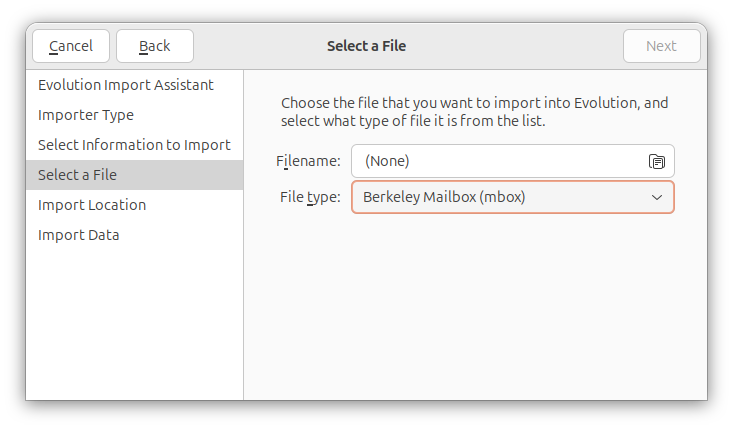
If the option to select Outlook personal folders (.pst) is not in the drop down list of file types, you may need to install the plugin that allows Evolution to import .pst files.
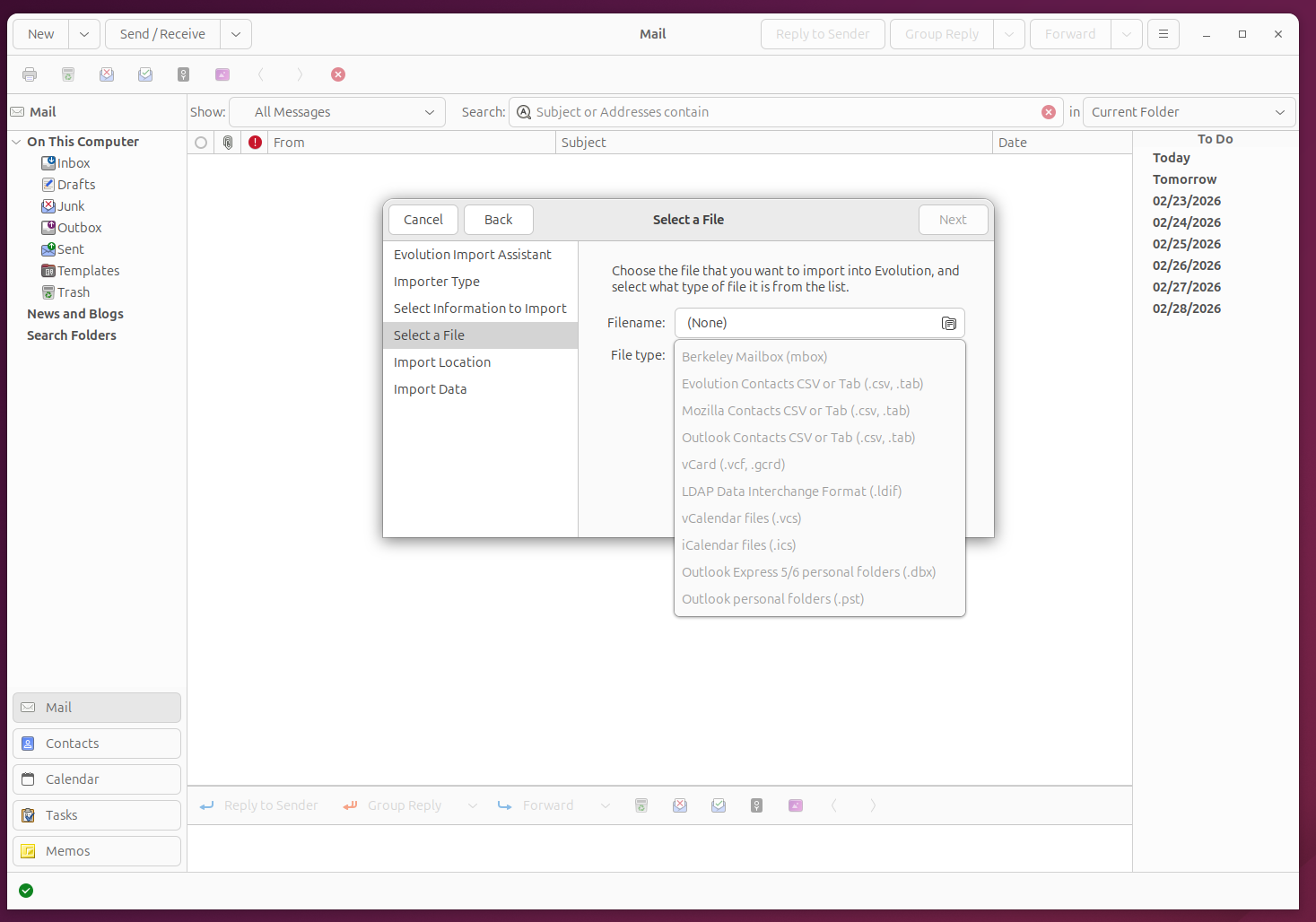
To check on the status of the PST plugin on an Ubuntu system, or
another Debian distribution of Linux, use the command sudo apt
install evolution-plugins evolution-plugin-pstimport.
alice@ad.example.com:~$ sudo apt install evolution-plugins evolution-plugin-pstimport
[sudo: authenticate] Password:
evolution-plugins is already the newest version (3.56.2-4).
evolution-plugins set to manually installed.
evolution-plugin-pstimport is already the newest version (3.56.2-4).
evolution-plugin-pstimport set to manually installed.
Summary:
  Upgrading: 0, Installing: 0, Removing: 0, Not Upgrading: 2
alice@ad.example.com:~$
You can also verify the package is installed that allows one to import
a PST file using the dpkg -s evolution-plugin-pstimport
command.
alice@ad.example.com:~/Documents$ dpkg -s evolution-plugin-pstimport
Package: evolution-plugin-pstimport
Status: install ok installed
Priority: optional
Section: gnome
Installed-Size: 100
Maintainer: Ubuntu Developers <ubuntu-devel-discuss@lists.ubuntu.com>
Architecture: amd64
Source: evolution
Version: 3.56.2-4
Depends: libc6 (>= 2.33), libcamel-1.2-64t64 (>= 3.56.2), libebook-1.2-21t
64 (>= 3.56.2), libebook-contacts-1.2-4t64 (>= 3.16.2), libecal-2.0-3 (>=
3.56.2), libedataserver-1.2-27t64 (>= 3.56.2), libevolution (>= 3.56.2),
libevolution (<< 3.57), libglib2.0-0t64 (>= 2.70), libgtk-3-0t64 (>= 3.10.
0), libical3t64 (>= 3.0.0), libpst4t64 (>= 0.6.54), evolution (= 3 .56.2-4
)
Description: standard plugins for Evolution (pstimport)
 Evolution is a groupware suite which integrates mail, calendar,
 address book, to-do list and memo tools.
 .
 This package includes a plugin for Evolution that enables importing
 Microsoft Outlook messages from a PST file.
Original-Maintainer: Debian GNOME Maintainers <pkg-gnome-maintainers@lists
.alioth.debian.org>
Homepage: https://gitlab.gnome.org/GNOME/evolution/-/wikis/home
alice@ad.example.com:~/Documents$
I encountered the problem where the PST file type was present in the file type list, but was grayed out when I selected the PST file in the Filename field, even though the package was installed. I brought up the Edit menu with Alt-E and selected Preferences, then viewed the Outlook PST import setting under Plugins. The option was checked.
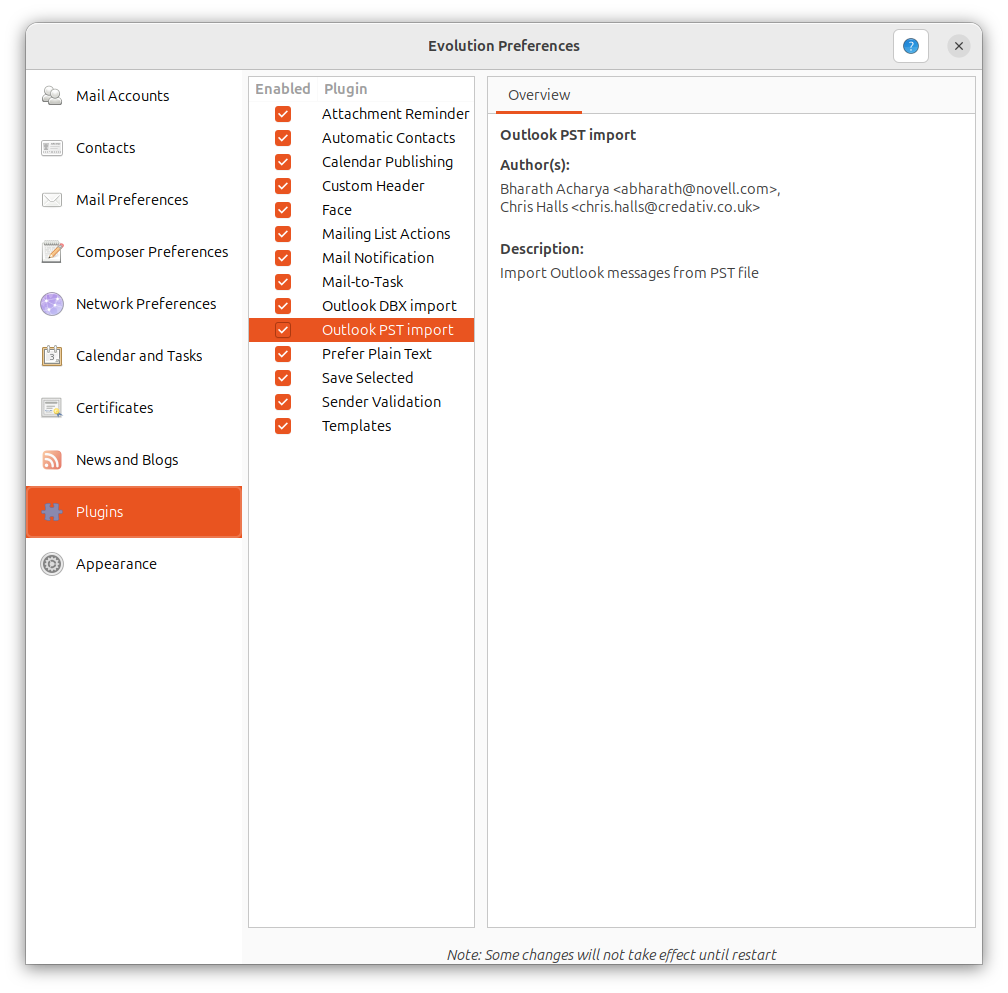
I even tried unchecking the box next to that plugin, closing and reopening Evolution, and then rechecking the box but that didn't resolve the problem. I then installed the pst-utils package.
alice@ad.example.com:~$ sudo apt install pst-utils
Installing:
  pst-utils

Suggested packages:
  mb2md

Summary:
  Upgrading: 0, Installing: 1, Removing: 0, Not Upgrading: 2
  Download size: 61.8 kB
  Space needed: 212 kB / 1,794 GB available

Get:1 http://us.archive.ubuntu.com/ubuntu questing/universe amd64 pst-utils amd64 0.6.76-1.2 [61.8 kB]
Fetched 61.8 kB in 0s (222 kB/s)
Selecting previously unselected package pst-utils.
(Reading database ... 177134 files and directories currently installed.)
Preparing to unpack .../pst-utils_0.6.76-1.2_amd64.deb ...
Unpacking pst-utils (0.6.76-1.2) ...
Setting up pst-utils (0.6.76-1.2) ...
Processing triggers for man-db (2.13.1-1) ...
alice@ad.example.com:~$
The description for the package is as follows:
Tools for reading Microsoft Outlook PST files
This package contains tools based on libpst to read data from Microsoft Outlook PST files.
- readpst - export data from PST files to a variety of formats, including mbox, MH and KMail. Other packages like mb2md are available for subsequent conversions to Maildir and other formats.
- lspst - list data in PST files.
- pst2ldif - extract contacts from a PST file and prepare them for input in LDAP
- pst2dii - export data from PST files to Summation dii load file format
But when I tried to use the lspst and readpst
files on the Outlook .pst file, they were unable to open the file.
If it can read the PST file, you can use readpst -cv -o output_folder file
.pst to export contacts using the
vCard format.
alice@ad.example.com:~/Downloads$ lspst alice@example.com.pst
Error opening File
alice@ad.example.com:~/Downloads$ readpst -cv -o outlook_contacts alice@example.com.pst
Opening PST file and indexes...
Error opening File
alice@ad.example.com:~/Downloads$
I then installed the pff-tools package and some related tools
to see if a tool from that package might be able to read the file.
The libpff package and related tools are available in the universe
repository for various Ubuntu releases.
alice@ad.example.com:~$ sudo apt install libpff-dev pff-tools python3-pypff
Installing:
  libpff-dev  pff-tools  python3-pypff

Installing dependencies:
  libbfio1  libpff1t64

Summary:
  Upgrading: 0, Installing: 5, Removing: 0, Not Upgrading: 2
  Download size: 1,908 kB
  Space needed: 6,618 kB / 1,794 GB available

Continue? [Y/n] Y
Get:1 http://us.archive.ubuntu.com/ubuntu questing/universe amd64 libbfio1 amd64 20170123-6 [306 kB]
Get:2 http://us.archive.ubuntu.com/ubuntu questing/universe amd64 libpff1t64 amd64 20180714-3.1build2 [541 kB]
Get:3 http://us.archive.ubuntu.com/ubuntu questing/universe amd64 libpff-dev amd64 20180714-3.1build2 [584 kB]
Get:4 http://us.archive.ubuntu.com/ubuntu questing/universe amd64 pff-tools amd64 20180714-3.1build2 [407 kB]
Get:5 http://us.archive.ubuntu.com/ubuntu questing/universe amd64 python3-pypff amd64 20180714-3.1build2 [69.4 kB]
Fetched 1,908 kB in 1s (3,317 kB/s)
Selecting previously unselected package libbfio1:amd64.
(Reading database ... 177149 files and directories currently installed.)
Preparing to unpack .../libbfio1_20170123-6_amd64.deb ...
Unpacking libbfio1:amd64 (20170123-6) ...
Selecting previously unselected package libpff1t64.
Preparing to unpack .../libpff1t64_20180714-3.1build2_amd64.deb ...
Unpacking libpff1t64 (20180714-3.1build2) ...
Selecting previously unselected package libpff-dev.
Preparing to unpack .../libpff-dev_20180714-3.1build2_amd64.deb ...
Unpacking libpff-dev (20180714-3.1build2) ...
Selecting previously unselected package pff-tools.
Preparing to unpack .../pff-tools_20180714-3.1build2_amd64.deb ...
Unpacking pff-tools (20180714-3.1build2) ...
Selecting previously unselected package python3-pypff.
Preparing to unpack .../python3-pypff_20180714-3.1build2_amd64.deb ...
Unpacking python3-pypff (20180714-3.1build2) ...
Setting up libbfio1:amd64 (20170123-6) ...
Setting up libpff1t64 (20180714-3.1build2) ...
Setting up python3-pypff (20180714-3.1build2) ...
Setting up libpff-dev (20180714-3.1build2) ...
Setting up pff-tools (20180714-3.1build2) ...
Processing triggers for man-db (2.13.1-1) ...
Processing triggers for libc-bin (2.42-0ubuntu3.1) ...
alice@ad.example.com:~$
I was unable to open the .pst file with the pffinfo utility, either, though.
alice@ad.example.com:~/Downloads$ pffinfo alice@example.com.pst
pffinfo 20180714

Unable to open: alice@example.com.pst.
libpff_io_handle_read_file_header: invalid file signature.
libpff_file_open_read: unable to read file header.
libpff_file_open_file_io_handle: unable to read from file handle.
libpff_file_open: unable to open file: alice@example.com.pst.
info_handle_open_input: unable to open input file.
alice@ad.example.com:~/Downloads$
I then wondered if the PST file might be corrupted. I examined the header of the file with xxd and hexdump, which display the contents of files in hexadecimal and saw the following. The xxd utility showed the first 16 bytes as all zeroes and the hexdump utility showed zeroes for the first 32 bytes.
alice@ad.example.com:~/Downloads$ xxd -l 16 -p alice@example.com.pst
00000000000000000000000000000000
alice@ad.example.com:~/Downloads$
alice@ad.example.com:~/Downloads$ hexdump -C -n 32 alice@example.com.pst | head -n 2
00000000  00 00 00 00 00 00 00 00  00 00 00 00 00 00 00 00  |................|
*
alice@ad.example.com:~/Downloads$
Many file types have a
"magic
number" at the beginning of the file that identify the
file format. E.g.,
Graphics Interchange Format
(GIF) files have a magic number of GIF87a or GIF89a, depending on the
standard to which they adhere, and
Portable Network Graphics (PNG) have 89 50 4e 47 0d 0a 1a 0a
(8 bytes) that identify that type of image file. The first four bytes of
a PST file should be !BDN, so the file I checked seemed to
be corrupted. So I then booted the system in Windows again, since it was
still on the system on another drive, but one that was inaccessible when I
booted the system in Ubuntu. I checked the PST file there with the freeware
XVI32 hex editor and saw the expected bytes at the beginning of the
file, so I copied it to a flash drive and booted back into Ubuntu and
then copied it into the user's Downloads directory. I then checked it
with hexdump and saw the expected bytes at the beginnning of the file. I
was then able to go through the import process in Evolution and select the
newly copied PST file at which point Evolution immediately placed "Outlook
personal folders (.pst)" in the "File type" field. When I proceeded I
left "Mail Destination folder", "Address Book", "Appointments", and
"Tasks" checked. At the next step, which was Select folder,
I left the option selected for "On This Computer".
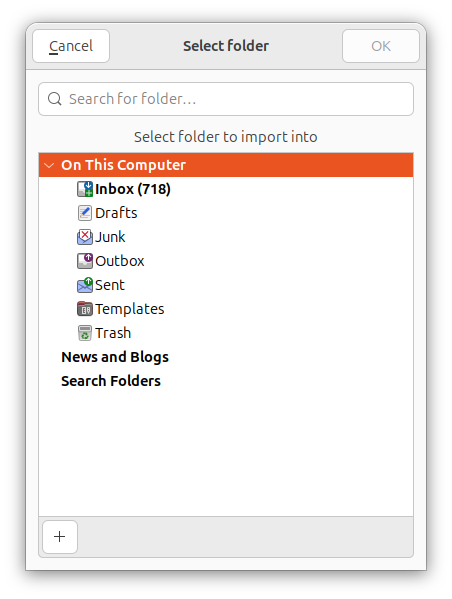
I then saw an Import Data window. I waited over an hour for that step to complete, but it did not complete in that time.
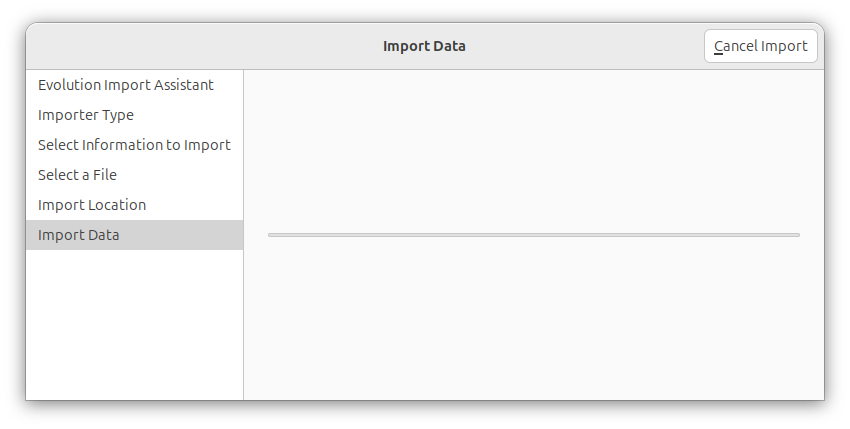
I then tried to stop the process by clicking on Cancel Imprt, which resulted in a "Close Evolution with pending background operations?" window with the message "Evolution is taking a long time to shut down, possibly due to network connectivity issues. Would you like to cancel all pending operations and close immediately, or keep waiting?.
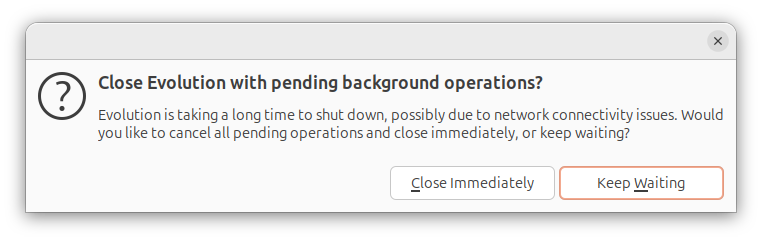
When I switched away from that window and tried to come back it was no longer accessible, so I had to kill Evolution from the command line using the kill command with the process ID (PID) of the Evolution process.
alice@ad.example.com:~/Documents$ ps -aux | grep '/usr/bin/evolution' | grep -v "grep"
alice@ad+   13764 91.5  0.8 76414488 1139124 ?    SLl  19:42 128:01 /usr/bin/evolution
alice@ad.example.com:~/Documents$ kill -HUP 13764
alice@ad.example.com:~/Documents$
I then restarted Evolution and tried to import data from the PST file
again, but it did not complete even after more than an hour. I killed
the Evolution process again. I turned on the display of
hidden
files (on Linux systems files that have a period at the beginning of the
file name are considered "hidden" and not displayed by default)
in the file manager and then deleted the directory where Evolution stores
information for a user's account,
/home/username/.local/share/evolution.
I then restarted Evolution.
For the "Default location for import On This Computer", I
changed it to "On This Computer/Inbox". I left it run overnight, but it
never completed the import process. The Import Data window was
still open with no indication of any progress. And in the larger Evolution
I saw "Importing Outlook data" with a green circle containing a white
check mark in it, but no evidence any data was actually imported.
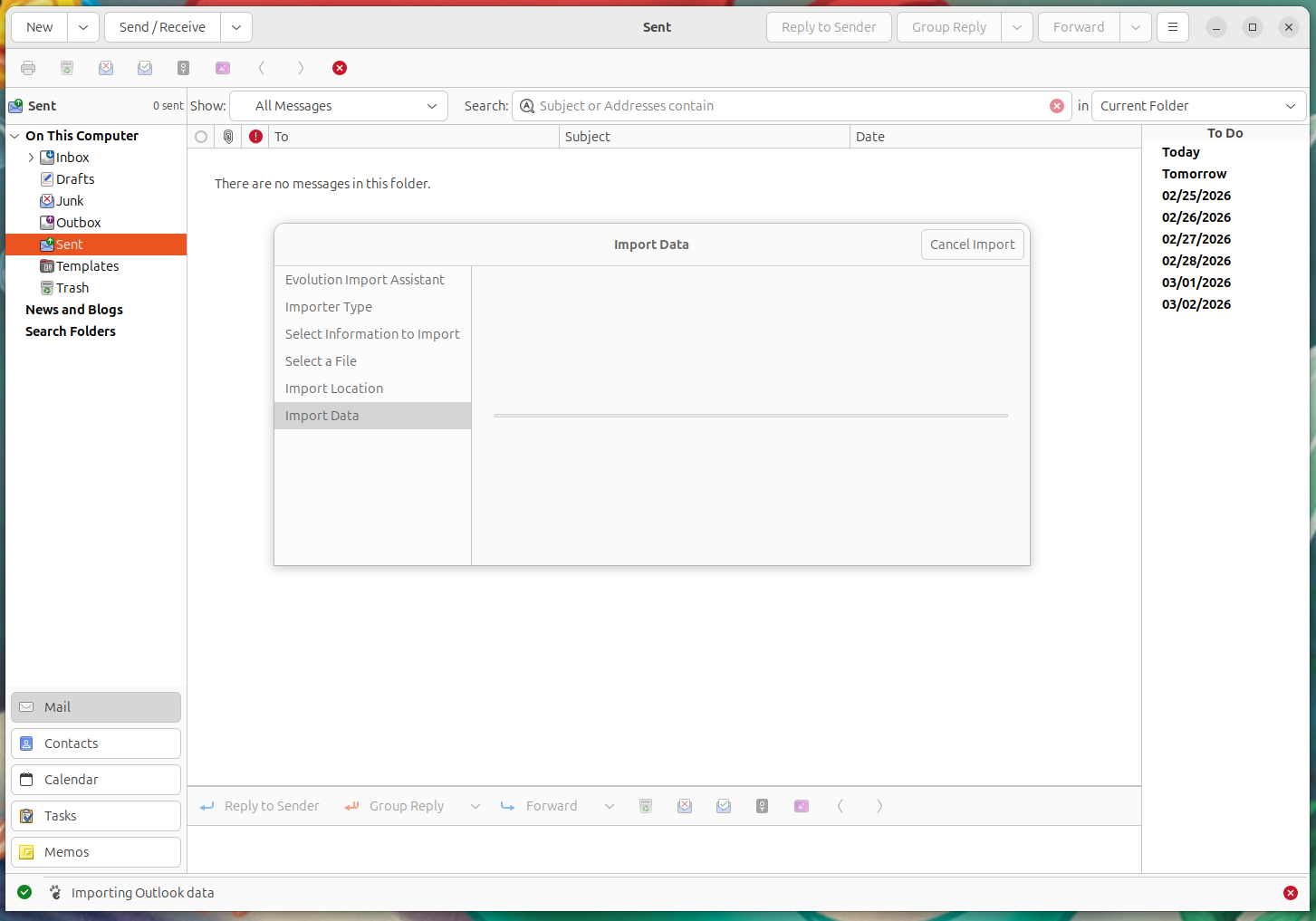
I had to kill the Evolution process again from the Terminal window, since
clicking on Cancel Import didn't have any effect. You can kill
all instances of Evolution with killall evolution.
I then queried Grok
to see if I might get a solution from that
AI
(Grok's response). As it suggested, I checked
the version of Evolution with evolution -version and checked on
whether a newer version might be available for the distribution of Linux on
the system with sudo apt update && sudo apt upgrade
evolution, but it was the latest version, though there were
upgrades for some components, i.e. evolution-data-server
and evolution-data-server-common.
alice@ad.example.com:~$ evolution -version
evolution 3.56.2-4
alice@ad.example.com:~$ sudo apt update && sudo apt upgrade evolution
[sudo: authenticate] Password:
Hit:1 http://us.archive.ubuntu.com/ubuntu questing InRelease
Get:2 http://us.archive.ubuntu.com/ubuntu questing-updates InRelease [136 kB]
Get:3 http://security.ubuntu.com/ubuntu questing-security InRelease [136 kB]
Get:4 http://us.archive.ubuntu.com/ubuntu questing-backports InRelease [133 kB]
Get:5 http://us.archive.ubuntu.com/ubuntu questing-updates/main amd64 Components [38.5 kB]
Get:6 http://us.archive.ubuntu.com/ubuntu questing-updates/restricted amd64 Components [212 B]
Get:7 http://us.archive.ubuntu.com/ubuntu questing-updates/universe amd64 Components [42.1 kB]
Get:8 http://us.archive.ubuntu.com/ubuntu questing-updates/multiverse amd64 Components [216 B]
Get:9 http://us.archive.ubuntu.com/ubuntu questing-backports/main amd64 Components [212 B]
Get:10 http://us.archive.ubuntu.com/ubuntu questing-backports/restricted amd64 Components [216 B]
Get:11 http://us.archive.ubuntu.com/ubuntu questing-backports/universe amd64 Components [216 B]
Get:12 http://us.archive.ubuntu.com/ubuntu questing-backports/multiverse amd64 Components [216 B]
Get:13 http://security.ubuntu.com/ubuntu questing-security/main i386 Packages [106 kB]
Get:14 http://security.ubuntu.com/ubuntu questing-security/main amd64 Packages [206 kB]
Get:15 http://security.ubuntu.com/ubuntu questing-security/main Translation-en [55.0 kB]
Get:16 http://security.ubuntu.com/ubuntu questing-security/main amd64 Components [448 B]
Get:17 http://security.ubuntu.com/ubuntu questing-security/restricted amd64 Packages [158 kB]
Get:18 http://security.ubuntu.com/ubuntu questing-security/restricted Translation-en [34.0 kB]
Get:19 http://security.ubuntu.com/ubuntu questing-security/restricted amd64 Components [212 B]
Get:20 http://security.ubuntu.com/ubuntu questing-security/universe amd64 Packages [121 kB]
Get:21 http://security.ubuntu.com/ubuntu questing-security/universe Translation-en [39.5 kB]
Get:22 http://security.ubuntu.com/ubuntu questing-security/universe amd64 Components [10.8 kB]
Get:23 http://security.ubuntu.com/ubuntu questing-security/multiverse amd64 Components [212 B]
Fetched 1,217 kB in 1s (944 kB/s)
14 packages can be upgraded. Run 'apt list --upgradable' to see them.
evolution is already the newest version (3.56.2-4).
Upgrading:
  evolution-data-server         libecal-2.0-3
  evolution-data-server-common  libedata-book-1.2-27t64
  libcamel-1.2-64t64            libedata-cal-2.0-2t64
  libebackend-1.2-11t64         libedataserver-1.2-27t64
  libebook-1.2-21t64            libedataserverui-1.2-4t64
  libebook-contacts-1.2-4t64    libedataserverui4-1.0-0t64

Not upgrading yet due to phasing:
  cloud-init  cloud-init-base

Summary:
  Upgrading: 12, Installing: 0, Removing: 0, Not Upgrading: 2
12 standard LTS security updates
  Download size: 2,703 kB
  Freed space: 591 kB

Continue? [Y/n] Y
Get:1 http://security.ubuntu.com/ubuntu questing-security/main amd64 evolution-data-server amd64 3.56.2-3ubuntu0.1 [716 kB]
Get:2 http://security.ubuntu.com/ubuntu questing-security/main amd64 libcamel-1.2-64t64 amd64 3.56.2-3ubuntu0.1 [503 kB]
Get:3 http://security.ubuntu.com/ubuntu questing-security/main amd64 evolution-data-server-common all 3.56.2-3ubuntu0.1 [190 kB]
Get:4 http://security.ubuntu.com/ubuntu questing-security/main amd64 libedataserver-1.2-27t64 amd64 3.56.2-3ubuntu0.1 [289 kB]
Get:5 http://security.ubuntu.com/ubuntu questing-security/main amd64 libebackend-1.2-11t64 amd64 3.56.2-3ubuntu0.1 [115 kB]
Get:6 http://security.ubuntu.com/ubuntu questing-security/main amd64 libebook-contacts-1.2-4t64 amd64 3.56.2-3ubuntu0.1 [67.7 kB]
Get:7 http://security.ubuntu.com/ubuntu questing-security/main amd64 libedata-book-1.2-27t64 amd64 3.56.2-3ubuntu0.1 [262 kB]
Get:8 http://security.ubuntu.com/ubuntu questing-security/main amd64 libebook-1.2-21t64 amd64 3.56.2-3ubuntu0.1 [91.4 kB]
Get:9 http://security.ubuntu.com/ubuntu questing-security/main amd64 libecal-2.0-3 amd64 3.56.2-3ubuntu0.1 [174 kB]
Get:10 http://security.ubuntu.com/ubuntu questing-security/main amd64 libedata-cal-2.0-2t64 amd64 3.56.2-3ubuntu0.1 [137 kB]
Get:11 http://security.ubuntu.com/ubuntu questing-security/main amd64 libedataserverui-1.2-4t64 amd64 3.56.2-3ubuntu0.1 [78.2 kB]
Get:12 http://security.ubuntu.com/ubuntu questing-security/main amd64 libedataserverui4-1.0-0t64 amd64 3.56.2-3ubuntu0.1 [78.8 kB]
Fetched 2,703 kB in 2s (1,453 kB/s)
(Reading database ... 180499 files and directories currently installed.)
Preparing to unpack .../00-evolution-data-server_3.56.2-3ubuntu0.1_amd64.deb ...
Unpacking evolution-data-server (3.56.2-3ubuntu0.1) over (3.56.2-3) ...
Preparing to unpack .../01-libcamel-1.2-64t64_3.56.2-3ubuntu0.1_amd64.deb ...
Unpacking libcamel-1.2-64t64:amd64 (3.56.2-3ubuntu0.1) over (3.56.2-3) ...
Preparing to unpack .../02-evolution-data-server-common_3.56.2-3ubuntu0.1_all.de
b ...
Unpacking evolution-data-server-common (3.56.2-3ubuntu0.1) over (3.56.2-3) ...
Preparing to unpack .../03-libedataserver-1.2-27t64_3.56.2-3ubuntu0.1_amd64.deb
...
Unpacking libedataserver-1.2-27t64:amd64 (3.56.2-3ubuntu0.1) over (3.56.2-3) ...
Preparing to unpack .../04-libebackend-1.2-11t64_3.56.2-3ubuntu0.1_amd64.deb ...
Unpacking libebackend-1.2-11t64:amd64 (3.56.2-3ubuntu0.1) over (3.56.2-3) ...
Preparing to unpack .../05-libebook-contacts-1.2-4t64_3.56.2-3ubuntu0.1_amd64.de
b ...
Unpacking libebook-contacts-1.2-4t64:amd64 (3.56.2-3ubuntu0.1) over (3.56.2-3) .
..
Preparing to unpack .../06-libedata-book-1.2-27t64_3.56.2-3ubuntu0.1_amd64.deb .
..
Unpacking libedata-book-1.2-27t64:amd64 (3.56.2-3ubuntu0.1) over (3.56.2-3) ...
Preparing to unpack .../07-libebook-1.2-21t64_3.56.2-3ubuntu0.1_amd64.deb ...
Unpacking libebook-1.2-21t64:amd64 (3.56.2-3ubuntu0.1) over (3.56.2-3) ...
Preparing to unpack .../08-libecal-2.0-3_3.56.2-3ubuntu0.1_amd64.deb ...
Unpacking libecal-2.0-3:amd64 (3.56.2-3ubuntu0.1) over (3.56.2-3) ...
Preparing to unpack .../09-libedata-cal-2.0-2t64_3.56.2-3ubuntu0.1_amd64.deb ...
Unpacking libedata-cal-2.0-2t64:amd64 (3.56.2-3ubuntu0.1) over (3.56.2-3) ...
Preparing to unpack .../10-libedataserverui-1.2-4t64_3.56.2-3ubuntu0.1_amd64.deb
 ...
Unpacking libedataserverui-1.2-4t64:amd64 (3.56.2-3ubuntu0.1) over (3.56.2-3) ..
.
Preparing to unpack .../11-libedataserverui4-1.0-0t64_3.56.2-3ubuntu0.1_amd64.de
b ...
Unpacking libedataserverui4-1.0-0t64:amd64 (3.56.2-3ubuntu0.1) over (3.56.2-3) .
..
Setting up libcamel-1.2-64t64:amd64 (3.56.2-3ubuntu0.1) ...
Setting up evolution-data-server-common (3.56.2-3ubuntu0.1) ...
Processing triggers for gnome-menus (3.36.0-3ubuntu2) ...
Processing triggers for libc-bin (2.42-0ubuntu3.1) ...
Processing triggers for libglib2.0-0t64:i386 (2.86.0-2ubuntu0.3) ...
Processing triggers for libglib2.0-0t64:amd64 (2.86.0-2ubuntu0.3) ...
Setting up libedataserver-1.2-27t64:amd64 (3.56.2-3ubuntu0.1) ...
Processing triggers for desktop-file-utils (0.28-1) ...
Processing triggers for hicolor-icon-theme (0.18-2) ...
Setting up libebook-contacts-1.2-4t64:amd64 (3.56.2-3ubuntu0.1) ...
Setting up libebackend-1.2-11t64:amd64 (3.56.2-3ubuntu0.1) ...
Setting up libecal-2.0-3:amd64 (3.56.2-3ubuntu0.1) ...
Setting up libedataserverui4-1.0-0t64:amd64 (3.56.2-3ubuntu0.1) ...
Setting up libedata-cal-2.0-2t64:amd64 (3.56.2-3ubuntu0.1) ...
Setting up libedata-book-1.2-27t64:amd64 (3.56.2-3ubuntu0.1) ...
Setting up libedataserverui-1.2-4t64:amd64 (3.56.2-3ubuntu0.1) ...
Setting up libebook-1.2-21t64:amd64 (3.56.2-3ubuntu0.1) ...
Setting up evolution-data-server (3.56.2-3ubuntu0.1) ...
Processing triggers for libc-bin (2.42-0ubuntu3.1) ...
alice@ad.example.com:~$ evolution -version
evolution 3.56.2-4
alice@ad.example.com:~$
I deleted the Evolution directory at
/home/alice@ad.example.com/.local/share again then ran Evolution
from a terminal window with evolution --component mail and looked
for error messages during the import attempt, but I didn't see any
output in the terminal window nor was there any indication of progress in
the Evolution window. So I killed Evolution again with
killall evolution and again deleted the
/home/alice@ad.example.com/.local/share/evolution
directory and also the Evolution cache directory at
/home/alice@ad.example.com/.cache directory and
the /home/alice@ad.example.com/.config/evolution/ directory since
those are all directories Evolution creates when you first run it in
an account. I then followed the Grok suggestion to create a mbox-output
directory and use readpst, which I had installed previously to convert
the PST file to mbox
format. That process completed almost immediately for the 300 MB PST
file. Note: the output directory must already exist when you run the
readpst
command or you will get a "Error opening File" message.
alice@ad.example.com:~$ mkdir ~/mbox-output
alice@ad.example.com:~$ readpst -D -r -o ~/mbox-output -q -j 4 ~/Downloads/alice\@example.com.pst
alice@ad.example.com:~$
I then restarted Evolution. I clicked on Cancel at the
Welcome window. Note: if you've already set up Evolution and are
later importing data, you would click on File and then
select Import. I was then able to use the import process in
Evolution for the mbox files in the Inbox and Sent folders by specifying
the file type as "Berekeley Mailbox (mbox)" format and then going to the
corresponding directories under the mbox-output directory and picking the
mbox file in those directories one by one. I then went through the import
process again, this time selecting the contacts file in the
"Contacts" directory beneath the mbox-output directory. When I got
to the "Select a File" step, Evolution showed the file type as "vCard
(.vcf, .gcrd)".
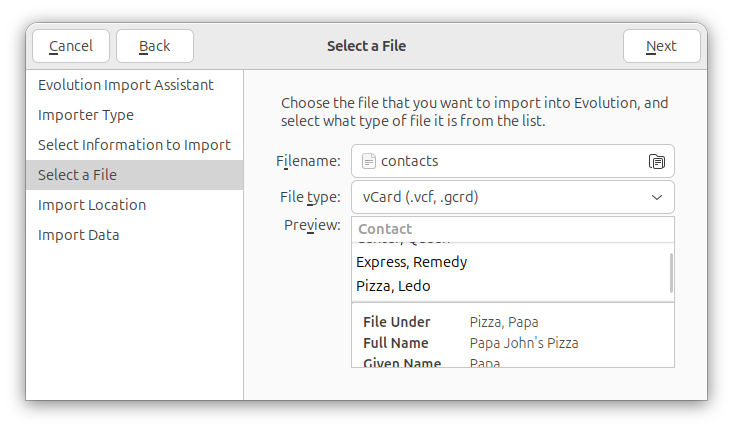
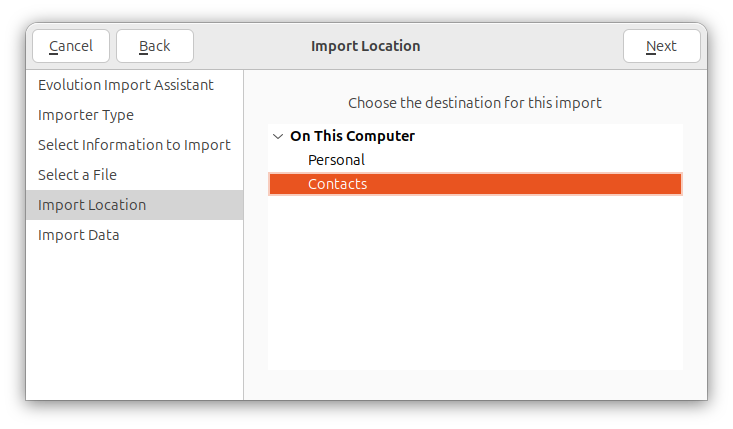
I clicked on Next where I could choose the destination for the import. The location was shown as On This Computer/Contacts, which I accepted.
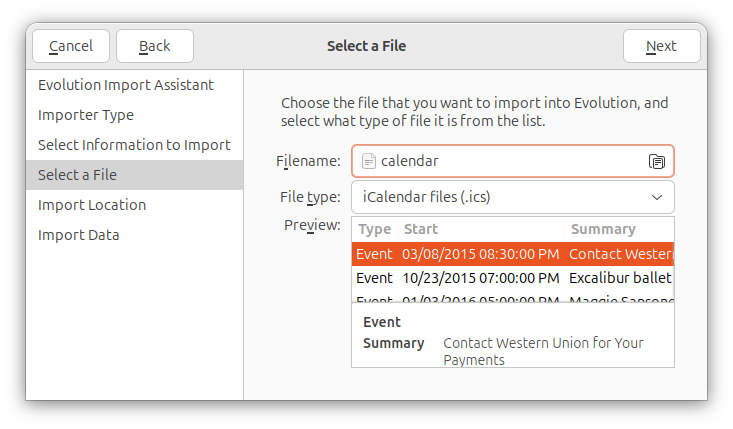
I then went through the import process again and navigated to the Calendar directory beneath the mbox-output directory. When I got to the Select a File stage and selected the file in that directory, I saw "iCalendar files (.ics)" listed as the file type.
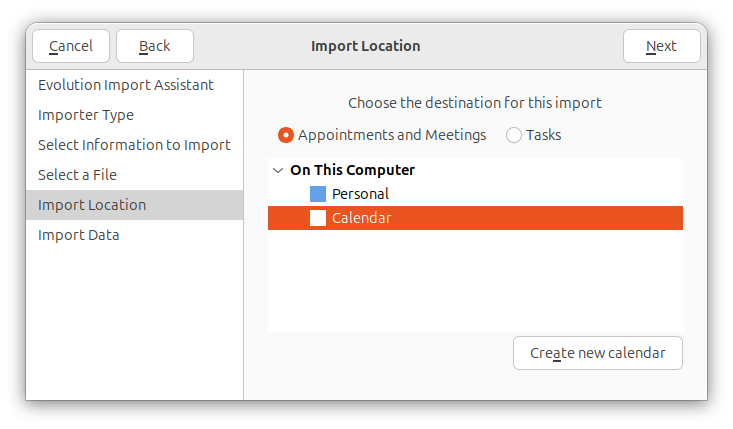
When I proceeded, I clicked on Calendar. I didn't click on New Calendar, but just clicked on Next.
Evolution then had her email, contacts, and calendar events.
Related articles: