
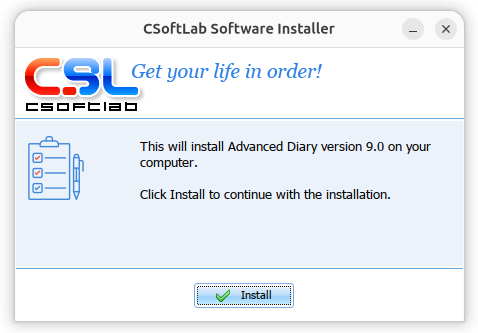
I needed to install the Advanced Diary diary/journaling program from CSoftLab on an Ubuntu Unix system. The application is developed only for Microsoft Windows, so to get it to work on an Ubuntu Linux system I used Wine, which is free and open-source software that allows one to run applications developed for the Microsoft Windows operating system (OS) on Linux systems. I started the installation from a terminal window after creating and initializing a Wine prefix for it.
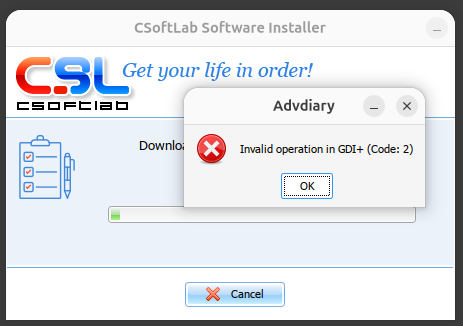
But when I clicked on Install, I saw the message "Invalid operation in GDI+ (Code: 2)".
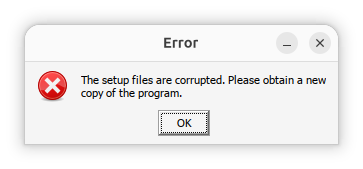
When I canceled the installation and closed the window associated with it, I saw an error window stating "The setup files are corrupted. Please obtain a new copy of the program."
I had encountered the same "Invalid operation in GDI+ (Code: 2)" problem many
months ago (the setup file wasn't actually corrupted, so I could ignore that
message) when I installed a previous version of Advanced Diary, version
8.0, on another system using Wine — see
Installing Advanced Diary on a
Linux system with Wine — and remembered that I had used a shell script then
to install additional software for Wine that would alleviate that problem.
I needed Winetricks installed, so I verified I had already installed it
on this system with the which
command (you can install it with sudo apt install winetricks,
if it is not installed).
alice@Wonderland:~$ which winetricks
/usr/local/bin/winetricks
alice@Wonderland:~$
But I modified the
installation script I had used
previously so that it no longer created a
32-bit
prefix, since I mistakenly thought the newer version of Advanced Diary, 9.0,
was a
64-bit Windows application (I'm not sure now if the script modification was
the source of the problem). I used the shell script (installAdvDiary9.sh) below to install the
9.0 version of Advanced Diary from a terminal window after making it
executable with chmod +x installAdvDiary.exe:
#!/usr/bin/env bash

set -e

if [ -z "$1" ]; then
  echo "Usage: $0 AdvDiary.exe"
  exit 1
fi

INSTALLER="$(realpath "$1")"
PREFIX="$HOME/.wine-advdiary"

echo "Creating Wine prefix..."
export WINEPREFIX="$PREFIX"
winecfg -v win10 >/dev/null 2>&1 || true

echo "Installing required components (gdiplus, corefonts)..."
winetricks -q gdiplus corefonts

echo "Forcing native GDI+..."
cat > "$PREFIX/user.reg" <<'EOF'
[Software\\Wine\\DllOverrides]
"gdiplus"="native"
EOF

echo "Running Advanced Diary installer..."
wine "$INSTALLER"

echo
echo "✔ Installation complete"
echo "Run with:"
echo "WINEPREFIX=$PREFIX wine \"$PREFIX/drive_c/Program Files/Advanced Diary/Diary.exe\""
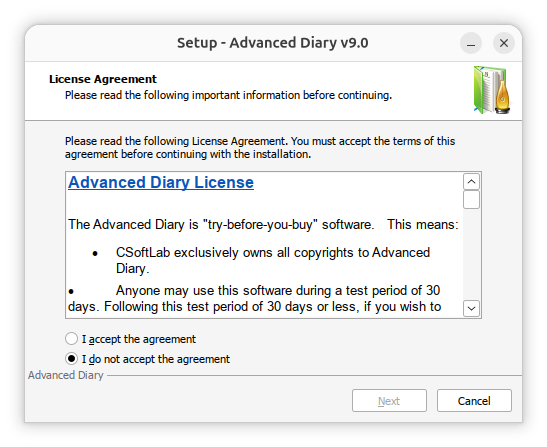
During the installation process, I saw a small setup window with nothing in it but a black background. However, I was able to get to a window where by pressing the Alt-Tab keys to cycle through open windows. But then when I switched to another window and tried to switch back, that setup window did not reappear, though I saw a gear icon representing it. I was able to get back to it by minimizing all open windows until I saw the GNOME desktop again. I then saw the License Agreement window for Advanced Diary where I could proceed by accepting the agreement.
I was then given the opportunity to change the installation directory from
the default location of C:\Program Files (x86)\Advanced Diary
— 32-bit programs are usually placed, by default, in C:\Program
Files (x86).
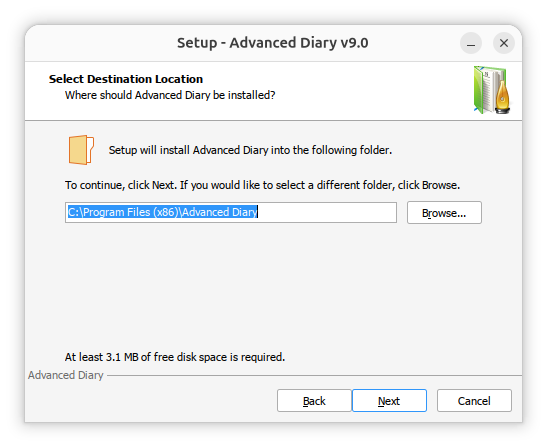
I didn't change the location for the installation nor any of the other default selections when I was presented with other options. The software appeared to successfully install, but then at the completion of the installation, when it was to open automatically, I saw the message "Access violation at address 75D947DC in module 'qcap.dll'. Read of address 5F505353."
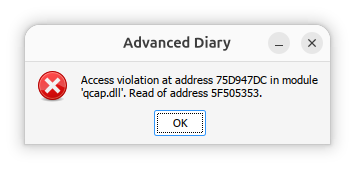
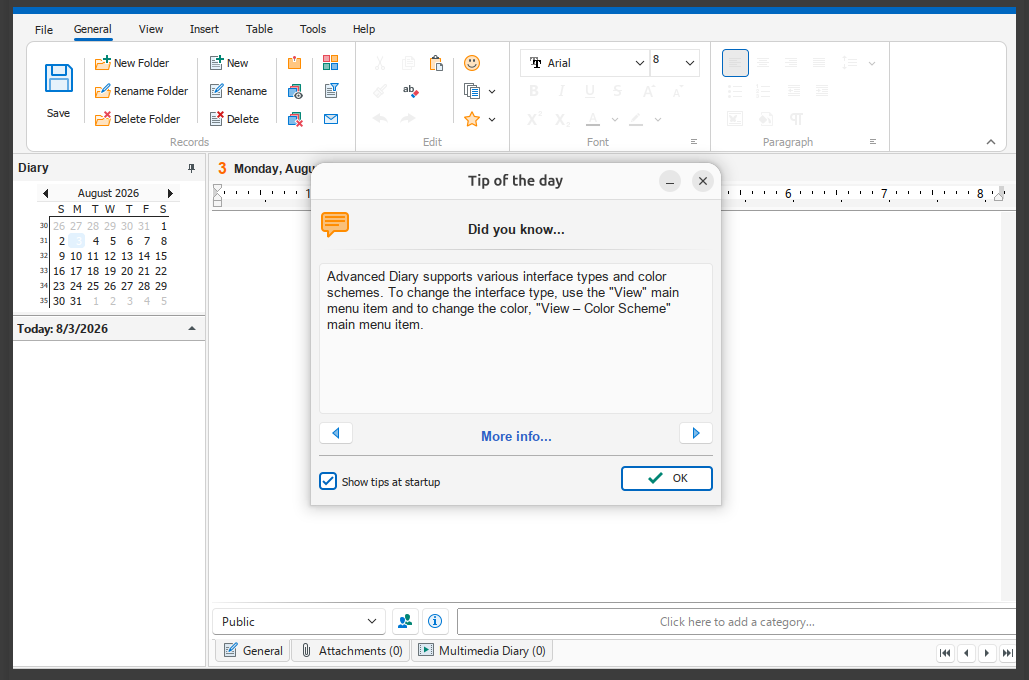
When I clicked on OK to close that window, though, the program opened and seemed to be functioning properly.
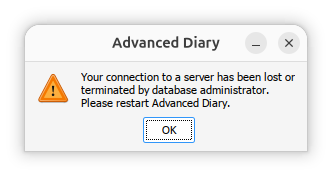
When I closed the program, I saw a small window informing me that "Your connection to a server has been lost or terminated by database administrator. Please restart Advanced Diary."
The installation created a desktop shortcut.
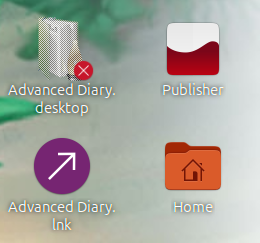
I right-clicked on the AdvancedDiary.desktop shortcut and chose "Allow Launching"
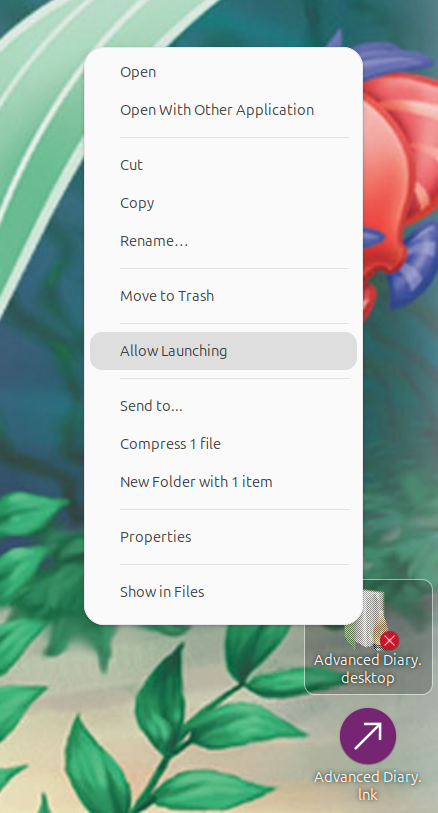
That changed the icon to the one I expected for the Advanced Diary shortcut.

When I double-clicked on that shortcut, I saw the same access violation message as I had previously seen, but the program did open as it had before. I queried ChatGPT about the problem and it provided the response here. I followed ChatGPT's advice to check on whether Wine was using its own qcap.dll by running WINEDEBUG=+loaddll wine AdvancedDiary.exe 2>&1 | grep qcap and saw the following output:
alice@Wonderland:~$ echo $WINEPREFIX

alice@Wonderland:~$ export WINEPREFIX="$HOME/.wine-advdiary"alice@Wonderland:~$ echo $WINEPREFIX
/home/alice@Wonderland/.wine-advdiary
alice@Wonderland:~$ WINEDEBUG=+loaddll wine AdvancedDiary.exe 2>&1 | grep qcap
alice@Wonderland:~$
I looked for the qcap.dll file under the Wine prefix and
found there were two instances of it, one in the windows/system32
and windows/syswow64.
alice@Wonderland:~$ find ~/.wine-advdiary/drive_c/windows/ -name 'qcap.dll' -print
/home/alice@Wonderland/.wine-advdiary/drive_c/windows/system32/qcap.dll
/home/alice@Wonderland/.wine-advdiary/drive_c/windows/syswow64/qcap.dll
alice@Wonderland:~$
I didn't see an indication that Wine was using a built-in
qcap.dll file, but since ChatGPT stated that the problem I was
seeing could be due to a Wine compatibility issue, I thought I should try its
suggestion to use a native Windows qcap.dll by issuing
the command winetricks
quartz or winetricks
wmp9.
First, I checked the the "existing overrides" value in the Libraries
tab where I saw "*gdiplus (native)".
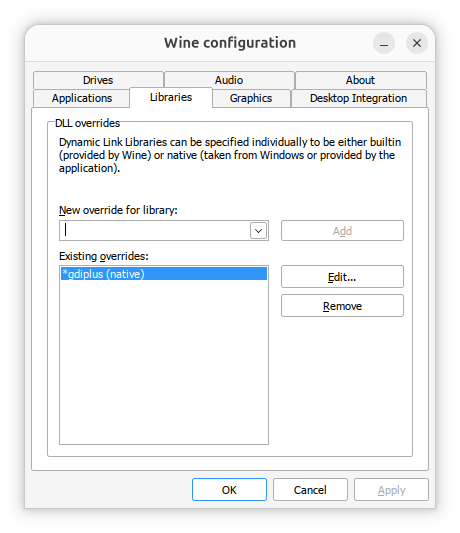
I then ran winetricks quartz in a terminal window
and saw a RegSvr32 window appear with the message "regsvr32: Successfully
registered DLL 'quartz.dll'".
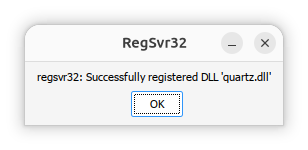
When I ran winecfg, I then saw "*gdiplus (native)" and "*quartz (native, builtin)" under "existing overrides".
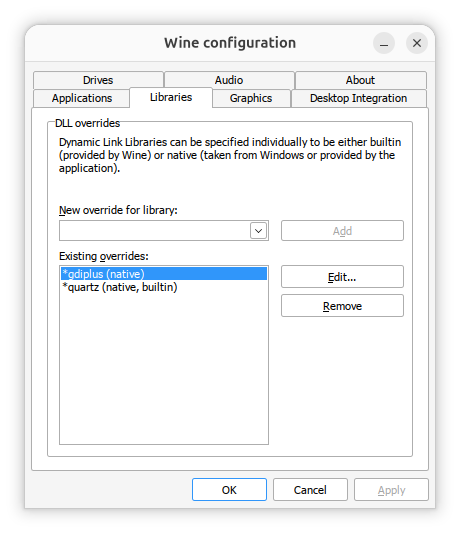
In the Wine configuration window, I selected the Libraries tab,
then under "New override for library" selected qcap.
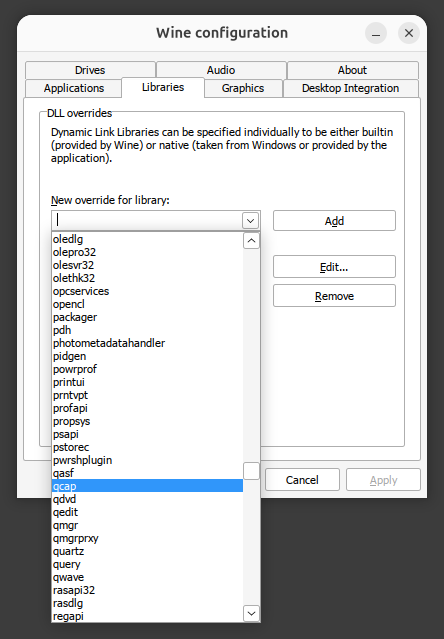
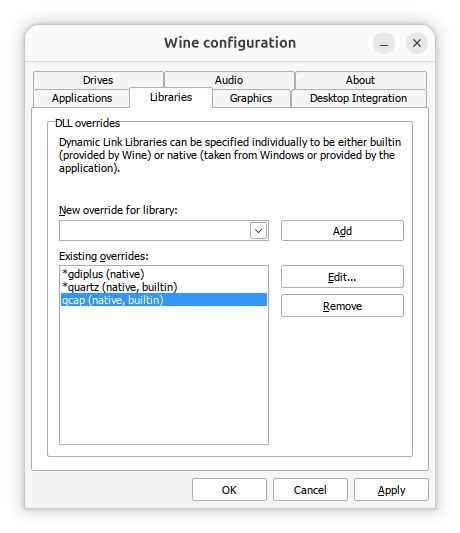
Then with qcap selected in the "New override for library" field, I
clicked on the Add button. I then saw qcap (native,
builtin) appear in the "Existing overrides" field. I clicked
on Ok to close the window.
But I still saw the same error message when I opened Advanced Diary. When I ran the WINEDEBUG command again and checked the Windows registry, I saw the following:
alice@Wonderland:~$ WINEDEBUG=+loaddll wine AdvancedDiary.exe 2>&1 | grep qcap
alice@Wonderland:~$ wine reg query "HKCU\Software\Wine\DllOverrides"

HKEY_CURRENT_USER\Software\Wine\DllOverrides
    *gdiplus    REG_SZ    native
    *quartz    REG_SZ    native,builtin
    qcap    REG_SZ    native,builtin

alice@Wonderland:~$ WINEDEBUG=+loaddll wine "$HOME/.wine-advdiary/drive_c/Program Files (x86)/Advanced Diary/AdvancedDiary.exe" 2>&1 | grep qcap
0124:trace:loaddll:build_module Loaded L"C:\\windows\\system32\\qcap.dll" at 75ED0000: builtin
alice@Wonderland:~$
I queried Google's
Gemini AI about the problem, which provided the
response
here. I followed its advice for disabling qcap.dll. I ran
the Wine Configuration utility for the relevant prefix (I had previously
used the command export WINEPREFIX="$HOME/.wine-advdiary" in
the still open terminal window, so I only had to use winecfg to
run the utility using the relevant prefix). Then, under the Libraries
tab, I selected the qcap entry, then chose Edit and selected
Disable.
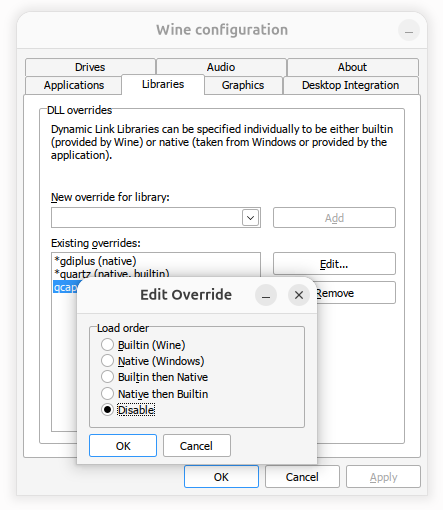
I then saw the qcap entry as "qcap (disabled)" and clicked on OK to close the Wine configuration window.
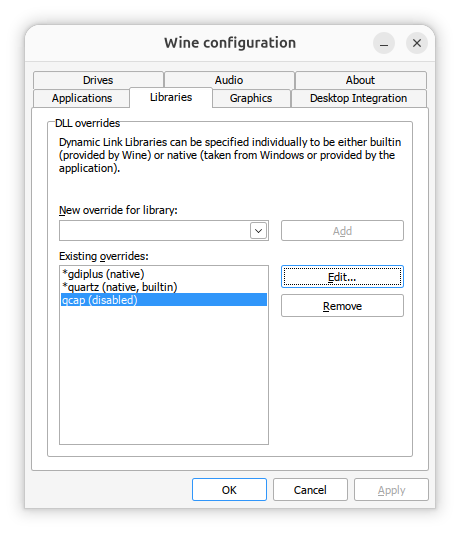
I was then able to start Advanced Diary without the access violation message appearing. I no longer saw the "Your connection to a server has been lost or terminated by database administrator. Please restart Advanced Diary" message when closing the program, either.
Related articles: