
You can view the current setting for a Microsoft Windows system to turn off the attached screen by typing "power settings" in the Windows "Type here to search" field and selecting "Power & sleep settings".
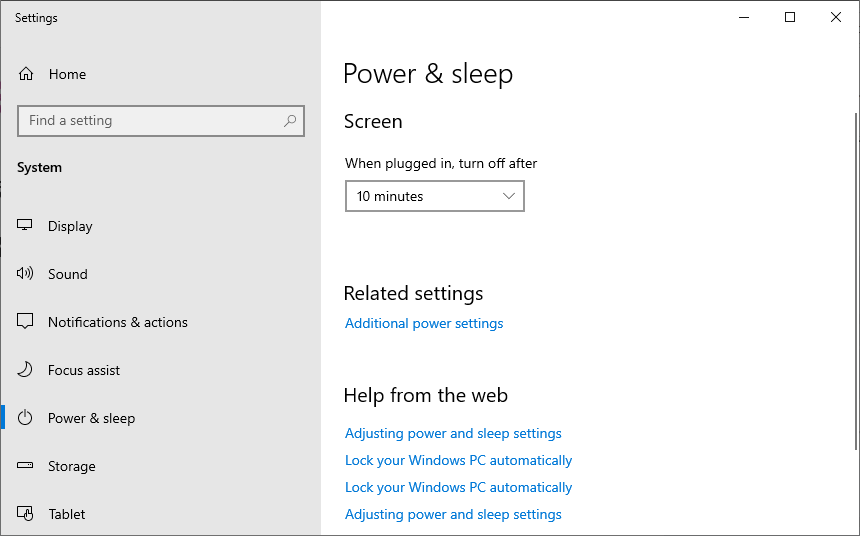
Settings on a desktop system running Windows 10
Alternatively, you can see the current screen timeout power off settings
from a
command-line interface (CLI) using the command
powercfg /query SCHEME_CURRENT SUB_VIDEO VIDEOIDLE
from a PowerShell or
command prompt window.
C:\>powercfg /query SCHEME_CURRENT SUB_VIDEO VIDEOIDLE
Power Scheme GUID: 381b4222-f694-41f0-9685-ff5bb260df2e  (Balanced)
  GUID Alias: SCHEME_BALANCED
  Subgroup GUID: 7516b95f-f776-4464-8c53-06167f40cc99  (Display)
    GUID Alias: SUB_VIDEO
    Power Setting GUID: 3c0bc021-c8a8-4e07-a973-6b14cbcb2b7e  (Turn off display after)
      GUID Alias: VIDEOIDLE
      Minimum Possible Setting: 0x00000000
      Maximum Possible Setting: 0xffffffff
      Possible Settings increment: 0x00000001
      Possible Settings units: Seconds
    Current AC Power Setting Index: 0x00000258
    Current DC Power Setting Index: 0x0000012c


C:\>Power Scheme GUID: 381b4222-f694-41f0-9685-ff5bb260df2e
(Balanced) provides the Windows globally unique identifier
(GUID), which is stored in the
Windows registry,
for the power scheme.
SCHEME_BALANCED indicates that the active power plan is the
standard Windows Balanced scheme.
VIDEOIDLE.
0x at the beginning of the number indicates. Setting
the value to 0 is equivalent to "never", though, meaning the screen is never
turned off.
0xffffffff essentially indicating an unlimited amount
of time.
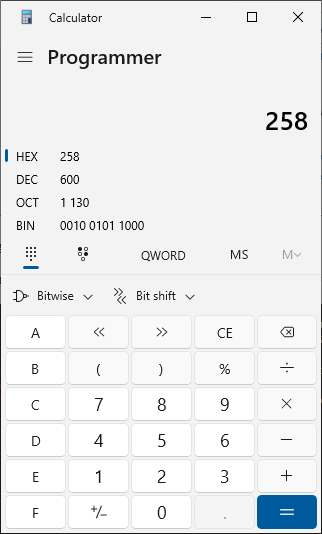
You can convert a hexadecimal number to decimal or vice versa using the Windows Calculator provided by Microsoft with its Windows operating system, if you switch from the "Standard" display for that calculator to "Programmer", which you can do by clicking on the hamburger button, i.e., the 3 short horizontal bars at the upper, left-hand corner of the window, and selecting "Programmer". You can then select "HEX" and use the keypad for the calculator to enter hexadecimal values, e.g., 258 in the above output. You will then see the equivalent decimal value in the "DEC" field. In this case, the decimal value is 600, so converting 600 seconds to minutes equals 10 minutes.
A value of zero for either of the above indexes indicates that Windows
will keep the screen on permanently. You can set the values from a
command prompt with a powercfg /setacvalueindex SCHEME_CURRENT SUB_VIDEO
VIDEOIDLE x and powercfg /setdcvalueindex SCHEME_CURRENT
SUB_VIDEO VIDEOIDLE y where x and y are decimal
values in seconds. E.g., to change the Plugged In timeout to
15 minutes (900 seconds), you could use the command
powercfg /setacvalueindex SCHEME_CURRENT SUB_VIDEO VIDEOIDLE 900
and powercfg /setdcvalueindex SCHEME_CURRENT SUB_VIDEO VIDEOIDLE 600
to change the On Battery value to 10 minutes (600 seconds).
You then need to issue the command powercfg /setactive SCHEME_CURRENT
to apply any changes you have made.
Related articles: