
There are several ways you can view the list of shared folders on a system running a Microsoft Windows operating system (OS).
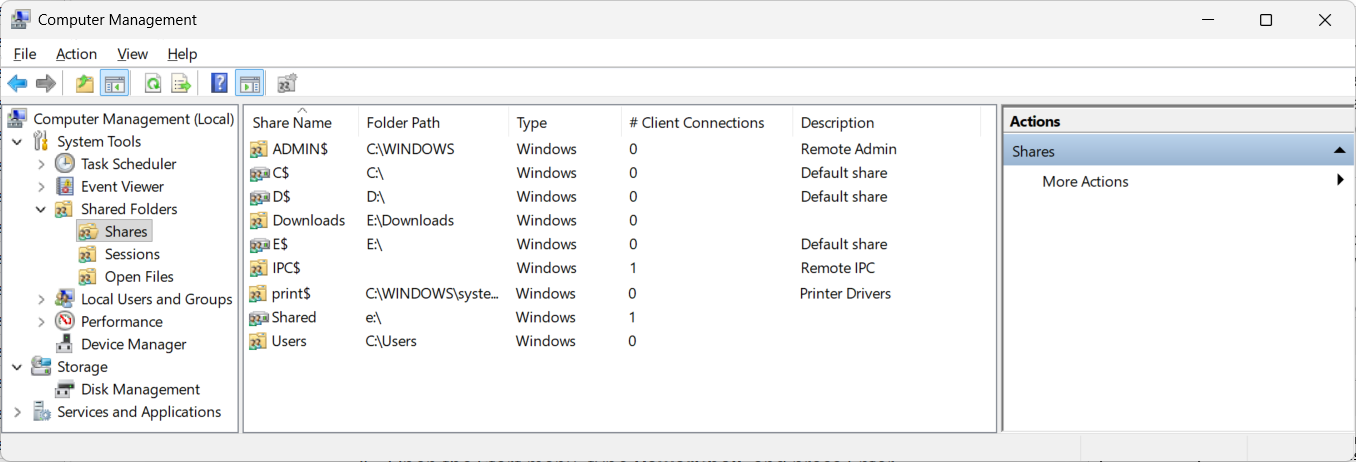
Method 1: Using Computer Management — Graphical User Interface (GUI)
-
Press the Windows key
plus the X key (or you can press the Windows key plus
the R key, type
compmgmt.mscand press Enter. -
In the left pane of the window, expand System Tools, then
Shared Folders, and then select Shares. A list of all
the active shared folders, their paths, and share names will appear in the
right pane.
Method 2: Using Powershell
-
Open the Start menu, or use the Windows key and R, type PowerShell, and press Enter. Then type the command
Get-SmbShareand press Enter. The command displays a table of all server message block (SMB) shares currently active on your machine.If you only want to see the directory path for a particular sharename, you can use a command such asGet-Smbshare -Name sharenamewhere sharename is the relevant sharename. E.g., if the directoryE:\Downloadswas shared using the sharenameDownloads.PS C:\> Get-SMBShare -Name Downloads Name ScopeName Path Description ---- --------- ---- ----------- Downloads * E:\Downloads PS C:\>
Method 3: Using Command Prompt
- Open the File Explorer, which you can do by pressing the Windows key and E.
- Click in the address bar field at the top of the File Explorer window.
-
Type
\\localhostor\\127.0.0.1and press Enter to see your computer's own shared directories over the network. The localhost name is a hostname that refers to the local system which is equivalent to the local loopback address of127.0.0.1.

