←October→
| Sun |
Mon |
Tue |
Wed |
Thu |
Fri |
Sat |
| |
|
|
|
1 |
2 |
3 |
| 4 |
5 |
6 |
7 |
8 |
9 |
10 |
| 11 |
12 |
13 |
14 |
15 |
16 |
17 |
| 18 |
19 |
20 |
21 |
22 |
23 |
24 |
| 25 |
26 |
27 |
28 |
29 |
30 |
31 |
|
|
Wed, Sep 23, 2026 7:53 pm
Removing a Wine Bottle
Bottles allows one to run applications
developed for the Microsoft Windows operating system (OS) on
Linux systems.
I had created bottle for the desktop version of
Comic Collector from
CLZ. But as I had installed the
Movie Collector
and Book Collector desktop programs for managing our movie and book collections
in a .wine-collectorz
Wine
prefix on an Ubuntu Linux
system, I decided to remove the Comic Collector bottle and reinstall
the software in the .wine-collectorz prefix instead. To remove a Wine
bottle, you can take the following steps.
-
Open the Bottles application and select the bottle you wish to remove by
clicking on it.
-
With the relevant bottle displayed, click on the column of 3 dots near the
top, right side of the window.
-
Select Delete Bottle from the pull down menu
-
When asked for confirmation for the deletion, click on Delete.
The bottle will then be removed from the list of bottles.
You can confirm that the directory associated with the bottle is gone
by checking the ~/.var/app/com.usebottles.bottles/data/bottles/bottles/
directory.
[ More Info ]
[/os/unix/linux/bottles]
permanent link
Fri, Sep 18, 2026 6:20 pm
Viewing shared folders on a Windows system
There are several ways you can view the list of shared folders on a
system running a Microsoft Windows operating system (OS).
Method 1: Using Computer Management — Graphical User Interface (GUI)
-
Press the Windows key
plus the X key (or you can press the Windows key plus
the R key, type
compmgmt.msc and press Enter.
-
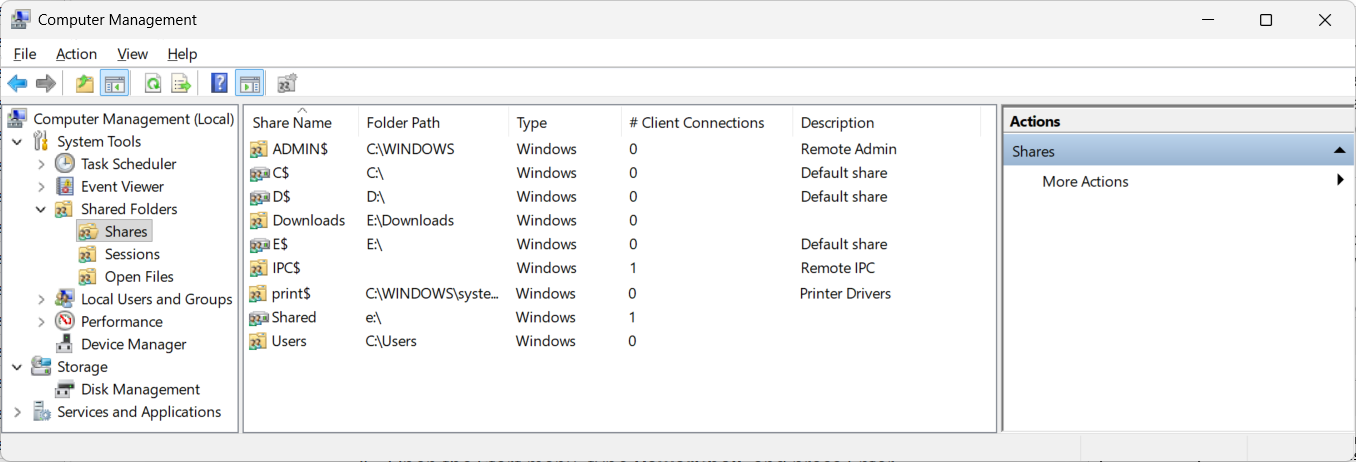
In the left pane of the window, expand System Tools, then
Shared Folders, and then select Shares. A list of all
the active shared folders, their paths, and share names will appear in the
right pane.
Method 2: Using Powershell
-
Open the Start menu, or use the Windows key and R, type
PowerShell, and press Enter. Then type the command
Get-SmbShare and press Enter. The command displays a
table of all
server message
block (SMB) shares currently active on your machine.If you only want
to see the directory path for a particular sharename, you can use a
command such as Get-Smbshare -Name sharename where
sharename is the relevant sharename. E.g., if the directory
E:\Downloads was shared using the sharename Downloads.
PS C:\> Get-SMBShare -Name Downloads

Name      ScopeName Path         Description
----      --------- ----         -----------
Downloads *         E:\Downloads


PS C:\>
Method 3: Using Command Prompt
-
Open the File
Explorer, which you can do by pressing the Windows key and
E.
-
Click in the address bar field at the top of the File Explorer window.
-
Type
\\localhost or \\127.0.0.1
and press Enter to see your computer's
own shared directories over the network. The localhost name is
a hostname that
refers to the local system which is equivalent to the local loopback
address of 127.0.0.1.
[/os/windows/network]
permanent link
Thu, Sep 17, 2026 2:52 pm
Checking on which Debian packages need updating and updating all of them
To check on which
Debian packages
may need updating and update all for which upgrades are available on an
Ubuntu Linux system,
you can take the following steps:
-
Update the package lists
Open a terminal
window and fetch the latest information about available updates from the remote
repositories:
sudo apt update
-
List packages with available updates
List every installed package that has a newer version ready to install:
apt list --upgradable
-
Simulate the update (optional)
Perform a dry run to see exactly which packages will be upgraded or
installed without making any actual system changes:
sudo apt upgrade -s
-
Apply the updates
Upgrade all available packages to their latest versions:
sudo apt upgrade
To automatically perform distribution upgrades that may add or
remove dependencies to complete the update, use sudo apt
dist-upgrade or sudo apt full-upgrade instead.
[/os/unix/linux/ubuntu]
permanent link
Mon, Sep 14, 2026 3:45 pm
Using winecfg to map a drive letter to a shared network folder
To map a drive letter in
Wine to a
network share,
you can't type a
\\server\share
Universal Naming Convention directly into
winecfg. Wine requires network shares to be mounted locally on your
host operating system (OS), such as Linux or macOS, first. To mount a
network share using the
Server Message
Block (SMB) communication protocol, take the following steps:
-
Mount the SMB Share on Your Host OS
Open a terminal
window Mount the Windows network share to a local directory on your machine
using cifs-utils.
sudo mkdir -p /mnt/WINSHARE
sudo mount -t cifs //IP_OR_HOSTNAME/SHARE_NAME /mnt/winshare -o username=USERNAME
Subsitute the name you wish to use for the
mount point for
WINSHARE, the IP
address or hostname
for IP_OR_HOSTNAME, the name of the share on the remote computer for
SHARE_NAME, and the relevant username for USERNAME. E.g.:
alice@Wonderland:~$ sudo mkdir -p /mnt/borras_public
[sudo: authenticate] Password:
ailce@Wonderland:~$ sudo mount -t cifs //borras/public /mnt/borras_public -o username=alice
Password for alice@//borras/public:
alice@Wonderland:~$
Verify access by checking if the files appear:
-
Open Wine Configuration
Launch the Wine configuration utility from the terminal window.
(If using a specific prefix, issue the command
WINEPREFIX=/path/to/prefix winecfg, instead).
-
Add a New Drive Letter
Select the Drives tab at the top of the winecfg
window.
- Click the Add... button at the bottom.
- Select an available drive letter (e.g. Z:)
from the drop-down menu and click OK.
-
Link the Drive to the Mount Point
With your new drive letter selected in the list:
- Locate the Target: input field near the
bottom.
- Enter the path where you mounted the share (e.g.,
/mnt/winshare) or click Browse... to select it.
- (Optional) Click Show Advanced and set
the drive Type to Network drive.
-
Apply and Test
To verify the mapping was successful, open Wine's file manager:
Your mapped drive letter should now be visible and accessible under
My Computer.
[/os/unix/linux/wine]
permanent link
Sun, Sep 13, 2026 1:43 pm
Sharing a folder on an Ubuntu Linux system using SMB
You can share a folder on an
Ubuntu Linux system with
Windows systems using
Server Message
Block (SMB) by installing
Samba, a
free and
open-source software package. If Samba isn't installed, you can install it
as a Debian
package with the following commands:
sudo apt update
sudo apt install samba
You can verify that the Samba service is running with the command
sudo systemctl status smbd; you should see "active (running)".
alice@Wonderland:~$ sudo systemctl status smbd
● smbd.service - Samba SMB Daemon
     Loaded: loaded (/usr/lib/systemd/system/smbd.service; enabled; preset: ena>
     Active: active (running) since Sat 2026-09-12 17:09:53 EDT; 4min 16s ago
 Invocation: 4c72abe09deb445d91cb063be76afc0b
       Docs: man:smbd(8)
             man:samba(7)
             man:smb.conf(5)
   Main PID: 540371 (smbd)
     Status: "smbd: ready to serve connections..."
      Tasks: 3 (limit: 151234)
     Memory: 10M (peak: 11.1M)
        CPU: 161ms
     CGroup: /system.slice/smbd.service
             ├─540371 /usr/sbin/smbd --foreground --no-process-group
             ├─540388 "smbd: notifyd" .
             └─540389 "smbd: cleanupd "

Sep 12 17:09:52 Wonderland systemd[1]: Starting smbd.service - Samba SMB Daemon...
Sep 12 17:09:53 Wonderland update-apparmor-samba-profile[540361]: grep: /etc/appa>
Sep 12 17:09:53 Wonderland update-apparmor-samba-profile[540367]: diff: /etc/appa>
Sep 12 17:09:53 Wonderland systemd[1]: Started smbd.service - Samba SMB Daemon.
alice@Wonderland:~$
Once Samba is installed, you will need to edit the Samba configuration file,
smb.conf, to define the shared folder.
[ More Info ]
[/os/unix/linux/network/samba]
permanent link
Fri, Sep 11, 2026 3:31 pm
Installing Disney Dreamlight Valley on a Nintendo switch
To install
Disney Dreamlight Valley on a
Nintendo switch
using a download code, take the following steps:
-
On the Nintendo switch, select Nintendo eShop from the menu.
-
When you are presented with a
QR code, sccan it and use it to sign into your account at
account.nintendo.com.
-
Select Enter Code and enter the download code.
-
After the code is confirmed, select Redeem.
If you have been playing the game on another system and want access to your
Cloud Save data, select
Cloud Save, then, on the Nintendo switch,
log into your Disney Dreamlight Valley account and select
OK. Then,
when the software is downloaded to the switch, on the switch, log into your
Disney Dreamlight Valley account then select
OK. Then, when you see
a window displaying your email address, and options to reset your password or
unlink the account on the switch, do neither, but instead go back to the
Disney Dreamlight Valley game, which is on the left side of the screen, and
select
Continue.
-
Disney Dreamlight Valley: How to Enable Cloud Saves for Cross-Progression
By: Greysun Morales
Date: September 6, 2022
[/gaming/nintendo]
permanent link
Thu, Sep 10, 2026 1:32 pm
Determining the Linux device name that maps to a drive under Wine
You can view the drive letter mappings used by a
Wine prefix from a
command-line
interface (CLI) on a Linux system by opening a
terminal window
and entering the command ls -l ~/wineprefix/dosdevices/
where wineprefix is the relevant Wine prefix. E.g.,
ls -l ~/.wine-collectorz/dosdevices/, if the Wine prefix is
.wine-collectorz. I can limit the output to just drive
mappings with ls -l ~/.wine-collectorz/dosdevices | grep "[a-z]:" | grep
-E '/dev/|/run/media', which
pipes the output of
the ls
through two grep commands. The
first looks for lines that have a drive letter, i.e., one of the lowercase
letters a through z followed by a colon, e.g., c:, while the second then looks
for those lines that have either "/dev/" or "/run/media" in them.
alice@Wonderland:~$ ls -l ~/.wine-collectorz/dosdevices | grep "[a-z]:" | grep -E '/dev/|/run/media'
lrwxrwxrwx 1 alice alice  8 May  4 16:29 d:: -> /dev/sdc
lrwxrwxrwx+1 alice alice  8 May  4 16:29 e:: -> /dev/sr0
lrwxrwxrwx 1 alice alice  8 May  4 16:29 f:: -> /dev/sdd
lrwxrwxrwx 1 alice alice  8 May  4 16:29 g:: -> /dev/sde
lrwxrwxrwx 1 alice alice  8 May  4 16:29 h:: -> /dev/sdf
lrwxrwxrwx 1 alice alice  9 May  4 16:29 i:: -> /dev/sdi1
lrwxrwxrwx 1 alice alice  8 May  4 16:29 j:: -> /dev/sdg
lrwxrwxrwx 1 alice alice  8 May  4 16:29 k:: -> /dev/sdh
lrwxrwxrwx 1 alice alice  9 May  4 16:29 l:: -> /dev/sdg1
lrwxrwxrwx 1 alice alice  8 May  4 16:29 m:: -> /dev/sdi
lrwxrwxrwx 1 alice alice 43 Aug 26 17:47 n: -> /run/media/alice/MS 3
lrwxrwxrwx 1 alice alice  9 May  4 16:29 n:: -> /dev/sdg2
lrwxrwxrwx 1 alice alice  8 May  4 16:29 o:: -> /dev/sdj
lrwxrwxrwx 1 alice alice 47 Sep  3 19:49 p: -> /run/media/alice/Nifler
lrwxrwxrwx 1 alice alice  9 May  4 16:29 p:: -> /dev/sde1
lrwxrwxrwx 1 alice alice  9 May  4 16:29 q:: -> /dev/sde2
lrwxrwxrwx 1 alice alice  9 May  4 16:29 r:: -> /dev/sdc1
lrwxrwxrwx 1 alice alice 43 Jun 27 11:29 s: -> /run/media/alice/MS 2
lrwxrwxrwx 1 alice alice  9 May  4 16:29 s:: -> /dev/sdc2
lrwxrwxrwx 1 alice alice  9 May  4 16:29 t:: -> /dev/sdj1
lrwxrwxrwx 1 alice alice  9 May  4 16:29 u:: -> /dev/sdh1
lrwxrwxrwx 1 alice alice  9 May  4 16:29 v:: -> /dev/sdh2
lrwxrwxrwx 1 alice alice 48 Aug 26 17:47 w: -> /run/media/alice/Willow
lrwxrwxrwx 1 alice alice  9 May  4 16:29 w:: -> /dev/sdf1
lrwxrwxrwx 1 alice alice  9 May  4 16:29 x:: -> /dev/sdd1
lrwxrwxrwx 1 alice alice 43 Jun 27 11:29 y: -> /run/media/alice/MS 1
lrwxrwxrwx 1 alice alice  9 May  4 16:29 y:: -> /dev/sdd2
alice@Wonderland:~$
I can use the lsblk -o name,mountpoint,label,size to see
the connection between the device designations and the labels on drives.
alice@Wonderland:~$ lsblk -o name,mountpoint,label,size
NAME                        MOUNTPOINT                         LABEL        SIZE
loop0                       /snap/canonical-livepatch/406                  13.5M
loop1                                                                     201.3M
loop2                       /snap/celluloid/322                            21.9M
loop3                       /snap/cups/1238                                47.9M
loop4                       /snap/bare/5                                      4K
loop5                       /snap/chromium-ffmpeg/112                       8.3M
<text snipped>
sda                                                                          20T
├─sda1                                                                       16M
└─sda2                      /run/media/alice MS 4          20T
sdb                                                                        29.3G
└─sdb1                      /run/media/alice             29.3G
sdc                                                                        14.6T
├─sdc1                                                                      499M
├─sdc2                                                                      128M
├─sdc3                      /run/media/alice Windows     14.5T
└─sdc4                                                         Recovery    74.5G
sdd                                                                          20T
├─sdd1                                                                       16M
└─sdd2                      /run/media/alice MS Working    20T
sde                                                                        14.6T
└─sde1                      /run/media/alice Nifler      14.6T
sdf                                                                         4.5T
└─sdf1                      /run/media/alice Oak          4.5T
sdg                                                                        18.2T
├─sdg1                                                         EFI          200M
└─sdg2                      /run/media/alice MS 3        18.2T
sdh                                                                        25.5T
├─sdh1                                                         EFI          200M
└─sdh2                                                         MS 2        25.5T
sdi                                                                        25.5T
├─sdi1                                                         EFI          200M
└─sdi2                      /run/media/alice MS 1        25.5T
sdk                                                                        18.2T
├─sdk1                                                         EFI          200M
└─sdk2                      /run/media/alice YouTube     18.2T
sr0                                                                         4.1G
nvme0n1                                                                     1.8T
├─nvme0n1p1                 /boot/efi                                         1G
├─nvme0n1p2                 /boot                                             2G
└─nvme0n1p3                                                                 1.8T
  └─dm_crypt-0                                                              1.8T
    └─ubuntu--vg-ubuntu--lv /                                               1.8T
alice@Wonderland:~$
You can use the Wine Configuration Tool for a graphical user interface
(GUI) view of drive mappings by using a command like
WINEPREFIX=$HOME/.wine-collectorz winecfg.
alice@Wonderland:~$ WINEPREFIX=$HOME/.wine-collectorz winecfg
alice@Wonderland:~$
References:
-
How do I list Wine drive letter mappings?
By: Rovanion
Date: February 27, 2023
Stack Exchange - Unix & Linux
Related
-
Creating and using a Wine prefix on an Ubuntu Linux system
Date: July 31, 2026
[/os/unix/linux/wine]
permanent link
Wed, Sep 09, 2026 8:03 pm
Registry values for Collectorz Movie Collector running under Wine
I needed to check the version and some other values for the
Collectorz Windows desktop version
of its
Movie Collector database program which was running under
Wine on a
Linux system.
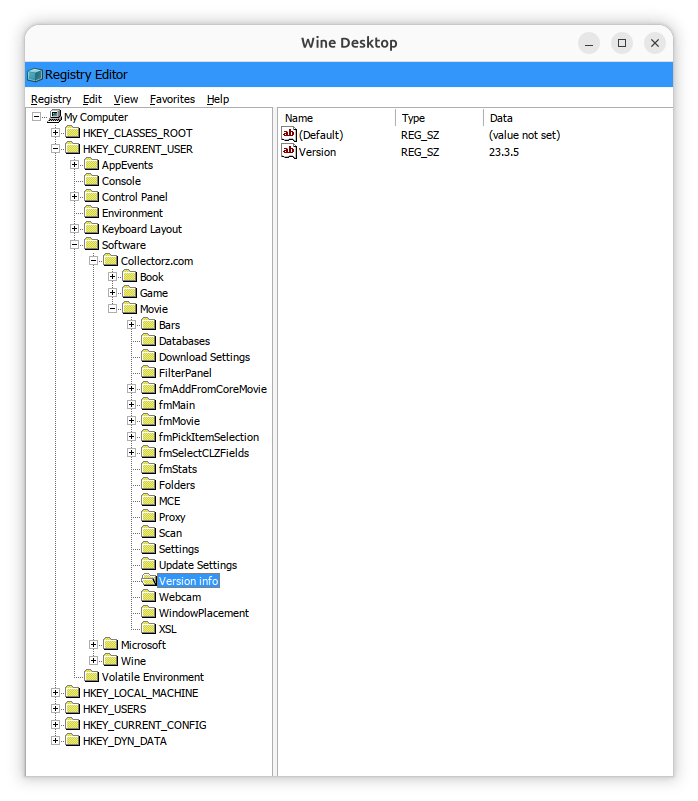
You can view values that are stored in the
Windows Registry
under a
Wine prefix by
entering a command similar to
WINEPREFIX=$HOME/wineprefix wine
regedit
where
wineprefix is the name of the Wine prefix. E.g.,
WINEPREFIX=$HOME/.wine-collectorz wine regedit. You
can find the registry keys for Movie Collector under
HKEY_CURRENT_USER\Software\Collectorz.com\Movie
You can check specific keys with
reg query commands like the
ones below, where the Wine prefix is .wine-collectorz,
which show the version of Movie Collector, the location of the currently
specified database, and the location where backups will be stored.
alice@Wonderland:~$ WINEPREFIX=$HOME/.wine-collectorz wine reg query "HKCU\Software\Collectorz.com\Movie\Version info" /v Version

HKEY_CURRENT_USER\Software\Collectorz.com\Movie\Version info
    Version    REG_SZ    23.3.5

alice@Wonderland:~$ WINEPREFIX=$HOME/.wine-collectorz wine reg query "HKCU\Software\Collectorz.com\Movie\Databases" /v CurrentDatabase

HKEY_CURRENT_USER\Software\Collectorz.com\Movie\Databases
    CurrentDatabase    REG_SZ    T:\Movie Collector\Movies.mvc

alice@Wonderland:~$ WINEPREFIX=$HOME/.wine-collectorz wine reg query "HKCU\Software\Collectorz.com\Movie\Folders" /v Backup

HKEY_CURRENT_USER\Software\Collectorz.com\Movie\Folders
    Backup    REG_SZ    I:\Movie Collector\Backup\

alice@Wonderland:~$
References:
-
Collectorz.com® Movie Collector for Windows - Getting Started
Collectorz.com
Related:
-
Creating and using a Wine prefix on an Ubuntu Linux system
Date: July 31, 2026
-
Windows Reg Query Command
Date: October 1, 2016
[/os/unix/linux/wine]
permanent link
Mon, Aug 24, 2026 10:00 pm
Importing Vcard contacts extracted from a PST file into Proton Mail using an Intermediate CSV file
Proton Mail provides
end-to-end encrypted email. If you are transitioning to Proton Mail from
another email application and need the contacts you had stored in the other
application, Proton Mail provides the capability to import contacts
stored in a
Virtual Contact File (VCF) or
a comma-separated
values (CSV) file. VCF, aka vCard, files usually have a .vcf
filename
extension while .csv is the filename extension for CSV files.
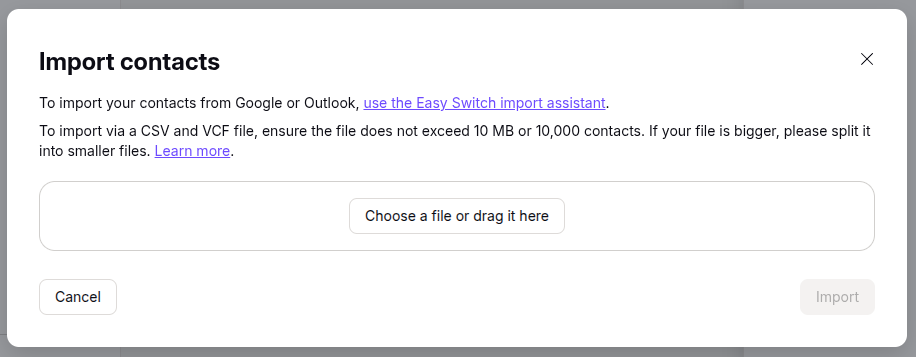
To import such files, in the Proton Mail application, click on the
Contacts icon on the upper, right side
of the Proton Mail window, then click on Import Contacts, then
select "Import from .csv or Vcard", then click on the "Choose a file or
drag it here" button.
If you want to extract contacts from a
Microsoft Outlook
Personal
Storage Table .pst file, you can use the
readpst utility to extract the contacts from the .pst file. A command
such as readpst -cv -tc -o contacts_out your-outlook.pst
can be used where contacts out is the output directory where you wish
the utility to place the contacts (the output directory must exist prior to
running the command) and your-outlook.pst is the location and name
for the existing .pst file. E.g.:
alice@Wonderload:~/Documents$ readpst -cv -tc -o ~/Documents/contacts ~/Downloads/alice\@example.com.pst
Opening PST file and indexes...
Processing Folder "Deleted Items"
Processing Folder "Inbox"
Processing Folder "Outbox"
Processing Folder "Sent Items"
Processing Folder "Suggested Contacts"
Processing Folder "Junk E-mail"
Processing Folder "Conversation Action Settings"
Processing Folder "Quick Step Settings"
Processing Folder "Drafts"
Processing Folder "Calendar"
Processing Folder "Contacts"
Processing Folder "Journal"
Processing Folder "Notes"
Processing Folder "Tasks"
	"Suggested Contacts" - 22 items done, 0 items skipped.
Processing Folder "RSS Feeds"
Processing Folder "~ Holly"
Processing Folder "HVIA Members"
	"alice@example.com" - 16 items done, 0 items skipped.
Processing Folder "Tutorials"
Processing Folder "HVIA Renters"
	"Tasks" - 0 items done, 5 items skipped.
	"HVIA Renters" - 1 items done, 0 items skipped.
	"HVIA Members" - 102 items done, 1 items skipped.
	"Tutorials" - 31 items done, 0 items skipped.
	"Contacts" - 127 items done, 4 items skipped.
	"Calendar" - 0 items done, 229 items skipped.
	"Inbox" - 0 items done, 297 items skipped.
	"Sent Items" - 0 items done, 341 items skipped.
	"~ Holly" - 0 items done, 399 items skipped.
alice@Wonderload:~/Documents$
[ More Info ]
[/network/email/protonmail]
permanent link
Tue, Aug 18, 2026 7:09 pm
Importing an Outlook PST file into Evolution
My wife wanted to transition from Microsoft Windows to Linux for privacy
and performance reasons, so I installed
Ubuntu Linux on her desktop
system. She had been using
Microsoft Outlook
as an email client. I installed
Evolution, which
is available as a
Debian package, as an alternative to Outlook.
Evolution has the capability to import an Outlook
Personal
Storage Table (PST), though that did not work when I tried the process
with the PST file Outlook was using under Microsoft Windows. But to try
that process, when the Welcome window opens when you start
Evolution, click on Cancel to close it. Then take the following
steps:
- Press the Alt+F keys to view the file menu, then select
Import.
- You can click on Next at the Evolution Import Assistant
window to proceed with the import of the Outlook
Personal Storage
Table (PST) file.
- For the Importer Type, choose "Import a single file"
then click on Next.
- At the Select a File window, navigate to the location of the PST
file and select it. The file type in the file type field should automatically
change to "Outlook personal folders (.pst)" instead of the default file type of
"Berkeley Mailbox (mbox)"
If the option to select Outlook personal folders (.pst) is
not in the drop down list of file types, you may need to install the
plugin that allows Evolution to import .pst files.
To check on the status of the PST plugin on an Ubuntu system, or
another Debian distribution of Linux, use the command sudo apt
install evolution-plugins evolution-plugin-pstimport.
[ More Info ]
[/network/email/evolution]
permanent link

Privacy Policy
Contact


