←October→
| Sun |
Mon |
Tue |
Wed |
Thu |
Fri |
Sat |
| |
|
|
|
1 |
2 |
3 |
| 4 |
5 |
6 |
7 |
8 |
9 |
10 |
| 11 |
12 |
13 |
14 |
15 |
16 |
17 |
| 18 |
19 |
20 |
21 |
22 |
23 |
24 |
| 25 |
26 |
27 |
28 |
29 |
30 |
31 |
|
|
Wed, Sep 23, 2026 7:53 pm
Removing a Wine Bottle
Bottles allows one to run applications
developed for the Microsoft Windows operating system (OS) on
Linux systems.
I had created bottle for the desktop version of
Comic Collector from
CLZ. But as I had installed the
Movie Collector
and Book Collector desktop programs for managing our movie and book collections
in a .wine-collectorz
Wine
prefix on an Ubuntu Linux
system, I decided to remove the Comic Collector bottle and reinstall
the software in the .wine-collectorz prefix instead. To remove a Wine
bottle, you can take the following steps.
-
Open the Bottles application and select the bottle you wish to remove by
clicking on it.
-
With the relevant bottle displayed, click on the column of 3 dots near the
top, right side of the window.
-
Select Delete Bottle from the pull down menu
-
When asked for confirmation for the deletion, click on Delete.
The bottle will then be removed from the list of bottles.
You can confirm that the directory associated with the bottle is gone
by checking the ~/.var/app/com.usebottles.bottles/data/bottles/bottles/
directory.
[ More Info ]
[/os/unix/linux/bottles]
permanent link
Thu, Sep 17, 2026 2:52 pm
Checking on which Debian packages need updating and updating all of them
To check on which
Debian packages
may need updating and update all for which upgrades are available on an
Ubuntu Linux system,
you can take the following steps:
-
Update the package lists
Open a terminal
window and fetch the latest information about available updates from the remote
repositories:
sudo apt update
-
List packages with available updates
List every installed package that has a newer version ready to install:
apt list --upgradable
-
Simulate the update (optional)
Perform a dry run to see exactly which packages will be upgraded or
installed without making any actual system changes:
sudo apt upgrade -s
-
Apply the updates
Upgrade all available packages to their latest versions:
sudo apt upgrade
To automatically perform distribution upgrades that may add or
remove dependencies to complete the update, use sudo apt
dist-upgrade or sudo apt full-upgrade instead.
[/os/unix/linux/ubuntu]
permanent link
Mon, Sep 14, 2026 3:45 pm
Using winecfg to map a drive letter to a shared network folder
To map a drive letter in
Wine to a
network share,
you can't type a
\\server\share
Universal Naming Convention directly into
winecfg. Wine requires network shares to be mounted locally on your
host operating system (OS), such as Linux or macOS, first. To mount a
network share using the
Server Message
Block (SMB) communication protocol, take the following steps:
-
Mount the SMB Share on Your Host OS
Open a terminal
window Mount the Windows network share to a local directory on your machine
using cifs-utils.
sudo mkdir -p /mnt/WINSHARE
sudo mount -t cifs //IP_OR_HOSTNAME/SHARE_NAME /mnt/winshare -o username=USERNAME
Subsitute the name you wish to use for the
mount point for
WINSHARE, the IP
address or hostname
for IP_OR_HOSTNAME, the name of the share on the remote computer for
SHARE_NAME, and the relevant username for USERNAME. E.g.:
alice@Wonderland:~$ sudo mkdir -p /mnt/borras_public
[sudo: authenticate] Password:
ailce@Wonderland:~$ sudo mount -t cifs //borras/public /mnt/borras_public -o username=alice
Password for alice@//borras/public:
alice@Wonderland:~$
Verify access by checking if the files appear:
-
Open Wine Configuration
Launch the Wine configuration utility from the terminal window.
(If using a specific prefix, issue the command
WINEPREFIX=/path/to/prefix winecfg, instead).
-
Add a New Drive Letter
Select the Drives tab at the top of the winecfg
window.
- Click the Add... button at the bottom.
- Select an available drive letter (e.g. Z:)
from the drop-down menu and click OK.
-
Link the Drive to the Mount Point
With your new drive letter selected in the list:
- Locate the Target: input field near the
bottom.
- Enter the path where you mounted the share (e.g.,
/mnt/winshare) or click Browse... to select it.
- (Optional) Click Show Advanced and set
the drive Type to Network drive.
-
Apply and Test
To verify the mapping was successful, open Wine's file manager:
Your mapped drive letter should now be visible and accessible under
My Computer.
[/os/unix/linux/wine]
permanent link
Sun, Sep 13, 2026 1:43 pm
Sharing a folder on an Ubuntu Linux system using SMB
You can share a folder on an
Ubuntu Linux system with
Windows systems using
Server Message
Block (SMB) by installing
Samba, a
free and
open-source software package. If Samba isn't installed, you can install it
as a Debian
package with the following commands:
sudo apt update
sudo apt install samba
You can verify that the Samba service is running with the command
sudo systemctl status smbd; you should see "active (running)".
alice@Wonderland:~$ sudo systemctl status smbd
● smbd.service - Samba SMB Daemon
     Loaded: loaded (/usr/lib/systemd/system/smbd.service; enabled; preset: ena>
     Active: active (running) since Sat 2026-09-12 17:09:53 EDT; 4min 16s ago
 Invocation: 4c72abe09deb445d91cb063be76afc0b
       Docs: man:smbd(8)
             man:samba(7)
             man:smb.conf(5)
   Main PID: 540371 (smbd)
     Status: "smbd: ready to serve connections..."
      Tasks: 3 (limit: 151234)
     Memory: 10M (peak: 11.1M)
        CPU: 161ms
     CGroup: /system.slice/smbd.service
             ├─540371 /usr/sbin/smbd --foreground --no-process-group
             ├─540388 "smbd: notifyd" .
             └─540389 "smbd: cleanupd "

Sep 12 17:09:52 Wonderland systemd[1]: Starting smbd.service - Samba SMB Daemon...
Sep 12 17:09:53 Wonderland update-apparmor-samba-profile[540361]: grep: /etc/appa>
Sep 12 17:09:53 Wonderland update-apparmor-samba-profile[540367]: diff: /etc/appa>
Sep 12 17:09:53 Wonderland systemd[1]: Started smbd.service - Samba SMB Daemon.
alice@Wonderland:~$
Once Samba is installed, you will need to edit the Samba configuration file,
smb.conf, to define the shared folder.
[ More Info ]
[/os/unix/linux/network/samba]
permanent link
Thu, Sep 10, 2026 1:32 pm
Determining the Linux device name that maps to a drive under Wine
You can view the drive letter mappings used by a
Wine prefix from a
command-line
interface (CLI) on a Linux system by opening a
terminal window
and entering the command ls -l ~/wineprefix/dosdevices/
where wineprefix is the relevant Wine prefix. E.g.,
ls -l ~/.wine-collectorz/dosdevices/, if the Wine prefix is
.wine-collectorz. I can limit the output to just drive
mappings with ls -l ~/.wine-collectorz/dosdevices | grep "[a-z]:" | grep
-E '/dev/|/run/media', which
pipes the output of
the ls
through two grep commands. The
first looks for lines that have a drive letter, i.e., one of the lowercase
letters a through z followed by a colon, e.g., c:, while the second then looks
for those lines that have either "/dev/" or "/run/media" in them.
alice@Wonderland:~$ ls -l ~/.wine-collectorz/dosdevices | grep "[a-z]:" | grep -E '/dev/|/run/media'
lrwxrwxrwx 1 alice alice  8 May  4 16:29 d:: -> /dev/sdc
lrwxrwxrwx+1 alice alice  8 May  4 16:29 e:: -> /dev/sr0
lrwxrwxrwx 1 alice alice  8 May  4 16:29 f:: -> /dev/sdd
lrwxrwxrwx 1 alice alice  8 May  4 16:29 g:: -> /dev/sde
lrwxrwxrwx 1 alice alice  8 May  4 16:29 h:: -> /dev/sdf
lrwxrwxrwx 1 alice alice  9 May  4 16:29 i:: -> /dev/sdi1
lrwxrwxrwx 1 alice alice  8 May  4 16:29 j:: -> /dev/sdg
lrwxrwxrwx 1 alice alice  8 May  4 16:29 k:: -> /dev/sdh
lrwxrwxrwx 1 alice alice  9 May  4 16:29 l:: -> /dev/sdg1
lrwxrwxrwx 1 alice alice  8 May  4 16:29 m:: -> /dev/sdi
lrwxrwxrwx 1 alice alice 43 Aug 26 17:47 n: -> /run/media/alice/MS 3
lrwxrwxrwx 1 alice alice  9 May  4 16:29 n:: -> /dev/sdg2
lrwxrwxrwx 1 alice alice  8 May  4 16:29 o:: -> /dev/sdj
lrwxrwxrwx 1 alice alice 47 Sep  3 19:49 p: -> /run/media/alice/Nifler
lrwxrwxrwx 1 alice alice  9 May  4 16:29 p:: -> /dev/sde1
lrwxrwxrwx 1 alice alice  9 May  4 16:29 q:: -> /dev/sde2
lrwxrwxrwx 1 alice alice  9 May  4 16:29 r:: -> /dev/sdc1
lrwxrwxrwx 1 alice alice 43 Jun 27 11:29 s: -> /run/media/alice/MS 2
lrwxrwxrwx 1 alice alice  9 May  4 16:29 s:: -> /dev/sdc2
lrwxrwxrwx 1 alice alice  9 May  4 16:29 t:: -> /dev/sdj1
lrwxrwxrwx 1 alice alice  9 May  4 16:29 u:: -> /dev/sdh1
lrwxrwxrwx 1 alice alice  9 May  4 16:29 v:: -> /dev/sdh2
lrwxrwxrwx 1 alice alice 48 Aug 26 17:47 w: -> /run/media/alice/Willow
lrwxrwxrwx 1 alice alice  9 May  4 16:29 w:: -> /dev/sdf1
lrwxrwxrwx 1 alice alice  9 May  4 16:29 x:: -> /dev/sdd1
lrwxrwxrwx 1 alice alice 43 Jun 27 11:29 y: -> /run/media/alice/MS 1
lrwxrwxrwx 1 alice alice  9 May  4 16:29 y:: -> /dev/sdd2
alice@Wonderland:~$
I can use the lsblk -o name,mountpoint,label,size to see
the connection between the device designations and the labels on drives.
alice@Wonderland:~$ lsblk -o name,mountpoint,label,size
NAME                        MOUNTPOINT                         LABEL        SIZE
loop0                       /snap/canonical-livepatch/406                  13.5M
loop1                                                                     201.3M
loop2                       /snap/celluloid/322                            21.9M
loop3                       /snap/cups/1238                                47.9M
loop4                       /snap/bare/5                                      4K
loop5                       /snap/chromium-ffmpeg/112                       8.3M
<text snipped>
sda                                                                          20T
├─sda1                                                                       16M
└─sda2                      /run/media/alice MS 4          20T
sdb                                                                        29.3G
└─sdb1                      /run/media/alice             29.3G
sdc                                                                        14.6T
├─sdc1                                                                      499M
├─sdc2                                                                      128M
├─sdc3                      /run/media/alice Windows     14.5T
└─sdc4                                                         Recovery    74.5G
sdd                                                                          20T
├─sdd1                                                                       16M
└─sdd2                      /run/media/alice MS Working    20T
sde                                                                        14.6T
└─sde1                      /run/media/alice Nifler      14.6T
sdf                                                                         4.5T
└─sdf1                      /run/media/alice Oak          4.5T
sdg                                                                        18.2T
├─sdg1                                                         EFI          200M
└─sdg2                      /run/media/alice MS 3        18.2T
sdh                                                                        25.5T
├─sdh1                                                         EFI          200M
└─sdh2                                                         MS 2        25.5T
sdi                                                                        25.5T
├─sdi1                                                         EFI          200M
└─sdi2                      /run/media/alice MS 1        25.5T
sdk                                                                        18.2T
├─sdk1                                                         EFI          200M
└─sdk2                      /run/media/alice YouTube     18.2T
sr0                                                                         4.1G
nvme0n1                                                                     1.8T
├─nvme0n1p1                 /boot/efi                                         1G
├─nvme0n1p2                 /boot                                             2G
└─nvme0n1p3                                                                 1.8T
  └─dm_crypt-0                                                              1.8T
    └─ubuntu--vg-ubuntu--lv /                                               1.8T
alice@Wonderland:~$
You can use the Wine Configuration Tool for a graphical user interface
(GUI) view of drive mappings by using a command like
WINEPREFIX=$HOME/.wine-collectorz winecfg.
alice@Wonderland:~$ WINEPREFIX=$HOME/.wine-collectorz winecfg
alice@Wonderland:~$
References:
-
How do I list Wine drive letter mappings?
By: Rovanion
Date: February 27, 2023
Stack Exchange - Unix & Linux
Related
-
Creating and using a Wine prefix on an Ubuntu Linux system
Date: July 31, 2026
[/os/unix/linux/wine]
permanent link
Wed, Sep 09, 2026 8:03 pm
Registry values for Collectorz Movie Collector running under Wine
I needed to check the version and some other values for the
Collectorz Windows desktop version
of its
Movie Collector database program which was running under
Wine on a
Linux system.
You can view values that are stored in the
Windows Registry
under a
Wine prefix by
entering a command similar to
WINEPREFIX=$HOME/wineprefix wine
regedit
where
wineprefix is the name of the Wine prefix. E.g.,
WINEPREFIX=$HOME/.wine-collectorz wine regedit. You
can find the registry keys for Movie Collector under
HKEY_CURRENT_USER\Software\Collectorz.com\Movie
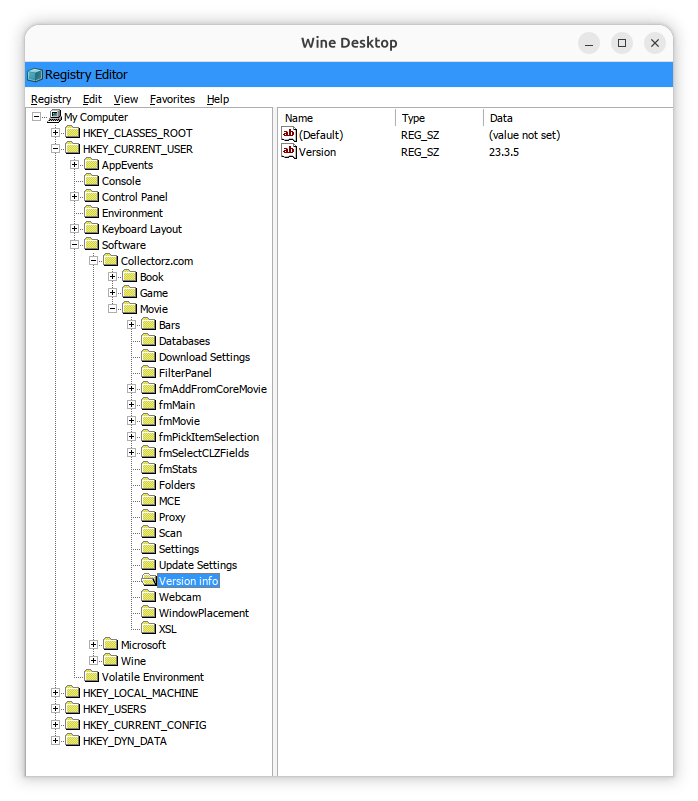
You can check specific keys with
reg query commands like the
ones below, where the Wine prefix is .wine-collectorz,
which show the version of Movie Collector, the location of the currently
specified database, and the location where backups will be stored.
alice@Wonderland:~$ WINEPREFIX=$HOME/.wine-collectorz wine reg query "HKCU\Software\Collectorz.com\Movie\Version info" /v Version

HKEY_CURRENT_USER\Software\Collectorz.com\Movie\Version info
    Version    REG_SZ    23.3.5

alice@Wonderland:~$ WINEPREFIX=$HOME/.wine-collectorz wine reg query "HKCU\Software\Collectorz.com\Movie\Databases" /v CurrentDatabase

HKEY_CURRENT_USER\Software\Collectorz.com\Movie\Databases
    CurrentDatabase    REG_SZ    T:\Movie Collector\Movies.mvc

alice@Wonderland:~$ WINEPREFIX=$HOME/.wine-collectorz wine reg query "HKCU\Software\Collectorz.com\Movie\Folders" /v Backup

HKEY_CURRENT_USER\Software\Collectorz.com\Movie\Folders
    Backup    REG_SZ    I:\Movie Collector\Backup\

alice@Wonderland:~$
References:
-
Collectorz.com® Movie Collector for Windows - Getting Started
Collectorz.com
Related:
-
Creating and using a Wine prefix on an Ubuntu Linux system
Date: July 31, 2026
-
Windows Reg Query Command
Date: October 1, 2016
[/os/unix/linux/wine]
permanent link
Thu, Aug 13, 2026 7:20 pm
Symlinks on Linux
To create a
symbolic link
(symlink), aka soft link, on a
Linux system, you can
use the ln command with
the -s option, i.e., ln -s, followed by the target
file path and the name you wish to use for the symbolic link. The
-s option specifies that the link should
be "soft" or symbolic (omitting this creates a hard
link). You can view existing symlinks with the ls command with the
-l option and then piping the output through the grep command with the
-l or --long option to obtain more detailed
information. Since the permission string for files or directories will
begin with the letter "l", you can limit the output with ls -l |
grep "^l". E.g.:
alice@Wonderland@Serenity:~/Documents$ ln -s ~/Pictures/Phone/PXL_20260715_202210365.jpg erin.jpg
alice@Wonderland@Serenity:~/Documents$ ls -l | grep "^l"
lrwxrwxrwx  1 alice@Wonderland domain users@ad.moonwillowwoods.com        75 Aug 14 15:03 erin.jpg -> /home/alice@Wonderland/Pictures/Phone/PXL_20260715_202210365.jpg
alice@Wonderland:~/Documents$
You can link an entire directory with a symlink. E.g., you could point a
local logs folder to a folder elsewhere on the system, even one
on another drive. E.g., ln -s /var/log/app_logs ./logs.
If you wish to find all of the symlinks in the current directory and
all its subdirectories, you can use the command find . -type l.
The -type l flag instructs the
find command to look
just for links. To see the full, absolute path of where a specific link points
you can use the
readlink command, e.g.,
readlink -f filename
where filename is the name of the symlink. E.g.:
alice@Wonderland:~/Documents$ readlink -f erin.jpg
/home/alice@Wonderland/Pictures/Phone/PXL_20260715_202210365.jpg
alice@Wonderland:~/Documents$
You can remove a symlink with the unlink command
followed by the symlink name.
alice@Wonderland@Serenity:~/Documents$ unlink erin.jpg
alice@Wonderland:~/Documents$
You could also use the rm
command. E.g., if you created a symlink named shortcut.txt, you could
remove that shortcut with rm shortcut.txt. Never add a trailing
slash (/) when removing a directory symlink, or you risk
deleting the contents inside the actual target directory.
[/os/unix/linux]
permanent link
Thu, Aug 06, 2026 3:29 pm
Registry location for Advanced Diary registration information
The Advanced Diary journaling/diary
program from CSoftLab stores its
license information in the
Windows registry at
HKEY_CURRENT_USER\Software\CSoftLab\Advanced Diary. When you
install the software, you will have a 30-day trial period and the
LicenseCode and LicenseName keys will not have
any values set. You can see the values using the Microsoft Windows registry
editor regedit.exe.
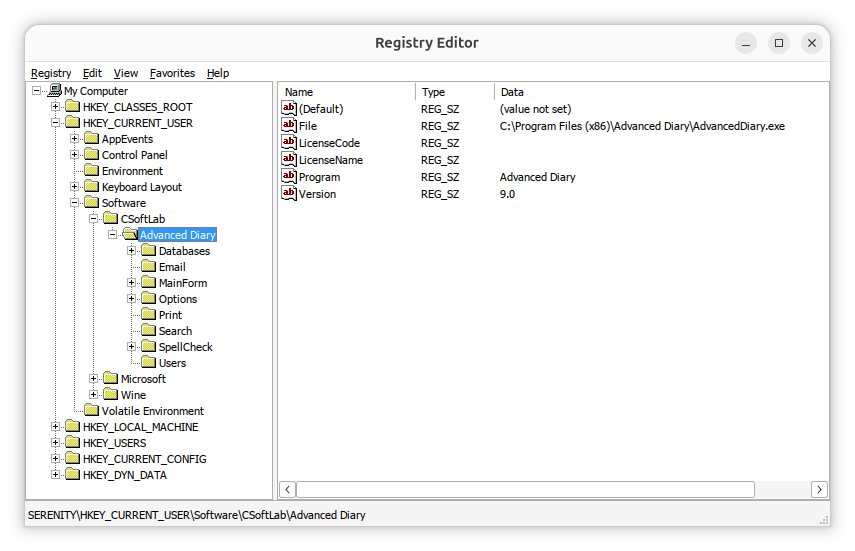
If you need to view the license information, you can navigate to the
HKEY_CURRENT_USER\Software\CSoftLab\Advanced Diary key in
the registry using the registry editor or you can
open a command prompt window and
issue the following reg query commands.
C:\>reg query "HKCU\SOFTWARE\CSoftLab\Advanced Diary" /v LicenseName

HKEY_CURRENT_USER\SOFTWARE\CSoftLab\Advanced Diary
    LicenseName    REG_SZ    John Doe


C:\Users\Lisa>reg query "HKCU\SOFTWARE\CSoftLab\Advanced Diary" /v LicenseCode

HKEY_CURRENT_USER\SOFTWARE\CSoftLab\Advanced Diary
    LicenseCode    REG_SZ    VN37-H79K-28ZZ-XMMUMM9XX9


C:\>
You can extract the information from the registry by right-clicking on the
Advanced Diary entry in the registry and choosing Export
and then saving the information to a .reg registry file. That will save all
of the registry information for Advanced Diary. You can then delete all
but the lines that are like the ones below, if you only need the license
entries in the registry.
Windows Registry Editor Version 5.00
[HKEY_CURRENT_USER\SOFTWARE\CSoftLab\Advanced Diary]
"LicenseName"="John Doe"
"LicenseCode"="VN37-H79K-28ZZ-XMMUMM9XX9"
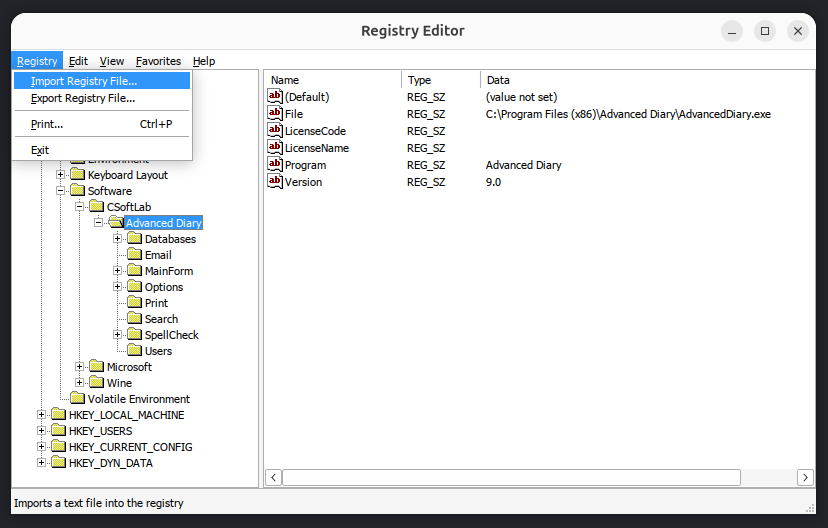
You can then import the registry entries after installing Advanced Diary
on another system. You can import them by opening the registry editor and
choosing Registry and then Import Registry File.
Note: if you are transferring the registry keys to an installation of
Advanced Diary running under Wine on a Linux system, you can run the
registry editor provided by Wine by opening a
terminal window
and then setting the WINEPREFIX environment variable equal to
whatever Wine prefix you have set, if you are using one other than the
.wine one, and then running wine regedit. E.g.:
$ export WINEPREFIX="$HOME/.wine-advdiary"
$ wine regedit
If you have saved the registry values to a .reg file, e.g.
file.reg, and want to import the values from that file from
a command-line
interface (CLI), open a
command prompt window as an administrator and run
reg import "C:\path\to\file.reg". Alternatively, use
regedit /s "C:\path\to\file.reg" to import the file silently
without a confirmation prompt. To import the registry values from a
Windows system into the registry for an instance of Advanced Diary 9.0
running in a Wine prefix named .wine-advdiary on
an Ubuntu Linux system,
I used the commands below in a terminal window to import a .reg file
named AdvancedDiary_LicenseInfo.reg.
$ export WINEPREFIX="$HOME/.wine-advdiary"$ wine regedit /s "$HOME/Documents/AdvancedDiary_LicenseInfo.reg"
$
After doing so, when I clicked on Help and chose About Advanced
Diary, I saw it was registered.
Related articles:
-
Obtaining a command prompt in Windows 11
Date: August 14, 2023
-
Windows Reg Query Command
Date: October 1, 2026
-
Checking Microsoft Windows proxy server
settings
Date: January 7, 2015
-
Installing Advanced Diary on a Linux system with Wine
Date: February 24, 2026
-
Access violation when installing Advanced Diary 9.0 with Wine on a Linux system
Date: August 4, 2026
-
Advanced Diary Active Database and Backup Registry Values
Date: July 18, 2026
[/os/unix/linux/wine/AdvDiary]
permanent link
Tue, Aug 04, 2026 9:27 pm
Access violation when installing Advanced Diary 9.0 with Wine on a Linux system
I needed to install the
Advanced Diary diary/journaling program
from CSoftLab on an Ubuntu
Unix system. The application is developed only for Microsoft Windows,
so to get it to work on an Ubuntu Linux system I used
Wine, which is
free and
open-source software that allows one to run applications developed
for the Microsoft Windows
operating system
(OS) on Linux systems.
I started the installation from a
terminal window after
creating and initializing a Wine
prefix for it. But when I clicked on Install, I saw the
message "Invalid operation in GDI+ (Code: 2)". When I canceled the
installation and closed the window associated with it, I saw an error
window stating "The setup files are corrupted. Please obtain a new copy
of the program." I had encountered the same "Invalid operation in GDI+
(Code: 2)" problem many months ago (the setup file wasn't actually
corrupted, so I could ignore that message) when I installed a previous
version of Advanced Diary, version 8.0, on another system using Wine
— see Installing Advanced
Diary on a Linux system with Wine — and remembered that I
had used a shell
script then to install additional software for Wine that
would alleviate that problem. I needed Winetricks installed, so
I verified I had already installed it on this system with the which command
(you can install it with sudo apt install winetricks,
if it is not installed). I used winetricks to install gdiplus and core
fonts for Windows applications. That resolved the problem with the
"Invalid operation in GDI+ (Code: 2)", but then I saw a
"Access violation at address 75D947DC in module 'qcap.dll'. Read of address
5F505353" message every time I started Advanced Diary.
[ More Info ]
[/os/unix/linux/wine/AdvDiary]
permanent link
Fri, Jul 31, 2026 9:18 pm
Creating and using a Wine prefix on an Ubuntu Linux system
A Wine prefix is a directory that acts like a separate Windows installation.
Each prefix has its own registry, installed programs, libraries, and
configuration, providing a way to isolate applications and configure Wine
in a way that is optimal for a particular Windows application or set of
applications without affecting other Windows applications that you need
to run on the system. To create a new Wine prefix, take the following
steps:
Create a new Wine prefix
Open a
terminal
window.
-
Choose a location for the new prefix. For example:
export WINEPREFIX="$HOME/.wine-myapp"
-
Initialize the prefix:
WINEPREFIX="$HOME/.wine-myapp" wineboot
Wine will create the directory and initialize a fresh Windows environment.
[ More Info ]
[/os/unix/linux/wine]
permanent link

Privacy Policy
Contact

