
My wife had been using
DVDFab 13 under Microsoft
Windows 11 and wanted to continue to use it for
ripping DVDs after we
converted her desktop PC to
Ubuntu Linux. DVDFab 13
seemed to be working fine after I installed it using
Wine until after I
updated Wine to version 11.0 (you can see which version of Wine is present
by issuing the command wine --version in a
Terminal window).
When I tried to run DVDFab afterwards, though, I saw the message
“A debugger has been found running in your system. Please, unload
it from memory and restart your program.”
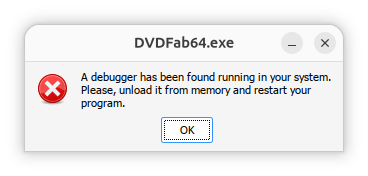
When I queried ChatGPT about the issue, it replied “This error is usually not caused by an actual debugger running on Ubuntu. DVDFab contains anti-debugging / anti-tamper checks, and under Wine or Proton those checks can sometimes incorrectly conclude that a debugger is attached.” It also stated that, for DVDFab 13 specifically, there is an issue when trying to run the program on later versions of Wine with the problem appearing with version 10.3 or later. The problem occurs on newer versions, even when no debugger is running. I decided to install the application under Bottles, which I had previously installed on the system with Flatpak, to see if the problem might not occur if I tried to run the application under Bottles, but the problem still occurred. I.e., I saw the "A debugger has been found running in your system. Please, unload it from memory and restart your program.” message.
I had installed Bottles 64.1 some time ago, but I couldn't run it from
a terminal window with bottles-cli or bottles, so
I invoked Wine directly using the bottle's environment with
the command
WINEPREFIX="$HOME/.var/app/com.usebottles.bottles/data/bottles/bottles/DVDFab/"
wine "C:\Program Files\DVDFab\DVDFab 13\DVDFab64.exe"
.
$ WINEPREFIX="$HOME//.var/app/com.usebottles.bottles/data/bottles/bottles/DVDFab/" \
> wine "C:\Program Files\DVDFab\DVDFab 13\DVDFab64.exe"
00a4:err:setupapi:do_file_copyW Unsupported style(s) 0x10
0134:fixme:file:NtLockFile I/O completion on lock not implemented yet
0134:fixme:ntdll:NtQuerySystemInformation info_class SYSTEM_PERFORMANCE_INFORMATION
013c:fixme:file:NtLockFile I/O completion on lock not implemented yet
013c:fixme:ntdll:NtQuerySystemInformation info_class SYSTEM_PERFORMANCE_INFORMATION
0144:fixme:file:NtLockFile I/O completion on lock not implemented yet
0144:fixme:ntdll:NtQuerySystemInformation info_class SYSTEM_PERFORMANCE_INFORMATION
014c:fixme:file:NtLockFile I/O completion on lock not implemented yet
014c:fixme:ntdll:NtQuerySystemInformation info_class SYSTEM_PERFORMANCE_INFORMATION
regsvr32: Successfully unregistered DLL 'C:\windows\\Microsoft.NET\Framework\v4.0.30319\diasymreader.dll'
regsvr32: Successfully unregistered DLL 'C:\windows\\Microsoft.NET\Framework64\v4.0.30319\diasymreader.dll'
014c:fixme:msi:internal_ui_handler internal UI not implemented for message 0x0b000000 (UI level = 5)
014c:fixme:msi:internal_ui_handler internal UI not implemented for message 0x0b000000 (UI level = 5)
0164:fixme:file:NtLockFile I/O completion on lock not implemented yet
0164:fixme:ntdll:NtQuerySystemInformation info_class SYSTEM_PERFORMANCE_INFORMATION
0164:fixme:msi:internal_ui_handler internal UI not implemented for message 0x0b000000 (UI level = 5)
0164:fixme:msi:internal_ui_handler internal UI not implemented for message 0x0b000000 (UI level = 5)
013c:fixme:msi:internal_ui_handler internal UI not implemented for message 0x0b000000 (UI level = 1)
013c:fixme:msi:internal_ui_handler internal UI not implemented for message 0x0b000000 (UI level = 1)
002c:err:setupapi:do_file_copyW Unsupported style(s) 0x10
0024:fixme:ntdll:NtRaiseHardError 0x50000018 4 0x3 0x10e1f8 0 0x10ec88: stub
$
But the same message that "A debugger has been found running in your system"
appeared. So I then opened the Bottles application with
flatpak run com.usebottles.bottles and selected the DVDFab bottle.
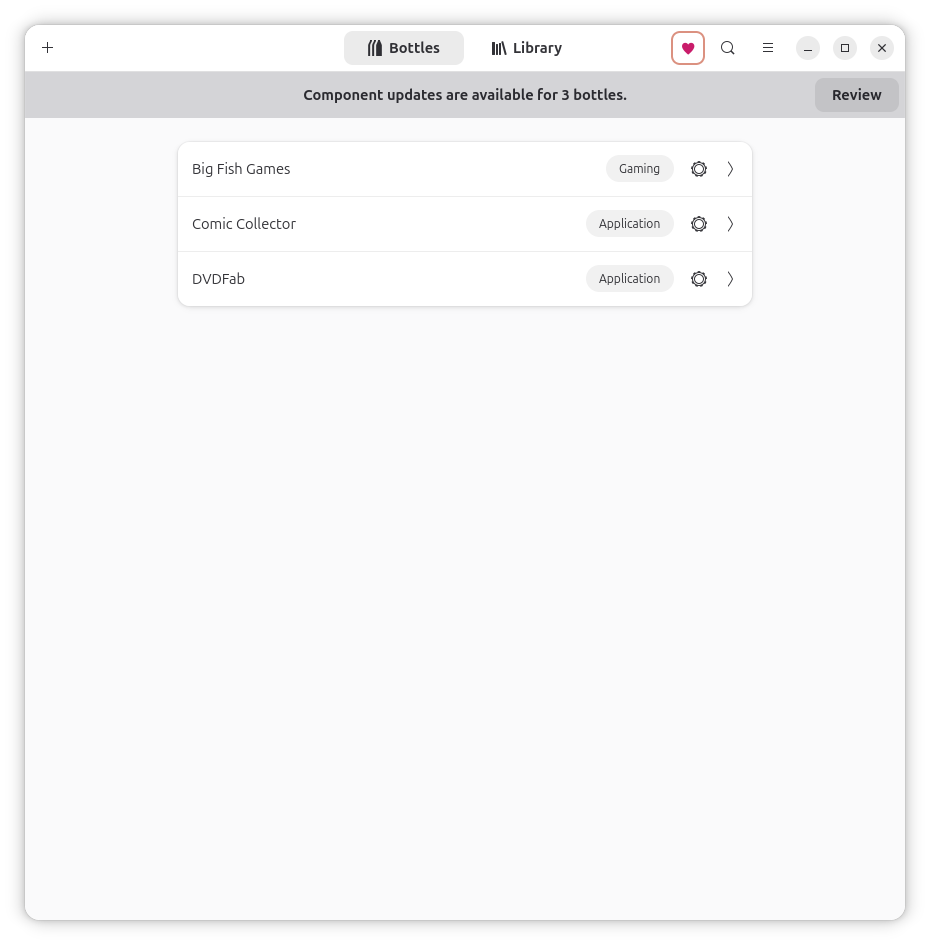
ChatGPT stated that some copy-protection or anti-tamper systems may just check on whether a debugger is registered and then, if one is registered, conclude that a debugger is "running". Since that might explain why DVDFab 13 was complaining about a debugger running, I thought I would try following ChatGPT's suggestion on removing a registry key it suggested might be the cause of the problem, though that didn't resolve the problem. So I then clicked on Registry Editor.
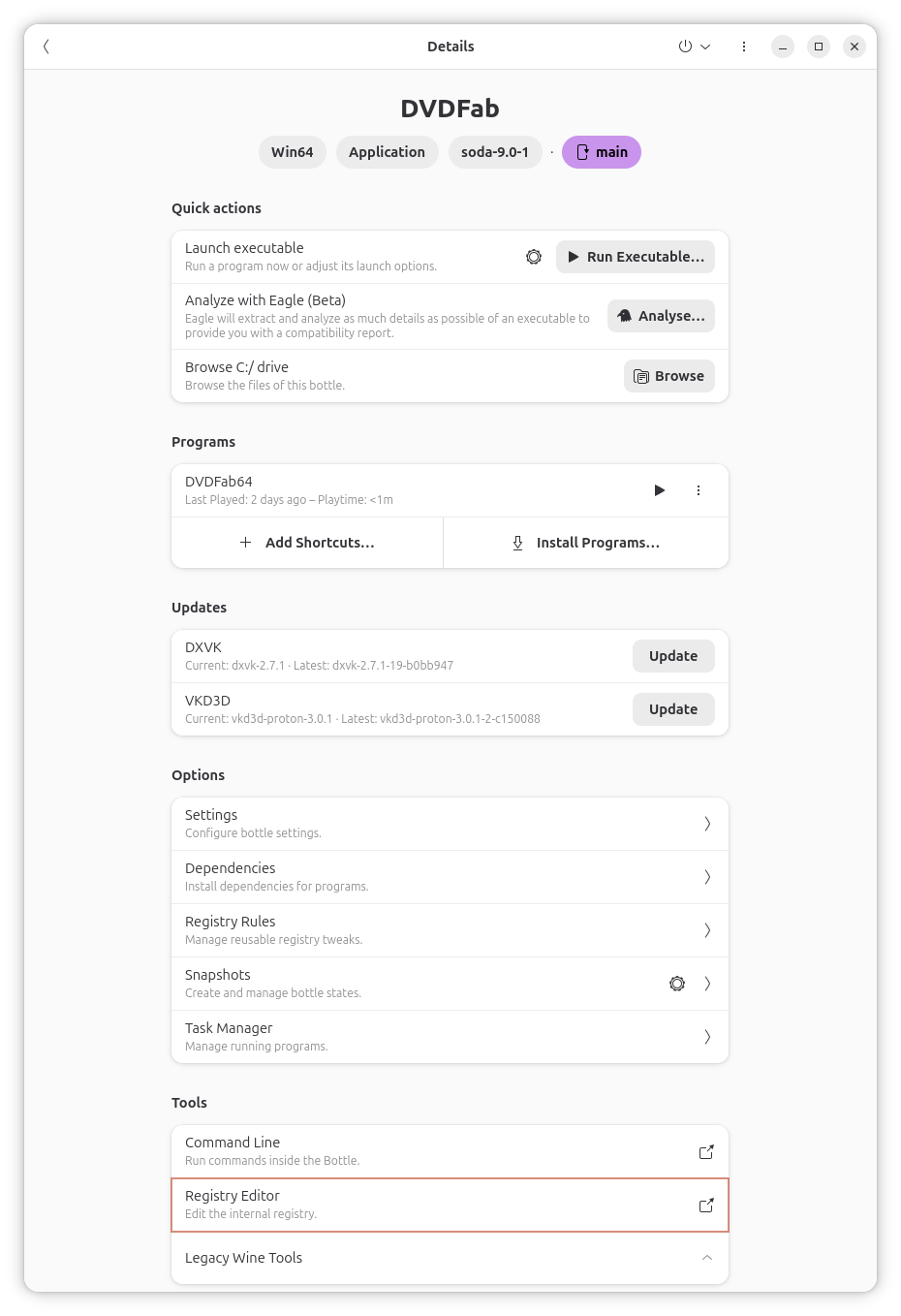
In the
Registry Editor, I navigated to
HKEY_LOCAL_MACHINE\Software\Microsoft\Windows NT\CurrentVersion\AeDebug
where I saw the following registry keys:
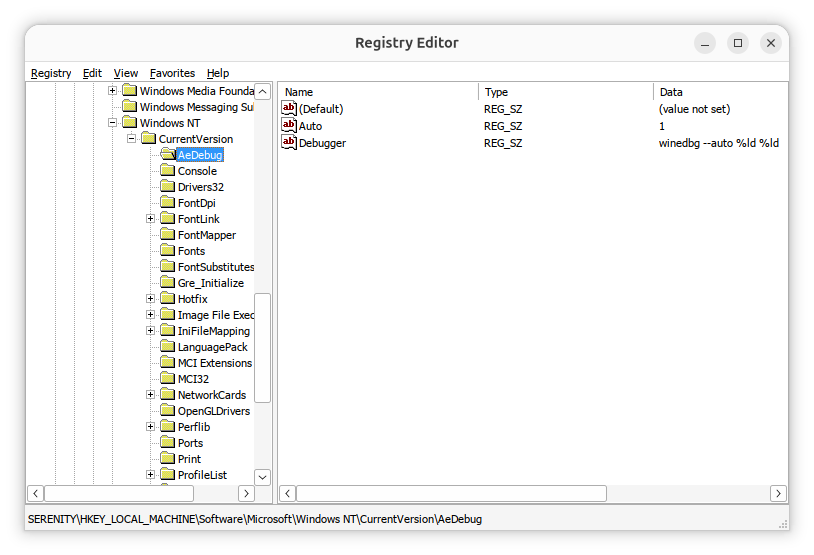
The AeDebug key tells Windows applications that, if a program crashes,
the debugger to launch is winedbg --auto %ld %ld. That is
the default Wine configuration. You can save the current AeDebug keys to a
.reg
file by right-clicking on the registry key and choosing Export.

The current setting can also be backed up from a terminal window using the command below:
wine reg export \
"HKLM\Software\Microsoft\Windows NT\CurrentVersion\AeDebug" \
aedebug-backup.reg
Since I was running DVDFab 13 in a bottle, I used the command below:
$ WINEPREFIX=~/.var/app/com.usebottles.bottles/data/bottles/bottles/DVDFab/ wine reg export "HKLM\Software\Microsoft\Windows NT\CurrentVersion\AeDebug" aedebug-backup.reg
002c:err:wineboot:process_run_key Error running cmd L"C:\\windows\\system32\\winemenubuilder.exe -a -r" (126).
$ ls *.reg
aedebug-backup.reg
$
You can view the current setting with a wine reg query command.
In my case that was the following command:
$ WINEPREFIX=~/.var/app/com.usebottles.bottles/data/bottles/bottles/DVDFab/ wine reg query "HKLM\Software\Microsoft\Windows NT\CurrentVersion\AeDebug"
002c:err:wineboot:process_run_key Error running cmd L"C:\\windows\\system32\\winemenubuilder.exe -a -r" (126).
00ac:err:setupapi:do_file_copyW Unsupported style(s) 0x10

HKEY_LOCAL_MACHINE\Software\Microsoft\Windows NT\CurrentVersion\AeDebug
    Auto    REG_SZ    1
    Debugger    REG_SZ    winedbg --auto %ld %ld

$
You can disable the setting using the command below:
wine reg add \
"HKLM\Software\Microsoft\Windows NT\CurrentVersion\AeDebug" \
/v Debugger /t REG_SZ /d "" /f
You can verify the setting change with the command below.
wine reg query \
"HKLM\Software\Microsoft\Windows NT\CurrentVersion\AeDebug"
I used the following command to modify the setting since I was attempting
to run the application in a DVDFab bottle. Note: if you have the
Registry Editor open in Bottles, you will need to close and reopen it
to see the change. You could also make the change through the Registry
Editor rather than running the wine reg add command.
$ WINEPREFIX=~/.var/app/com.usebottles.bottles/data/bottles/bottles/DVDFab/ wine reg add "HKLM\Software\Microsoft\Windows NT\CurrentVersion\AeDebug" /v Debugger /t REG_SZ /d "" /f
002c:err:wineboot:process_run_key Error running cmd L"C:\\windows\\system32\\winemenubuilder.exe -a -r" (126).
reg: The operation completed successfully
$ WINEPREFIX=~/.var/app/com.usebottles.bottles/data/bottles/bottles/DVDFab/ wine reg query "HKLM\Software\Microsoft\Windows NT\CurrentVersion\AeDebug"
002c:err:wineboot:process_run_key Error running cmd L"C:\\windows\\system32\\winemenubuilder.exe -a -r" (126).

HKEY_LOCAL_MACHINE\Software\Microsoft\Windows NT\CurrentVersion\AeDebug
    Auto    REG_SZ    1
    Debugger    REG_SZ

$
I then ran DVDFab 13 with the command below, but I still saw the error mesage regarding a debugger being found.
$ WINEPREFIX=~/.var/app/com.usebottles.bottles/data/bottles/bottles/DVDFab/ WINEDEBUG=-all wine "/home/lisa@ad.moonwillowwoods.com/.var/app/com.usebottles.bottles/data/bottles/bottles/DVDFab/drive_c/Program Files/DVDFab/DVDFab 13/DVDFab64.exe"
$
Since the registry change didn't fix the problem, I restored the prior
value of the registry key I modified by using a wine reg import
aedebug.reg command to import the .reg file I previously created
into the registry.
$ WINEPREFIX=~/.var/app/com.usebottles.bottles/data/bottles/bottles/DVDFab/ wine reg import aedebug-backup.reg
002c:err:wineboot:process_run_key Error running cmd L"C:\\windows\\system32\\winemenubuilder.exe -a -r" (126).
$ WINEPREFIX=~/.var/app/com.usebottles.bottles/data/bottles/bottles/DVDFab/ wine reg query "HKLM\Software\Microsoft\Windows NT\CurrentVersion\AeDebug"
002c:err:wineboot:process_run_key Error running cmd L"C:\\windows\\system32\\winemenubuilder.exe -a -r" (126).

HKEY_LOCAL_MACHINE\Software\Microsoft\Windows NT\CurrentVersion\AeDebug
    Auto    REG_SZ    1
    Debugger    REG_SZ    winedbg --auto %ld %ld

$
Since modifying the registry didn't fix the problem, I decided to install
an earlier version of Wine for the DVDFab bottle I was using to run DVDFab 13.
I started the Bottles
graphical
user interface (GUI) by running the command flatpak run
com.usebottles.bottles in a terminal window.
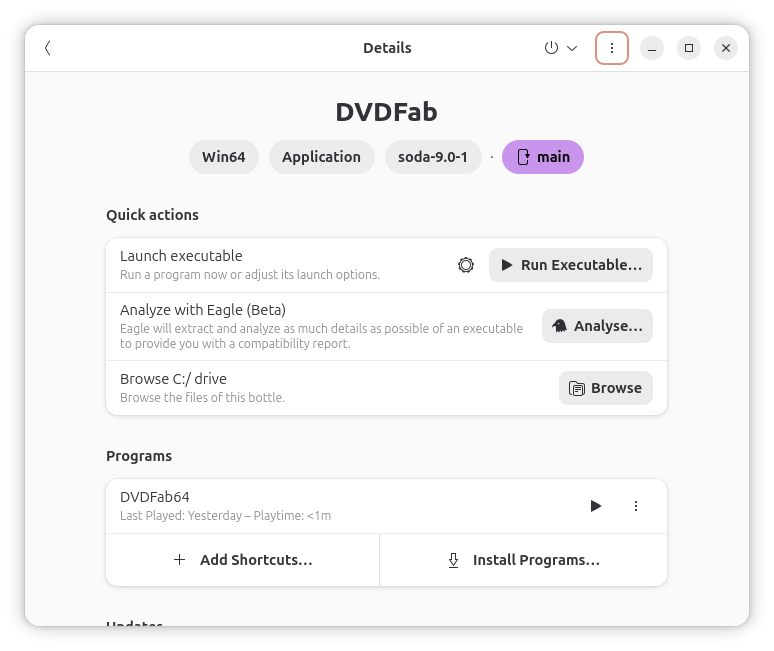
I clicked on the DVDFab bottle to check which "runner" was currently in use in the bottle and saw it was soda-9.0-1.
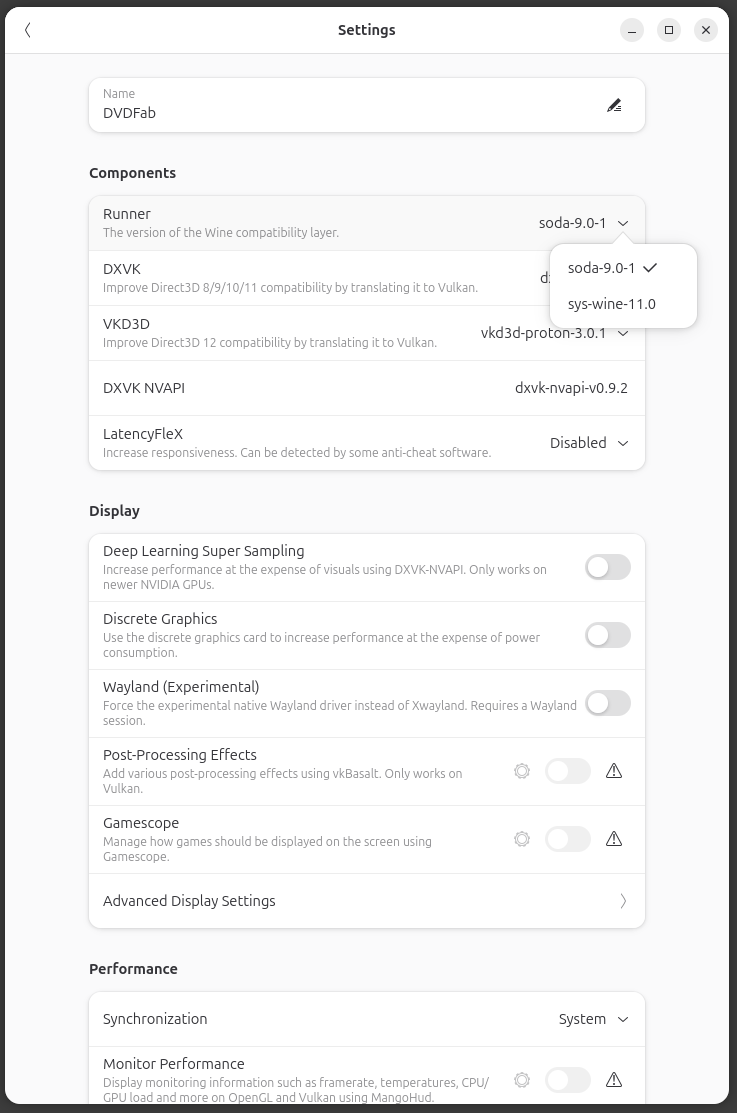
There were only two options for the runner: soda-9.0-1 and sys-wine-11.0.
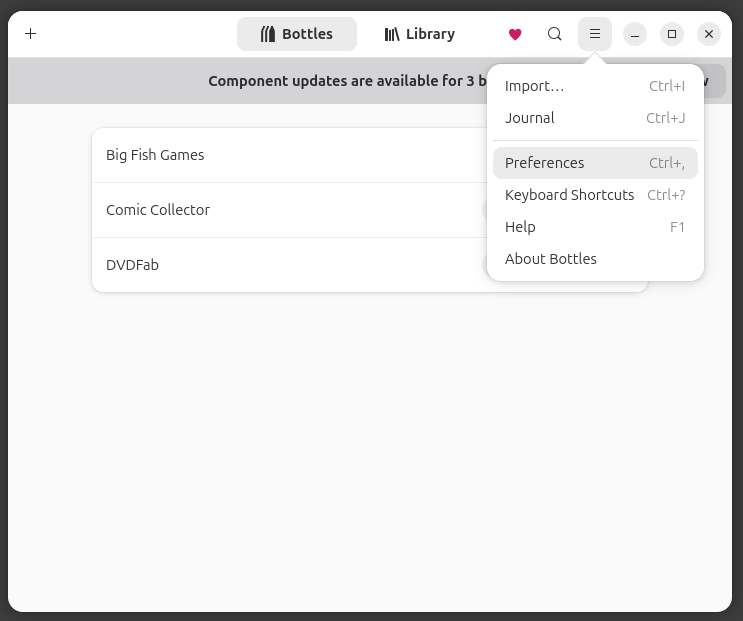
I then went back to the list of bottles and clicked on the 3 horizontal lines near the top, right-hand corner of the window and selected Preferences.
I then selected Runners and Soda.
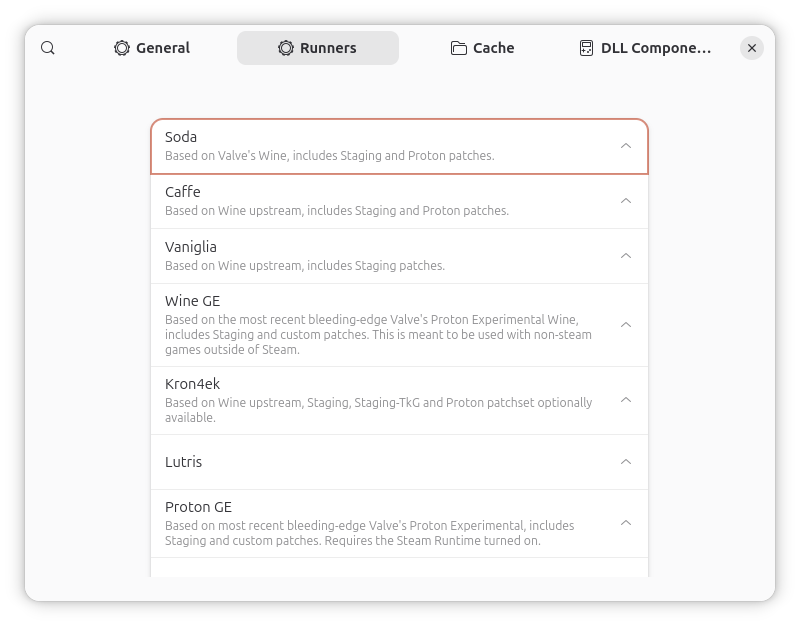
I clicked on the downward pointing arrow to the right of soda-8.0.2 to download that version. A circle with an exclamation mark appeared in place of the downward arrow when the download completed. When I clicked on it, I saw the message "The installation failed. This may be due to a repository error, partial download or checksum mismatch. Press to try again."
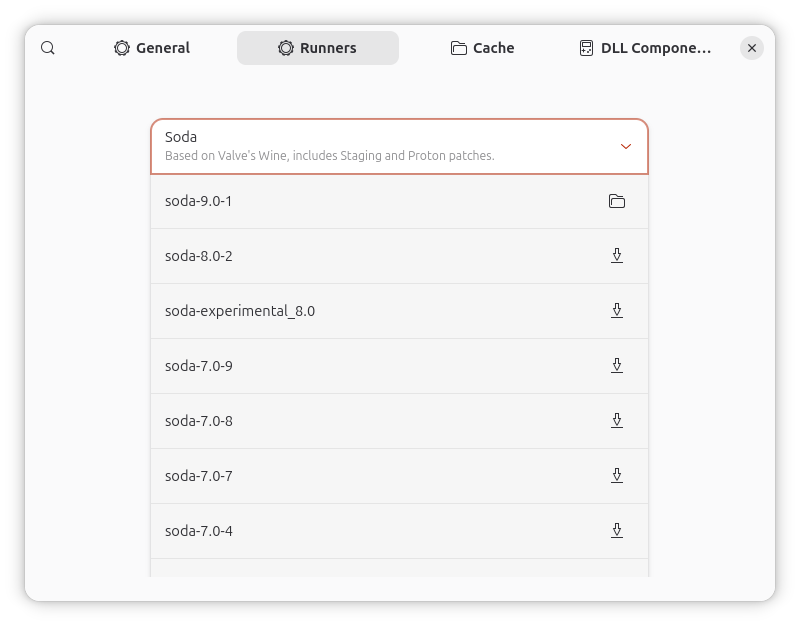
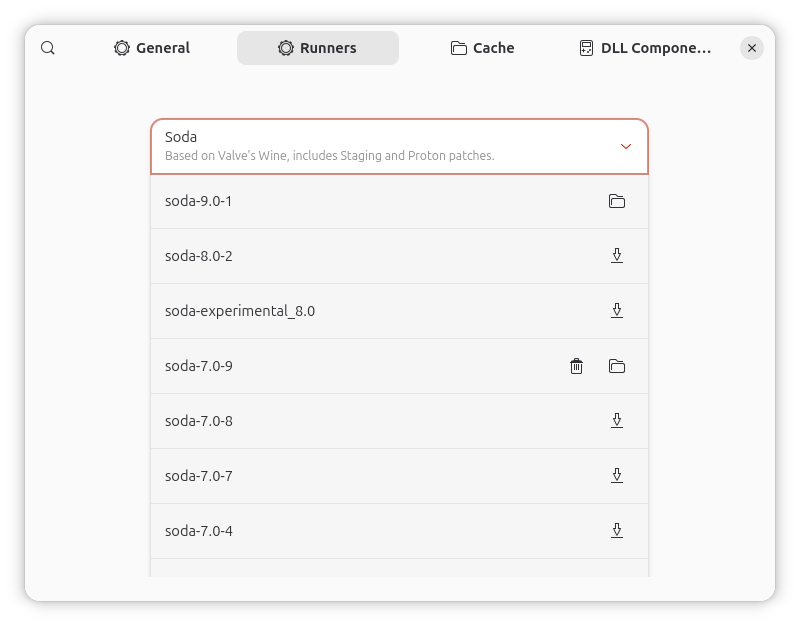
Since a subsequent attempt to download soda-8.0-2 also didn't work, I then tried installing soda-7.0.9 and that installed successfully with the downward pointing arrow being replaced by a folder icon.
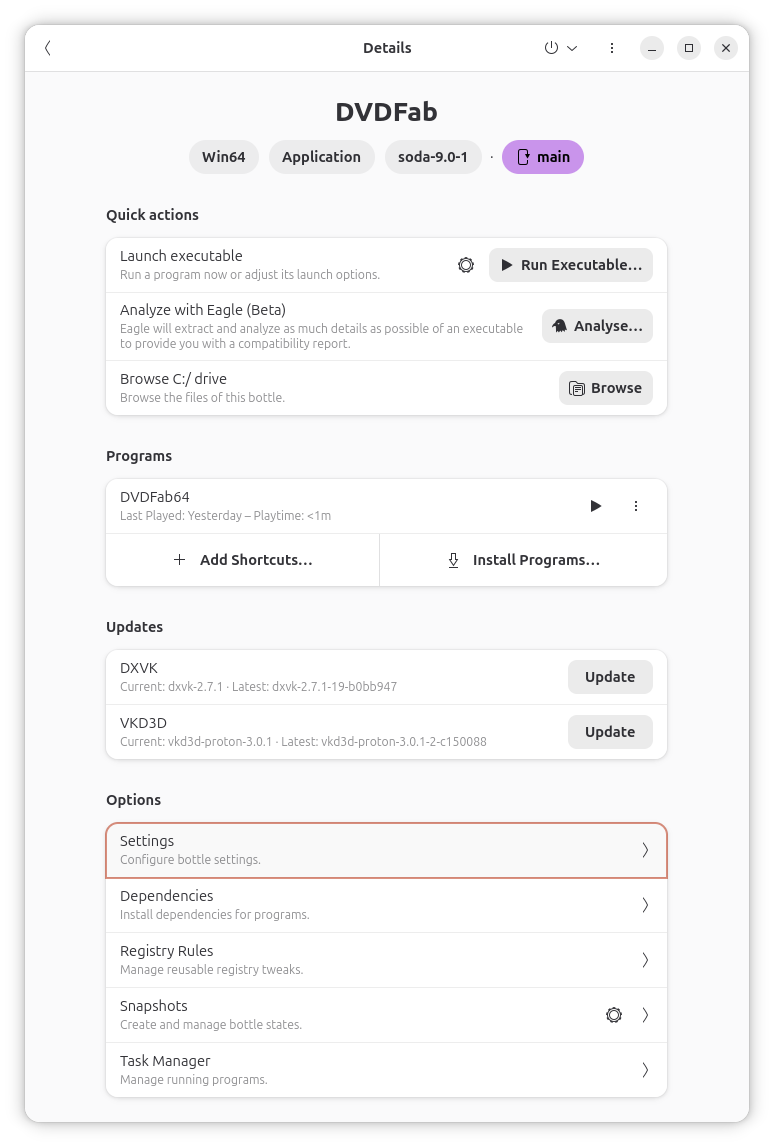
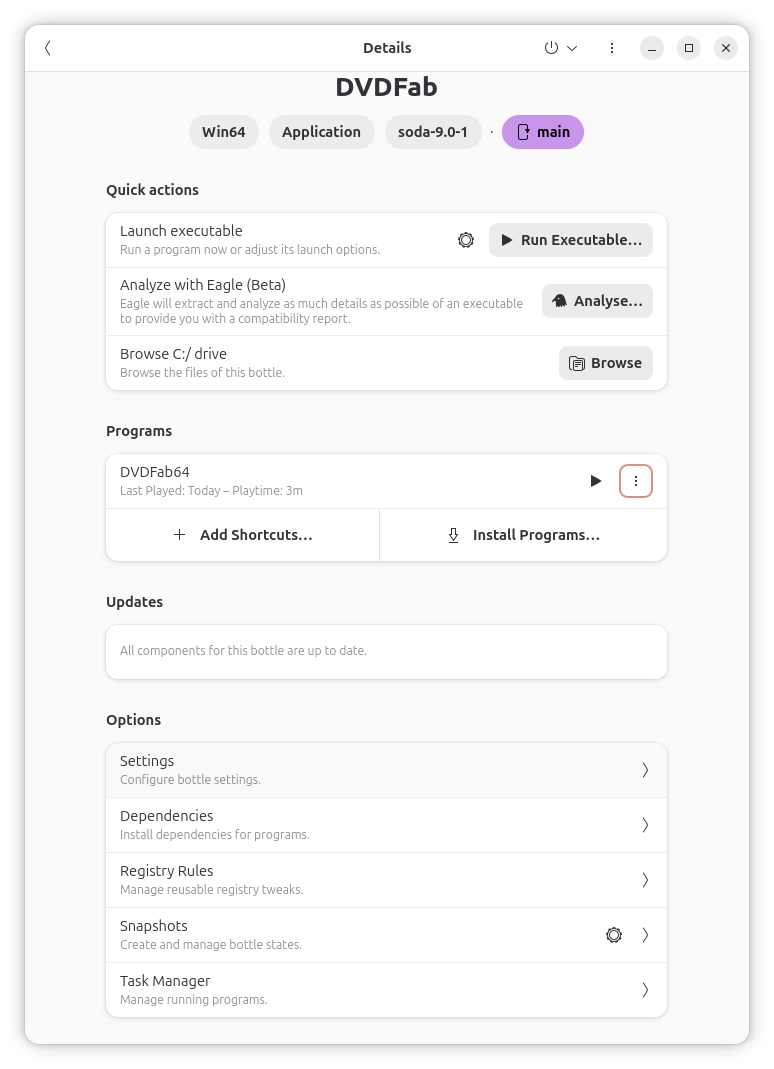
I then closed that window and from the main window where the bottles are listed, I selected DVDFab again. I then selected Settings, which is under Options.
I was then able to select the soda-7.0.9 runner.
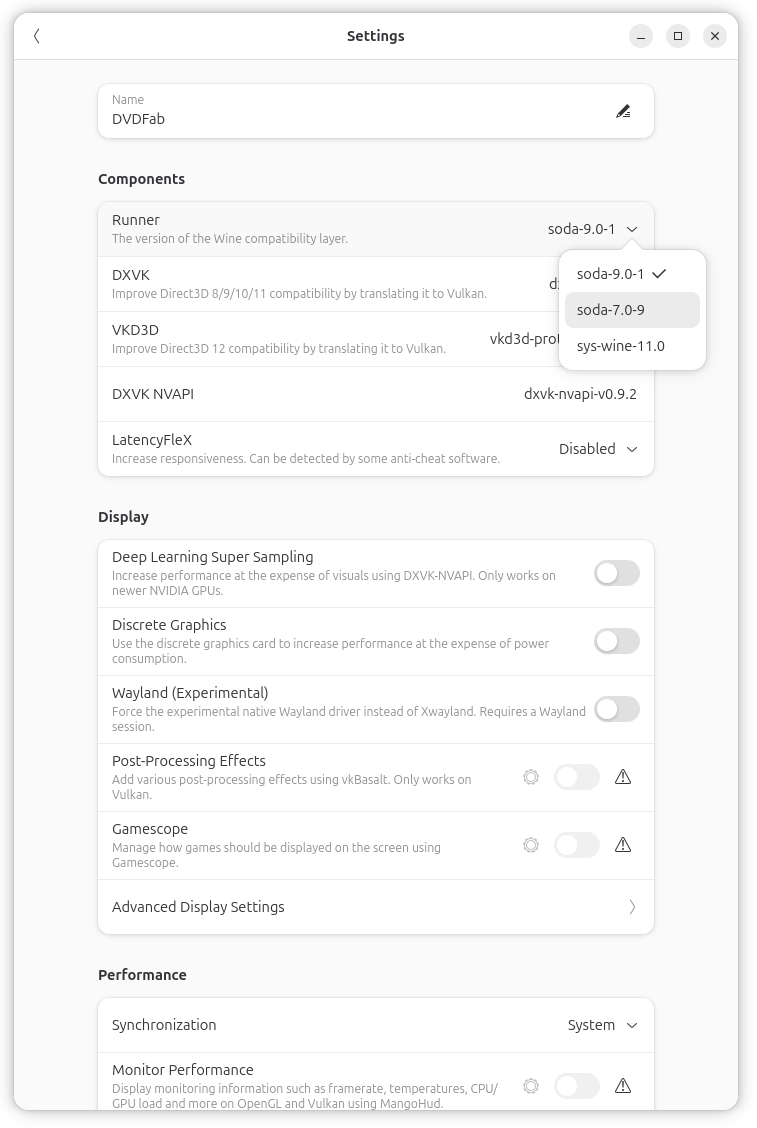
But that didn't fix the problem, either, so I reverted the runner back to soda-9.0.1. I provided the output I saw in the terminal window from which I was running it to ChatGPT which suggested, based on that output, that I turn off DXVK and VKD3D in the settings for the bottle. So I tried that by selecting Settings under Options for the bottle.
I changed the setting for both to "Disabled"
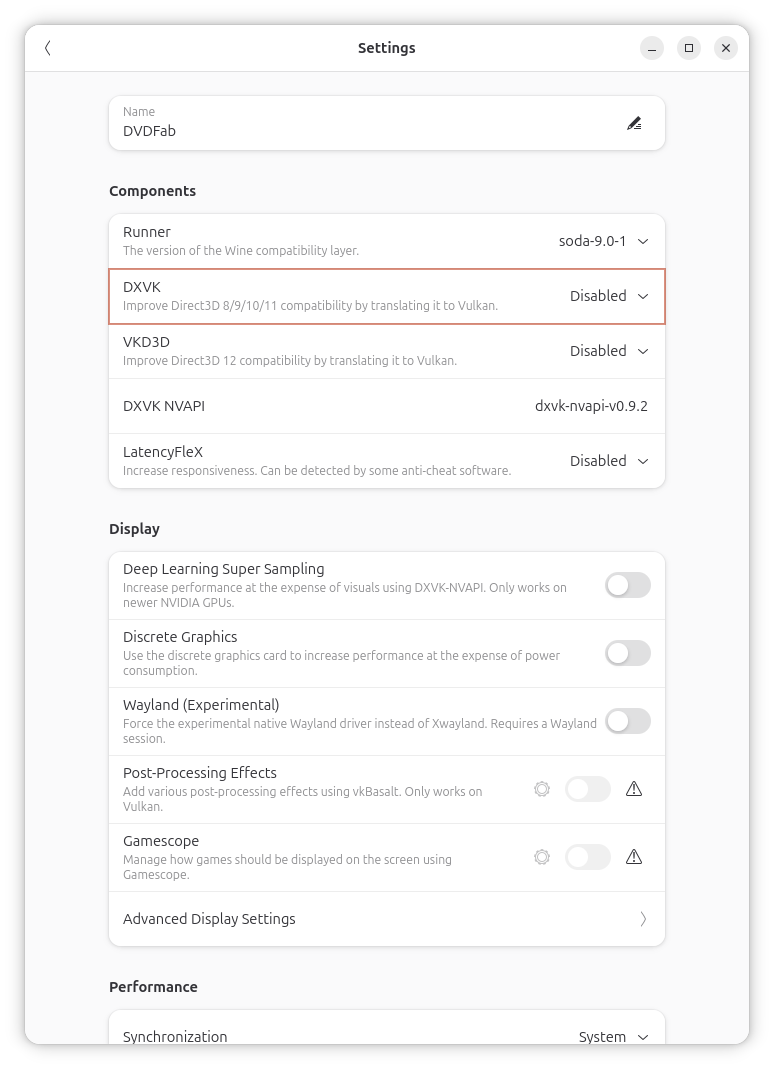
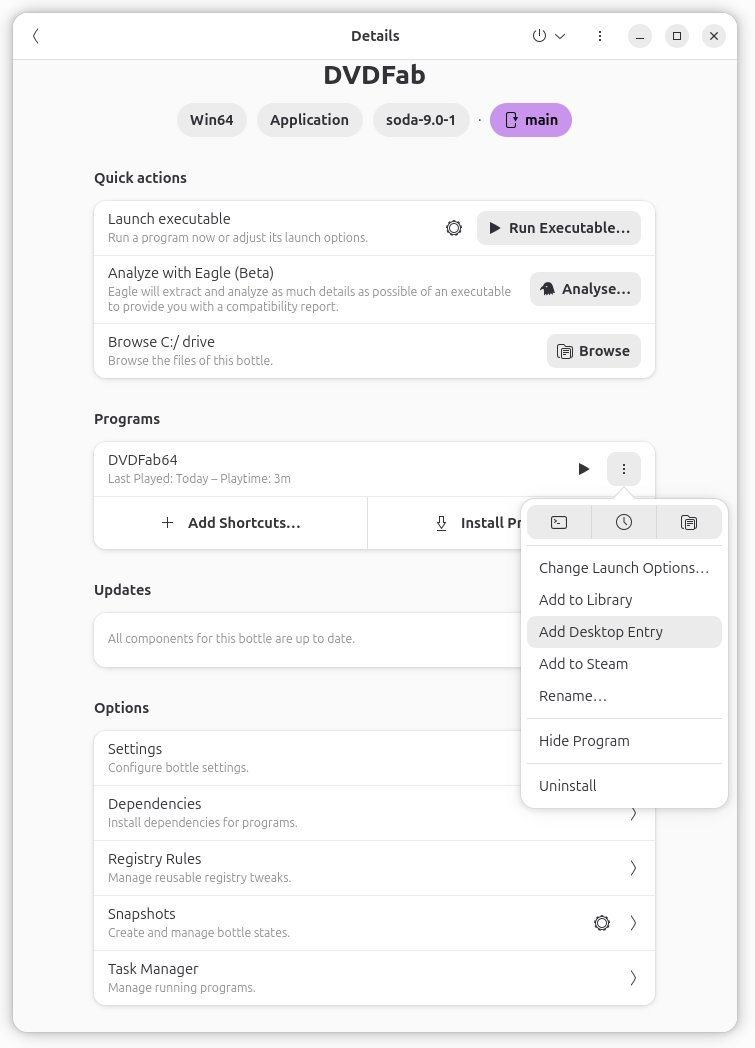
I then closed the Bottles window and reran DVDFab64.exe in the DVDFab bottle. That change fixed the problem. I was able to install the program using the same steps I had used to install the program before upgrading Wine on the system. After I was able to successfully install and run the application in a Wine bottle, I created a desktop entry for it. To do so, I right-clicked on the 3 dots to the right of DVDFab64 under Programs and selected Add Desktop Entry.
That created a
com.usebottles.bottles.App_ecea87abb0c2d681539702a84cea2e597deca5b4.desktop
entry in $HOME/.local/share/applications/,
which had the following lines in it:
[Desktop Entry]
Exec=flatpak run --command=bottles-cli 'com.usebottles.bottles' run -p DVDFab64 -b DVDFab -- '%u'
Type=Application
Terminal=false
Categories=Game;
Comment=Launch DVDFab64 using Bottles.
StartupWMClass=dvdfab64.exe
Name=DVDFab 13
Icon=/home/alice@Wonderland/.local/share/xdg-desktop-portal/icons/256x256/com.usebottles.bottles.App_ecea87abb0c2d681539702a84cea2e597deca5b4.png
TryExec=/var/lib/flatpak/exports/bin/com.usebottles.bottles
X-Flatpak=com.usebottles.bottles
The entry in that directory was a symbolic link, aka symlink, which pointed to the actual file
location which I could see with
ls -l $HOME/.local/share/applications/com.usebottles.bottles.App_ecea87abb0c2d681539702a84cea2e597deca5b4.desktop. The file was at
$HOME/.local//share/xdg-desktop-portal/applications/com.usebottles.bottles.App_ecea87abb0c2d681539702a84cea2e597deca5b4.desktop.
I was able to get that .desktop entry to appear on the
GNOME desktop by copying the
file to $HOME/Desktop and renaming it to DVDFab13.desktop.
alice@Wonderland:~$ cp -a $HOME/.local//share/xdg-desktop-portal/applications/com.usebottles.bottles.App_ecea87abb0c2d681539702a84cea2e597deca5b4.desktop $HOME/Desktop/DVDFab13.desktop
alice@Wonderland:~$
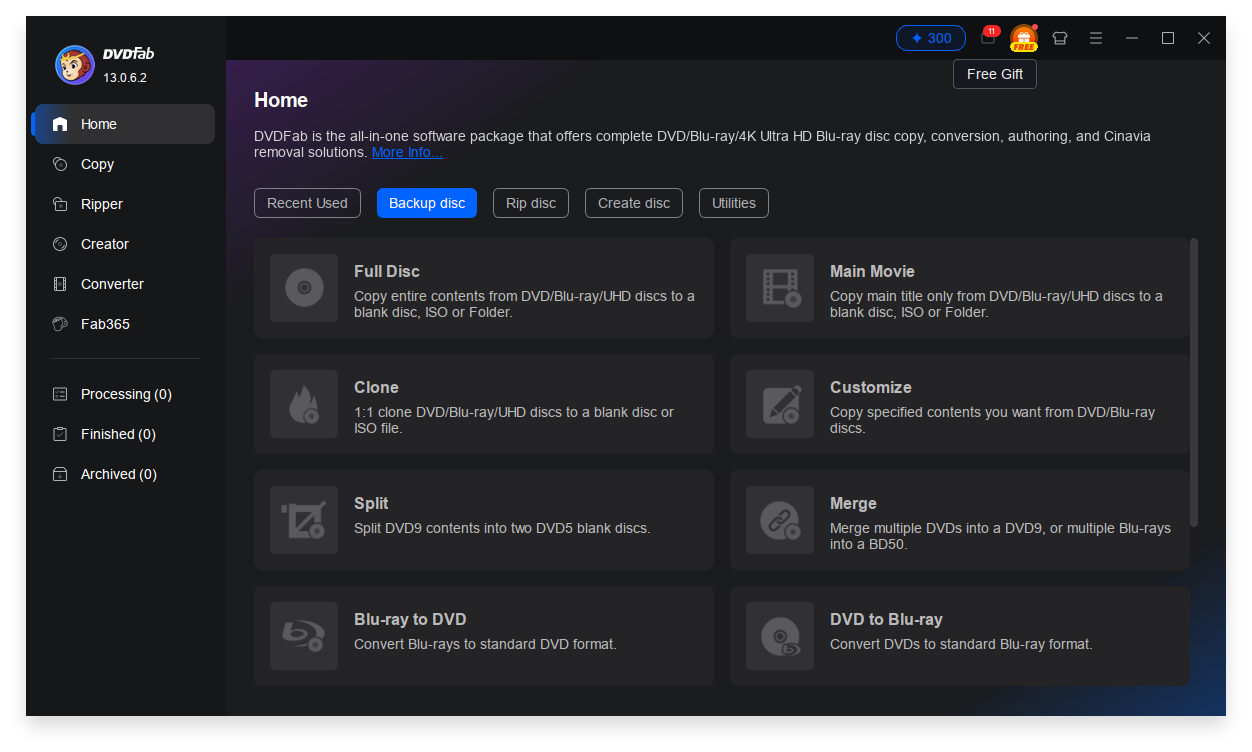
I was then able to right-click on the DVDFab13.desktop icon that appeared on the desktop and choose "Allow launching". After that, I was able to double-click on the desktop shortcut and start DVDFab 13.0.6.2.
References:
Related articles: