
Wine allows
you to run programs developed for Microsoft Windows systems under Linux. It comes with its
own version of the
Internet Explorer browser. In March of 2026, when I ran the Wine Internet
Explorer from a Terminal
window with wine iexplore on a
Ubuntu
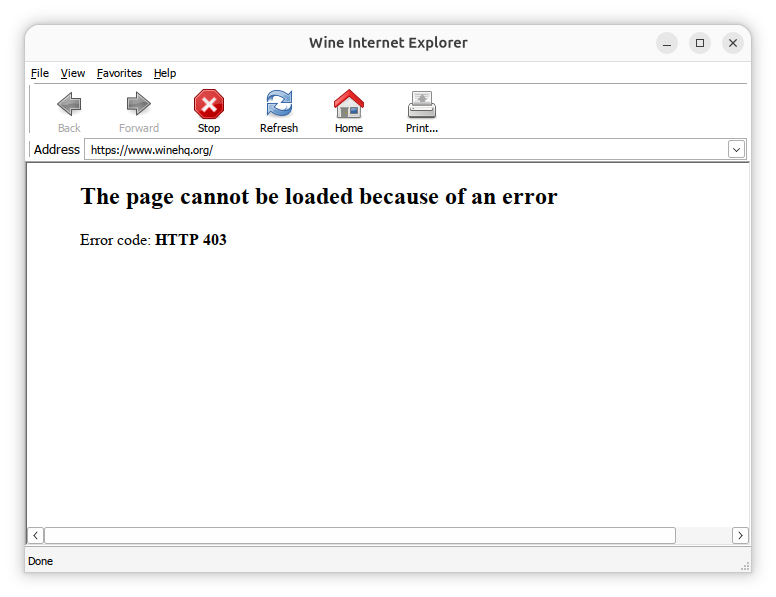
25.10 (Questing Quokka) desktop system, I saw the message "The page
cannot be loaded because of an error" with "Error code: HTTP 403"
beneath it. When the program opens it attempts to open the page at
https://www.winehq.org/, a page
which opened normally when I opened it with a browser outside of Wine.
The Google page at www.google.com opened normally in the Wine Internet
Explorer, but whenever I performed a search at the Google website, I saw
"If you're having trouble accessing Google Search, please click here, or
send feedback." instead of search results. I did see results if I used
the Bing search engine, instead.
When I closed the window and checked the output in the Terminal window, I saw the following:
alice@Wonderland:~$ wine iexplore
0128:err:mshtml:on_stop_nsrequest RemoveRequest failed: 80004005
0128:err:mshtml:on_stop_nsrequest RemoveRequest failed: 80004005
0128:err:mshtml:on_stop_nsrequest RemoveRequest failed: 80004005
0268:err:wininet:open_http_connection create_netconn failed: 12029
0128:err:mshtml:on_stop_nsrequest RemoveRequest failed: 80004005
0128:err:mshtml:on_stop_nsrequest RemoveRequest failed: 80004005
alice@Wonderland:~$
When I searched online for information on the error, a Google search provided the following information:
The "page cannot be loaded because of an error" in Wine often occurs during dependency installations (like .NET) when the internal Wine Internet Explorer fails to connect or render a page, frequently linked to Error 0x80004005. To fix this, try using Bottles to manage dependencies, ensure 32-bit architecture is enabled, or use winetricks to install necessary libraries like dotnet40 or vcrun.
There was also a suggestion to install wine-gecko and wine-mono. I had installed Gecko for Wine, but had not yet installed Mono, so I installed it using instructions from How to Manually Install Wine Mono and Wine Gecko. I downloaded the .msi file for the latest version of Mono from Downloads: /wine/wine-mono/, which currently is wine-mono-11.0.0-x86.msi, which was released on February 12, 2026.
alice@Wonderland:~$ wine msiexec -i ~/Downloads/wine-mono-11.0.0-x86.msi
alice@Wonderland:~$
But the problem with the Wine Headquarters page still had the "The
page cannot be loaded because of an error" message and a Google search
still produced the same message. I ran wine uninstaller
from the shell prompt to verify that Mono was showing in the list
of installed software, but it did not appear in the Add/Remove
Programs list.
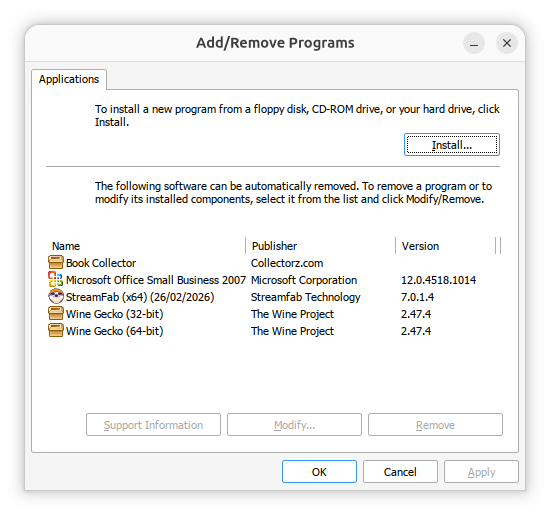
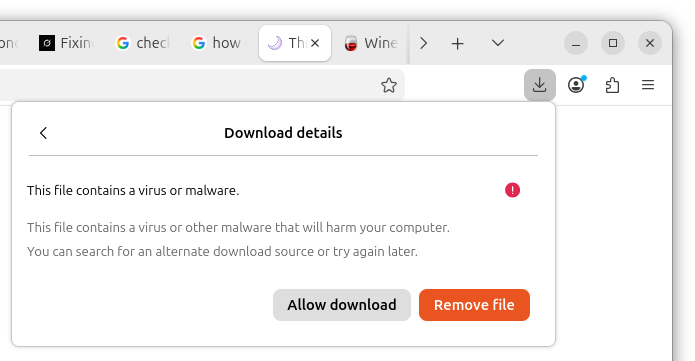
I tried installing it by clicking on the Install button and selecting the downloaded Microsoft Installer (MSI) file, but when I did that, nothing happened when I had selected it. So I checked the properties of the file I had downloaded and found it was zero bytes in length. I had downloaded the file using the Firefox browser, so I checked its download history and saw that the "Download details" showed "This file contains a virus or malware."
I suspected the notice was a false positive, but since I had previously downloaded an erlier version, 10.4.1, of the Mono .msi file, I installed it. I wasn't able to install it from the Wine Uninstaller window, but I was able to install it from the Terminal window.
alice@Wonderland:~$ wine msiexec -i ~/Downloads/wine-mono-10.4.1-x86.msi
alice@Wonderland:~$ wine uninstaller
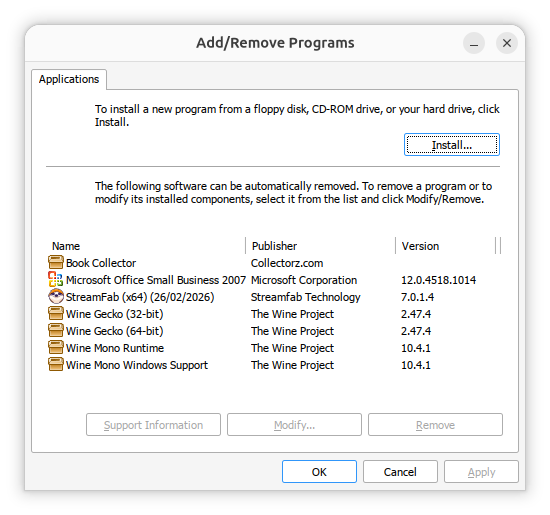
When I then ran wine uninstaller from the Terminal window,
I saw Mono 10.4.1 was then listed.
But I saw the same problem when I opened the Wine Internet Explorer. I
didn't return to addressing the issue on the system until four months
later in June after upgrading the operating system from
Ubuntu
25.10 (Questing Quokka) to
Ubuntu 26.04 LTS (Resolute Raccoon) and also upgrading wine to
version 11.0 (you can check the version of wine by running
wine --version in a terminal window) while trying to resolve
problems with the installation of desktop versions of
Collectorz datbase software. When I
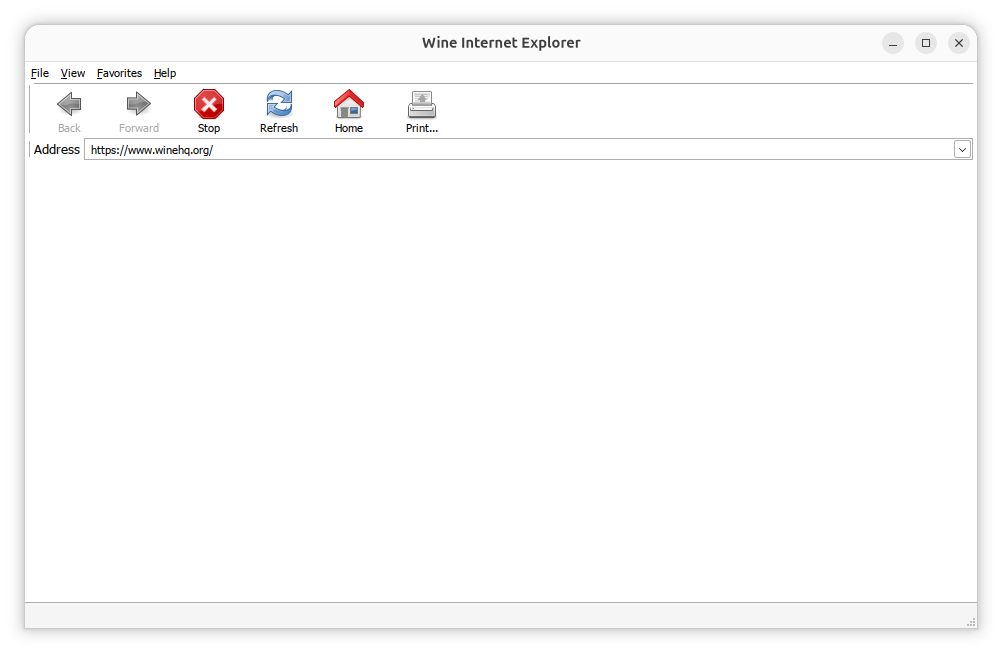
then ran wine iexplore from a terminal window, the Internet Explorer
browser opened to https://www.winehq.org,
but the webpage was displayed as a blank webpage, i.e., just a white
background, with nothing else displayed on the page.
Wine relies on the
Gecko browser
engine to display web pages, but I had installed it previously as well
as the Mono
software
framework. I checked on whether there were any updated versions of
Gecko or Mono. I found that
Gecko was
still at 2.47.4, but there was an update for Mono with the latest version
being 11.1.0.
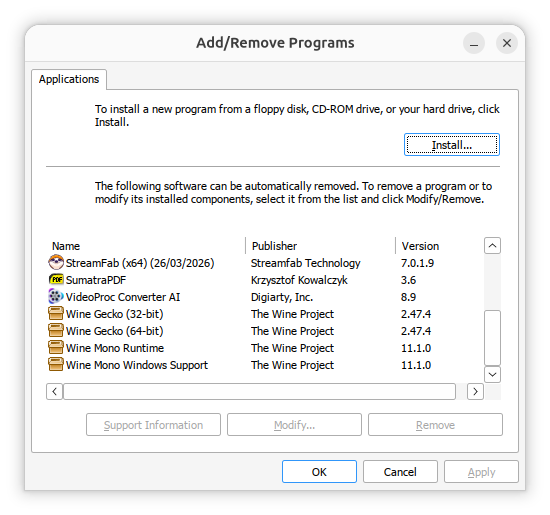
I downloaded it, then issued the command wine uninstaller and
removed all instances of Gecko and Mono. I then clicked on the Install
button and installed the 32-bit (wine-gecko-2.47.4-x86.msi) and 64-bit
(wine-gecko-2.47.4-x86_64.msi) versions of Gecko and then the 11.1.0 version of
Mono. To install them you can select one of the .msi files, then click on
Open and then OK. The Wine Add/Remove Programs
window will then close and you can run wine uninstaller again to
install another one.
When I then issued the command wine iexplore, the browser
still displayed a blank page for
https://www.winehq.org/ and
https://example.com. If I used
HTTP instead of HTTPS, e.g., http://example.com, I saw the
text on that webpage. Since the problem can be caused by a
corrupt Wine prefix,
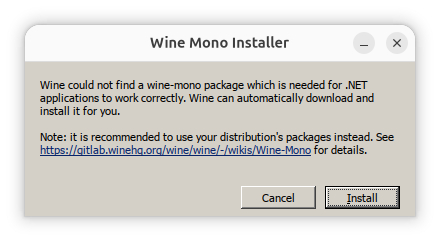
I created a test prefix by issuing the command
WINEPREFIX=$HOME/wine-test wine iexplore https://example.com at
at command prompt. I then saw a prompt to install Wine Mono and proceeded
with that installation.
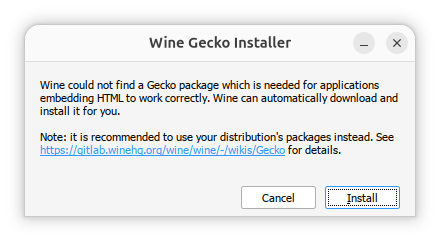
After Wine closed, I issued the same command again and then saw a prompt to install Wine Gecko, which I also installed.
After the installation, when I then issued the command
WINEPREFIX=$HOME/wine-test wine iexplore https://example.com, the
text on the example.com webpage displayed as expected.
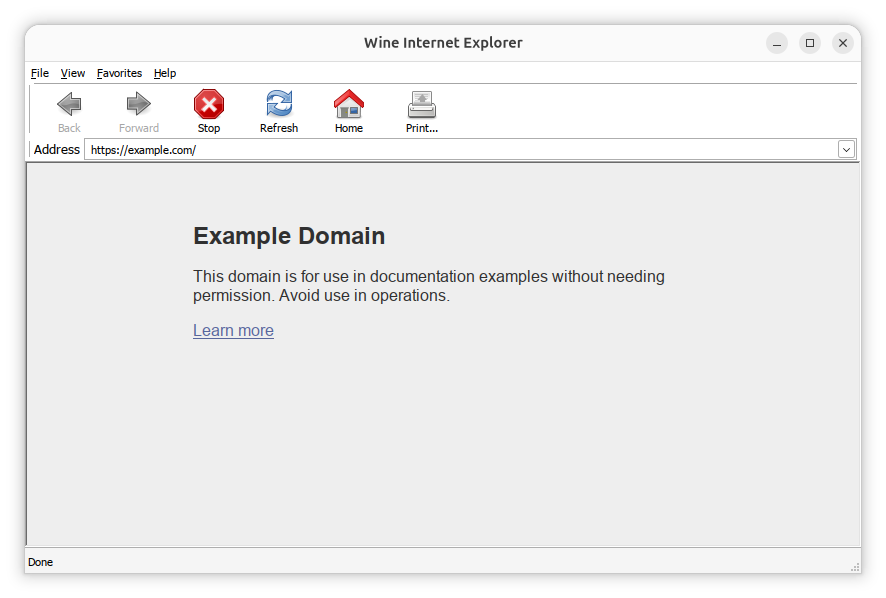
Though when I issued the command
WINEPREFIX=$HOME/wine-test wine iexplore, Wine Internet Explorer
showed the following error for access to
https://www.winehq.com:
The page cannot be loaded because of an error
Error code: HTTP 403
When I checked whether there were any library overrides in the
wine-test prefix by issuing the command winecfg and then clicking
on the Libraries tab in the Wine configuration window, I saw there
were none.
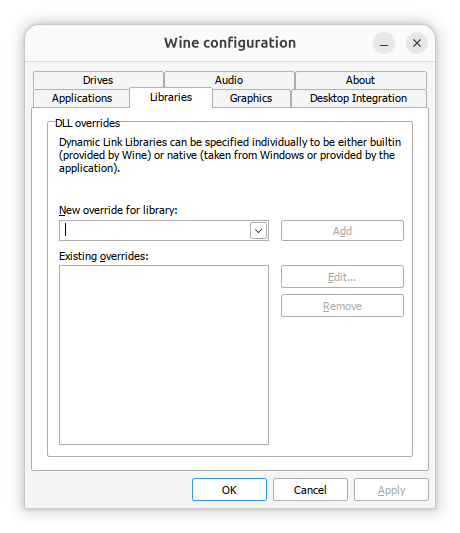
However, If I ran the wineconfig utility without specifying
the test prefix, I saw 5 overrides.
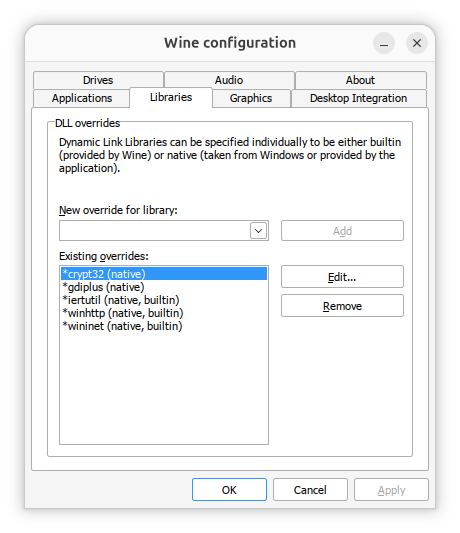
Native overrides for any of the following can break Gecko rendering and I saw an override for wininet:
mshtml
wininet
urlmon
schannel
crypt32
I wanted to install the Windows desktop versions of Collectorz database programs, but since I wasn't sure if any of the other Windows applications I had installed under Wine might need any of those overrides, I decided to rename the test prefix to wine-collectorz.
alice@Wonderland:~$ mv $HOME/.wine-test $HOME/.wine-collectorz
alice@Wonderland:~$
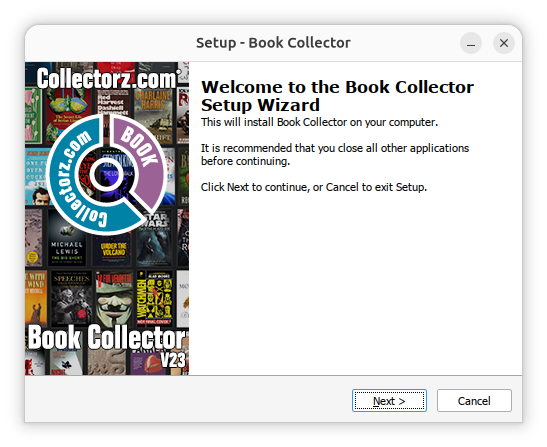
I then installed the Collectorz.com Book Collector desktop application
into the wine-collectorz prefix with the command
WINEPREFIX=$HOME/.wine-collectorz wine $HOME/Downloads/bookcollectorsetup2323.exe.
The setup window that opened displayed just a black backround.
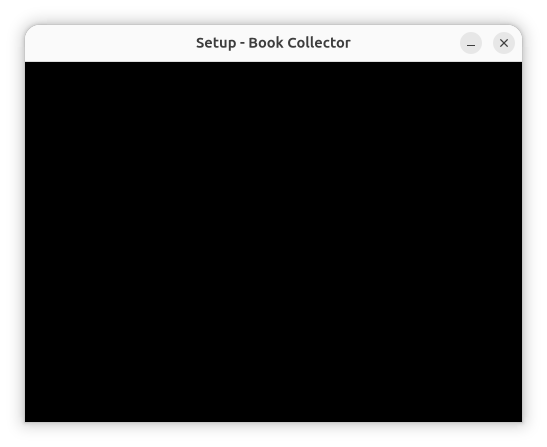
When I pressed Alt-Tab to move away from the window and then Alt-Tab to get back to it, the setup window displayed normally.
The installation then proceeded normally. I chose to have the installation
procedure create a desktop shortcut and I was able to right-click on
the shortcut and choose "Allow Launching" to start the Book Collector
application from the shortcut. I did encounter one problem, though. When
I clicked on File and Open Database, nothing appeared
to happen and I couldn't browse to the location of the existing Book
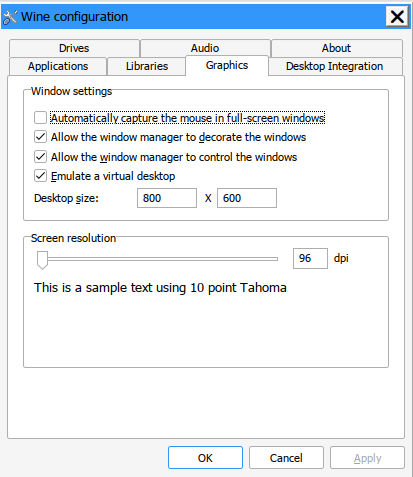
Collector database (a .bkc file). I ran winecfg with the command
WINEPREFIX=$HOME/.wine-collectorz winecfg and then put
a checkmark in the checkbox for "Emulate a virtual desktop". I then
clicked on OK.
When I then reopened Book Collector from the shortcut on the desktop, I was
able to browse to the location of the .bkc file holding the prior books
database and open it. I then closed Book Collector and reopened it and was
able to use the pre-existing books database. I encountered the same problem
when I installed the Windows desktop version of Movie Collector with
WINEPREFIX=$HOME/.wine-collectorz wine $HOME/Downloads/moviecollectorsetup2335.exe.
When I clicked on File and Open Database, the application
seemed to lock up (even pressing the Esc key didn't allow me to
choose other options as it had with Book Collector. I had to kill the
program at the shell
prompt.
alice@Wonderland:~$ ps -aux | grep -i moviecollector
lisa@ad+  888104  8.3  0.2 5228616 335492 ?      Rsl  13:00   1:26 C:\Program Files\Collectorz.com\Movie Collector\MovieCollector.exe
lisa@ad+  889331  0.0  0.0   9316  2776 pts/27   S+   13:17   0:00 grep --color=auto -i moviecollector
alice@Wonderland:~$ kill -HUP 888104
alice@Wonderland:~$
I tried installing Movie Collector again. On the second installation,
I was able to regain access to menu items after trying to open the pre-existing
movie database file by pressing the Esc key. But I still couldn't
use the File and Open Database options to open the database I
needed to open. I closed the application and reopened it using the command
WINEPREFIX=$HOME/.wine-collectorz wine "C:\Program Files\Collectorz.com\Movie Collector\Movie Collector.exe"
— if you have the program installed in the default .wine
prefix, the WINEPREFIX=$HOME/.wine-collectorz can be omitted.
I looked for any error messages appeared in the terminal window since
errors such as those below can indicate the file dialog is failing rather
than the Collectorz application itself. Similar Wine issues have been
reported when file open/save dialogs cannot browse directories or access
mapped drives:
err:commdlg
IShellBrowserImpl_BrowseObject could not browse to folder
Read access denied
But no error messages appeared in the terminal window. I checked Wine
drive mappings by running winecfg with
WINEPREFIX=$HOME/.wine-collectorz winecfg, but I did not see
any problem when I clicked on the Drive tab and looked at
drive mappings. Drive Z: was mapped
to /, the home directory was accessible,
and the external drive containing the database I needed to access was
accessible as drive I:. If Wine cannot
browse its configured drives, file-open dialogs may fail completely.
Reports of broken file dialogs often show drive-access or permission
errors in Wine. I was able to access the movie database file by
launching Wine's file
manager, which you can launch by wine explorer, prefixing
with any relevant prefix name, e.g., WINEPREFIX=$HOME/.wine-collectorz
wine explorer in my case. In the file manager window, I was able to
browse to the location of the relevant .mvc file, double-click on it and
open it in the Movie Collector program. I was then able to close the
program and reopen it from the desktop shortcut with it then using the
relevant database. I did have to change the program's options to have
it locate the image files for the movies in the database - see
Updating file locations in
Book Collector — via the Update File Links function (you
may have to wait several minutes for the update to complete if you have
a large database).
Following a suggestion from
ChatGPT, I ran winecfg, selected the Graphics tab
in the Wine configuration window and checked the box for "Emulate
a virtual desktop". After clicking on OK, I reopened the Movie
Collector app and found that I could then use File and
Open Database to browse directories. ChatGPT suggested that step as
if the dialog was appearing off-screen, it should become visible with that
option set. When I asked if there were other options to resolve the problem
it suggested disabling Wine's window manager integration settings via
winecfg:
Go to Graphics and experiment with:
Allow the window manager to decorate the windows
Allow the window manager to control the windows
Try turning one or both off, then restart the application.
Certain combinations of Wine versions and Linux desktop environments (GNOME, KDE, Xfce, etc.) can mishandle modal dialogs.
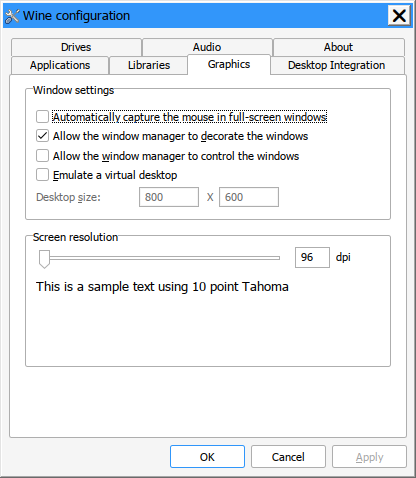
When I ran winecfg and turned off "Emulate a virtual desktop" after selecting the Graphics tab, I saw that the "Allow the window manager to decorate the windows" and "Allow the window manager to control the windows" options were both checked. I unchecked the option to "Allow the window manager to control the windows", while leaving the option checked for "Allow the window manager to decorate the windows", and then clicked on OK. When I then started Movie Collector, I could use the File and Open Database options to browse drives and directories.
References:
Related: