
The Winamp media player was developed to run on Microsoft Windows operating systems. The last stable release of the software was released about three years ago on April 26, 2023. If you need a native Linux alternative to Winamp, Audacious is a free and open-source audio player that has a GTK-based interfrace (GTKUI),but which can also be configured with a Winamp-like interface and which supports Winamp 2 skins, i.e., Winamp .wsz files (a type of ZIP archive file). You can also migrate Winamp playlists into Audacious; it supports the standard .m3u and .m3u8 playlist formats, though you will need to modify the Windows-style file paths to be Linux-style file paths. To use Winamp playlists on a Linux system, such as an Ubuntu system, you can take the following steps.
Locate your Winamp playlists, which are .m3u or .m3u8 files typically
located in
C:\Users\username\AppData\Roaming\Winamp\Plugins\ml\playlists
where username is the relevant username. You can view the contents
of that directory from a command
prompt window using the command dir
%appdata%\Winamp\plugins\ml\playlists since %appdata% is an
environment
variable pointing to the account's AppData\Roaming
directory.
C:\>dir %appdata%\Winamp\plugins\ml\playlists
 Volume in drive C is Windows
 Volume Serial Number is A895-0ACC

 Directory of C:\Users\Alice\AppData\Roaming\Winamp\plugins\ml\playlists

07/19/2026  02:21 PM    <DIR>          .
07/03/2026  10:34 PM    <DIR>          ..
07/03/2026  10:34 PM             9,646 playlists.xml
02/11/2025  03:00 PM             9,646 playlists.xml.backup
08/08/2024  04:00 PM            58,437 plf131A.m3u8
08/06/2024  07:03 PM             2,564 plf1519.m3u8
08/06/2024  07:03 PM             1,483 plf1627.m3u8
08/06/2024  07:03 PM            43,665 plf1A4A.m3u8
08/06/2024  07:03 PM            15,625 plf2D0E.m3u8
08/06/2024  07:03 PM            16,007 plf3220.m3u8
08/06/2024  07:03 PM             2,601 plf3263.m3u8
02/02/2025  12:30 PM            11,266 plf32F9.m3u8
10/25/2024  12:17 PM            17,782 plf3EF4.m3u8
08/06/2024  07:03 PM             2,445 plf4C34.m3u8
08/06/2024  07:03 PM             2,302 plf50FA.m3u8
01/20/2025  02:33 PM            25,682 plf5129.m3u8
08/06/2024  07:03 PM             2,040 plf5379.m3u8
08/06/2024  07:03 PM             5,641 plf5A14.m3u8
08/06/2024  07:03 PM             7,107 plf5D2B.m3u8
08/06/2024  07:03 PM             8,305 plf68B.m3u8
08/06/2024  07:03 PM            90,547 plf6A07.m3u8
08/06/2024  07:03 PM            40,885 plf6DAE.m3u8
08/06/2024  07:03 PM            98,368 plf781F.m3u8
08/06/2024  07:03 PM             1,705 plf7AB5.m3u8
08/06/2024  07:03 PM             4,542 plf7C62.m3u8
08/06/2024  07:03 PM            42,747 plf7CFD.m3u8
08/06/2024  07:03 PM            32,743 plf8064.m3u8
08/06/2024  07:03 PM            20,608 plf9B16.m3u8
09/02/2024  02:18 PM             7,444 plf9C2D.m3u8
08/06/2024  07:03 PM             2,492 plfA411.m3u8
08/06/2024  07:03 PM             8,737 plfA68.m3u8
08/06/2024  07:03 PM            58,739 plfA711.m3u8
08/06/2024  07:03 PM             9,610 plfB10F.m3u8
04/23/2025  12:19 PM             2,547 plfB658.m3u8
08/06/2024  07:03 PM             1,033 plfBC24.m3u8
08/06/2024  07:03 PM            49,611 plfBD93.m3u8
08/06/2024  07:03 PM            16,137 plfE276.m3u8
08/06/2024  07:03 PM             3,262 plfE918.m3u8
08/06/2024  07:03 PM             3,254 plfEC56.m3u8
              37 File(s)        737,255 bytes
               2 Dir(s)  4,106,287,661,056 bytes free

C:\>
A list of the playlists is contained in the playlists XML file. In that file, which can be viewed in a text editor such as the Windows Notepad, you will see data like the following:
<?xml version="1.0" encoding="UTF-16"?>
<playlists playlists="35">
<playlist filename="plf8064.m3u8" title="Moonzic (Top Favorite Mix)"
id="{8B45286F-9CF9-4A14-9045-F27EDC1ED72B}" songs="217" seconds="0"/>
The first line above shows the version of XML in use is 1.0 and the character encoding is UTF-16. The next lines shows that, in this case, there are 35 playlists. The next line shows the filename of 1 of the 35 playlists and the title for the playlist in Winamp.
C:\Users\Alice\Music\Artist\Album\song.mp3
You could have a similar folder structure on Linux like the following:
/home/alice/Music/Artist/Album/song.mp3
which sed, which will show you the
location of the program, if it is present. Sed is also available for Microsoft
Windows systems at
sed for
Windows. A sed command like the one below, if executed from the
directory where the playlist files are located, could be made to make the
needed changes if the the Windows and Linux file paths were like the ones
above.
sed -i 's|C:\\Users\\Alice|/home/alice|g; s|\\|/|g' *.m3u8
-i tells sed to edit files in place, i.e., to
make the changes to the specified file rather than create a new
file.s at the beginning of the command instructs sed
to perform a substitution. The
vertical bar is
being used to separate the old
string
from the new replacement string. Another character could be used, such
as a colon,
etc.C:\\Users\\Alice is
placed within the first pair of vertical bars. Each
backslash must be
preceded by another backslash because the backslash character has a
special meaning — it is an
escape
character. If you have a period in the replacement string, you should also
precede it with a backslash, since the period (.) has a special meaning
in a regular
expression, also. The replacement string is enclosed within the
second set of vertical bars.g that follows the 4th vertical bar indicates it
is a "global" replacement operation, i.e., it should occur everywhere
the original string occurs in the file.*.m3u8 indicates that the sed commands should be
applied to all .m3u files in the directory.
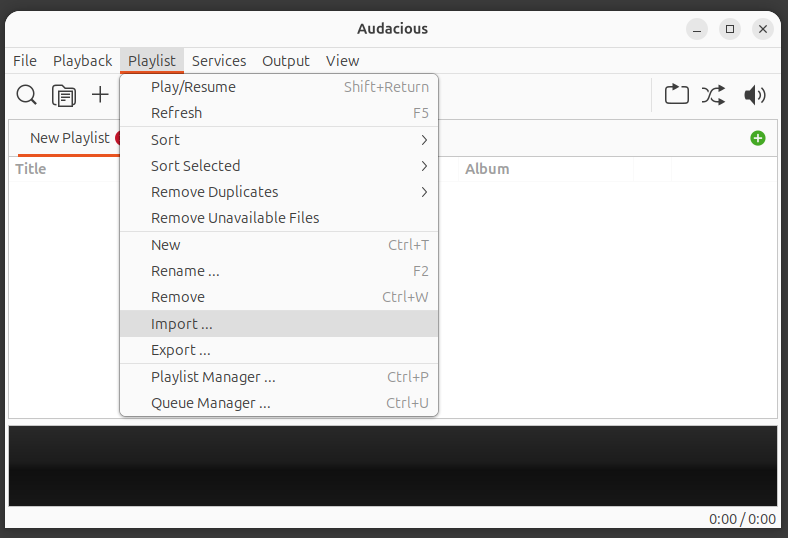
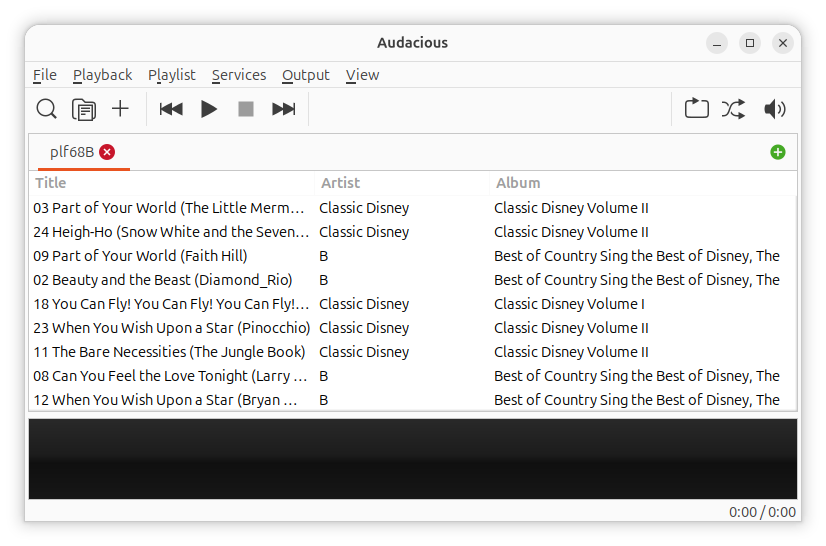
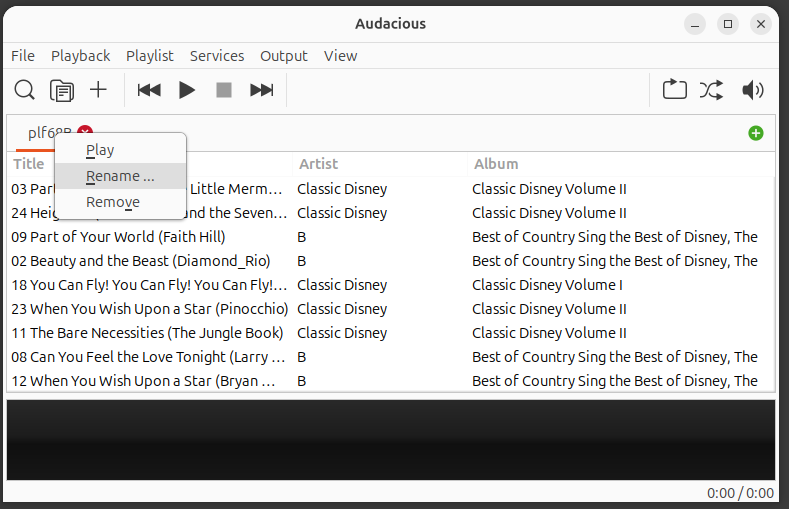
plf68B in the example below, will
match the filename for the .m3u/.m3u8 file. You can rename it to match
the name for the playlist in Winamp by opening the Winamp
playlists.xml file, which will be in the same directory
as the playlist .m3u8 files, in a text editor or web browser and looking for
the corresponding entry, e.g.:
<playlist filename="plf68B.m3u8" title="Disney Classic Tunes"
id="{AAD2A93E-93E9-442B-B24C-88D0BFBB4607}" songs="44" seconds="8231"/>
Right-click on the playlist name in Audacious and choose Rename.
After I imported a Winamp playlist into Audacious, I immediately
saw an Error window open filled with "Error playing
file:////media/filepath/song.mp3: No such file or directory" entries
for every file in the playlist. All of the
MP3 files in the playlist
were on an external
USB-connected drive.
I suspected the problem was due to Audacious not having access the
the
/media directory beneath which the USB drives attached
to the system were
mounted, though I later realized I also made a typo in the sed
command. Audacious was installed as a
Snap package.
Snap packages run in a
container that has limited access to the host system. Access to the
sandbox in which an application is run is controlled through
interfaces. So I checked the permitted connections for Audacious
with snap connections audacious.
alice@Wonderland:~/Documents/playlists$ snap connections audacious
Interface               Plug                              Slot                            Notes
audio-playback          audacious:audio-playback          :audio-playback                 -
content[gnome-46-2404]  audacious:gnome-46-2404           gnome-46-2404:gnome-46-2404     -
content[gpu-2404]       audacious:gpu-2404                mesa-2404:gpu-2404              -
content[gtk-3-themes]   audacious:gtk-3-themes            gtk-common-themes:gtk-3-themes  -
content[icon-themes]    audacious:icon-themes             gtk-common-themes:icon-themes   -
content[sound-themes]   audacious:sound-themes            gtk-common-themes:sound-themes  -
dbus                    -                                 audacious:audacious             -
desktop                 audacious:desktop                 :desktop                        -
desktop-legacy          audacious:desktop-legacy          :desktop-legacy                 -
gsettings               audacious:gsettings               :gsettings                      -
home                    audacious:home                    :home                           -
mpris                   -                                 audacious:mpris                 -
network                 audacious:network                 :network                        -
network-bind            audacious:network-bind            :network-bind                   -
network-status          audacious:network-status          :network-status                 -
opengl                  audacious:opengl                  :opengl                         -
removable-media         audacious:removable-media         -                               -
screen-inhibit-control  audacious:screen-inhibit-control  :screen-inhibit-control         -
unity7                  audacious:unity7                  :unity7                         -
wayland                 audacious:wayland                 :wayland                        -
x11                     audacious:x11                     :x11                            -
alice@Wonderland:~/Documents/playlists$
If a connection is permitted for an interface, there should be an
entry other than a dash in the slot field. Since I saw the dash in the
slot field for removable-media, I could see that Audacious
had not been granted access to the /media directory and
directories beneath it. To correct the problem, I issued the command
sudo snap connect audacious:removable-media.
alice@Wonderland:~$ sudo snap connect audacious:removable-media
[sudo: authenticate] Password:
alice@Wonderland:~$ snap connections audacious | grep 'removable-media'
removable-media         audacious:removable-media         :removable-media                manual
alice@Wonderland:~$
I then closed and reopened Audacious. But the problem remained the
same. To try to figure out why the problem was occurring, I created
a new playlist in Audacious by clicking on New Playlist and
adding songs to it by clicking on the plus sign (+) below the menu bar.
When I checked online on where Audacious stores its playlists, I saw
that ~/.config/audacious/playlists/ was listed as the
directory where the playlists were stored. However, that is not
the location used by Audacious when it is installed as a Snap
package. Instead, the playlists are in the
snap/audacious/current/.config/audacious/playlists directory
under the user's home directory.
alice@Wonderland:~$ ls ~/snap/audacious/current/.config/audacious/playlists
1002.audpl  1003.audpl  order
alice@Wonderland:~$
The .audpl files are text files that can be edited or viewed in a text
editor. The order file is also a text file that can be viewed
or edited in a text editor. In the case above, there was one line in the
file:
1002 1003
When I compared the contents of 1002.audpl and
1003.audpl. I saw that all of the files in the 1002.audpl
playlist were prefixed with uri=file:///media as were those in
1003.audpl, but in the 1002.audpl file the
at sign (@) in the
file path was replaced with %40, e.g,
uri=file:///media/alice%40Wonderland/Music/Mp3s....
In a file path or URL,
%40 is the
percent-encoded, aka URL-encoded, representation of the @ symbol.
The @ symbol is considered a reserved character in URLs and some
file-handling systems. Using %40 ensures the character is treated as
part of the filename or path rather than being misinterpreted as a
special command or delimiter. In both files, spaces in the file paths
and song names were replaced by %20, which is the URL-encoded representation
for a space. I then noticed that the imported playlist had %28 and %29 for
the parentheses
characters, "(" and ")" whereas if I imported a song with
parentheses in the name of the song by creating a new playlist and clicking
on the "+" to add a song to that playlist, the entry in that playlist,
1003.audpl, the parentheses were represented by "("
and ")". I subsequently realized that wasn't the source of the problem,
which was, instead, caused by a typo I made when replacing the file path
with a sed command and that the replacement of the characters with
URL-encoded equivalents does not pose a problem when using imported
playlists.
For multiple Winamp playlists, you can follow the same procedure to import
playlists and rename them to match the original names. If you have a lot
of playlists, like my wife, you may prefer a more automated process for
renaming the Winamp playlists based on the title for the playlist in
the .m3u8 . Below is a simple
Python script that you can use to rename all of the
playlist files based on the title for the playlist in the file.
Save the code in a file with a .py
file
extension. If you have Python installed, you can then run it
with python3 filename.py.
# Rename Winamp playlists for Auacious

import os
import xml.etree.ElementTree as ET

playlist_dir = "/path/to/your/m3u8_files"    # Replace with the location of files
xml_file = "/path/to/playlists.xml"          # Replace with the location of file

tree = ET.parse(xml_file)
root = tree.getroot()

for playlist in root.findall(".//playlist"):
    filename = playlist.get("filename")  # e.g. "MyList.m3u8"
    title = playlist.get("title")        # e.g. "My Favorite Songs"

    if not filename or not title:
        continue

    old_path = os.path.join(playlist_dir, filename)

    # Clean title for filesystem use
    safe_title = "".join(c for c in title if c not in r'\/:*?"<>|')
    new_filename = safe_title + ".m3u8"
    new_path = os.path.join(playlist_dir, new_filename)

    if os.path.exists(old_path):
        print(f"Renaming: {filename} → {new_filename}")
        os.rename(old_path, new_path)
    else:
        print(f"Missing: {filename}")
The above program, renameWinampPlaylist-Abs.py requires that you specify the absolute path to files. If you prefer to use a relative path, i.e., a filepath relative to the user's home directory, you can use the Python code below, renameWinampPlaylist.py instead, which also allows you to place the renamed files in a different directory.
# Rename Winamp playlists for Auacious

import os
import xml.etree.ElementTree as ET
from pathlib import Path

home_dir = Path.home()
playlist_dir = home_dir / "Documents/playlists"           # Replace with your path
new_playlist_dir = home_dir / "Documents/newplaylists"    # Replace with your path
xml_file = home_dir / "Documents/playlists/playlists.xml" # Replace with your path

tree = ET.parse(xml_file)
root = tree.getroot()

for playlist in root.findall(".//playlist"):
    filename = playlist.get("filename")  # e.g. "MyList.m3u8"
    title = playlist.get("title")        # e.g. "My Favorite Songs"

    if not filename or not title:
        continue

    old_path = os.path.join(playlist_dir, filename)

    # Clean title for filesystem use
    safe_title = "".join(c for c in title if c not in r'\/:*?"<>|')
    new_filename = safe_title + ".m3u8"
    new_path = os.path.join(new_playlist_dir, new_filename)

    if os.path.exists(old_path):
        print(f"Renaming: {filename} → {new_filename}")
        os.rename(old_path, new_path)
    else:
        print(f"Missing: {filename}")
E.g.:
alice@Wonderland:~/Documents$ python3 ./renameWinampPlaylist.py
Renaming: plf8064.m3u8 → Moonzic (Top Favorite Mix).m3u8
Renaming: plf131A.m3u8 → Ultimate Winter Vibe (Mega Mix).m3u8
Renaming: plf1519.m3u8 → Jazz.m3u8
Renaming: plfB658.m3u8 → K-Pop.m3u8
Renaming: plf9C2D.m3u8 → Faerie Whims (Mega Mix).m3u8
Renaming: plfA411.m3u8 → Unicorn Mix.m3u8
Renaming: plfEC56.m3u8 → Jazz.m3u8
Renaming: plf32F9.m3u8 → Funny.m3u8
Renaming: plf3263.m3u8 → Golden Oldies.m3u8
Renaming: plf4C34.m3u8 → Pop.m3u8
Renaming: plfE918.m3u8 → Classical.m3u8
Renaming: plf7AB5.m3u8 → Nostalgic.m3u8
Renaming: plf50FA.m3u8 → Classic Rock.m3u8
Renaming: plf1627.m3u8 → Country.m3u8
Renaming: plf781F.m3u8 → Alternative (Mega Mix).m3u8
Renaming: plfA711.m3u8 → Celtic Moods (Mega Mix).m3u8
Renaming: plf9B16.m3u8 → Bubblegum Pop (Mega Mix).m3u8
Renaming: plf5379.m3u8 → Dancin' Groove (Mega Mix).m3u8
Renaming: plf68B.m3u8 → Disney Classic Tunes.m3u8
Renaming: plfB10F.m3u8 → Winnie the Pooh Vault.m3u8
Renaming: plf3220.m3u8 → Anime & J-Pop.m3u8
Renaming: plfE276.m3u8 → Kickin Country Jam.m3u8
Renaming: plfBC24.m3u8 → 60s.m3u8
Renaming: plf2D0E.m3u8 → 70s.m3u8
Renaming: plf7CFD.m3u8 → 80s.m3u8
Renaming: plfA68.m3u8 → Oldies.m3u8
Renaming: plf5D2B.m3u8 → Goofy Tunes.m3u8
Renaming: plf6DAE.m3u8 → Season Spring.m3u8
Renaming: plfBD93.m3u8 → Season Summer.m3u8
Renaming: plf1A4A.m3u8 → Season Autumn.m3u8
Renaming: plf5129.m3u8 → Season Winter.m3u8
Renaming: plf3EF4.m3u8 → Holiday Ultimate Halloween Crypt (Mega Mix).m3u8
Renaming: plf6A07.m3u8 → Holiday Ultimate Festive Christmas (Mega Mix).m3u8
Renaming: plf5A14.m3u8 → Holiday Yuletide Delight.m3u8
Renaming: plf7C62.m3u8 → Scooby Snack Tracks.m3u8
alice@Wonderland:~/Documents$
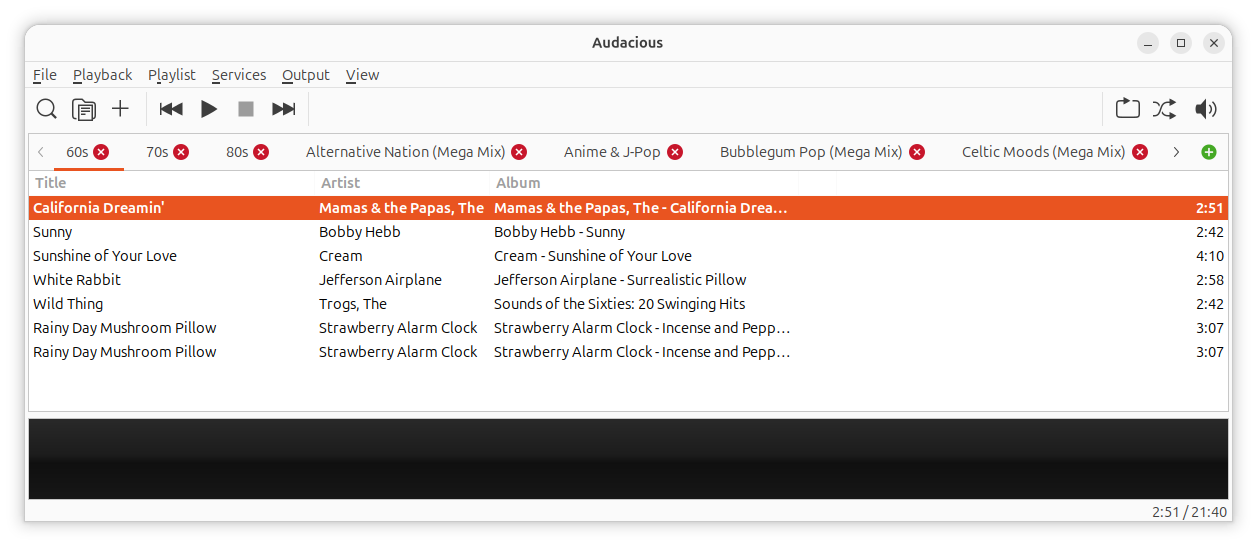
Once you have renamed the files, you can import the playlists into Audacious by selecting Playlist, then Import, then select the playlist and click on Import to add it to Audacious' list of playlists. You won't have to rename the playlists, since that was done through the Python program. When you are importing playlists, the one to be imported will be placed in the list after the one that is currently selected when you go through the import process.
Related articles: