←October→
| Sun |
Mon |
Tue |
Wed |
Thu |
Fri |
Sat |
| |
|
|
|
1 |
2 |
3 |
| 4 |
5 |
6 |
7 |
8 |
9 |
10 |
| 11 |
12 |
13 |
14 |
15 |
16 |
17 |
| 18 |
19 |
20 |
21 |
22 |
23 |
24 |
| 25 |
26 |
27 |
28 |
29 |
30 |
31 |
|
|
Mon, Aug 24, 2026 10:00 pm
Importing Vcard contacts extracted from a PST file into Proton Mail using an Intermediate CSV file
Proton Mail provides
end-to-end encrypted email. If you are transitioning to Proton Mail from
another email application and need the contacts you had stored in the other
application, Proton Mail provides the capability to import contacts
stored in a
Virtual Contact File (VCF) or
a comma-separated
values (CSV) file. VCF, aka vCard, files usually have a .vcf
filename
extension while .csv is the filename extension for CSV files.
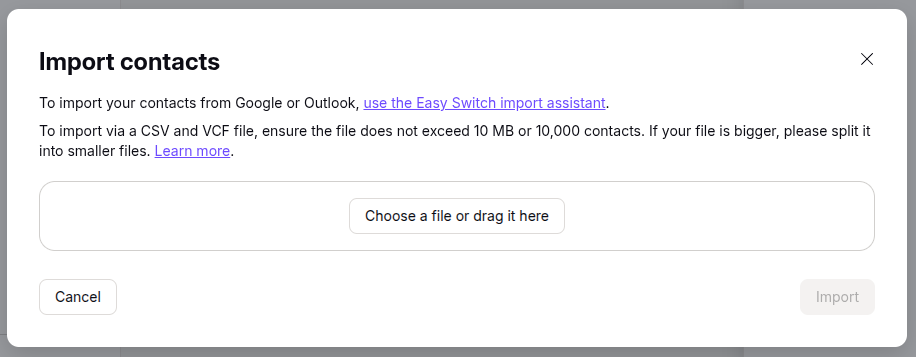
To import such files, in the Proton Mail application, click on the
Contacts icon on the upper, right side
of the Proton Mail window, then click on Import Contacts, then
select "Import from .csv or Vcard", then click on the "Choose a file or
drag it here" button.
If you want to extract contacts from a
Microsoft Outlook
Personal
Storage Table .pst file, you can use the
readpst utility to extract the contacts from the .pst file. A command
such as readpst -cv -tc -o contacts_out your-outlook.pst
can be used where contacts out is the output directory where you wish
the utility to place the contacts (the output directory must exist prior to
running the command) and your-outlook.pst is the location and name
for the existing .pst file. E.g.:
alice@Wonderload:~/Documents$ readpst -cv -tc -o ~/Documents/contacts ~/Downloads/alice\@example.com.pst
Opening PST file and indexes...
Processing Folder "Deleted Items"
Processing Folder "Inbox"
Processing Folder "Outbox"
Processing Folder "Sent Items"
Processing Folder "Suggested Contacts"
Processing Folder "Junk E-mail"
Processing Folder "Conversation Action Settings"
Processing Folder "Quick Step Settings"
Processing Folder "Drafts"
Processing Folder "Calendar"
Processing Folder "Contacts"
Processing Folder "Journal"
Processing Folder "Notes"
Processing Folder "Tasks"
	"Suggested Contacts" - 22 items done, 0 items skipped.
Processing Folder "RSS Feeds"
Processing Folder "~ Holly"
Processing Folder "HVIA Members"
	"alice@example.com" - 16 items done, 0 items skipped.
Processing Folder "Tutorials"
Processing Folder "HVIA Renters"
	"Tasks" - 0 items done, 5 items skipped.
	"HVIA Renters" - 1 items done, 0 items skipped.
	"HVIA Members" - 102 items done, 1 items skipped.
	"Tutorials" - 31 items done, 0 items skipped.
	"Contacts" - 127 items done, 4 items skipped.
	"Calendar" - 0 items done, 229 items skipped.
	"Inbox" - 0 items done, 297 items skipped.
	"Sent Items" - 0 items done, 341 items skipped.
	"~ Holly" - 0 items done, 399 items skipped.
alice@Wonderload:~/Documents$
[ More Info ]
[/network/email/protonmail]
permanent link
Tue, Aug 18, 2026 7:09 pm
Importing an Outlook PST file into Evolution
My wife wanted to transition from Microsoft Windows to Linux for privacy
and performance reasons, so I installed
Ubuntu Linux on her desktop
system. She had been using
Microsoft Outlook
as an email client. I installed
Evolution, which
is available as a
Debian package, as an alternative to Outlook.
Evolution has the capability to import an Outlook
Personal
Storage Table (PST), though that did not work when I tried the process
with the PST file Outlook was using under Microsoft Windows. But to try
that process, when the Welcome window opens when you start
Evolution, click on Cancel to close it. Then take the following
steps:
- Press the Alt+F keys to view the file menu, then select
Import.
- You can click on Next at the Evolution Import Assistant
window to proceed with the import of the Outlook
Personal Storage
Table (PST) file.
- For the Importer Type, choose "Import a single file"
then click on Next.
- At the Select a File window, navigate to the location of the PST
file and select it. The file type in the file type field should automatically
change to "Outlook personal folders (.pst)" instead of the default file type of
"Berkeley Mailbox (mbox)"
If the option to select Outlook personal folders (.pst) is
not in the drop down list of file types, you may need to install the
plugin that allows Evolution to import .pst files.
To check on the status of the PST plugin on an Ubuntu system, or
another Debian distribution of Linux, use the command sudo apt
install evolution-plugins evolution-plugin-pstimport.
[ More Info ]
[/network/email/evolution]
permanent link
Wed, Feb 25, 2026 11:57 pm
Configuring Sendmail to listen on the mail submission port
Sendmail is an
email server application that is available for many operating systems.
It will listen on
TCP
port 25 for connections from other mail servers that use the
Simple
Mail Transfer Protocol for email transmissions. As
a message
submission agent (MSA), another common port it listens on is TCP port 587
for email transmissions from users' email clients. On a
Linux system you can use the
netstat or
ss
commands to determine if a system is listening for connections on a
particular port. When I checked a Sendmail server to determine whether it
was listening on port 587, I could see that it was not listening on that
port, though that was needed.
# netstat -an | grep 587
# ss -ln | grep ":587 "
#
When I searched /etc/mail/sendmail.mc for
RELAY_MAILER_ARGS, I saw the following
lines, which are needed to have Sendmail listen for email transmissions
from users on TCP port 587, were already present and were not commented out:
define(`RELAY_MAILER_ARGS', `TCP $h 587')
define(`ESMTP_MAILER_ARGS', `TCP $h 587')
When I searched for DAEMON_OPTIONS, I saw the following:
dnl # The following causes sendmail to additionally listen to port 587 for
dnl # mail from MUAs that authenticate. Roaming users who can't reach their
dnl # preferred sendmail daemon due to port 25 being blocked or redirected find
dnl # this useful.
dnl #
dnl DAEMON_OPTIONS(`Port=submission, Name=MSA, M=Ea')dnl
I removed the dnl from the begining of the line so that
I then had the line below, instead:
DAEMON_OPTIONS(`Port=submission, Name=MSA, M=Ea')dnl
I then rebuilt /etc/sendmail/mc and restarted the Sendmail
service.
# m4 /etc/mail/sendmail.mc > /etc/mail/sendmail.cf
# service sendmail restart
Redirecting to /bin/systemctl restart  sendmail.service
#
I could then see that the system was listening for connections on port
587.
[ More Info ]
[/network/email/sendmail]
permanent link
Wed, Jan 28, 2026 2:57 pm
Masquerading a "from" address with sendmail
Many years ago, I distributed email to the mailing list for an
organization through my email server. The person who sent out a monthly
newsletter to the members of the organization had a Verizon email address
and would send the newsletter via my server running
Sendmail, which would
then send the mail onwards to the organization's members. Since my server
wasn't a designated email server for verizon.net addresses, I configured
Sendmail to change the "from" domain to my server's domain name, moonpoint.com,
so the sending address wouldn't be johnslartibartfast444@verizon.net but would
be johnslartibartfast444@moonpoint.com; otherwise many recipients' email
servers would reject the email since it didn't come from an email server
designated to send email for verizon.net users. I put the following lines in
/etc/mail/sendmail.mc (the last two lines are the ones I added to the
Masquerade section of the file):
dnl # The following example makes mail from this host and any additional
dnl # specified domains appear to be sent from mydomain.com
dnl #
dnl MASQUERADE_AS(`mydomain.com')dnl
dnl #
dnl # masquerade not just the headers, but the envelope as well
dnl #
dnl FEATURE(masquerade_envelope)dnl
dnl #
dnl # masquerade not just @mydomainalias.com, but @*.mydomainalias.com as well
dnl #
dnl FEATURE(masquerade_entire_domain)dnl
dnl #
dnl MASQUERADE_DOMAIN(localhost)dnl
dnl MASQUERADE_DOMAIN(localhost.localdomain)dnl
dnl MASQUERADE_DOMAIN(mydomainalias.com)dnl
dnl MASQUERADE_DOMAIN(mydomain.lan)dnl
MAILER(smtp)dnl
MAILER(procmail)dnl
dnl MAILER(cyrusv2)dnl
MASQUERADE_DOMAIN(`verizon.net')dnl
MASQUERADE_AS(`moonpoint.com')dnl
After I edited the sendmail.mc file, I rebuilt the sendmail.cf
file by restarting sendmail with the command service sendmail
restart , which put the following line in sendmail.cf:
C{M}verizon.net
The person who was sending the newsletter died several years ago
and I took over maintaining the membership list for the organization as
well as distributing the email version of the newsletters to members.
Though the account from which the newsletter is sent is intended to be
used only for sending the newsletter and members are advised to send an
email related to the organization to the organization's Gmail email addresses,
occasionally members will reply directly to the "from" address used for
the newsletter. When checking the account for that address, I found that someone
with a verizon.net address had sent a reply to the account, but if I replied
my reply would go not to his verizon.net address, but to his email name
followed by my domain name, which would result in the email bouncing since
that address would not be a valid address on my server. I corrected the
problem by removing the two MASQUERADE lines in sendmail.mc that resulted
in the change to the domain name part of email addresses if any email
came from a verizon.net address and then restarted sendmail, which resulted
in the C{M}verizon.net line being removed from sendmail.cf.
The sendmail.mc file is a human-readable macro configuration file, while the sendmail.cf file is the more complex configuration file actually used by the
Sendmail message
transfer agent (MTA). The .mc file serves as the source, which is processed
by the m4
macro to generate the final, often uncommented sendmail.cf file used by
sendmail. The command m4 /etc/mail/sendmail.mc > /etc/mail/sendmail.cf
can be used to rebuild the .cf configuration file after one makes
changes to the sendmail.mc file, but the changes won't take effect until
sendmail is restarted. Or, on many newer versions of the Linux operating
system, one can simply restart sendmail and a new .cf file will be
automatically generated and applied to sendmail, if any changes have been made
to the .mc file
References:
-
18.4. The sendmail.cf and sendmail.mc Files
Linux Network Administrators Guide
Related articles:
-
Modifying the "from" domain of a message with sendmail
Date: June 1, 2018
[/network/email/sendmail]
permanent link
Fri, Nov 21, 2025 7:55 pm
Changing the "from" address of an email in mutt
To change the "from" address of a message in the
Mutt email
client while composing a message, you can use Esc-f, i.e., hit the
Esc and f keys simultaneously. You will see a "From:" field
appear near the bottom of the window with the current "from" address, which you
can edit to replace it with whatever you would like. E.g., in the example below,
I am changing the "from" address that the recipients of the message will see
from jdoe@example.com to newsletter@example.com (the email address is within
the angle
brackets with a descriptive identifier before it.
y:Send q:Abort t:To c:CC s:Subj a:Attach file d:Descrip ?:Help
    From: Joe Doe <jdoe@example.com>
      To: "Bruce K." <bkamen2145@gmail.com>
      Cc: albusd@example.com
     Bcc:
 Subject: Re: July 2025 Newsletter
Reply-To:
     Fcc: ~/sent
Security: None


-- Attachments
- I 1 /var/tmp/mutt-example-508-23668-418711[text/plain, 8bit, utf-8, 1.4K


-- Mutt: Compose [Approx. msg size: 1.4K Atts: 1]----------------------------
From: Newsletter <newsletter@example.com>
After I've retyped the "from" address to be the one I want to appear,
when I hit Enter, I will see the "from" address replaced with
the one I want and can then hit y to send the message to
recipients.
y:Send q:Abort t:To c:CC s:Subj a:Attach file d:Descrip ?:Help
    From: Newsletter <newsletter@example.com>
      To: "Bruce K." <bkamen2145@gmail.com>
      Cc: albusd@example.com
     Bcc:
 Subject: Re: July 2025 Newsletter
Reply-To:
     Fcc: ~/sent
Security: None


-- Attachments
- I 1 /var/tmp/mutt-example-508-23668-418711[text/plain, 8bit, utf-8, 1.4K


-- Mutt: Compose [Approx. msg size: 1.4K Atts: 1]----------------------------
For a way to change the "from" address from the command line, see
Using a command-line interface
(CLI) to send email with mutt.
[/network/email/clients/mutt]
permanent link
Thu, Feb 13, 2025 8:08 pm
Add an AddEvent calendar to the desktop version of Outlook
AddEvent provides organizations
and companies a means to add their event calendars to their users'
calendars. When I was helping my wife add an organization's calendar
to her desktop version of Outlook, when I tried to add the calendar through
the AddEvent website, I saw two options for Outlook when I clicked on
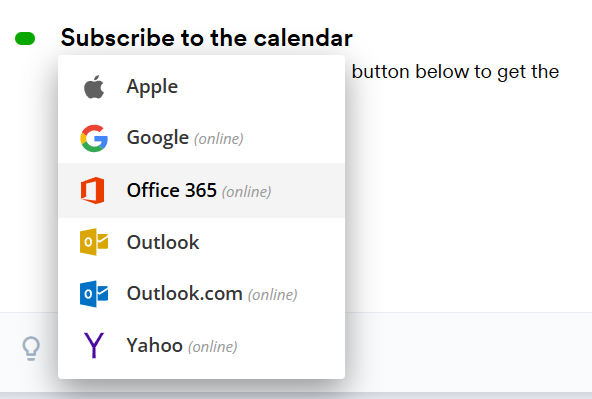
Add to Calendar. On the "
Subscribe to the calendar" list of email options were the following:
- Apple
- Google (online)
- Office 365 (onlilne)
- Outlook
- Outlook.com
- Yahoo (online)
When I tried the Outlook option, the AddEvent
website gave me no option to download the
.ics calendar file for the
organization, instead the only option was to have the site open the new
Office 365 version of Outlook on the system, which would force her to sync
her email, contacts, and calendar with the Microsoft cloud, which I didn't
want to do. I wanted the .ics file so I could add it to the older version
of Outlook on her desktop system that she uses for her email, calendar, and
task list. There is a way to get the .ics file and use it with Outlook
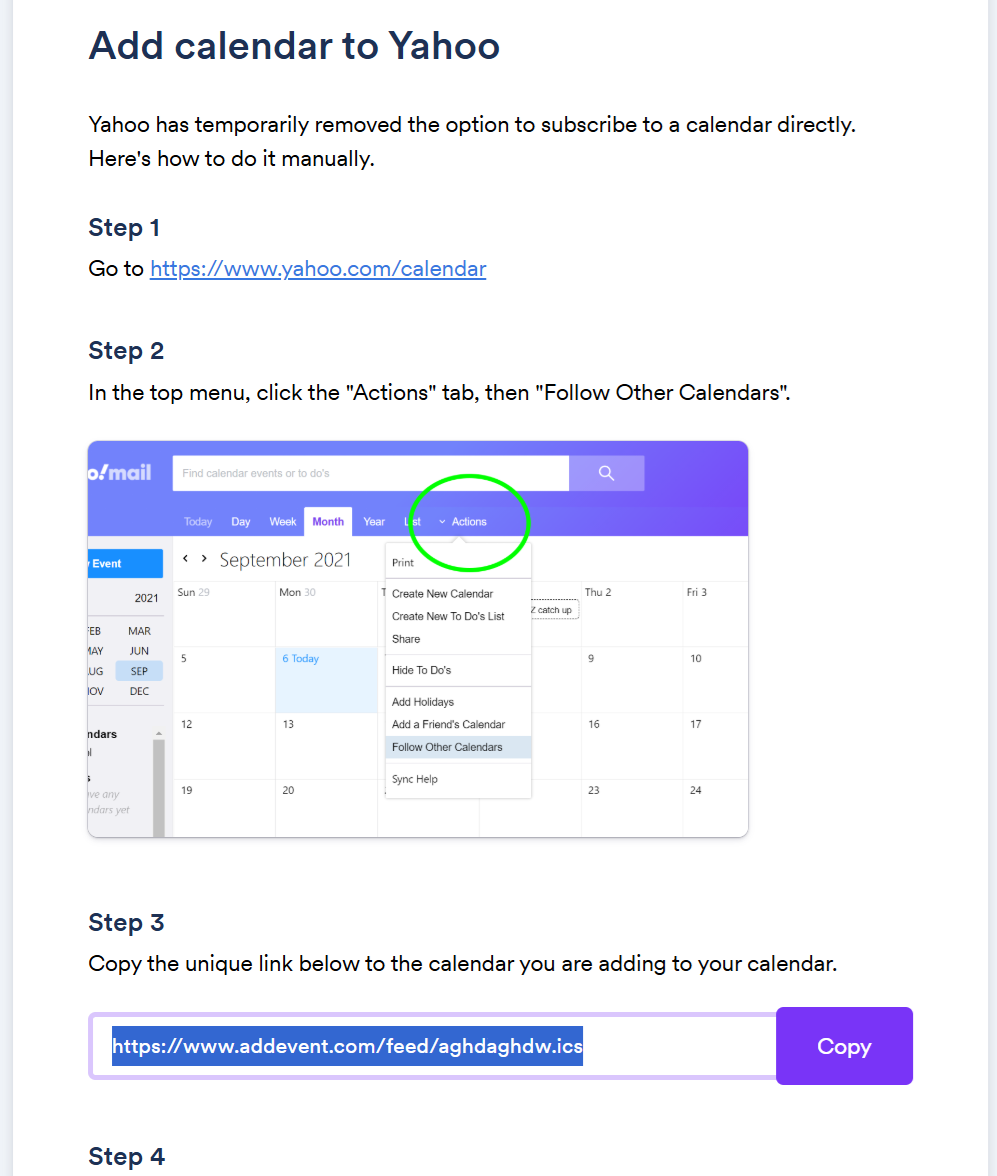
or another application, but you have to choose the "Yahoo (online)" option.
In step 3 for the Yahoo instructions, you will see a URL for the .ics file
which you can copy and paste into a new tab in your browser, which will
allow you to download the .ics file to your system.
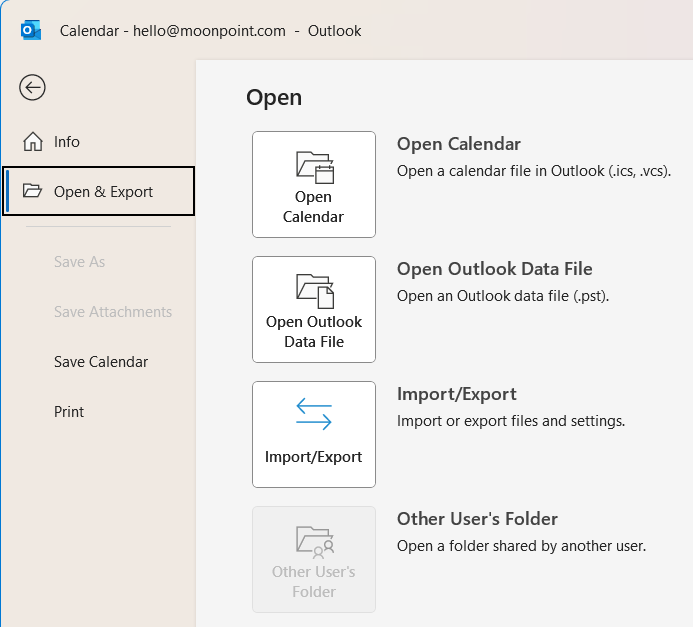
Once I had the .ics file, I was able to click on File then
Open & Export in Outlook on my wife's PC to open the
.ics file I downloaded and add the organization's calendar to her Outlook
calendar.
[/network/email/clients/outlook]
permanent link
Sat, Aug 31, 2024 7:44 pm
Switching to the sent folder in Mutt
If you are in the
Mutt email
program and wish to switch to another folder, such as the one containing your
sent email, you can hit the
c key, which is shorthand for
ChDir, which will provide the prompt
Open mailbox ('?' for
list):
. You can type the name of the folder, e.g.,
sent to
change the currently displayed folder. If you wish to go immediately to the
sent folder when opening mutt you can use the
-f option, i.e.,
mutt -f sent.
[/network/email/clients/mutt]
permanent link
Tue, Apr 02, 2024 8:45 pm
Blocking email from an envelope "from" address with Sendmail
For a mail server running
Sendmail email server
software, if you wish to block email from a particular "from" address to
any email address on the server, you can include the address you wish to
block in the /etc/mail/access file. E.g., if you wished to
block email from the address
spammer@example.com, you can include the following
line in that file:
# Block envelope "from" address of spammers
spammer@example.com                     REJECT
Any line beginning with a # is treated as a comment, so the
first line above isn't needed, but adding a comment line may help you
recognize why the reject statement is in the file. After you have
added the line, you need to regenerate the
/etc/mail/access.db file, or create a new one if there isn't
already one present, using the command shown below (you don't need to
restart sendmail):
# makemap hash /etc/mail/access </etc/mail/access
#
This will only work if you have a
FEATURE(`access_db')dnl line in /etc/mail/sendmail.mc.
E.g., a line like the one below:
FEATURE(`access_db', `hash -T<TMPF> -o /etc/mail/access.db')dnl
If you don't have such a line, you will need to add it. If the line begins
with dnl, you will need to remove the dnl at the
beginning of the line, since that "comments out" the line.
[ More Info ]
[/network/email/sendmail]
permanent link
Tue, Mar 12, 2024 11:35 pm
Renewing a Let's Encrypt Security certificate for Dovecot
A message appeared on a user's PC indicating the security certificate
had expired for moonpoint.com today. The message came from Microsoft Outlook
on her system. But when I checked the status of the system's security
certificate in a browser by visiting moonpoint.com in the browser, it was
still showing as valid until Friday, May 17, 2024 at 12:02:51 AM. I thought
the email server software,
Dovecot, running
on the server was using the same security certificate as
the
Apache
webserver. When I viewed the
SSLCertificateFile
and SSLCertificateChainFile lines in the Apache configuration file,
/etc/httpd/conf/httpd.conf, I saw they were pointing to the
following .pem files (.pem stands for
"
Privacy-Enhanced
Mail" and a .pem file holds a security certificate).
SSLCertificateFile /etc/letsencrypt/live/support.moonpoint.com-0001/cert.pem

SSLCertificateKeyFile /etc/letsencrypt/live/support.moonpoint.com-0001/privkey.pem

Include /etc/letsencrypt/options-ssl-apache.conf

SSLCertificateChainFile /etc/letsencrypt/live/support.moonpoint.com-0001/chain.pem
When I checked the expiration of that security certificate, I saw it was
valid until May 17.
# openssl x509 -enddate -noout -in /etc/letsencrypt/live/support.moonpoint.com-0001/cert.pem
notAfter=May 17 04:02:51 2024 GMT
#
You can determine the location of the .pem file used by Dovecot by
looking for the ssl_cert variable in
/etc/dovecot/conf.d/10-ssl.conf.
[ More Info ]
[/network/email/dovecot]
permanent link
Mon, May 22, 2023 10:05 pm
Relaying Denied by Sendmail
A family member reported she was no longer able to send email via a
Sendmail service I have
running on a CentOS Linux
system. She sent me a screenshot of the message she received when attempting
to send a message. I saw a "Server error: '550 5.7.1 ... Relaying denied'"
message. At first, I thought that a technician from her Internet Service
Provider (ISP) might have changed her
Microsoft Outlook
settings when he upgraded her network equipment recently, but then I remembered
I was restricting email
relaying on the system by
IP address and realized
her IP address would have changed when the technician upgraded her network
equipment. So I had her visit
whatismyipaddress.com and provide me with the public
IPv4
IP address it showed for her. I then replaced her prior IP address in
/etc/mail/access. The format for an entry to allow relaying
from a particular IP address is as shown below.
# Jane Doe
192.168.71.77                           RELAY
You can include a comment to indicate who the IP address is associated
with by prefixing the comment with a
pound sign. The
IP address should be followed by the word "RELAY" (you can put tabs in
between the IP address and the word, if you like).
After changing the IP address, I rebuilt the access database with the
makemap command. I
then restarted Sendmail
# makemap hash /etc/mail/access </etc/mail/access
# service sendmail restart
Redirecting to /bin/systemctl restart  sendmail.service
#
I was then able to receive a test message she sent me. After updating
the IP address, I may only have needed to restart Sendmail without running
the makemap command
first as I found the following at
19.3.2. Sendmail on a
Red Hat website in reference to running the
make all -C /etc/mail/ command (CentOS is derived from
Red Hat
Enterprise Linux):
All other generated files in /etc/mail (db files) will be
regenerated if needed. The old makemap commands are still usable. The make
command is automatically used whenever you start or restart the
sendmail service.
[/network/email/sendmail]
permanent link

Privacy Policy
Contact