←October→
| Sun |
Mon |
Tue |
Wed |
Thu |
Fri |
Sat |
| |
|
|
|
1 |
2 |
3 |
| 4 |
5 |
6 |
7 |
8 |
9 |
10 |
| 11 |
12 |
13 |
14 |
15 |
16 |
17 |
| 18 |
19 |
20 |
21 |
22 |
23 |
24 |
| 25 |
26 |
27 |
28 |
29 |
30 |
31 |
|
|
Sun, Jul 19, 2026 8:53 pm
Importing Winamp playlists into Audacious
The Winamp media player
was developed to run on Microsoft Windows
operating
systems. The last stable release of the software was released about
three years ago on April 26, 2023. If you need a native
Linux alternative
to Winamp,
Audacious is a
free and open-source audio player that has a
GTK-based interfrace (GTKUI),but which can also be configured with a Winamp-like interface and which
supports Winamp 2 skins, i.e., Winamp .wsz files (a type of
ZIP archive
file). You can also migrate Winamp playlists into Audacious; it supports
the standard .m3u and
.m3u8 playlist formats,
though you will need to modify the Windows-style
file paths to be
Linux-style file paths. To use Winamp playlists on a Linux system,
such as an Ubuntu system,
you can take the following steps.
-
Locate your Winamp playlists, which are .m3u or .m3u8 files typically
located in
C:\Users\username\AppData\Roaming\Winamp\Plugins\ml\playlists
where username is the relevant username. You can view the contents
of that directory from a command
prompt window using the command dir
%appdata%\Winamp\plugins\ml\playlists since %appdata% is an
environment
variable pointing to the account's AppData\Roaming
directory.
A list of the playlists is contained in the playlists
XML file. In that
file, which can be viewed in a
text editor such as
the Windows Notepad,
you will see data like the following:
<?xml version="1.0" encoding="UTF-16"?>
<playlists playlists="35">
<playlist filename="plf8064.m3u8" title="Moonzic (Top Favorite Mix)"
id="{8B45286F-9CF9-4A14-9045-F27EDC1ED72B}" songs="217" seconds="0"/>
The first line above shows the version of XML in use is 1.0 and the
character encoding
is UTF-16. The
next lines shows that, in this case, there are 35 playlists. The next line
shows the filename of 1 of the 35 playlists and the title for the playlist
in Winamp.
-
If the music files, e.g., the
.mp3 files referenced in the
playlists are not accessible from the Linux system, copy them to a location
that is accessible from the Linux system. If you preserve a similar
folder structure, if you need to copy or move the files, editing the
playlists files will be easier. E.g., if the Winamp playlists contain
paths like:
C:\Users\Alice\Music\Artist\Album\song.mp3
You could have a similar folder structure on Linux like the following:
/home/alice/Music/Artist/Album/song.mp3
-
Edit the playlists files. You could use a global find and replace function
in a text editor
or you could update all of the files at once with
sed (short for stream
editor), which you can run from a
Terminal window.
Sed will likely already be present on a Linux system. You can verify
that by using the
which command, i.e.,
which sed, which will show you the
location of the program, if it is present. Sed is also available for Microsoft
Windows systems at
sed for
Windows. A sed command like the one below, if executed from the
directory where the playlist files are located, could be made to make the
needed changes if the the Windows and Linux file paths were like the ones
above.
sed -i 's|C:\\Users\\Alice|/home/alice|g; s|\\|/|g' *.m3u8
- The
-i tells sed to edit files in place, i.e., to
make the changes to the specified file rather than create a new
file.
- The commands sed will use are enclosed in single quotes.
- The
s at the beginning of the command instructs sed
to perform a substitution. The
vertical bar is
being used to separate the old
string
from the new replacement string. Another character could be used, such
as a colon,
etc.
- The string to be replaced,
C:\\Users\\Alice is
placed within the first pair of vertical bars. Each
backslash must be
preceded by another backslash because the backslash character has a
special meaning — it is an
escape
character. If you have a period in the replacement string, you should also
precede it with a backslash, since the period (.) has a special meaning
in a regular
expression, also. The replacement string is enclosed within the
second set of vertical bars.
- The
g that follows the 4th vertical bar indicates it
is a "global" replacement operation, i.e., it should occur everywhere
the original string occurs in the file.
- The semicolon
separates the first command from a second one, which indicates any
backslashes in the file should be replaced with forward slashes. I.e.,
the backslashes that occur later in each line should also be replaced.
- The
*.m3u8 indicates that the sed commands should be
applied to all .m3u files in the directory.
-
After updating the .m3u8 files, within Audacious, click on Playlist
and select Import.
-
Navigate to the location of the playlist then select one by clicking
on it and then click on the Import button.
-
The playlist name, e.g.,
plf68B in the example below, will
match the filename for the .m3u/.m3u8 file. You can rename it to match
the name for the playlist in Winamp by opening the Winamp
playlists.xml file, which will be in the same directory
as the playlist .m3u8 files, in a text editor or web browser and looking for
the corresponding entry, e.g.:
<playlist filename="plf68B.m3u8" title="Disney Classic Tunes"
id="{AAD2A93E-93E9-442B-B24C-88D0BFBB4607}" songs="44" seconds="8231"/>
Right-click on the playlist name in Audacious and choose Rename.
[ More Info ]
[/software/audio_video/Audacious]
permanent link
Tue, Mar 24, 2026 9:10 pm
No video shown when playing a WebM file in VLC
When I tried to play a
YouTube video I
downloaded as a WebM file
using
yt-dlp on an Ubuntu
Linux system in the
VLC media player application, I could hear the audio, but no video
was shown. I tried opening a few other .webm videos and found I was able
to view the video in some, but not others, though I was able to view
the video and hear the audio in all the .mp4 and .mkv files. I tried
changing the video output setting from "Automatic" to "OpenGL video
output" and then "XVideo output (XCB)", which you can do by clicking on
Tools, then Preferences, then Video, and then
selecting those options from the dropdown list next to Output, but
neither of those options resolved the problem, so I reset Output
to Automatic. I was able to resolve the problem by taking the
following steps, though:
-
In the VLC program, click on Tools and then select
Preferences.
-
Click on Input/Codecs and change the hardware-accelerated
decoding setting by clicking on the downward arrowhead next to
Automatic, which will be the setting if the default setting is
in effect.
-
Change the setting to Disable and then click on Save.
When I checked the Codec
information for the file where I could not view the video before disabling
the hardware-accelerated decoding setting, which you can do by opening
an audiovisual
(AV) file in VLC and then selecting Tools and Codec
Information, I saw the video codec was AOMedia's AV1 Video
(av01). When I checked the video codec for another WebM file where
the video wasn't visible in VLC, I saw it was also the AOMedia's AV1
Video (av01) codec. Checking the video codec for .webm files where
I could view the video, I saw Google/ON2's VP9 Video (VP90)
for some and H264 - MPEG-4 AVC (part 10) (avc1) for another.
Note: you can also determine the codecs used in a file using the
mediainfo utility, which you can install on an Ubuntu system with
sudo apt-get install mediainfo. You can check on whether
it is already installed using the command which mediainfo,
which would show the location of the mediainfo executable file if the
application was installed, or you can use dpkg -s mediainfo,
which will show details on the mediainfo package if it is installed.
[/software/audio_video/VLC]
permanent link
Fri, Jul 05, 2024 8:57 pm
Selecting an Audio Track Language When Playing a Video with Windows Media Player
If you have a video file with multiple language audio tracks stored within it
and need to change from the default audio track, say Italian, to another track,
e.g., English, you can do so on a Microsoft Windows system, such as a Windows
11 system, using the default audio-video application that comes with
the Windows 11 operating system,
Windows Media
Player (WMP) 2022. To change the language for a video that contains multiple
language audio tracks, move the mouse pointer to the first icon on the right
at the bottom of the Windows Media Player window (it is a rectangle with a few
short horizontal lines at the bottom of the rectangle); you should see
"Languages and subtitles (Ctrl+L)" appear when you move the mouse pointer
to it.

Or you can just hit Ctrl-L, i.e., the Ctrl and
L keys simultaneously, to bring up the option to select the
language for the audio associated with the video.
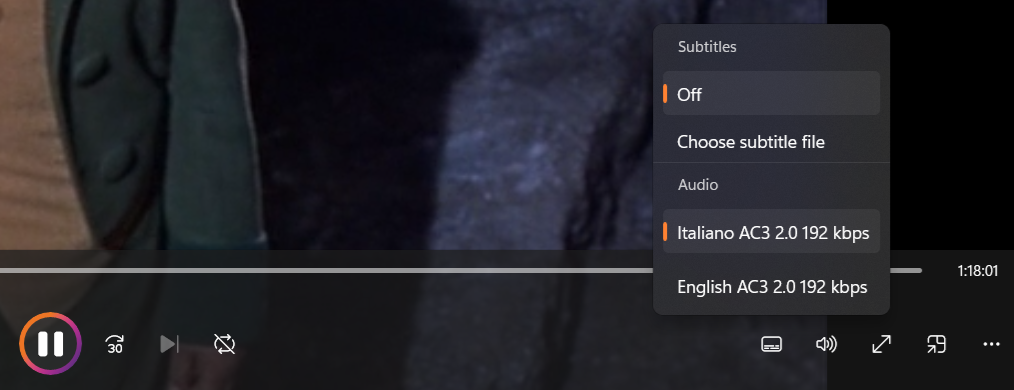
The menu that appears that allows you to pick a language
also allows you to choose a subtitle file, such as a .srt
file, if you have one for the video.
[/software/audio_video/WMP]
permanent link
Fri, Aug 12, 2016 10:41 pm
Installing Amarok on a CentOS system
If you would like to have a
free and open
source,
cross-platform, music player for use on a Linux system,
Amarok
, which was created by Mark Kretschmann, provides the capability to play
various audio media files, such as MP3, FLAC, Ogg, AAC, etc. It also allows
you to stream online music from services such as
Jamendo,
Shoutcast, etc.
To install Amarok on a CentOS Linux system using the
yum package management utility, you will first need to
configure the system to
check the EPEL repository for packages. Once you have done that, you can
issue the command yum install amarok from the root account to
install the software.
[ More Info ]
[/software/audio_video/Amarok]
permanent link
Wed, Apr 20, 2016 9:44 pm
QuickTime Player Crashing When Attempting to Save Recording
I recorded the audio for a talk on a subject of interest to me using
QuickTime Player version 10.4 (833.7) on my MacBook Pro laptop running OS X
10.10.5 (Yosemite). At the end of the talk, I stopped the recording
and clicked on
File and then
Save to save the audio
recording to the system's hard disk drive. When I did so, QuickTime
crashed. I sent the
report to Apple.
Looking at the details for the report, I saw the cause listed as
follows:
Exception Type:        EXC_CRASH (SIGABRT)
Exception Codes:       0x0000000000000000, 0x0000000000000000

Application Specific Information:
*** Terminating app due to uncaught exception 'NSInvalidArgumentException', reason: 'Cannot set outputURL to NULL'
terminating with uncaught exception of type NSException
abort() called
[ More Info ]
[/software/audio_video/quicktime]
permanent link
Sat, Feb 20, 2016 10:43 pm
Listening to Jamendo artists through VLC
The
VLC media player, which is a
free and open-source media player available for the
Windows, OS X, Linux, BSD, Solaris, Android, iOS, Chrome OS, Windows Phone,
QNX, Haiku, Syllable, and OS/2 operating systems provides a
convenient means to acces free music from
Jamendo,
a community of independent artists and music lovers that bills itself as
"the world's largest digital service for free music".
As of January 2015, Jamendo listed 460,000 tracks with more than 250 million
downloads since the launch of the platform. Jamendo is a
portmanteau
of "jam session" and "crescendo".
The music provided through Jamendo is free for personal use, so you can
download songs musicians have provided through the service legally. Jamendo's
goal is to link artists who want to share their music and music lovers around
the world. Jamendo provides an opportunity for the musicians that provide
their music to Jamendo to obtain revenue from
music synchronization licensing, i.e., the licensing of the right to
synchronize the music with visual media, such as film, television shows,
advertistements, video games, website music, movie trailers, etc., and through
licensing the music to be used as
background music
for films, TV, Internet video, such as
video
logs, aka vlogs, etc.
[ More Info ]
[/software/audio_video/VLC]
permanent link
Tue, Nov 03, 2015 9:54 pm
Converting audio/video files to another format with VLC
The
free
and open-source (FOSS)
VLC program can be used to convert audio and video files from one format
to another. VLC is a cross-platform, audio/video (A/V) program that is
available for Microsoft Windows, Mac OS X, Android, and iOS systems.
VLC originated as an academic project in 1996. It was rewritten from
scractch in 1998 and released under the
GNU
General Public License (GPL) in 2001 - see the Wikipedia article
VLC media player
for further details on the development history for the application.
Steps for converting a file from one format to another, e.g., a FLAC
audio file to an MP3 audio format are provided
here.
[/software/audio_video/VLC]
permanent link
Sat, Oct 10, 2015 4:06 pm
ACDSee Video Converter Pro - Error opening file for writing
When I attempted to install
ACDSee Video Converter Pro 4.1 on my wife's computer, I received
the mesage "Error opening file for writing" referencing the file
CheckWinVer.exe.
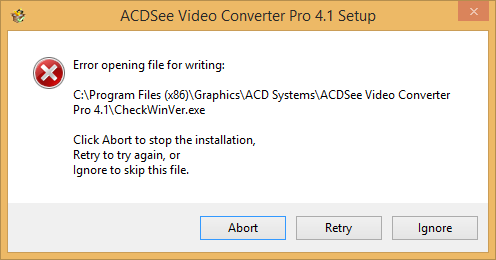
The problem was due to the fact that I hadn't right-clicked on the
installation file and chosen "Run as administrator". When I aborted the
installation and started over running it as administrator, the program
installed successfully.
[/software/audio_video]
permanent link
Wed, May 23, 2012 7:17 pm
Creating an Audio CD from MP3 Files in iTunes
Apple's iTunes software can be used to
"
burn",
i.e., write MP3 files to an audio CD that can be played in a car CD player
or similar device. You can store up to 80 minutes of music or other audio
files on a CD that will play in almost all CD players.
[ More Info ]
[/software/audio_video/itunes]
permanent link

Privacy Policy
Contact

