←October→
| Sun |
Mon |
Tue |
Wed |
Thu |
Fri |
Sat |
| |
|
|
|
1 |
2 |
3 |
| 4 |
5 |
6 |
7 |
8 |
9 |
10 |
| 11 |
12 |
13 |
14 |
15 |
16 |
17 |
| 18 |
19 |
20 |
21 |
22 |
23 |
24 |
| 25 |
26 |
27 |
28 |
29 |
30 |
31 |
|
|
Thu, Mar 12, 2026 7:48 pm
Concatenating videos with FFmpeg
The
FFmpeg video handling
utility can be used to join videos together into one larger video. If the video
files are
MPEG-1,
MPEG-2, MPEG
Program Stream (PS)
, or
Digital Video
(DV) files, you can use a Direct Stream copy method, by issuing a command in
the form
ffmpeg -i "concat:input1.mpg|input2.mpg" -c copy
output.mpg
. Using ffmpeg for the concatenation operation ensures that
file headers and timestamps are handled correctly, whereas using operating
system commands such as
cat on a Linux system or
copy /b on a Microsoft Windows system may produce payback issues.
This method can not be used for
MPEG-4 files, however.
Another method that can be used for MP4 files, as well as the above
file types is the Concat Demuxer method,
if the files use the same
codecs and parameters, such as
resolution,
framerate, etc.
If the files have the same characteristics, you can use a command of the form:
ffmpeg -f concat -safe 0 -i inputFileList.txt
-c copy output.mp4
[ More Info ]
[/video/ffmpeg]
permanent link
Wed, Mar 11, 2026 5:17 pm
Trimming a video with FFmpeg
FFmpeg provides a
suite of
command-line
interface tools for working with audio and video files. It is
free and
open-source software that is available for a variety of
operating systems,
including
Microsoft Windows,
Linux, and
macOS. If you wish to
use it on a Microsoft Windows system, you can install it with the
Windows
Package Manager known as winget by
opening a command prompt window
and issuing the command winget install "FFmpeg (Essentials Build)".
Microsoft Windows [Version 10.0.26100.7623]
(c) Microsoft Corporation. All rights reserved.

C:\Windows\System32>winget install "FFmpeg (Essentials Build)"
Found FFmpeg (Essentials Build) [Gyan.FFmpeg.Essentials] Version 8.0.1
This application is licensed to you by its owner.
Microsoft is not responsible for, nor does it grant any licenses to, third-party packages.
Downloading https://github.com/GyanD/codexffmpeg/releases/download/8.0.1/ffmpeg-8.0.1-essentials_build.zip
  ██████████████████████████████   101 MB /  101 MB
Successfully verified installer hash
Extracting archive...
Successfully extracted archive
Starting package install...
Command line alias added: "ffmpeg"
Command line alias added: "ffplay"
Command line alias added: "ffprobe"
Path environment variable modified; restart your shell to use the new value.
Successfully installed

C:\Windows\System32>
If you need to trim the beginning of a video file, such as a .mp4 file,
you can do so using a command of the form
ffmpeg -ss hh:mm:ss -i input.mp4 -c copy output.mp4 where
you specify the point you wish the video to start in the form hh:mm:ss
for hours, minutes, and seconds with -ss and
input.mp4 is the file you wish to trim and output.mp4
is the name you wish to give to the trimmed file. E.g., if I have a video
file, REC-0001-A.mp4, where I wish to discard audio and video up to the 3
minutes and 34 seconds mark in the file, I can use ffmpeg -ss 00:03:34 -i REC-0001-A.mp4 -c copy output1.mp4 to create a new file, output1.mp4,
that omits the first 3 minutes and 33 seconds from the input file. Using the
-c copy option copies the video/audio streams directly,
which is fast but can be less accurate on
keyframes.
[ More Info ]
[/video/ffmpeg]
permanent link
Fri, Feb 06, 2026 3:36 pm
Downloading YouTube videos on a Windows system with yt-dlp
YouTube recently
changed its website (around January 4, 2026) so that programs that worked in
the past for downloading YouTube videos, such as
StreamFab,
no longer work. My wife and I like to archive YouTube videos we find that
have useful information we might wish to refer to again in the future,
since we've sometimes found that when we try to view them again on
YouTube that a channel where they were posted has disappeared along with
all its videos. We have a YouTube premium subscription, which allows
one to download videos, but they are stored in a blob file where they
are not accessible to programs we use to view videos and there is no
guarantee they will remain accessible even in YouTube's limited offline
viewing method when a channel disappears. So we were very perturbed that
YouTube has now made it very difficult to archive videos. StreamFab has been
working very well for my wife and is easy to use, but I needed to look
for an alternative for her. A couple of sites that still work that
allow one to download YouTube videos are listed below, but downloading
through those websites is slower and she found that for fairly large
videos the downloads would fail.
https://ytdown.to/en2/
https://v6.www-y2mate.com/
Since I had WinPython, a
free and
open-source version of the
Python programming language installed on a Windows laptop and she is
using a Windows 11 system at the moment, though she wants to switch to
Linux, I decided to try
the yt-dlp
Python program that allows one to download YouTube videos from a
command-line
interface (CLI).
[ More Info ]
[/video/youtube]
permanent link
Thu, Apr 04, 2024 10:14 pm
Casting a video stored on a Windows PC to an LG TV
If you have a movie, or other video, located on a PC running Microsoft Windows
and wish to view the movie on your
LG Electronics TV,
which runs the LG
webOS operating system,
if they are on the same
local area network
(LAN), you can "cast" the video to the TV.
If the LG TV is visible to other devices on the network, such as the PC,
you should see it within "Media Devices" under "Network" in the Windows
File Explorer.
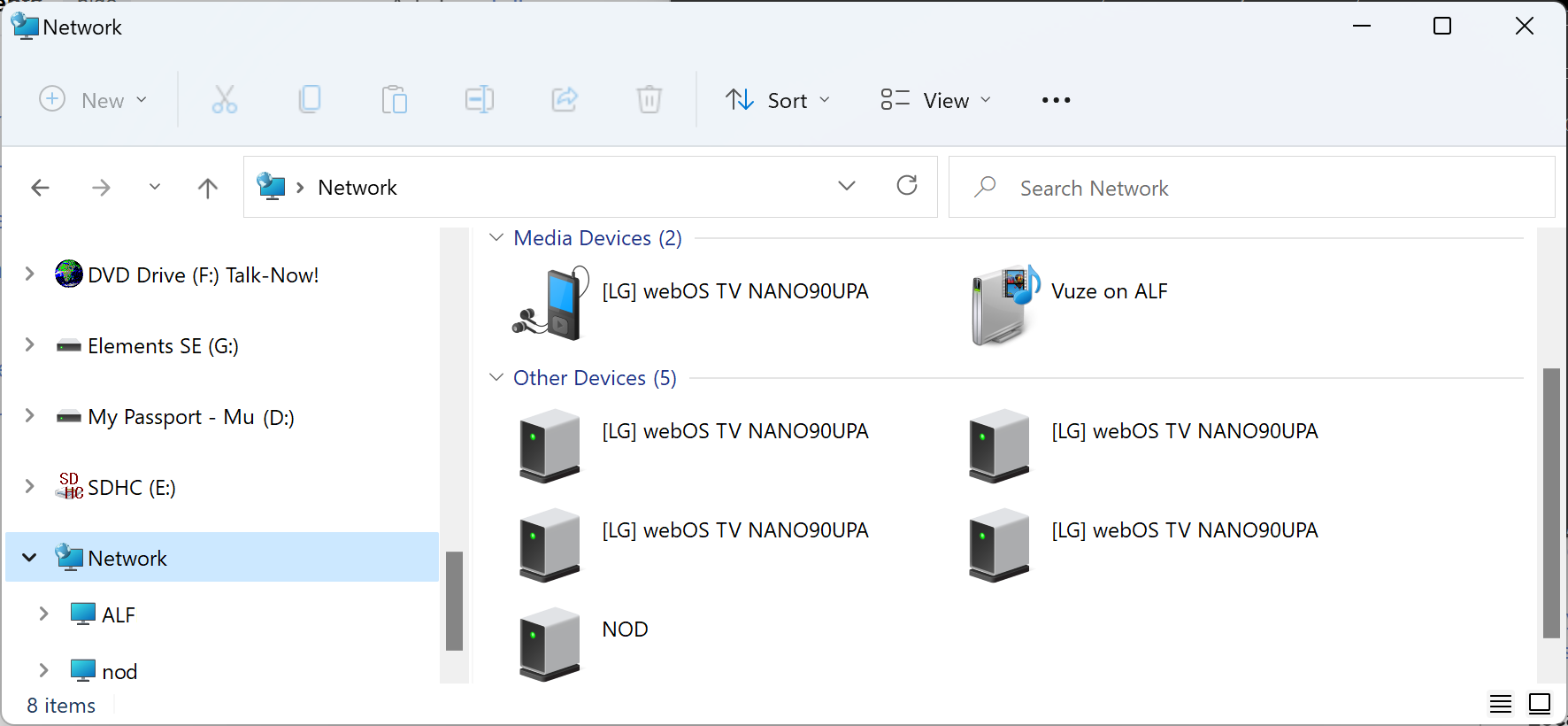
If you have an MPEG-4
(.mp4) or Audio Video Interleave (.avi) file on the PC, you can right-click
on video file, then choose "Show more options," and then
choose "Cast to Device" at which point you should see the LG TV as a
device to which you can stream the video.
[ More Info ]
[/video/lgtv]
permanent link
Sun, Mar 24, 2024 9:29 pm
Downloading CNN Videos with VideoProc Converter AI
If you wish to download videos posted on the
Cable News Network (CNN) website, you can do
so with
VideoProc Converter AI from Digiary Software, Inc. The program is a
commercial product, but you can download a free trial version. To download a
CNN video, or videos from other sites, such as YouTube, take the following
steps...
[ More Info ]
[/video]
permanent link
Fri, Mar 08, 2024 7:33 pm
Downloading Smithsonian Associates Encore Videos
If you purchase a
Smithsonian Associates class,
but are unable to watch the class via the Zoom session at the time
scheduled for the live presentation, you can usually log into your
Smithsonian Associates account and go to
"
View my
Encores recordings" to watch the class up to 72 hours after the live
presentation. At
"
Welcome to
Associates Encores," you will see the following:
Many—but not all—live-streamed programs are recorded. We
understand it's not always possible to watch a program in real time, and as a
courtesy to ticket buyers we are glad to make recordings available within 24
hours after the program has taken place. The recordings can be viewed for up
to three days (72 hours) after they become available.
SmithSonian Associates has stated that they don't have sufficient storage
space to make the recordings permanently available. If you can't watch the
recording within the 3 days it will be available or want to have a permanent
copy available for future reference, you can take the steps listed below to
download an MP4
file of the recorded presentation.
If you click on the Watch button from your Encores page on the
Smithsonian Associates website, you will be taken to a
Zoom
webpage. You can watch the video from that page, but if you right-click on
the video, you will not see any option to save it. So you need to install
a browser extension that will enable right-clicks to work on pages where they
have been disabled.
Note: the instructions below are specifically for the
Brave browser
on a Microsoft Windows system, but the procedure for other browsers is likely
to be similar.
[ More Info ]
[/video]
permanent link
Wed, Oct 18, 2023 3:59 pm
Sites that can be used to download YouTube, Instagram, Facebook, Twitter, and TikTok videos
Sometimes videos you might wish to view later, or view again, will disappear
from online sites. If you would like to store videos on your own system
so that you don't need to worry about them disappearing, either removed by
personnel associated with the site or the person who posted the content, there
are sites that you can go to where you only need to provide
Uniform Resource Locators (URLs)
to have the site provide you with a download link you can use to store videos
on your own system. For
YouTube videos, you can use the
OffLiberty
site. For
Instagram
videos, you can use the
Inflact site,
which also allows you to save videos hosted by
Facebook,
Twitter (now X), and
Tiktok. Both sites allow you
to save a video on your own system in
.mp4 format. Use
of both sites is free.
Related articles
-
Downloading Video Clips with Offliberty
Date: January 26, 2014
[/video]
permanent link
Mon, May 29, 2023 9:09 pm
youtube-dl unable to extract uploader id
I installed
ytdl-org /
youtube-dl from
Github
to download videos from
YouTube to a
Linux
system with the
pip package manager, since youtube-dl is a
Python
script, using the command
pip3 install youtube-dl. But when I
tried to download a YouTube video with youtube-dl, I received an error message
indicating the script was unable to extract the ID of the uploader of the
video and the video was not downloaded.
$ youtube-dl https://www.youtube.com/watch?v=JmSmjDngVXM
[youtube] JmSmjDngVXM: Downloading webpage
ERROR: Unable to extract uploader id; please report this issue on https://yt-dl.org/bug . Make sure you are using the latest version; see https://yt-dl.org/update on how to update. Be sure to call youtube-dl with the --verbose flag and include its complete output.
$
I verified I had the latest version of the program, 2021.12.17.
$ youtube-dl --version
2021.12.17
$
To obtain further information on the error, I then ran the script with the
--verbose option which showed me more details on the error.
$ youtube-dl --verbose https://www.youtube.com/watch?v=JmSmjDngVXM
[debug] System config: []
[debug] User config: []
[debug] Custom config: []
[debug] Command-line args: ['--verbose', 'https://www.youtube.com/watch?v=JmSmjDngVXM']
[debug] Encodings: locale UTF-8, fs utf-8, out UTF-8, pref UTF-8
[debug] youtube-dl version 2021.12.17
[debug] Python version 3.6.8 (CPython) - Linux-3.10.0-229.7.2.el7.x86_64-x86_64-with-centos-7.1.1503-Core
[debug] exe versions: none
[debug] Proxy map: {}
[youtube] JmSmjDngVXM: Downloading webpage
ERROR: Unable to extract uploader id; please report this issue on https://yt-dl.org/bug . Make sure you are using the latest version; see https://yt-dl.org/update on how to update. Be sure to call youtube-dl with the --verbose flag and include its complete output.
Traceback (most recent call last):
File "/usr/local/lib/python3.6/site-packages/youtube_dl/YoutubeDL.py", line 815, in wrapper
return func(self, *args, **kwargs)
File "/usr/local/lib/python3.6/site-packages/youtube_dl/YoutubeDL.py", line 836, in __extract_info
ie_result = ie.extract(url)
File "/usr/local/lib/python3.6/site-packages/youtube_dl/extractor/common.py", line 534, in extract
ie_result = self._real_extract(url)
File "/usr/local/lib/python3.6/site-packages/youtube_dl/extractor/youtube.py", line 1794, in _real_extract
'uploader_id': self._search_regex(r'/(?:channel|user)/([^/?&#]+)', owner_profile_url, 'uploader id') if owner_profile_url else None,
File "/usr/local/lib/python3.6/site-packages/youtube_dl/extractor/common.py", line 1012, in _search_regex
raise RegexNotFoundError('Unable to extract %s' % _name)
youtube_dl.utils.RegexNotFoundError: Unable to extract uploader id; please report this issue on https://yt-dl.org/bug . Make sure you are using the latest version; see https://yt-dl.org/update on how to update. Be sure to call youtube-dl with the --verbose flag and include its complete output.
$
The software, which is a command-line program to download videos from
YouTube.com and other video sites, is maintained by
ytdl-org and, on a Github webpage
for the organization, I found issue #32247,
ERROR: Unable to extract uploader id, which attributed the error to
YouTube recently starting to add that "at sign", i.e., @, to URLs. jgmayer,
who posted his comments and the solution just 3 hours before I encountered
the problem, posted the following solution:
The solution is to go to the file that you getting the error:
"/usr/local/Cellar/youtube-dl/2021.12.17/libexec/lib/python3.10/site-packages/youtube_dl/extractor/common.py"
Find the following line:
'uploader_id': self._search_regex(r'/(?:channel|user)/([^/?&#]+)', owner_profile_url, 'uploader id') if owner_profile_url else None,
Replace with the following:
'uploader_id': self._search_regex(r'/(?:channel/|user/|@)([^/?&#]+)', owner_profile_url, 'uploader id', default=None),
The poster indicated the relevant file is
/usr/local/Cellar/youtube-dl/2021.12.17/libexec/lib/python3.10/site-packages/youtube_dl/extractor/common.py,
but there is no /usr/local/Cellar directory on my system and
running the script with the verbose option, showed the relevant code is on line
1,794 of
/usr/local/lib/python3.6/site-packages/youtube_dl/extractor/youtube.py.
After making the suggested change, I was able to download a YouTube video
with the program.
$ youtube-dl https://www.youtube.com/watch?v=JmSmjDngVXM
[youtube] JmSmjDngVXM: Downloading webpage
[download] Destination: Ancient Greek Lesson #1 _ Learn Greek Fast Online-JmSmjDngVXM.mp4
[download] 100% of 14.88MiB in 04:20
$
The updated youtube.py that can
be used to replace the 2021.12.17 version in
/usr/local/lib/python3.6/site-packages/youtube_dl/extractor/youtube.py.
References:
-
ERROR: Unable to extract uploader id #32247
By: jgmayer
Date: May 29, 2023
Github - ytdl-org / youtube-dl
Related Articles:
-
Python script to download YouTube videos
on Mac OS X
[/video/youtube]
permanent link
Mon, Oct 19, 2020 7:42 pm
Downloading Panopto videos
To download a video hosted on
Panopto, such as a class
lecture, you can take the following steps in the
Firefox web
browser:
-
Right-click on the video in Panoptoo—you may need to click on the small
video in the upper, left-hand side of the window rather than the one on the
right side of the window—and select "Inspect Element (Q)."
In the "Search HTML" field, type
.mp4 and hit
Enter—this presumes the video is an
MP4 video.
-
You should see the area in the HTML code where the MP4 file is referenced
highlighted.
Right-click on the highlighted area and choose "Copy" then "Outer HTML."
-
Then paste the information copied into the clipboard into
Microsoft Notepad or some other text editor, depending on your operating
system and preferred editor. You should see the
URL for the
video listed in the content pasted into the editor. Copy the URL starting with
the "https" up through the ".mp4"—don't copy the information after
the ".mp4."
-
Paste the copied URL into a browser tab. You can then right-click on the
video in that browser tab and select "Save Video As" to download the video
to your local system. You can give the video a more meaningful name than
the long string of
hexadecimal
digits used for the name.
[ More Info ]
[/video/panopto]
permanent link
Wed, Sep 30, 2020 4:41 pm
Placing timestamps at ends of lines of a transcript for Panopto videos
After watching lectures for classes that are stored on the
Panopto website, I like
to save the text listed for a video in the Contents and Captions that
Panopto provides in a text file. However, if I copy and paste the text into
Windows Notepad
or some other
text
editor, I see the timestamps appear beneath the relevant text on the
following line. To address the problem, I paste the text into
the
Vim editor
on a Microsoft Windows system and apply the command
v/\d:\d\d\n/s/\n/ / that replaces the end-of-line character
at the end of all lines that don't have a timestamp with a space, instead.
[ More Info ]
[/video/panopto]
permanent link

Privacy Policy
Contact

