←June→
| Sun |
Mon |
Tue |
Wed |
Thu |
Fri |
Sat |
| |
1 |
2 |
3 |
4 |
5 |
6 |
| 7 |
8 |
9 |
10 |
11 |
12 |
13 |
| 14 |
15 |
16 |
17 |
18 |
19 |
20 |
| 21 |
22 |
23 |
24 |
25 |
26 |
27 |
| 28 |
29 |
30 |
|
|
|
|
|
|
Fri, Jun 12, 2026 1:55 pm
Thunar on Ubuntu
My wife was dissatisfied with the default
file manager,
GNOME Files, aka
Nautilus, on her Ubuntu
Linux desktop system. You can determine the default file manager from a
terminal window
by issuing the command xdg-mime query default inode/directory,
which will show you what application opers directories.
$ xdg-mime query default inode/directory
org.gnome.Nautilus.desktop
$
You can also check on whether one of several common file managers, such
as Nautilus, Thunar,
Dolphin, or
Nemo, which is a
fork of
Nautilus, is currently running with ps aux | grep -E
'nautilus|thunar|dolphin|nemo'. I saw that I had previously
installed the Krusader file manager when I checked for file manager
desktop entries with grep -l "inode/directory"
/usr/share/applications/*.desktop.
$ grep -l "inode/directory" /usr/share/applications/*.desktop
/usr/share/applications/org.gnome.baobab.desktop
/usr/share/applications/org.gnome.Nautilus.desktop
/usr/share/applications/org.kde.krusader.desktop
$
But I didn't think the
Krusader interface would appeal to her as she wanted a file manager
that provided an interface more similar to the one for the Windows Fle Explorer
that she had on her Windows 11 system, so I issued the command
sudo apt update and then sudo apt install thunar,
which installed thunar 4.20.7 — after installation, you can check the
version of Thunar with thunar --version.
I then made Thunar the default file manager with
xdg-mime default thunar.desktop inode/directory. If you run
the command xdg-mime query default inode/directory, you should
see thunar listed when it has been made the default handler for directories.
$ xdg-mime default thunar.desktop inode/directory
$ xdg-mime query default inode/directory
thunar.desktop
$
I then unpinned the GNOME Files (Nautilus) app by right-clicking on the
icon for it and selecting Unpin. I then pressed the
Super
key along with the "A" key, and typed thunar in the "Type to
search" filed and then right-clicked on thunar when I saw it returned
and selected "Pin to Dock" so she could open it the way she was opening
GNOME Files.
To make the left pane of the Thunar window act like Explorer on Microsoft
Windows operating systems, I configured it to expand a directory to show
subdirectories if she clicked on it. To do so, I changed Thunar's
sidebar style from the default "Shortcuts" to "Tree, which can be done
by selecting View, then Side Pane and then selecting
Tree, which changes the left pane to provide an expandable
directory tree. As with the Windows File Explorer, you can toggle
the display of hidden files. I turned that option on by pressing the
Ctrl and H keys simultaneously — the option can
be toggled off again by using the same key combination.
[ More Info ]
[/os/unix/linux/ubuntu]
permanent link
Sun, Mar 29, 2026 8:58 pm
Installing MakeMKV on a Ubuntu Linux system
After trying unsuccessfully to get the
Snap package of
MakeMKV working on
an
Ubuntu Linux system
(see
Installing the MakeMKV
Snap Package on a Ubuntu Linux system), I uninstalled the Snap version
and installed the software from the
source code.
Though installing the application from source code involved more steps,
I was able to successfully install and then rip a couple of discs in far
less time than I spent trying to get the Snap version to work.
[ More Info ]
[/os/unix/linux/ubuntu]
permanent link
Tue, Mar 24, 2026 9:15 pm
Could not initialise OpenGL support
I downloaded a YouTube
video on a Ubuntu Linux
with yt-dlp.
When I tried to view the downloaded
WebM file with the default
video application, Videos, also known as Totem, which is an application for
playing videos that is provided with Ubuntu, I saw the message below:
Ⓧ
An error occurred
Could not initialise OpenGL support
OK
When I opened the video with
VLC, which I had
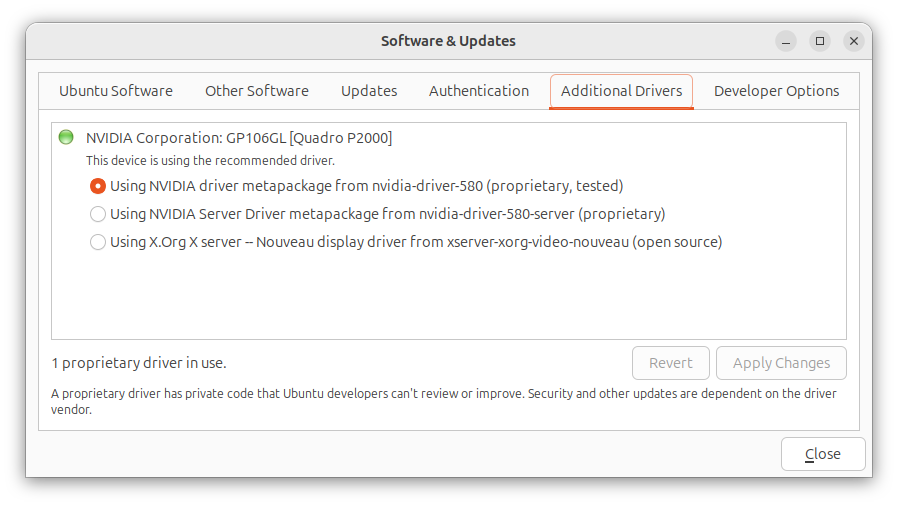
previously installed, I heard audio, but no video was displayed. I checked
to see if the Nvidia
driver was up-to-date since the system had an Nvidia graphics card, but they
were up-to-date. You can check that by clicking on the Show Apps
button at the lower-right-hand corner of the screen Ubuntu desktop. Then type
Software Updates in the "Type to search" field. Click on
Software & Updates and then click on the Additional
Drivers.
To resolve the problem, I added the following line to the
/etc/environment file with a
text editor:
GDK_GL=gles
When I rebooted the system, I was then able to view the video with
the default Videos application, though when I tried playing it in
VLC I could hear audio, but did not see video.
[/os/unix/linux/ubuntu]
permanent link
Sun, Mar 01, 2026 10:55 pm
Controlling whether a scrollbar appears in a tab in a Terminal window
I needed to scroll back through a tab I had open in a
Terminal window on
an
Ubuntu Linux system,
but there was no
scrollbar on the right side of the tab in which I had run the command,
though a scrollbar was open in other Terminal tabs. I was able to get the
scrollbar to appear by clicking on the icon with 3 horizontal bars at
the top of the Terminal window and then selecting
Preferences.
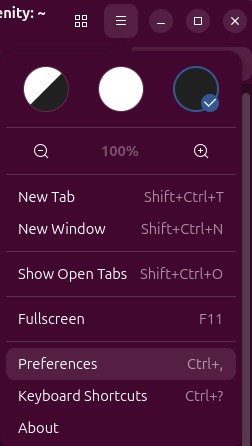
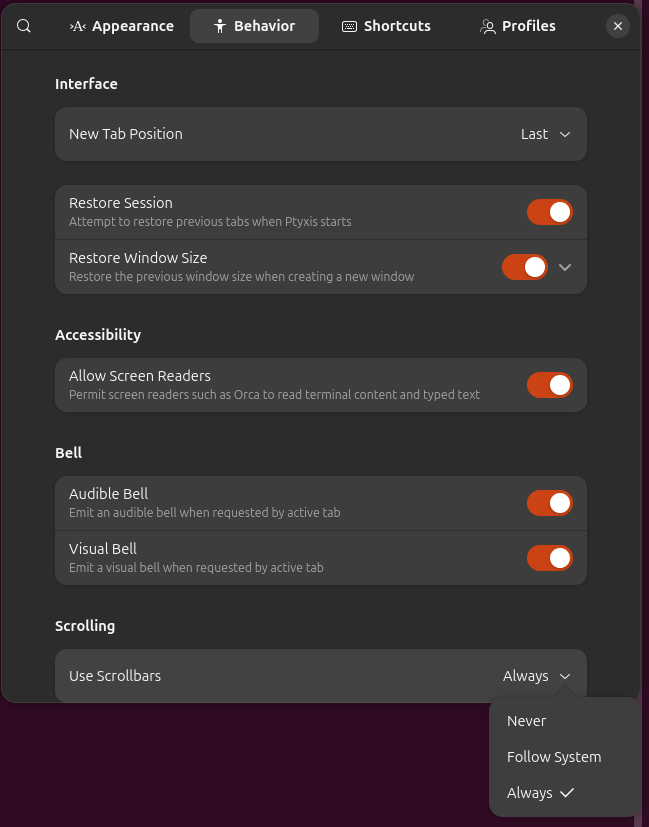
Then from the Behavior tab, I changed the setting from
Follow System to Always, which resulted in the
scrollbar appearing where it had been missing, but I could not scroll
back any further than the text that had been appearing in the tab
before I changed the settiing and that remained the same whenever
I issued another command and text moved upwards, so that I could no
longer see it or scroll back to see it, so I closed the tab.
When I opened another tab, the scrollbar was there and operated
as expected.
[/os/unix/linux/ubuntu]
permanent link
Sun, Feb 22, 2026 3:38 pm
Running the Big Fish Games Manager on an Ubuntu system
You can run the Big
Fish Games Game Manager on an
Ubuntu Linux system
under Steam.
You can install Steam as a
Snap package
from the Ubuntu App Center.
Steps:
-
Download the Big Fish Games App (Game Manager) for PC
-
In Steam on the Ubuntu system, click on Add a Game, which is
at the lower, left-hand corner of the Steam window, then
select Add a Non-Steam Game, then browse to where you downloaded
the .exe installer for the game manager, click on it, and then
click on Add Selected Programs.
-
You should then see the Big Fish Game Manager in the "Uncategorized" list
of games at the left side of the Steam window, e.g., you may see
bfginstaller32_s1_l1.exe listed. Right-click on it and then select
Properties, then Compatibility, and then, from the
drop-down list that becomes available, select Proton Experimental
or the latest stable version — I selected Proton Experimental.
-
You can then close the Compatibility window by clicking on the
"X" at the upper, right-hand corner.
-
Then with the Big Fish Game Manager selected in the Uncategorized
list, click on the Play button to launch the Big Fish Game Manager
Setup and agree to the License Agreement when you see it appear.
When I started the install process, the installation appeared to hang at
"Execute: C:\Program Files (x86)\bfglient\epoch.exe". When I clicked on the
title bar for the window, I saw "About Wine", so it appeared to be using
Wine, which I had
previously installed on the Ubuntu system.
But I waited and eventually the installation succeeded, though I think it
took over 15 minutes. I closed the window and then went back to the
Steam window, I saw bfginstaller32_s1_l1.exe was still there. This time
when I clicked on it, the Big Fish window where I could sign in to Big
Fish Games opened fairly quickly.
Note: if the window goes blank or displays just a white background,
minimize it by clicking on the "-" in the upper, right-hand corner of
the Big Fish window and then switch to it again, which you can do with
Alt+Tab — continue to press the Tab key while
continuing to hold down the Alt key to cycle between open open
windows until you get to the Big Fish window.
Initially, you will see "No games to play," but if you have already
purchased games that you've played on another system, you can click
on Purchase History and install them on the Linux system.
When I installed the Big Fish Games Manager under Steam, I had my wife
check one of her games, Aquascapes, and that ran fine. I then closed
the Big Fish window and the Steam window and reopened it. Note: if
you want to change the name that appears for Big Fish Games in the
Uncategorized list, you can right-click on the entry, e.g.,
bfginstaller32_s1_l1.exe, and choose Properties and then change
the "Shortcut" value to something you prefer, such as "Big Fish Games".
When I reopened Steam and started Big Fish Games, I saw the Aquascapes
game under "My Games".
[ More Info ]
[/os/unix/linux/ubuntu]
permanent link
Sat, Feb 21, 2026 10:37 pm
Mounting a network drive under Ubuntu Linux
To access a directory that is shared from a Microsoft Windows system in a
Windows domain, you
can take the following steps on a
Ubuntu Linux system.
Note: you will need to have a package installed that provides
Server Message
Block (SMB) support. If the libsmclient0 package is installed, you should be
able to use these steps. You can check if it is installed by opening
a Terminal window and
issuing the command dpkg -s libsmbclient0.
If it is not installed, you can install it with sudo apt install
libsmbclient0.
alice@Wonderland:~$ dpkg -s libsmbclient0
Package: libsmbclient0
Status: install ok installed
Priority: optional
Section: libs
Installed-Size: 259
Maintainer: Ubuntu Developers <ubuntu-devel-discuss@lists.ubuntu.com>
Architecture: amd64
Multi-Arch: same
Source: samba
Version: 2:4.22.3+dfsg-4ubuntu2.2
Replaces: libsmbclient
Provides: libsmbclient (= 2:4.22.3+dfsg-4ubuntu2.2)
Depends: samba-libs (= 2:4.22.3+dfsg-4ubuntu2.2), libbsd0 (>= 0.0), libc6 (>= 2.38), libndr6 (>= 2:4.17.2), libtalloc2 (>= 2.0.4~git20101213), libtevent0t64 (>= 0.15.0)
Breaks: libsmbclient (<< 2:4.22.3+dfsg-4ubuntu2.2)
Description: shared library for communication with SMB/CIFS servers
 This package provides a shared library that enables client applications
 to talk to Microsoft Windows and Samba servers using the SMB/CIFS
 protocol.
Homepage: https://www.samba.org
Original-Maintainer: Debian Samba Maintainers <pkg-samba-maint@lists.alioth.debian.org>
alice@Wonderland:~$
[ More Info ]
[/os/unix/linux/ubuntu]
permanent link
Thu, Feb 19, 2026 9:43 pm
Listing all accounts on an Ubuntu Linux system
If you need to list all of the accounts on an
Ubuntu Linux system, there
are many commands that you can use.
cat /etc/passwdgrep -oE '^[^:]+' /etc/passwd - for just the account namescut -d: -f1 /etc/passwd - for just the account namesawk -F: '{print $1}' /etc/passwd - for just the account names
lsloginscompgen -u - for just the accunt namesgetent passwd
[ More Info ]
[/os/unix/linux/ubuntu]
permanent link
Wed, Feb 18, 2026 4:01 pm
Determining the amount of memory in a system running Ubuntu Linux
If you need to determine the amount of memory in a system that is running
the Ubuntu Linux
operating
system (OS), you can open a
Terminal
window from the App Center and then use the free command.
If you use the command without any options, you will see the amount
of memory displayed in
bytes. To display the value in a more human-friendly format, you
can add the argument -h or --human, e.g.,
to see the value in
gigabytes.
alice@firefly:~$ free -h
               total        used        free      shared  buff/cache   available
Mem:            14Gi       2.4Gi        10Gi       426Mi       2.3Gi        12Gi
Swap:          4.0Gi          0B       4.0Gi
alice@firefly:~$
Other options for the command are shown below:
jim@Serenity:~$ free --help

Usage:
 free [options]

Options:
 -b, --bytes         show output in bytes
     --kilo          show output in kilobytes
     --mega          show output in megabytes
     --giga          show output in gigabytes
     --tera          show output in terabytes
     --peta          show output in petabytes
 -k, --kibi          show output in kibibytes
 -m, --mebi          show output in mebibytes
 -g, --gibi          show output in gibibytes
     --tebi          show output in tebibytes
     --pebi          show output in pebibytes
 -h, --human         show human-readable output
     --si            use powers of 1000 not 1024
 -l, --lohi          show detailed low and high memory statistics
 -L, --line          show output on a single line
 -t, --total         show total for RAM + swap
 -v, --committed     show committed memory and commit limit
 -s N, --seconds N   repeat printing every N seconds
 -c N, --count N     repeat printing N times, then exit
 -w, --wide          wide output

     --help     display this help and exit
 -V, --version  output version information and exit

For more details see free(1).
jim@Serenity:~$
Note:The
free command in Linux shows the total amount of installed physical memory in the total column, but this value is less than the actual hardware
random-access
memory (RAM) installed because the Linux
kernel
reserves a portion of memory for itself and for hardware devices (like video
card buffers) at boot time. The total shown is the usable RAM available to the
OS, not the absolute hardware total.
[
More Info ]
[/os/unix/linux/ubuntu]
permanent link
Tue, Feb 17, 2026 1:53 pm
Adding and removing users from the sudoers list on an Ubuntu Linux system
On a Ubuntu Linux system,
you can determine which users are allowed to use the
sudo command by looking
at the contents of the /etc/group file. If you
grep for sudo
you will see which accounts on the system can use the command.
jack@firefly:~$ grep sudo /etc/group
sudo:x:27:jack,jill@ad.example.com
jack@firefly:~$
The above output shows that the local jack account and a
Windows domain
account, jill@ad.example.com, can use the command.
You can see what groups a particular user belongs to with the command
groups username, where username is the user's
account name.
jack@firefly:~$ groups jill@ad.example.com
jill@ad.example.com : domain users@ad.example.com ra_allowmediaaccess@ad.example
.com ra_allowcomputeraccess@ad.example.com ra_allowaddinaccess@ad.example.com ra
_allowshareaccess@ad.example.com ra_allowremoteaccess@ad.example.com wssusers@ad
.example.com ra_allowvpnaccess@ad.example.com ra_allowhomepagelinks@ad.example.c
om
jack@firefly:~$ groups jack
jack : jack adm cdrom sudo dip plugdev users lpadmin
jack@firefly:~$
You can also determine if a user has sudo privilege using
groups username | grep -c sudo. If the result is 0, then
the user does not have that privilege. If the result is 1, inciding that
the grep command found username one in the output of the groups command,
then the user has that privilege.
jack@firefly:~$ groups jill@ad.example.com | grep -c sudo
1
jack@firefly:~$
You can grant a user that privilege by issuing the command
sudo usermod -aG sudo username from an account that already
has the capability to run the sudo command.
jack@firefly:~$ sudo usermod -aG sudo mary
[sudo: authenticate] Password:
jack@firefly:~$
You can remove a user's account from the list of those allowed to run
the command using the
gpasswd
command, which is part of the sysutils package by issuing the command
sudo gpasswd -d username sudo.
jack@firefly:~$ sudo gpasswd -d mary sudo
Removing user mary from group sudo
jack@firefly:~$ groups mary | grep -c sudo
0
jack@firefly:~$
[ More Info ]
[/os/unix/linux/ubuntu]
permanent link
Sun, Feb 08, 2026 4:29 pm
Checking an NVMe drive's status in Ubuntu Linux with nvme-cli
You can check the health of a
NVM Express (NVMe)
drive on an Ubuntu Linux
system using the nvme-cli
command-line
interface (CLI) application. The description for the package is as follows:
NVMe management command line interface
nvme-cli is a NVMe management command line interface. NVM Express™
(NVMe™) is a specification defining how host software communicates with
non-volatile memory across a PCI Express® (PCIe®) bus. It is the industry
standard for PCIe solid state drives (SSDs) in all form factors (U.2,
M.2, AIC, EDSFF).
You can install nvme-cli throught the App Center on a Ubuntu Linux
system.
[ More Info ]
[/os/unix/linux/ubuntu]
permanent link

Privacy Policy
Contact

