A user reported that she could not access her email from her
Windows 11 system, which she normally would do by clicking
on a shortcut on her desktop which would open the Microsoft
Edge
browser to the webpage where she could log into
her email account on outlook.com. When I clicked on the
shortcut, I saw a blank, white area appear above the taskbar. I found
statements online about opening Microsoft Edge in a restricted "Safe
Mode" that disables extensions and custom settings, by starting it in
InPrivate mode by openng the Windows Run dialog, which you can do by
pressing the Windows
key and the "R" key. Then type msedge --inprivate
in the Run dialog window and then pressng Enter (I wasn't
certain whether there should be one dash or two before "inprivate"
since I found both listed when I searched online for a method to open
the browser in safe mode). However, with either option, Edge still
crashed shortly after opening with a blank, white window.
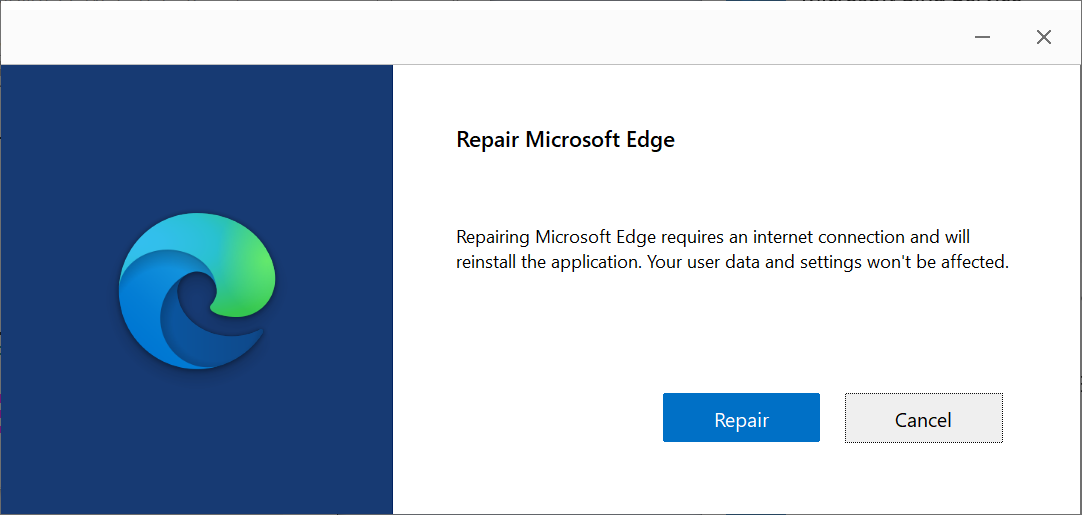
I was able to correct the problem by repairing the application, which
can be done through the following steps:
-
Type
settingsin the Windows "Type here to search" field and press Enter. - When you see Settings returned, click on it.
- Select Apps.
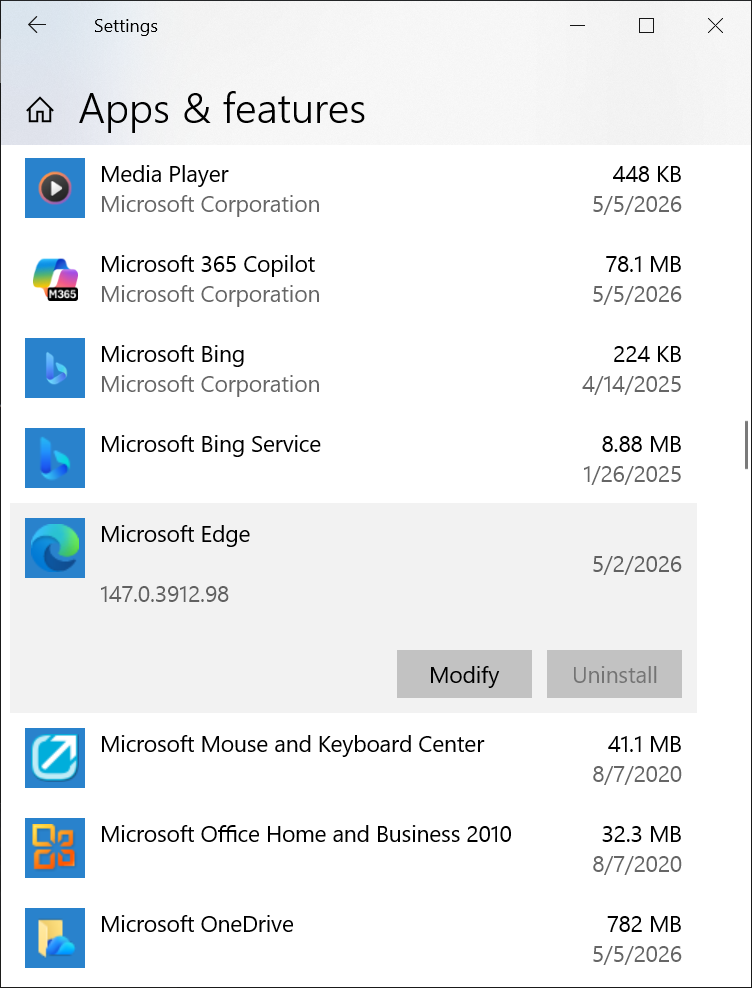
- Select Apps & features.
-
Scroll down through the list of applications until you see
Microsoft Edge and then select it and click on Modify.
- Provide the credentials for an administrator account when prompted for a userid and password.
-
Click on Repair.