←August→
| Sun |
Mon |
Tue |
Wed |
Thu |
Fri |
Sat |
| |
|
|
|
|
|
1 |
| 2 |
3 |
4 |
5 |
6 |
7 |
8 |
| 9 |
10 |
11 |
12 |
13 |
14 |
15 |
| 16 |
17 |
18 |
19 |
20 |
21 |
22 |
| 23 |
24 |
25 |
26 |
27 |
28 |
29 |
| 30 |
31 |
|
|
|
|
|
|
|
Sat, Mar 28, 2026 1:28 pm
Updating file locations in Book Collector
Collectorz now appears to be focusing
on their mobile and web-based products
for managing book collections, but they also provide a desktop
Book Collector desktop application for systems running Microsoft
Windows, though I don't even see a link for it on the homepage of
their website nor do I see one in their
sitemap webpage. However, if you are using the desktop product and
need to update your Book Collector database if the location of cover images,
thumbnails, list item images, templates, and/or local files for
entries already in the datbase, you can take the steps below.
You can specify the directories for new entries by clicking on
Tools, Options, Folders to set the
directories Book Collector should use by default.
Inside the Book Collector program, click on Tools then
select Update File Links. In the Update File Links
window you can "choose the kind of files you would like to repair". I left
the default value of All Types, but you can also select Front
Cover, Back Cover, Pick List Image, Pick List
Template Image, Local File, or Backdrop.
When you click on Next Step, you can choose to have the program
automatically update the old folder to the new folder or you can choose
to do it manually. With the automatic option, you can "Select a base
folder and let the program find the missing files automatically" while
with the manual option you can "Use a find and replace action to
manually fix your file paths". For the "Choose folder where to
find files", browse to the appropriate directory where the files are
now located. Check the box next to "Include subfolders", if that is
appropriate, and then click on Next step. The program will then
show a "Finding best matches for missing files" window with a progress
bar as it updated links.
At the next step, Step 4, you can see the resulting file paths
and click on the Update File Links button to finalize the
changes. You will then see the number of file links that will be updated
and asked if you are sure to proceed. I saw a window with a message that
Book Collector was not responding, but I chose "Wait" several times and
it finally completed. When all the links are updated, you should see
a window informing you of the number of file links updated.
If you updated the location for the images for books already in the
database, you should now see the images appear for book entries.
If you just need to update the links for a particular kind of files,
e.g., the local files, or the location of those files differs from
the location of other files, e.g., if they are on a different drive than
the images, etc., at Step 1 where you "choose the kind of files you
would like to repair", you can choose that file type instead of "All
Types".
I was able to use the above steps when transitioning my wife's desktop
computer from Windows to
Ubuntu Linux, after I installed Book Collector under
Wine, to
specify the new location of image and local files.
[ More Info ]
[/software/database/collectorz]
permanent link
Sun, May 04, 2025 2:26 pm
Deleting all records from an SQLite table
If you wish to delete all of the records from a table in an
SQLite
database, you can do so using a command in the form delete from
tableName where tableName is the name of the
table from which you wish to remove all of the rows in the table.
E.g., if I wished to delete all of the records in a table named
TimeStamps, I could use the delete command below.
sqlite> select * from Timestamps;
2025-05-01 21:26:22|2025-05-01 21:23|10947739
2025-05-01 21:28:33|2025-05-01 21:28|10967247
2025-05-04 13:37:47|2025-05-04 13:36|18079581
sqlite> delete from Timestamps;
sqlite> select * from Timestamps;
sqlite>
If I only wanted to delete a record or records meeting a specific condition,
I could specify that condition in a WHERE clause. E.g., if the columns in the
table were CurrentTimestamp, LastUpdateTimestamp, and Size and I only wanted to
remove the row where the value of CurrentTimestamp is 2025-05-04 13:37:47,
I could use the command below, instead.
sqlite> .schema Timestamps
CREATE TABLE "Timestamps" (
        "CurrentTimestamp"      TEXT NOT NULL,
        "LastUpdateTimestamp"   TEXT NOT NULL,
        "Size"  INTEGER NOT NULL
);
sqlite> delete from Timestamps where CurrentTimestamp='2025-05-04 13:37:47';
[/software/database/sqlite]
permanent link
Wed, Nov 17, 2021 8:33 pm
Book classification fields in Book Collector
I use
Book Collector from
Collectorz.com to catalog my books.
When entering books into the Book Collector database, I like to include
the
Dewey
Decimal Classification (DDC) number,
Library of Congress Control Number, and
Library of Congress Classification if those are available. When you
enter a new book into the database, you can have the program search for
an existing entry for the book from its enormous online database of books by
clicking on the plus sign (+) at the top, left-hand part of the Book Collector
window, which will then allow you to search by
International Standard Book Number (ISBN), Author/Title, or LCCN.
If the book is found, you can then choose to add its entry to your own
collection or your wish list. Occasionally, I've found an LCCN listed in the
LoC Control Number book, as is the case for
Lost Treasures of
American History by W.C. Jameson, but when I search
the Library of Congress database for information associated with that
LCCN, such as the LOC classification, I find that no record is returned.
[ More Info ]
[/software/database/collectorz]
permanent link
Sun, Apr 18, 2021 5:13 pm
DB Browser for SQLite for Microsoft Windows systems
DB Browser for SQLite provides a
data
base management system (DBMS) for
SQLite databases on a
variety of operating systems. It is available for Microsoft Windows operating
systems—there is even a
portable
application version that does not have to be installed, but instead
can be run from a
USB flash drive. The software is also available for macOS—see
DB Browser for SQLite on OS
X— and Linux systems.
SQLIte itself is a
relational database management system (RDBMS) available
for a variety of operating systems. SQLite is freely available under a
public domain license and DB Browser for SQLite is also freely available under
a
GNU
General Public License (GPL). DB Browser for SQLite provides the underlying
SQLite software, so you don't need to install SQLite on a system prior to
installng DB Browser for SQLite.
[More Info]
[/software/database/sqlite/db_browser]
permanent link
Wed, Mar 24, 2021 10:02 pm
Changing the default value for "Read It" in Book Collector
After I updated
Book Collector,
the book management database from
Collectorz.com that I use to track
my book collection, from 21.0 build 3 to 21.1 build 1 today, I noticed that
books I entered afterwards were being assigned a value of "Yes" for "Read
It" by default—that value appears under the "Personal" fields for a book
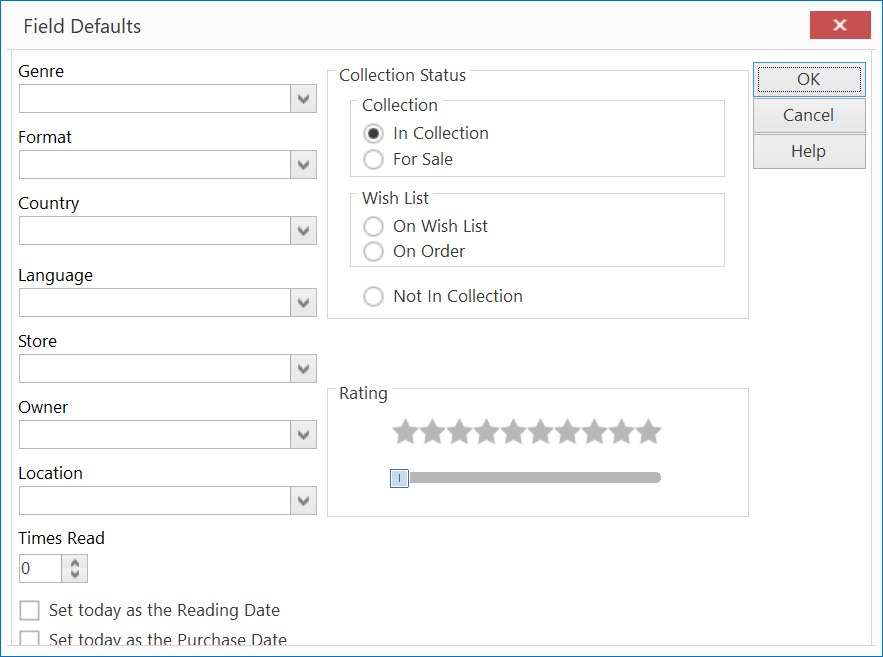
entry. I was able to change the default value to "No" by clicking on
Tools
on the main menu, selecting "Field Defaults" and changing the "Times
Read" value from "1" to "0"; after I made that change new books I entered
were given a "Read It" value of "No" by default.
[/software/database/collectorz]
permanent link
Mon, Mar 15, 2021 2:30 pm
Deleting entries from Book Collector CLZ Cloud account
The March 4, 2021 version of Book Collector, version 21.0.3, allows you to
remove all entries from the CLZ Cloud account from within the program.
I needed to do that because the cloud account contained entries from my
wife's book database that would be added to my database if I synched the
accounts—I wanted to keep the two book lists separate.
The steps for wiping the copy of the database stored in the CLZ cloud
from the Windows version of the program are listed below:
-
Within the Book Collector program, click on Clz Cloud on the menu
bar at the top of the program window.
- Select Synchronize.
-
Click on View my collection in CLZ Cloud if you wish to view
the books stored in the copy of the database in the CLZ Cloud in a
webpage in your default browser before deleting everything
in that version, then click on the Clear CLZ Cloud button
at the bottom of the program window to remove all book
entries from the version of the database stored in the cloud.
-
You should then see zero cloud changes to be downloaded.
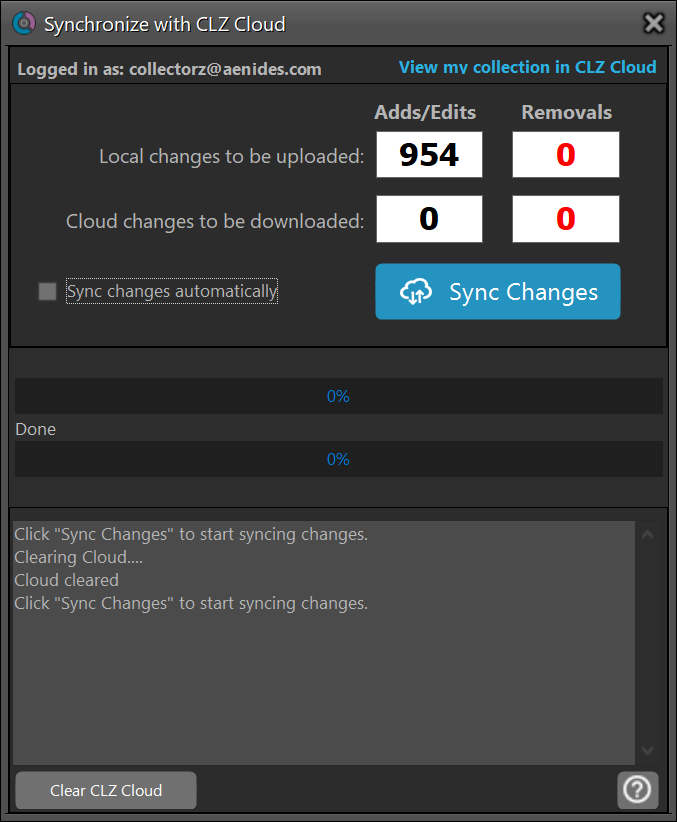
If you wish to then synchronize your local copy of the database to
a copy stored in the cloud, you can click on Sync Changes.
When you do so you should see "sending items to cloud." Be prepared to
wait a few minutes for the synchronization operation to complete if you have a
large number of books in your Book Collector database. You will see the
number of "Adds/Edits" decrease to zero as books are uploaded. When the process
is complete you will see the message "Finished syncing changes. Would you
like to view your collection in CLZ Cloud?"
[/software/database/collectorz]
permanent link
Tue, Nov 03, 2020 3:56 pm
Book Collector lock file
When I opened Book Collector version 20.5.2 today, I saw the message
"Failed to open database, because your license key (xxxxxxxxxxxx) is already in
use on computer "YYYYYYYY" by another user (zzzzzz). Do you wish to unlock your
database file and open it here?" I could choose "yes" or "no" with the "no"
answer opening Book Collector with a new empty book database. The computer the
message referenced was the one on which I was currently trying to open the
program. Since the system I was using had crashed earlier in the day, I
realized that Book Collector was likely finding a lock file that would be
deleted when the program is closed normally. I saw a file with the name I had
given to my book collection, but with a .bkclck
filename
extension in the directory where I stored the book database. When I opened
the file I saw the file conained only one line:
<lockinfo><writable><client pcname="YYYYYYYY" name="5c22840efc7a3db854c44b0b780f8abc" key="xxxxxxxxxxxx" username="zzzzzzzz"/></writable></lockinfo>
In cases where Book Collector was not closed normally, you can either choose
"yes" at the prompt or delete the .bkclck file before opening Book
Collector as its presence is what causes the message to appear.
[/software/database/collectorz]
permanent link
Thu, Jun 25, 2020 8:59 pm
Book Collector - Adding an author or publisher image
If you are using
Book Collector to track your book
collection and wish to add a photograph of an author to the information about
the author, you may be able to do so by taking the following steps:
-
Download the image of the author. If you wish, you can place the image in the
location where book cover images are stored, i.e. the
images
directory beneath the Book Collector directory where you store the book
database.
-
If you are editing an entry for a book by the author, you can right-click on the
icon of three horizontal bars to the left of the author's name while editing
the book entry and select "Edit this author entry." Or from the main Book
Collector window, you can select "Edit" then "Manage Pick Lists" to select
the author picklist where you can select the relevant author—you can
double-click on the author entry then to edit it.
-
In the Edit Author window, click on the Images tab.
-
For the "Template Image" field, browse to where you downloaded
the image of the author. Once you have selected the image, click on OK.
Leave the "Image (will be scaled to 16x16)" field blank.
You can then close the entry where you are editing the author's information.
When viewing the entry for a book by the author from the book list in
the home screen for Book Collector, you should then see a small thumbnail
picture of the author.
If you don't have an image, but want to add a picture to the author's
entry, check to see if there is a
Wikipedia entry for the author or if
the author has a website.
You can use similar steps to add an image for a publisher's entry in
the database.
[ More Info ]
[/software/database/collectorz]
permanent link
Mon, May 14, 2018 11:09 pm
Using local time for date calculations in SQLite
I have an
SQLite database that I use to track approval of tasks. Every Monday,
I need to generate a count of the number of tasks approved from the prior
Tuesday through the Monday on which I'm creating the report. The approval
dates are stored in the database as an integer and I enter them in the
form 2018-05-14. I use the following
SQL command in a
Python script to determine the number I've approved
in the last week:
sql = 'SELECT COUNT(*) FROM Tasks WHERE Approved >= date(CURRENT_DATE,"-6 day")'
But I noticed that the count didn't always include the tasks I approved
on the prior Tuesday. E.g., when I ran the script tonight, May 14, the number
reported was 5, yet I expected the result to be 7.
[ More Info ]
[/software/database/sqlite]
permanent link
Tue, Nov 28, 2017 11:19 pm
Find entries in one table but not a second table in a database
I have an SQLite
database stored on my MacBook Pro laptop that I use to track work requests. The
database file is named CRQ.db, since it tracks work done under
a Change Request (CRQ). Within that database are several
tables
two of which are "Equipment" and "Device". For every CRQ that I need to
deal with, I store records with the CRQ number in a "CRQ"
column and an identifier for each piece of equipment affected by work done
under that CRQ in a "Device" column. information on equipment that is affected
by the CRQ in the Equipment table. I have another table named "Device" that
holds details for each device, including the manufacturer and model number as
well as the physical location of the device. The information in the
"Description" column in the "Device" table matches the "Device" name in
the "Equipment" table. The two tables have the following structure:
Equipment
| Name | Type |
|---|
| CRQ | Text |
| Device | Text |
| Project | Text |
| Notes | Text |
Device
| Name | Type |
|---|
| Description | Text Unique |
| Manufacturer | Text |
| Model | Text |
| Site | Text |
| Building | Text |
| Room | Text |
| Notes | Text |
Equipment.Device = Device.Description
[ More Info ]
[/software/database/sql]
permanent link

Privacy Policy
Contact

