
You can view the current setting for a Microsoft Windows system to turn off the attached screen by typing "power settings" in the Windows "Type here to search" field and selecting "Power & sleep settings".
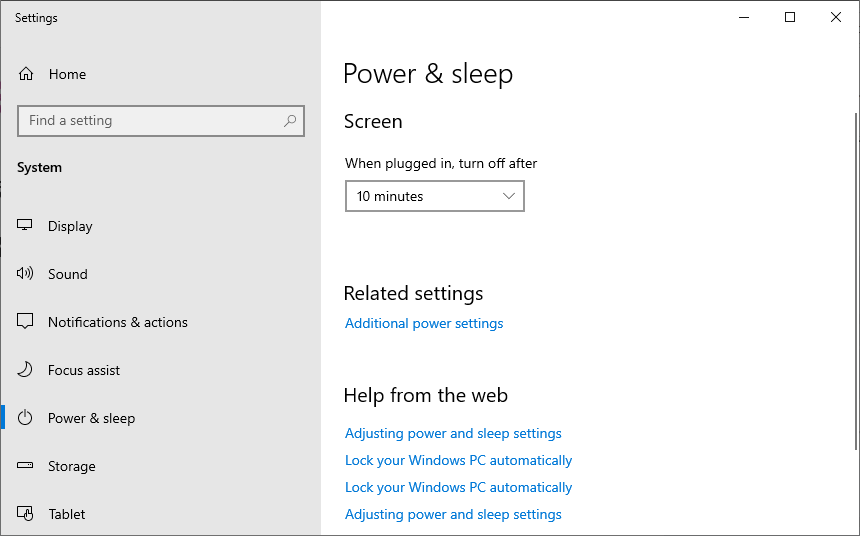
Settings on a desktop system running Windows 10
Alternatively, you can see the current screen timeout power off settings
from a
command-line interface (CLI) using the command
powercfg /query SCHEME_CURRENT SUB_VIDEO VIDEOIDLE
from a PowerShell or
command prompt window.
C:\>powercfg /query SCHEME_CURRENT SUB_VIDEO VIDEOIDLE
Power Scheme GUID: 381b4222-f694-41f0-9685-ff5bb260df2e  (Balanced)
  GUID Alias: SCHEME_BALANCED
  Subgroup GUID: 7516b95f-f776-4464-8c53-06167f40cc99  (Display)
    GUID Alias: SUB_VIDEO
    Power Setting GUID: 3c0bc021-c8a8-4e07-a973-6b14cbcb2b7e  (Turn off display after)
      GUID Alias: VIDEOIDLE
      Minimum Possible Setting: 0x00000000
      Maximum Possible Setting: 0xffffffff
      Possible Settings increment: 0x00000001
      Possible Settings units: Seconds
    Current AC Power Setting Index: 0x00000258
    Current DC Power Setting Index: 0x0000012c


C:\>
[ More Info ]

