←August→
| Sun |
Mon |
Tue |
Wed |
Thu |
Fri |
Sat |
| |
|
|
|
|
|
1 |
| 2 |
3 |
4 |
5 |
6 |
7 |
8 |
| 9 |
10 |
11 |
12 |
13 |
14 |
15 |
| 16 |
17 |
18 |
19 |
20 |
21 |
22 |
| 23 |
24 |
25 |
26 |
27 |
28 |
29 |
| 30 |
31 |
|
|
|
|
|
|
|
Thu, Aug 06, 2026 3:29 pm
Registry location for Advanced Diary registration information
The Advanced Diary journaling/diary
program from CSoftLab stores its
license information in the
Windows registry at
HKEY_CURRENT_USER\Software\CSoftLab\Advanced Diary. When you
install the software, you will have a 30-day trial period and the
LicenseCode and LicenseName keys will not have
any values set. You can see the values using the Microsoft Windows registry
editor regedit.exe.
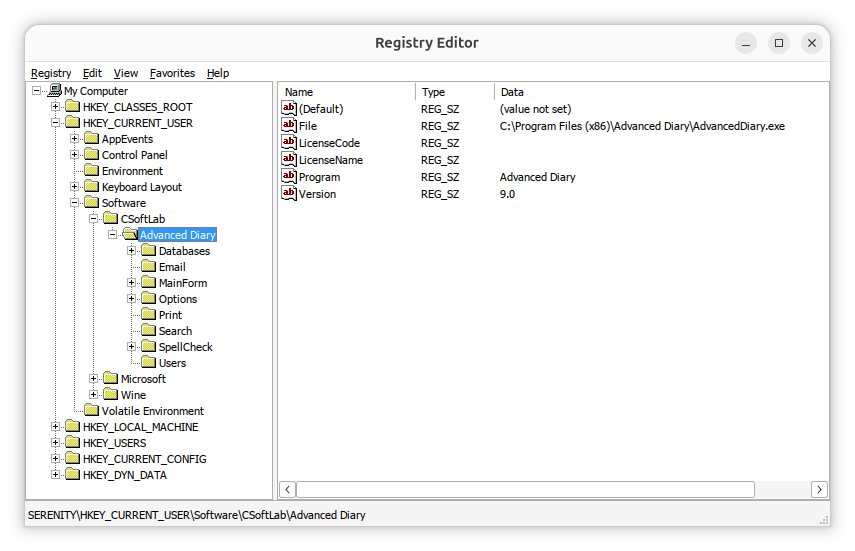
If you need to view the license information, you can navigate to the
HKEY_CURRENT_USER\Software\CSoftLab\Advanced Diary key in
the registry using the registry editor or you can
open a command prompt window and
issue the following reg query commands.
C:\>reg query "HKCU\SOFTWARE\CSoftLab\Advanced Diary" /v LicenseName

HKEY_CURRENT_USER\SOFTWARE\CSoftLab\Advanced Diary
    LicenseName    REG_SZ    John Doe


C:\Users\Lisa>reg query "HKCU\SOFTWARE\CSoftLab\Advanced Diary" /v LicenseCode

HKEY_CURRENT_USER\SOFTWARE\CSoftLab\Advanced Diary
    LicenseCode    REG_SZ    VN37-H79K-28ZZ-XMMUMM9XX9


C:\>
You can extract the information from the registry by right-clicking on the
Advanced Diary entry in the registry and choosing Export
and then saving the information to a .reg registry file. That will save all
of the registry information for Advanced Diary. You can then delete all
but the lines that are like the ones below, if you only need the license
entries in the registry.
Windows Registry Editor Version 5.00
[HKEY_CURRENT_USER\SOFTWARE\CSoftLab\Advanced Diary]
"LicenseName"="John Doe"
"LicenseCode"="VN37-H79K-28ZZ-XMMUMM9XX9"
You can then import the registry entries after installing Advanced Diary
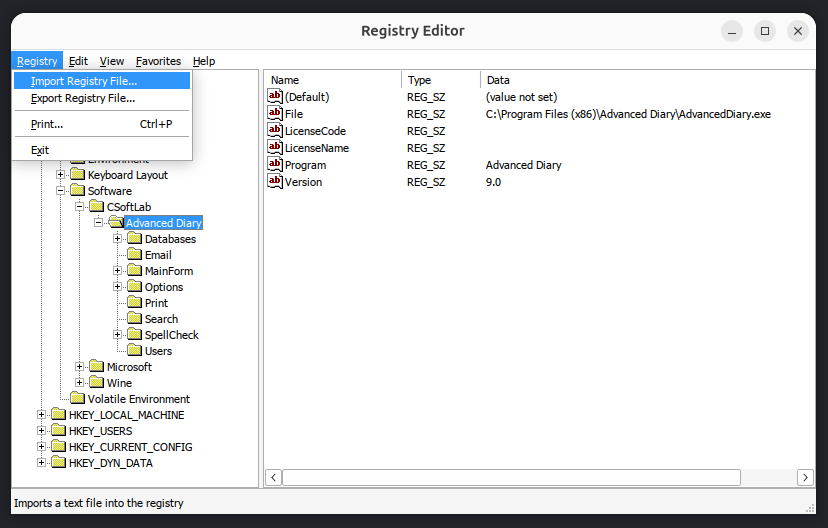
on another system. You can import them by opening the registry editor and
choosing Registry and then Import Registry File.
Note: if you are transferring the registry keys to an installation of
Advanced Diary running under Wine on a Linux system, you can run the
registry editor provided by Wine by opening a
terminal window
and then setting the WINEPREFIX environment variable equal to
whatever Wine prefix you have set, if you are using one other than the
.wine one, and then running wine regedit. E.g.:
$ export WINEPREFIX="$HOME/.wine-advdiary"
$ wine regedit
If you have saved the registry values to a .reg file, e.g.
file.reg, and want to import the values from that file from
a command-line
interface (CLI), open a
command prompt window as an administrator and run
reg import "C:\path\to\file.reg". Alternatively, use
regedit /s "C:\path\to\file.reg" to import the file silently
without a confirmation prompt. To import the registry values from a
Windows system into the registry for an instance of Advanced Diary 9.0
running in a Wine prefix named .wine-advdiary on
an Ubuntu Linux system,
I used the commands below in a terminal window to import a .reg file
named AdvancedDiary_LicenseInfo.reg.
$ export WINEPREFIX="$HOME/.wine-advdiary"$ wine regedit /s "$HOME/Documents/AdvancedDiary_LicenseInfo.reg"
$
After doing so, when I clicked on Help and chose About Advanced
Diary, I saw it was registered.
Related articles:
-
Obtaining a command prompt in Windows 11
Date: August 14, 2023
-
Windows Reg Query Command
Date: October 1, 2026
-
Checking Microsoft Windows proxy server
settings
Date: January 7, 2015
-
Installing Advanced Diary on a Linux system with Wine
Date: February 24, 2026
-
Access violation when installing Advanced Diary 9.0 with Wine on a Linux system
Date: August 4, 2026
-
Advanced Diary Active Database and Backup Registry Values
Date: July 18, 2026
[/os/unix/linux/wine/AdvDiary]
permanent link
Tue, Aug 04, 2026 9:27 pm
Access violation when installing Advanced Diary 9.0 with Wine on a Linux system
I needed to install the
Advanced Diary diary/journaling program
from CSoftLab on an Ubuntu
Unix system. The application is developed only for Microsoft Windows,
so to get it to work on an Ubuntu Linux system I used
Wine, which is
free and
open-source software that allows one to run applications developed
for the Microsoft Windows
operating system
(OS) on Linux systems.
I started the installation from a
terminal window after
creating and initializing a Wine
prefix for it. But when I clicked on Install, I saw the
message "Invalid operation in GDI+ (Code: 2)". When I canceled the
installation and closed the window associated with it, I saw an error
window stating "The setup files are corrupted. Please obtain a new copy
of the program." I had encountered the same "Invalid operation in GDI+
(Code: 2)" problem many months ago (the setup file wasn't actually
corrupted, so I could ignore that message) when I installed a previous
version of Advanced Diary, version 8.0, on another system using Wine
— see Installing Advanced
Diary on a Linux system with Wine — and remembered that I
had used a shell
script then to install additional software for Wine that
would alleviate that problem. I needed Winetricks installed, so
I verified I had already installed it on this system with the which command
(you can install it with sudo apt install winetricks,
if it is not installed). I used winetricks to install gdiplus and core
fonts for Windows applications. That resolved the problem with the
"Invalid operation in GDI+ (Code: 2)", but then I saw a
"Access violation at address 75D947DC in module 'qcap.dll'. Read of address
5F505353" message every time I started Advanced Diary.
[ More Info ]
[/os/unix/linux/wine/AdvDiary]
permanent link
Fri, Jul 31, 2026 9:18 pm
Creating and using a Wine prefix on an Ubuntu Linux system
A Wine prefix is a directory that acts like a separate Windows installation.
Each prefix has its own registry, installed programs, libraries, and
configuration, providing a way to isolate applications and configure Wine
in a way that is optimal for a particular Windows application or set of
applications without affecting other Windows applications that you need
to run on the system. To create a new Wine prefix, take the following
steps:
Create a new Wine prefix
Open a
terminal
window.
-
Choose a location for the new prefix. For example:
export WINEPREFIX="$HOME/.wine-myapp"
-
Initialize the prefix:
WINEPREFIX="$HOME/.wine-myapp" wineboot
Wine will create the directory and initialize a fresh Windows environment.
[ More Info ]
[/os/unix/linux/wine]
permanent link
Wed, Jun 17, 2026 9:08 pm
Unable to access minimized Collectorz windows
My wife and I have been using the Microsoft Windows desktop versions
of CLZ's database programs for managing
book, comic, and movie collections for many years. We've found the Collectorz
database programs to be
well-designed and very useful, but we've encountered some issues getting the
programs to work correctly on her
Ubuntu Linux system, though
I would note that the software was developed for Microsoft Windows
operating systems
and the company doesn't indicate they are supported under Linux.
One problem we encountered is that after installing the programs under
Wine, when she
opened one of the programs, e.g., Movie Collector, and then minimized it
or switched to another application with Alt-Tab, she was unable to
switch back to the Collectorz program. Alt-Tab would not work nor
would the
Super key plus Tab key combination. There would be a small window
at the upper, left-hand corner of the screen indicating the program was
running, but clicking on it would not allow her to enlarge the window to
work in the application again and there didn't appear to be any way to
enlarge or maximize the window.

I was able to resolve the problem with minimizing the application or
switching from it without re-creating a problem opening files by checking the
Emulate a virtual desktop option under the Graphics
tab for winecfg instead.
[ More Info ]
[/os/unix/linux/wine/collectorz]
permanent link
Sun, Jun 07, 2026 8:35 pm
Wine Iexplore unable to access webpages via HTTPS and Collectorz database programs
Wine allows
you to run programs developed for Microsoft Windows systems under
Linux. It comes with its
own version of the
Internet Explorer browser. I encountered problems when attempting to
access webpages via
HTTPS with
that browser under Wine, though access via
HTTP worked
fine. When I tried accessing pages via HTTPS, I would see only
a blank page. I discovered that problem while trying to resolve
problems with the installation of Windows desktop programs from
Collectorz to manage our book, comics,
game, and movie collections — I was seeing "Error while connecting
to server: 276: Server certificate verification failed. Connection
aborted" messages when trying to register the programs with our Collectorz
account's userid and password. I was able to eliminate the problem with
the Collectorz desktop database programs by resolving the problem with
Wine's version of the Internet Explorer browser.
[ More Info ]
[/os/unix/linux/wine/collectorz]
permanent link
Sat, May 23, 2026 7:11 pm
Addressing a problem with Disney Dreamlight Valley crashing under Steam
A couple of days ago, when my wife tried to play
Disney
Dreamlight Valley under
Steam on her
Ubuntu Linux system, when
she clicked on "Play" it would appear that the game was going to start,
but it never did. When I checked on whether the executable program for
the game, ddv.exe, was running using the
ps command and
piping its output through
grep with ps -aux | grep -i 'ddv.exe' | grep -v grep
in a Terminal window,
I could see it ran briefly, but when I reissued the command a few moments
later, it was no longer running. To troubleshoot the problem, I closed
Steam and then killed all running instances of it with
pkill command, i.e.,
pkill Steam, in a Terminal window. The system has a
NVIDIA Quadro P2000 and the problem seems to have
been an issue related to
Vulkan
graphics software on the system. When I upgraded the
operating system and rebooted, the problem disappeared.
[
More Info ]
[/os/unix/linux/wine]
permanent link
Sun, May 03, 2026 9:42 pm
Disney Dreamlight Valley Cloud Save Problem Under Ubuntu
My wife had been playing
Disney
Dreamlight Valley under
Windows 11. When
I installed
Ubuntu
25.10, I installed
Wine, then
Steam
as a Snap
package, and then installed Disney Dreamlight Valley under Steam. She
was able to use the Cloud Save option to log into the game with all of the
progress she had made under Windows. She needed to switch back to Windows for
a while and didn't switch back to Ubuntu for several weeks. When I started
Steam and Disney Dreamlight Valley again under
Ubuntu and then tried
the Cloud Save option, it did not work with the message below displayed
when I was prompted to provide login credentials:
Login Error
Cannot connect to online services. Continue playing in offline
mode
If I entered the wrong password, I got a response indicating that
the system was able to check the credentials, which I presumed were being
checked on a remote server. And I was able to successfully use the
change password option, which sent a password reset code to my wife's
email address. I was able to resolve the problem by uninstalling
Disney Dreamlight Valley under Steam and then reinstalling it.
[ More Info ]
[/os/unix/linux/wine]
permanent link
Sat, Apr 04, 2026 4:05 pm
Moving a Filename Magic Pro license from one system to another
My wife has been using
Filename Magic Pro for Windows for many years; she has version 1.00,
which still appears to be the latest version. The
software "offers robust functionality for batch renaming files within
folders. It streamlines the process for organizing large collections of
documents, music, or images." I transitioned her desktop PC from
Microsoft Windows 11
to
Ubuntu Linux 25.10 and installed
Wine so that she
could run Windows applications that she might want to still use on the
Ubuntu system. I was able to install Filename Magic Pro and use it without
any problems on the Ubuntu system. If you choose to have the program
create a desktop shortcut during the installation, you will see two
shortcuts on the desktop, Filename Magic Pro.desktop and
Filename Magic Pro.lnk. If you right-click on Filename Magic
Pro.desktop and choose Allow Launching, you can then
double-click on the shortcut to start the application. You can delete
the Filename Magic Pro.lnk by right-clicking on it and
choosing Move to Trash.
When you start the program, if it is unregistered, you will see
a countdown timer that counts down from 15.
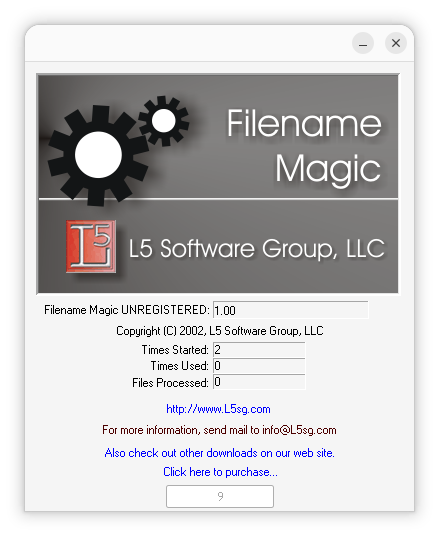
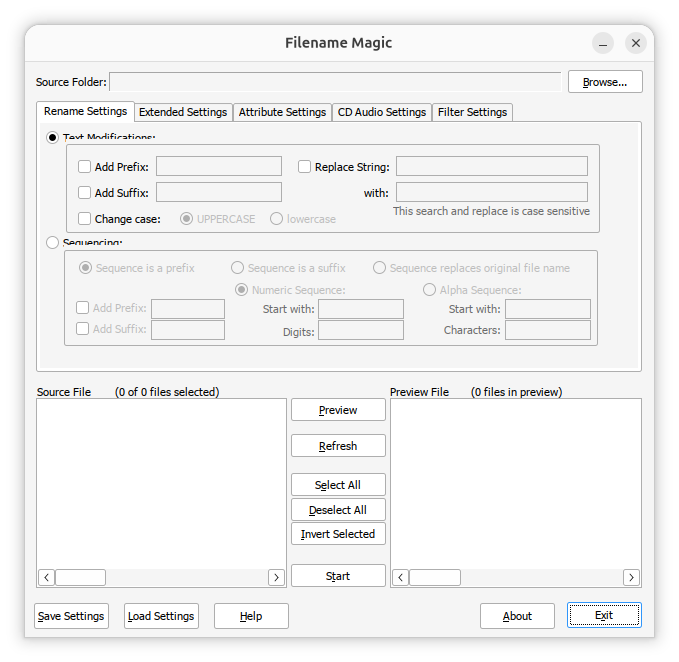
You can wait to the countdown gets to zero or just close the countdown
window to proceed, which will then lead to the display of the window
below.
There is a "click here to purchase" link, but that no longer works; if
you click on it, you will see a
HTTP 404 error
indicating the page no longer exists. But if you previously purchased a
license as we had, you can transfer it from an old system to a new system
or, in our case, from Windows to Linux by exporting the
HKEY_LOCAL_MACHINE\SOFTWARE\WOW6432Node\L5 Software Group
registry keys, which you can do with the Windows
registry
editor, RegEdit, or you can download or copy this
L5SoftwareGroup.reg file and edit it with a
text editor, such as
Windows Notepad
and replace the AppRegKey Xs with your license key (be sure to save it
with just the .reg extension and not a .txt file extension tacked on).
You can add the registry keys to the registry used by Wine by opening
a Terminal window
and running the command wine regedit filename.reg
where filename is the name of the .reg file.
jim@Wonderland:~$ wine regedit ~/Downloads/L5SoftwareGroup.reg
jim@Wonderland:~$
When you then open the program, you won't see the countdown
timer and can just click on OK. You can press Alt-Tab
afterwards to get to the main Filename Magic Pro window.
[/os/unix/linux/wine]
permanent link
Mon, Mar 30, 2026 9:51 pm
Setting the default application to open PDF and EPUB files in Wine
I installed Wine
on an Ubuntu Linux
system to be able to run Microsoft Windows applications on it. I
installed Sumatra
PDF to view PDF and
EPUB files. When
I double-clicked on EPUB files in the Wine
File Explorer
window, which you can run by issuing the command wine explorer
in a Terminal
window, or wine explorer &, if you wish to open it and
immediately return to the
shell prompt,
I saw an Error window which stated "There is no Windows program
configured to open this type of file." If I double-clicked on a PDF file,
it would open in the
GNOME Document Viewer
application. I was able to set the default application for opening those
files under Wine with the following steps:
-
From the Bash prompt in a Terminal window, run the Wine
registry
editor program to modify the
Windows
Registry with
wine regedit.
-
Navigate to
HKEY_CLASSES_ROOT\.epub and set
(Default) = epubfile. If you don't see a .epub
entry, right-click on HKEY_CLASSES_ROOT and choose New.
You can press the F5 key or choose View and Refresh to
refresh the display to show the new entry in alphabetical order.
-
If you then click on the
.epub entry, you will see
(Default) under Name, REG_SZ
under Type, and (value not set) under Data.
-
Double-click on the entry and then type
epubfile in the
Value data field and then click on OK.
-
Then navigate to
HKEY_CLASSES_ROOT\epubfile\shell\open\command,
if it exists. If there is no epubfile entry you can create one by
right-clicking on HKEY_CLASSES_ROOT and selecting
New and Key giving the new key a name of
epubfile. Then double-click on the (Default) entry
under the new key and type EPUB Document in the Value
data field. Then right-click on the epubfile key
and choose New and Key and type shell for
the name. Right-click on shell and create a new, open
beneath it. Then right-click on open and create a new key,
command beneath open.
-
Then right click on the command key and choose New then
String Value.
-
Double-click on the new (Default) entry under command
and then type the location and file name for the application that you
wish to use to open .epub files within double quotes followed by a space
and then
"%1", e.g.
"C:\Program Files\SumatraPDF\SumatraPDF.exe" "%1", if
you wish to open the files with Sumatra PDF and you installed it so
that it is accessible to all users of the system. Or use
"C:\users\username\AppData\Local\SumatraPDF\SumatraPDF.exe
" "%1"
, where username is the relevant username, if you chose
to install it just for the current user when you installed it.
[ More Info ]
[/os/unix/linux/wine]
permanent link
Sat, Feb 28, 2026 8:29 pm
Creating a desktop shortcut under Ubuntu for a Windows app runnning under Wine
From a CD, I
installed
Microsoft Office 2007 under
Wine, so that
my wife could edit her
Microsoft
Publisher files on an
Ubuntu Linux system. I also installed
Microsoft Excel
and Microsoft Word.
All three seemed to be working OK when I checked them after the
installation completed. I was able to open the programs from the
File Explorer by
issuing the command wine explorer from a
shell prompt in
a Terminal window
and then navigating to the directory,
C:\Program Files (x86)\Microsoft Office\Office12, where the
applications were located. I could also start Publisher by issuing the command
below in a Terminal window:
wine "/home/alice@Wonderland/.wine/drive_c/Program Files (x86)/Microsoft Office/Office12/MSPUB.EXE"
To make it easer for my wife to open Publisher, though, I created a
shortcut on her Ubuntu desktop. To create a shortcut you can take the
following steps:
Open a Terminal
window and create a new .desktop file on your desktop. You can use
the nano
editor or another text
editor to create the file. E.g., nano
~/Desktop/AppName.desktop.
You then need to have lines like the following ones in the file:
[Desktop Entry]
Name=Name of Your Application
Exec=wine "/home/username/.wine/drive_c/Program Files/AppName/app.exe"
Type=Application
Icon=wine
Terminal=false
StartupNotify=true
You need to use the absolute path the the .exe file for the program and,
if the directory
path contains a space, you must enclose the path within quotes. Also,
you need to replace username with your username on the system.
For Publisher, I could use the following lines:
[Desktop Entry]
Name=Publisher
Exec=wine "/home/alice@Wonderland/.wine/drive_c/Program Files (x86)/Microsoft Office/Office12/MSPUB.EXE"
Type=Application
Icon=wine
Terminal=false
StartupNotify=true
If you use the nano text editor, you can hit Ctrl+X, the
Y, then Enter to save the file. You then need to make
the shortcut executable, which you can do by right-clicking on the file
on the desktop, selecting Properties, and then makng sure "Executable
as Program" is on. Or you can use the
chmod command to make
the file excutable by a command like chmod +x ~/Desktop/AppName.desktop
. You then need to permit launching of the application from the shortcut
by right-clicking on it and selecting Allow Launching.
[ More Info ]
[/os/unix/linux/wine]
permanent link

Privacy Policy
Contact

